
Reference · Desktop and system
Desktop widgets
Clock, calendar, weather, music, batteries and system cards on the desktop.
On this page
What it is
Widgets are cards on the desktop: clock, calendar, weather, now playing, batteries and system load. You can build your own from a small package.
Why
Glanceable information belongs on the desktop, not in an app you have to open, but it must not cost battery: each widget refreshes only as often as its data changes.
How
Right-click the desktop and choose Edit Widgets, or open Settings > Widgets and click Edit Widgets…. You see the widgets on the desktop and the ones you can add, each with Add.
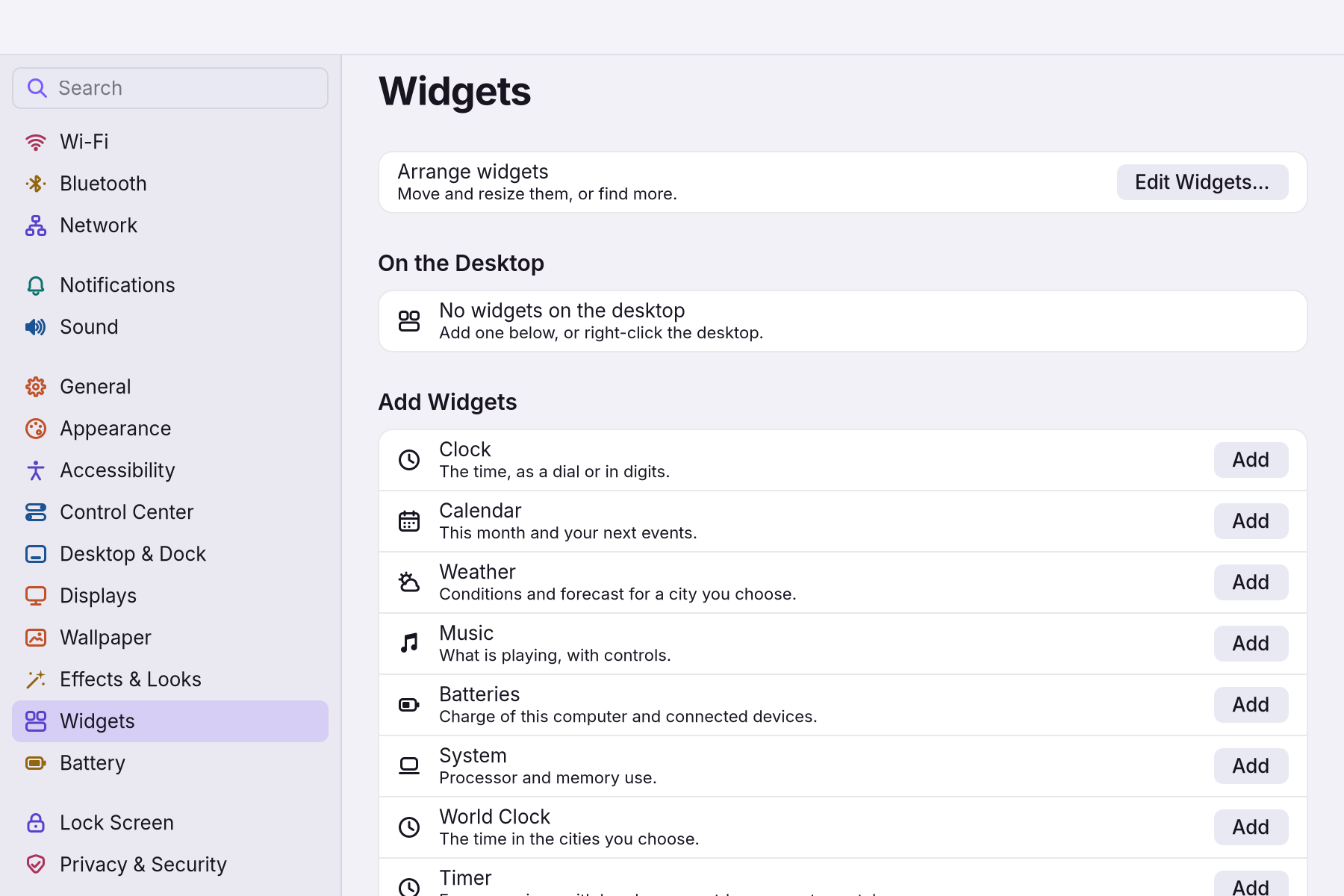
- Pick a widget, choose a size and click Add Widget.
Drag it into place. Widgets pause while a game or video is full screen on that display.
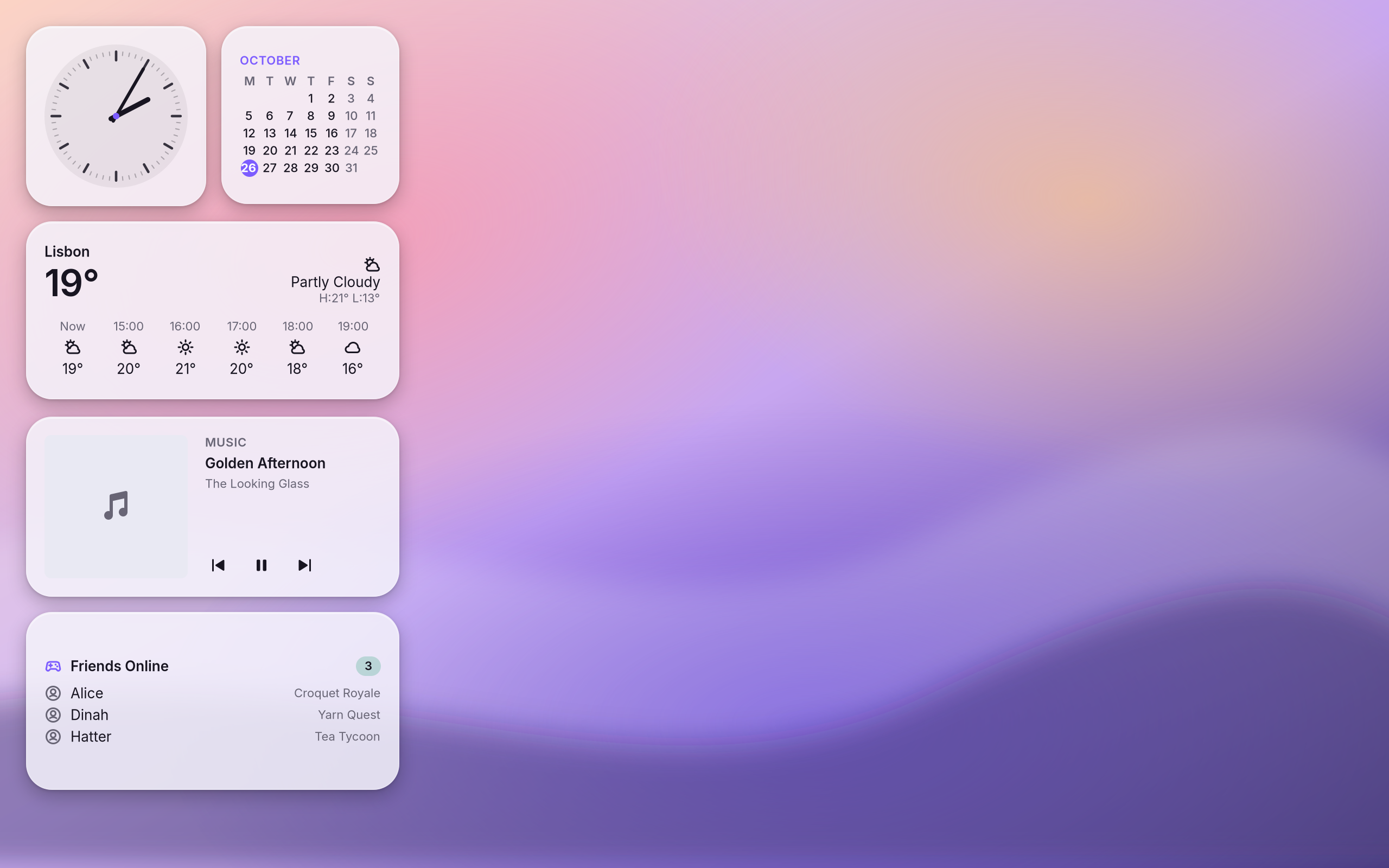
- To move, resize or remove widgets later, see Arranging widgets.
- To build your own, copy the example folder and follow the five-minute guide below.
If something goes wrong
| What you see | What to do |
|---|---|
| A widget shows an error card | A package that does not validate shows an error card with each problem, never a blank card. |
| A widget stopped | Widgets that take too long are stopped. |
| Widgets are paused | Desktop widgets pause per display, by that display's own full-screen state. |
Related
Settings > Widgets · Plugin API reference
Reference
Decision: ADR 0010. Code: crates/shared/src/widgets/ (layout file, package schema, bindings, grid), crates/core/src/widgets.rs (packages, sources, layout store), crates/shell/src/widgets/ (built-in data), crates/shell/src/ui/widgets*.rs (desktop, gallery, cards), crates/shell/src/kit/data.rs (card, gauge, chart, clock face, month grid), crates/controller/src/widgets.rs (wol widgets).
Using widgets
- Right-click the desktop, Edit Widgets… (or
wol shell show widgets). Pick a widget in the gallery, choose Small, Medium or Large, click Add Widget. Drag cards to move them; the minus button removes one. Done or Esc leaves. - Right-click a card: size, clock face, weather city and units, remove.
- Weather asks for a city by name. Forecasts come from Open-Meteo; only the city you type is sent.
| Built-in | Data | Refresh |
|---|---|---|
| Clock | local time | on the minute |
| Calendar | Evolution Data Server (today's events), month grid | 15 min, and at midnight |
| Weather | Open-Meteo, cached in ~/.cache/wolos/weather/ | 30 min, cache shown offline |
| Music | MPRIS (D-Bus signals), Kit Now Playing | on change only |
| Batteries | UPower devices (D-Bus signals) | on change, 2 min for the estimate |
| System | CPU busy %, memory, load, uptime | 10 s, only while one is on the desktop |
Build a widget in 5 minutes
- Copy the example:
cp -r /usr/share/wolos/widgets/game-friends ~/.local/share/wolos/widgets/my-widget. The folder name is the widget's id (lowercase letters, digits,-). - Make the data source print JSON.
friends.shis a plain script; replace its body with your query and keep the shape. - Edit
widget.json: name, sizes, and one layout per size. - Check it:
wol widgets validate my-widget. It names every problem with its JSON path, runs the source once, and lists every{{binding}}the output does not fill. wol widgets add my-widget medium(or add it from the gallery). After edits:wol widgets reload.
{
  "name": "Game Friends",
  "description": "Which friends are online, and what they play.",
  "icon": "input-gaming-symbolic",
  "sizes": ["small", "medium"],
  "refresh": 120,
  "source": {"command": ["./friends.sh"], "timeout": 4},
  "layouts": {
    "small": {"type": "stack", "children": [
      {"type": "label", "text": "Friends", "role": "title"},
      {"type": "spacer"},
      {"type": "label", "text": "{{online.length}}", "role": "display"},
      {"type": "label", "text": "online of {{total}}", "role": "secondary"}
    ]}
  },
  "sample": {"total": 12, "online": [{"name": "Alice", "game": "Croquet Royale"}]}
}
widget.json
| Key | Meaning |
|---|---|
name, description, icon | gallery entry (symbolic icon name) |
sizes | any of small (1x1 cell), medium (2x1), large (2x2) |
refresh | seconds between source runs: 0 once, else 60 to 86400 (default 900) |
source | exactly one of command (argv, ./x is in the package; timeout 1-30 s), file (JSON in the package or ~/...), http (GET; the card asks the user to allow the host first) |
layout / layouts | one layout for every size, or one per size |
sample | data for gallery previews and validate; sources never run in the gallery |
_anything | comment, ignored |
Layout nodes (all Kit parts)
type | Keys |
|---|---|
stack, row | children, spacing (0, 4, 8, 12, 16, 24), align (start, center, end, fill) |
card | children, spacing: an inner group |
label | text, role (display, large, title, body, secondary, caption), tone (text, dim, accent, success, warning, danger), lines, align |
icon | name (symbolic), size (small, medium, large), tone |
image | src (file in the package, or one the source cached), size |
list | items ("{{array}}"), item (a node; {{item.x}} inside), max (1-20), empty, spacing |
button | label and/or icon, exactly one of run (argv, program written out), open (https/http/mailto URL), app (desktop entry id) |
gauge | value, max, label, icon, tone, size: a ring |
chart | kind (line, bar), values ("{{array}}"), max, tone, size |
progress | value, max, tone |
badge | text, tone |
spacer | takes the free space (pin a row to the bottom edge) |
Bindings: {{a.b}}, {{list[0].name}}, {{list.length}}. A missing value renders empty, and validate reports it.
Layout: a stack without a spacer sits centred in the card; add a spacer to pin the first rows to the top and the last to the bottom.
Limits: depth 12, 200 nodes, output 256 KB. A package that does not validate shows an error card with each problem, never a blank card.
Calm (performance.md budgets)
- One timer for the whole desktop, armed for the earliest due widget. Deadlines sit on wall-clock multiples of each period, so a clock, a calendar and a 5-minute custom widget wake together.
- Music and batteries listen to D-Bus signals; no polling.
- A maximized or fullscreen window on the workspace a display shows: that display's timer stops (each display follows its own output, not the focused one); the first wake after it ends catches up.
- No animation unless the user acted (drag, gallery). Data changes swap content in place, and identical data changes nothing on screen.
WOL_SHELL_TIMING=1prints each widget wakeup: what ran, and how long it took.
CLI
| Command | Does |
|---|---|
wol widgets / list [--json] | widgets on the desktop (id, size, cell) and every one you can add |
wol widgets add <kind> [size] | built-in id, package id or custom:<id>; nearest free cell from the top-left |
wol widgets remove <id> | take one off by id |
wol widgets reload | the desktop rereads widgets.json and the package folders |
wol widgets validate <id or folder> | schema with JSON paths, source run, every binding |
Related
- Plugin API referenceThe complete manifest, permissions and Lua API for shell plugins.
- The wol commandEvery wol command, what it does, and which ones helpers may call.
- Plugin Maker and Theme StudioMake a plugin or a theme and see it live in a sandbox, then package it for the plugin index.
- libwol: the app APIOne stable C ABI for apps in any language: windows, menus, notifications, files, power and more.
- 0031: Plugins, themes and layoutsFolder plugins in a sandbox, themes for every toolkit, and layouts as data.
From the developer documentation, wonderlandos/wolos docs/modules/widgets.md.