
Reference · Desktop and system
Sound
One sound server with rules that keep microphones from clipping, low latency where it matters, and a choice of Bluetooth codecs.
On this page
What it is
WolOS uses one sound server for speakers, microphones, Bluetooth headsets and music apps. On top of it WolOS adds a few rules: where 100% sits, which buffer sizes apps get, and which effects load only when you ask for them. Think of the sound server as a mixing desk inside the computer: every app plugs into it, and WolOS sets the desk up so that nothing starts too loud, too late or too quiet.
Why
Out of the box, many laptops start a new microphone at its hardware maximum, which is 20 to 30 dB above normal and clips. Games and calls also need small buffers, while video players and Bluetooth need larger ones. Fixed defaults get one of those wrong.
How
- Set the volume. Use the Sound slider in Control Center, or the volume keys. You see the on-screen volume sign. 100% is the device's normal level (0 dB); only Allow louder goes above it.
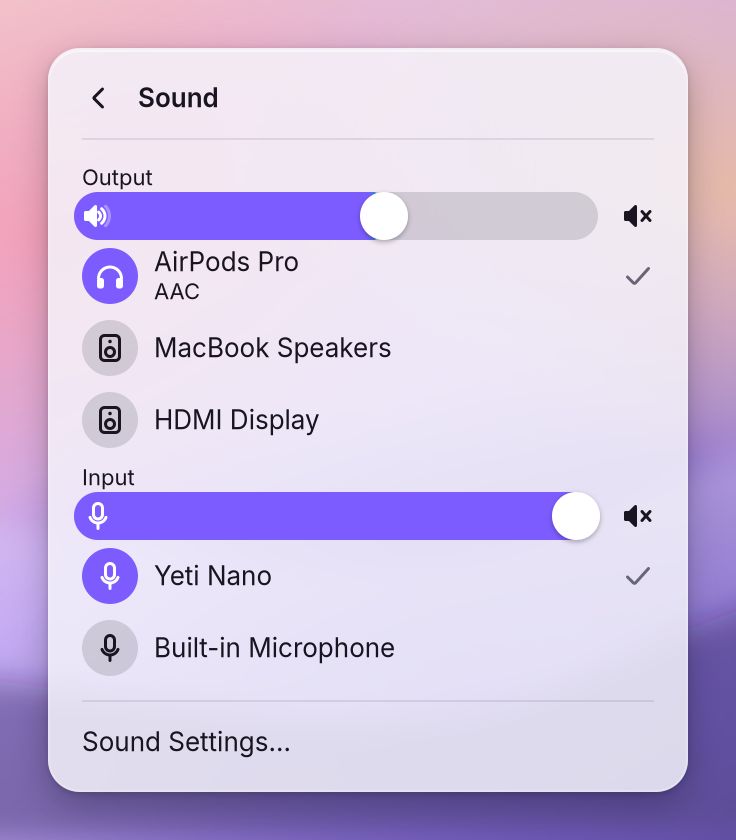
Choose the output or input. In Control Center click the arrow at the end of the Sound slider. You see your outputs with their codec, and your inputs, each with its own slider and mute button.
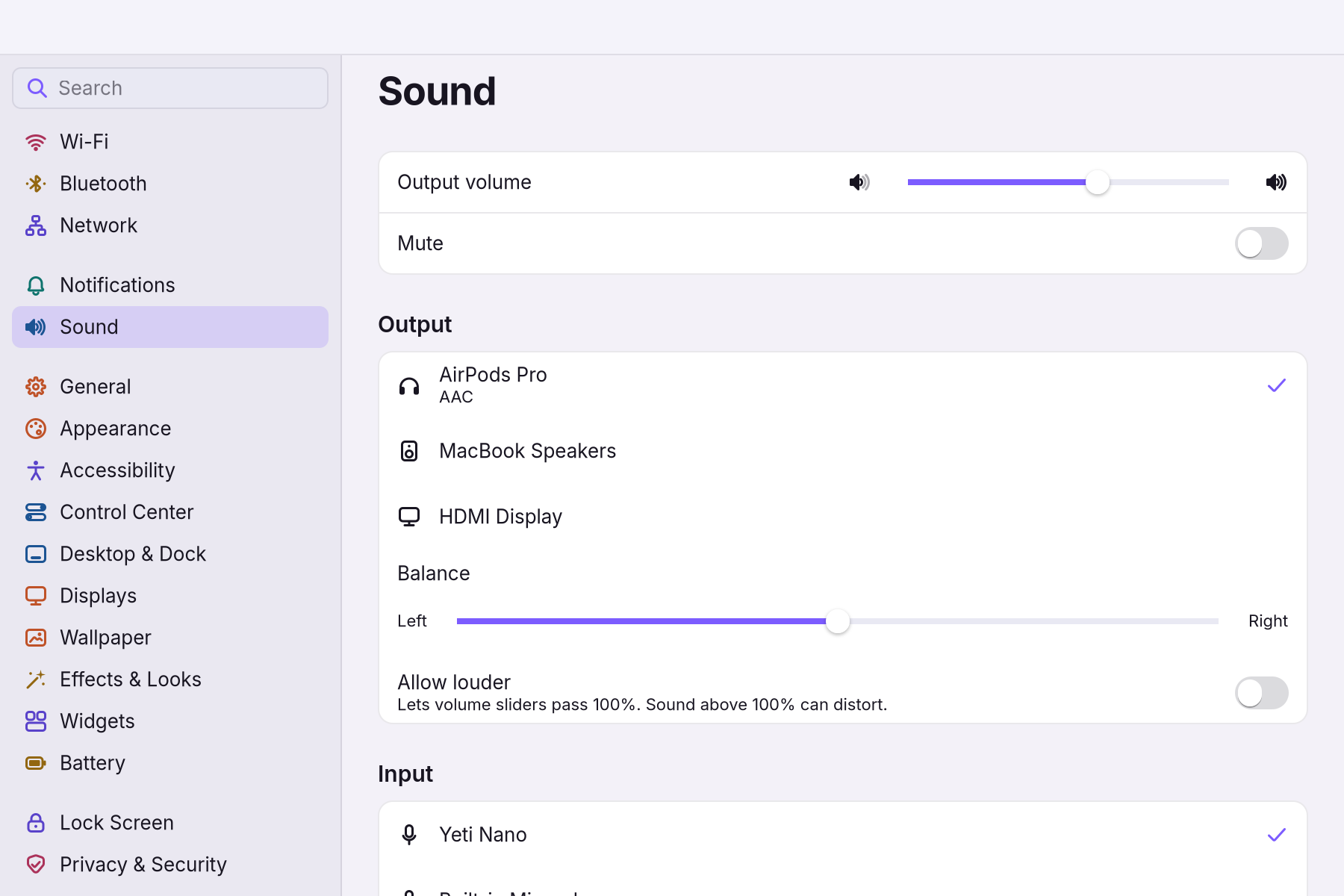
Open Settings > Sound for everything else (press Super+, and choose Sound). You see Output volume and Mute, the outputs, Balance and Allow louder, then the inputs with a level meter, the voice effects, Bluetooth, Pro Audio and Troubleshooting.
- Turn on voice effects if you want them. In Settings > Sound > Input switch on Automatic input level (keeps your voice even) and Reduce background noise. You see a new input called WolOS Microphone once the automatic level is on; it becomes the default.
- Pick a buffer only if you need one. Settings > Sound > Pro Audio sets the rate and buffer size; 64 samples is the lowest delay and may crackle, automatic is right for everything else. See Low-latency sound.
- If something sounds wrong, run
wol audio doctorin a terminal. You see each check with the exact fix.
If something goes wrong
| What you see | What to do |
|---|---|
| The microphone is too quiet or clips | 100% is the device's normal level (0 dB), not the hardware maximum. If it is quiet at 100%, turn on Allow Louder in Settings > Sound > Input and watch the level meter; red means clipping. wol audio doctor names the input's level above 0 dB and the exact fix. |
| Automatic input level or noise removal does nothing | Both are switches in Settings > Sound > Input (Automatic input level, Reduce background noise). Automatic level makes a new input called WolOS Microphone and makes it the default. In 0.12 the automatic level really turns on, and the microphone volume is set on the device itself. |
| A switch flips back | The change did not take. The line under the section says why; try again. Nothing is shown as changed that was not kept. |
| "Sound devices are coming back" | The sound server restarted. Wait a few seconds. |
| "No microphone is connected" | Nothing is plugged in or paired; check Settings > Sound > Input and the Bluetooth page. |
| Crackling or dropouts | Smaller buffers lower the delay but can crackle. In Settings > Sound > Pro Audio choose a larger buffer or automatic; the dropouts counter shows the moments sound ran out. |
| A headset is quiet or has bad sound in calls | A Bluetooth headset switches to its call profile while an app records (Autoswitch, a switch in Sound). Choose the codec in Bluetooth settings. |
| Volume jumps or does nothing on one output | Use Soft volume (for volume that jumps or does nothing on this output) in Troubleshooting. |
| The mic-mute or brightness keys did nothing | They work in 0.12. The on-screen sign for mic mute shows the microphone, not the speaker level. |
| Nothing helps | Reset in Troubleshooting (or wol audio reset --yes) forgets stored volumes and devices and restarts sound. Copy diagnostics puts the report on the clipboard for a bug report. |
Related
Low-latency sound · Sound for creators · Control Center · Settings · Hardware and drivers
Reference
Decision record: 0038 (the design for creators is creators-audio.md).
One sound server, PipeWire, with WirePlumber as its session manager (wolos-iso/profile/packages.desktop, "Audio" block). This module is about the rules WolOS adds on top and where each one lives.
The 0 dB rule
Concept. A slider at 100% means 0 dB: the device's own nominal level, not its hardware maximum.
Why. On most laptop and desktop codecs the ALSA mixer merges Capture and Mic Boost into one slider, so the top of the range is +20..+30 dB. PipeWire reports where 0 dB sits as volumeBase (for a +30 dB range it is 0.0316 linear) but WirePlumber's default for a new source was 1.0, the maximum. Every new microphone started boosted and clipping; the old shell drew that as "100%" and offered nothing below it but less of the same. Outputs never had the problem: WirePlumber starts sinks at 40%.
How.
| Piece | Where | Does |
|---|---|---|
| New inputs start at 40% | files/usr/share/wireplumber/wireplumber.conf.d/71-wolos-input.conf | device.routes.default-source-volume = 0.064 (0.4³ on the cubic scale, the same start sinks get) |
| Snap once to 0 dB | crates/audio/src/service.rs snap_once, rule in wol_core::audio::snap_to_base | a microphone seen for the first time above volumeBase is set to it, through the card's Route (when the node names a route that the card has not reported yet, the snap waits for it); the node name goes into ~/.local/state/wolos/audio-snapped so a later choice of the user is kept |
| Slider = 0 dB cap | wol_core::audio::percent_of / linear_for | 100% ↔ volumeBase; percent → gain is cubic (base·(p/100)³); above 100 only with "Allow louder" (one switch, Service::set_boost, for Action::MicVolume and Action::OutputVolume alike), up to max_percent (316% for +30 dB). The output slider is converted by the service (volume_command, linear_for), never by wpctl set-volume N% / pactl N%, which count from the hardware maximum; wol_core::audio::hardware_percent is the conversion where a pactl percent is unavoidable (balance). The volume keys, the OSD and wol volume keep the wpctl scale (wol_core::controls), which is the same number on every device with volumeBase 1.0 |
| Hardware mixer kept | 72-wolos-alsa.conf | api.alsa.soft-mixer = false, api.alsa.ignore-dB = false: USB interfaces expose preamp gain only through the mixer, and the dB table is what makes 0 dB a real slider position. "Ignore hardware volume" in Troubleshooting writes a per-device rule under ~/.config/wireplumber/, never here |
| Doctor | wol audio doctor (crates/controller/src/audio_doctor.rs, input-level) | names the default input's dB above 0 and the exact wpctl set-volume fix |
Buffers and rates
| Piece | Where | Does |
|---|---|---|
| Graph | files/usr/share/pipewire/pipewire.conf.d/70-wolos-latency.conf | 48 kHz default; allowed-rates [44100 48000 88200 96000] so a 44.1 or 96 kHz stream is followed, not resampled; quantum 1024, floor 64 (1.3 ms, games), ceiling 2048; in a VM (cpu.vm.name set) PipeWire's own rule in pipewire.conf raises the floor to 1024, which WolOS keeps; the floor in effect is clock.min-quantum in pw-metadata -n settings 0 |
| Pulse clients | files/usr/share/pipewire/pipewire-pulse.conf.d/70-wolos-latency.conf | floor 256 frames for every client (a browser cannot drag the graph to 64 and crackle); pulse.rules give 64 only to wine*, steam*, gamescope*; cpu.vm.name gets 1024 |
| Pro Audio | Settings > Sound > Pro Audio, Action::ProAudio { rate, quantum } | writes ~/.config/pipewire/pipewire.conf.d/50-wolos-pro-audio.conf (wol_core::audio::pro_audio_conf) and applies live with pw-metadata -n settings 0 clock.force-rate|quantum; 0 means automatic; xruns from pw-top -b -n 1 (parse_pw_top_xruns) |
| Realtime | files/etc/security/limits.d/70-wolos-audio.conf, rtkit | @audio rtprio 95, memlock unlimited; rtkit for everyone else |
Bluetooth
70-wolos-bluetooth.conf: codecs LDAC, aptX HD, aptX, AAC, Opus, SBC-XQ, SBC in that order; mSBC for calls; the device's own volume buttons; PipeWire's native HFP/HSP backend (no oFono); LDAC bitrate auto. 71-wolos-input.conf: bluetooth.autoswitch-to-headset-profile = true (the headset goes to HFP only while an app records; a Settings toggle) and bluetooth.profile-preference = "quality". The input level meter's capture stream carries a node.link-group (wol_audio::model::METER_PROPS), which WirePlumber's autoswitch script skips: opening Sound with Bluetooth headphones does not move them to the call profile. The codec of a connected device is Action::BtCodec(address, codec): pw-cli set-param <device> Props { bluetoothAudioCodec: "<codec>" }.
On demand, never static
Echo cancel with WebRTC gain control ("Automatic input level" → WolOS Microphone), the RNNoise LADSPA filter ("Reduce background noise", plugin noise-suppression-for-voice on the image) and the App Mix for OBS are pipewire-pulse modules the service loads when switched on and unloads when switched off (wol_core::audio::echo_cancel_argv, rnnoise_argv, appmix_argv; Service::rebuild_filters chains mic → AGC → RNNoise and makes the last stage the default input). The modules die with PipeWire, so when the connection comes back with a switch on, the service loads them again as soon as the microphone is in the registry again (Service::set_connected, refilter). No fragment under /usr/share loads a filter, a loopback or a null sink; crates/controller/tests/image_gaming_audio.rs nothing_loads_filters_or_loopbacks_statically keeps it so.
The service
crates/audio (wol_audio): one PipeWire main loop on its own thread (pipewire-rs 0.10, feature pw), talked to through wol_audio::pw::Handle (requests in, Snapshots out). Registry → model::Event; service::Service applies the rules and emits model::Commands; fake::FakeBackend plus the registry fixture are the test mode (cargo test -p audio --no-default-features needs no libpipewire). The frozen UI types are wol_core::audio::{Device, InputMeter, ProAudio, Action}; Settings and Control Center only need those and the Handle. wol audio, volume, mute and libwol keep the wpctl path in wol_core::controls.
When it runs. The service is started by the first Sound page that opens in a session (Settings > Sound or the Control Center's Sound page; each starts its own) and stops with it. So the snap-once rule applies to a microphone from the first time Sound is opened after it appeared, not from the moment it is plugged in. That is deliberate: a resident PipeWire client in every session for a once-per-device correction is not worth it, because WirePlumber already starts new sources at 0.064 (40% on the cubic scale, 71-wolos-input.conf), below 0 dB on every codec we know of, and wol audio doctor (input-level) names the dB of the default input and the fix for a device that is above it.
Reset and doctor
wol audio reset prints what it would do (remove ~/.local/state/wireplumber, the pro-audio file and the snap list; wpctl clear-default; clear the forces; restart pipewire, pipewire-pulse and wireplumber) and does it with --yes (wol_core::audio::reset_plan). wol audio doctor checks services, realtime, the four fragments, the input level, the clock, xruns, the RNNoise plugin, the OBS plugin and the compositor's portal, each with its fix; exit 1 only on a FAIL.
Tests: crates/core/src/audio.rs, crates/audio/src/fake.rs, crates/controller/src/audio_doctor.rs, crates/controller/tests/image_gaming_audio.rs, wolos-iso/checks/tests/image_gaming_audio.rs, wolos-iso/tests/test-audio.sh (in the guest).
Related
- Sound for creatorsRecording, streaming and producing: buffers, OBS, a separate game track, DAWs.
- The wol commandEvery wol command, what it does, and which ones helpers may call.
- 0032: Optional modulesAI, developer, creative and console stacks as removable modules and Kits.
- 0038: One sound service, and 100% is 0 dBOne sound service sets every volume on one scale, where 100% is the device's own 0 dB, so a new microphone no longer clips.
- Plugin API referenceThe complete manifest, permissions and Lua API for shell plugins.
From the developer documentation, wonderlandos/wolos docs/modules/audio.md.