
Advanced
Low-latency sound
Set the sound delay for recording, live monitoring and music apps in Settings > Sound > Pro Audio, down to 64 samples (1.3 ms), and see dropouts.
On this page
What it is
The delay between sound being made and you hearing it. Low latency matters when you record or play music. is the delay between a sound happening and you hearing it through the computer. While you watch a film it does not matter. While you sing into a microphone and listen to yourself in headphones, or play a keyboard into a music app, a delay of a few hundredths of a second already sounds like an echo. The delay comes from the Sound prepared ahead of time. A smaller buffer means less delay but can crackle.: the small batch of sound the computer prepares before it plays it. A small buffer means less delay, but the computer must keep up; if it does not, you hear a click (a A click or a gap in the sound when the computer could not keep up with the buffer.). Settings > Sound > Pro Audio sets that buffer for the whole computer.
Why
There is no buffer that is right for everything. Monitoring through a music app wants the smallest; a stream wants a middle size; video and Bluetooth want a large one, and a laptop on battery saves power with a large one. So WolOS leaves the buffer on Automatic for everyday use, lets music apps and games ask for small buffers on their own, and gives you one place to fix the size for a session. A web browser cannot drag the whole computer down to a tiny buffer: ordinary apps have a floor, while music apps and games may go to the smallest.
How
Check the sound first. Open A window where you type commands instead of clicking. Super+Return opens one. (Super+Space, type
te, Return) and run:wol audio doctorYou see each check (the sound services, inputs above their normal level, forced buffers, dropouts, the streaming pieces), each with the exact fix.
Open Settings > Sound. Press Super+, and choose Sound, or type "buffer" in the Settings search field. You see the outputs and inputs at the top. Pro Audio is further down the page.
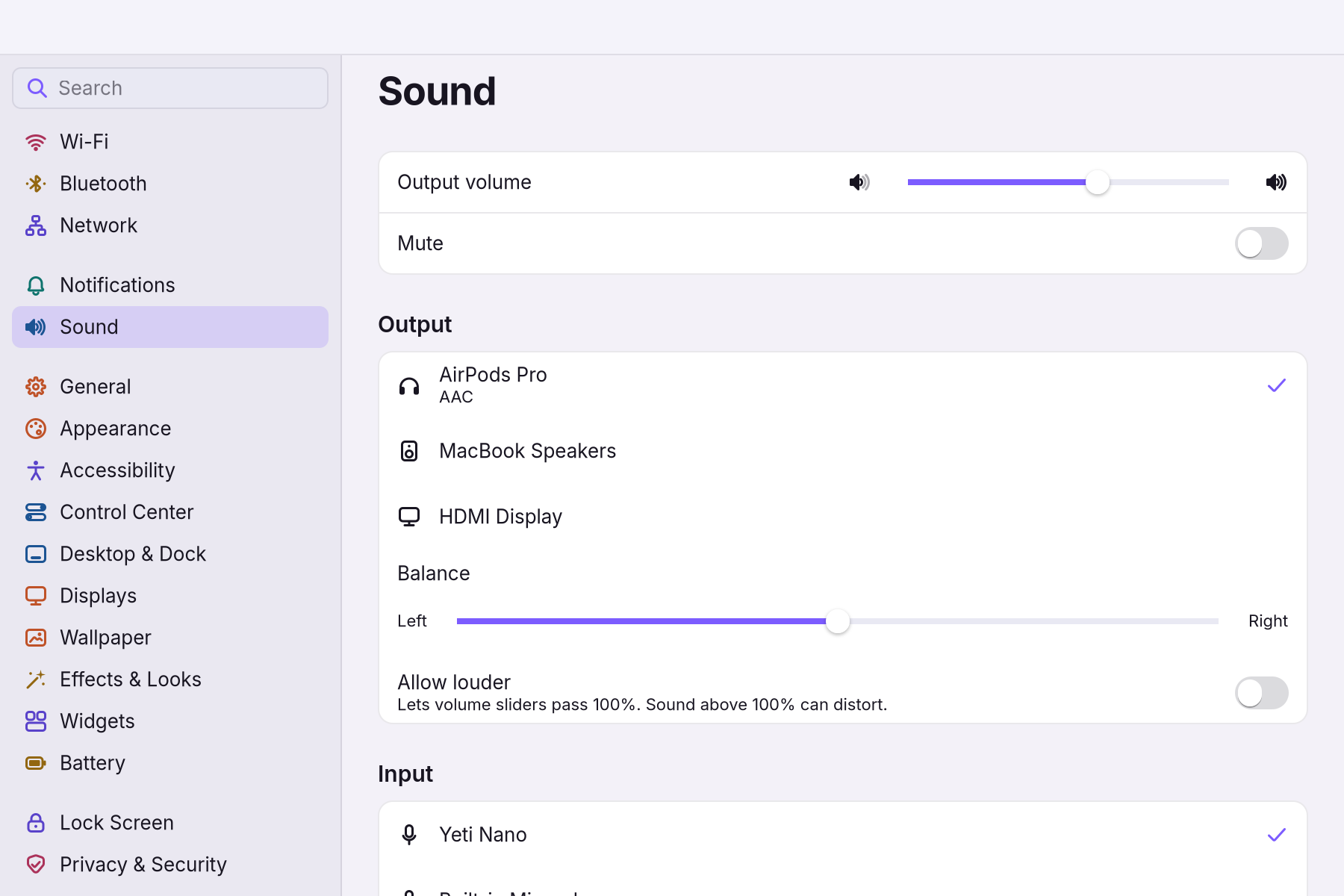
Choose a Buffer size in Pro Audio for the job:
Job Buffer size Live monitoring through a music app (Ardour, for example) 64 samples (1.3 ms) Streaming and recording a voice 256 samples Everything else, and Bluetooth Automatic The change applies at once, survives a restart, and stays until you change it back.
- Leave How many sound measurements are taken every second, for example 44,100 or 96,000. Automatic follows the file you play. on Automatic unless a session needs one rate throughout. Automatic follows 44.1, 88.2 and 96 kHz material instead of converting it.
- Watch Dropouts. The Pro Audio card counts them: "None", or how many since sound started. If the number grows while you record, choose the next larger buffer.
Music apps and audio interfaces
Music apps such as Ardour see WolOS's sound server as their own audio engine, with the buffer you chose, so there is nothing else to start. The Creative module adds Ardour and the piece they need; see Creative apps in one step. A USB audio interface keeps its own knobs for microphone gain. To give a music app every channel of an interface raw, switch the card's profile to Pro Audio in a terminal: pactl list short cards names the card, then pactl set-card-profile <card> pro-audio.
A worked example
Alice plays a keyboard into Ardour and hears her notes a hair too late. She opens Settings > Sound, finds Pro Audio and chooses 64 samples. The delay is gone, but after a minute she hears small clicks and the Dropouts count starts to grow, so she chooses 128 samples instead. Clicks stop, and the notes still feel instant. When the session is over she sets the buffer back to Automatic.
If something goes wrong
| What you see | What to do |
|---|---|
| Clicks or crackles while recording | The buffer is too small for this computer right now. Choose the next larger size, close other apps, or plug the laptop in. Try another USB port or a powered hub for an interface. |
| Your voice comes back late in the headphones | The buffer is large. Choose 64 or 128 samples in Pro Audio. |
| The music app says it cannot start its audio engine | Run wol audio doctor and follow the line marked as a problem. |
| In a virtual machine the buffer stays large | That is on purpose: virtual sound cards cannot keep small buffers, so WolOS raises them. Measure on real hardware. |
| You want everything back as it was | wol audio reset shows what a reset would do; wol audio reset --yes removes the Pro Audio choice, forgets stored volumes and restarts sound. Apps reconnect by themselves. |
Related
Sound for creators · Sound · Creative apps in one step · Settings
Related
- Creative apps in one stepThe Creative module adds nine apps for drawing, photos, video, 3D, streaming and music in one step, with colour management and low-latency sound.
- SoundVolume, speakers and headphones, the microphone, voice effects for calls, and what to do when there is no sound or it crackles.
- Modules: tools for what you doDeveloper tools, AI assistants, creative apps, games and a richer terminal, each added in one step from Settings > Modules and removed in one step.
- Creatives
- System SettingsThe one window for everything you can change: how to open it, find any setting by typing, what every pane holds, and how to take a change back.