
Everyday
Games
Which games run on WolOS and where to get them: the Store's Play shelf, Steam with your existing library, Windows games from elsewhere, and the Gaming module.
On this page
What it is
WolOS plays three kinds of games:
| Kind | Where you get it | How it runs |
|---|---|---|
| Games made for WolOS and Linux | The App Store's Play shelf, or Steam | Like any other app. |
| Windows games in your Steam library | Steam, which is already on WolOS | Steam runs them through its own compatibility tool, The part of Steam that runs Windows games on WolOS., without anything to set up. |
| Windows games from other shops | A .exe file you download | A double-click opens it with WolOS's Windows program runner. |
Why WolOS does it this way
You should not have to rebuy your games or learn a new launcher. Steam already knows how to run most Windows games, and it improves every week, so WolOS lets Steam do that and takes care of what usually goes wrong around it: the graphics pieces Steam needs, banners popping up during a game, and a clear sentence with a fix when something is missing.
How
Open the App Store > Play for games you can get with one click, and for Steam itself.
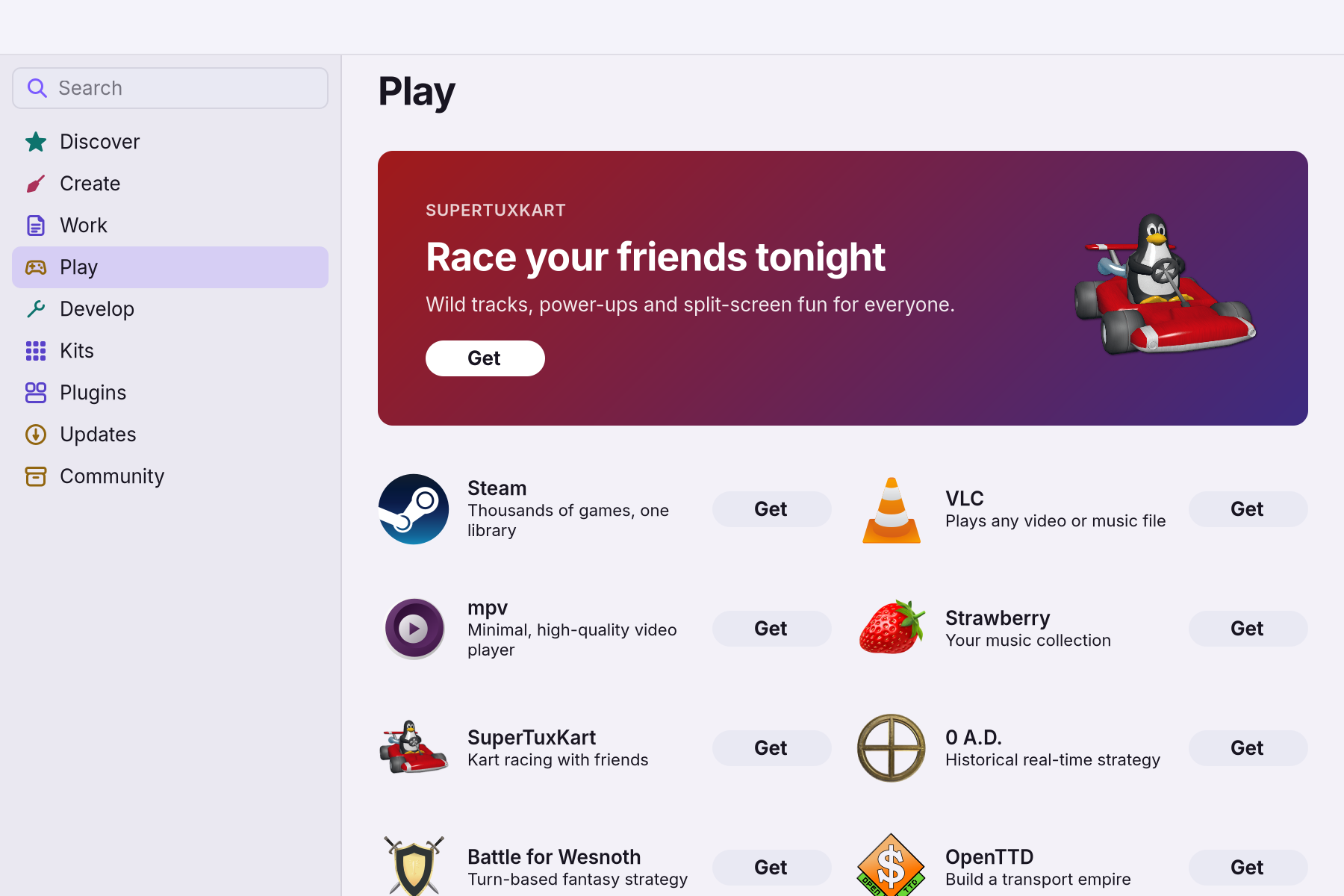
For your Steam library, open Steam from Search, sign in, install a game and press Play. Steam and your game library walks through the first start.
Play full screen. While a game fills the screen, banners wait, and the screen shows each frame as soon as it is ready. Playing full screen explains what changes and how to get out of a game that froze.
If a game will not start, one check finds the missing piece and says how to add it: When a game will not start.
The Gaming module
System Settings > Modules > Gaming adds more for people who play a lot: the Windows program runner with its helpers for games outside Steam, a launcher for games from other shops, and an overlay that shows frames per second while you play. See Modules.
Controllers
Plug a game controller in, or pair a wireless one in System Settings > Bluetooth. Steam sets up most controllers itself.
A worked example
Bill had Steam on Windows with 60 games. On WolOS he opens Steam, signs in, and his library is there. He installs a Windows game he played last week and presses Play: it starts through the compatibility tool, full screen, with no banner interrupting him. One older game shows an error, so he follows When a game will not start, which tells him which piece to add.
If something goes wrong
| What you see | What to do |
|---|---|
| A game does not start | Follow When a game will not start. |
| A Windows game in Steam has no Install button | In Steam's Settings > Compatibility, turn on running other titles with the compatibility tool. |
| Banners appear during a game | The game is in a window. Switch it to full screen in its own settings. |
| A game froze | Alt+Super+Esc opens Force Quit over the game. |
| A game from another shop does not open | Install the Gaming module, then double-click its .exe again. |
Related
- When a game will not startOne command checks everything Steam and Windows games need on this computer and prints the exact fix for each missing piece.
- Steam and your game libraryOpen Steam, sign in and play the games you already own. Windows games run through Steam's own compatibility tool, which Steam keeps up to date.
- Gamers
- Playing full screenWhat WolOS does while a game fills the screen: banners wait, frames go out at once, the refresh rate follows the game, and Force Quit still opens.
- Modules: tools for what you doDeveloper tools, AI assistants, creative apps, games and a richer terminal, each added in one step from Settings > Modules and removed in one step.