
Start here
Updates
Keep WolOS and your apps up to date from System Settings and the Store, what happens while an update installs, and how WolOS goes back by itself when an update fails.
On this page
What it is
An update brings fixes, security repairs and new features. WolOS has two kinds:
- WolOS updates, for the system itself, in System Settings > General > Software Update;
- app updates, for the apps you got from the Store, in the Store's Updates page, and installed for you once a day if you allow it.
WolOS keeps two copies of the system on the disk (two One of two copies of the system on the disk. WolOS runs one and puts an update into the other, so the update can be undone.). An update is put into the copy you are not using, while you keep working. The next start uses the new copy, and the old one stays as the way back.
Why WolOS does it this way
An update should never ruin your day. Because the new system is built next to the running one, a power cut or an error during the update leaves you exactly where you were. If the new system fails to start three times in a row, the computer starts the old copy by itself: there is no menu to find and nothing to type. Your files live outside both copies and never move. And before every update WolOS saves a An earlier state of a setting or of the system that you can go back to, listed in Settings > Restore., so you can also go back on purpose.
How
Look for WolOS updates
- Open System Settings > General > Software Update. (Software Update is a row on the General page.)
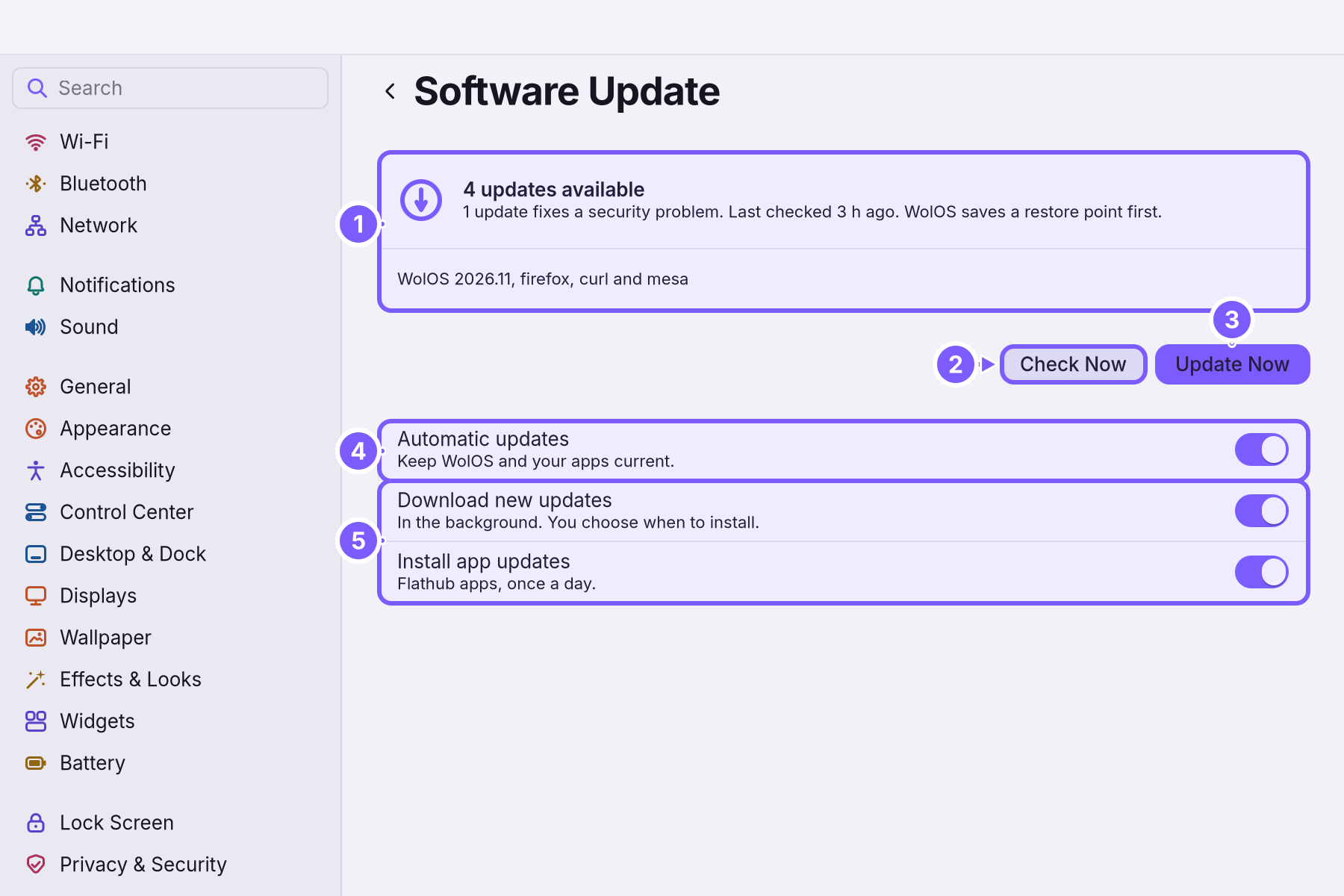
- Read the card at the top (1). It says whether WolOS is up to date or how many updates are ready, whether one of them fixes a security problem, and when WolOS last checked ("Last checked 3 h ago."). Under it, a line lists what the update contains.
- Click Check Now (2) to look right away. You see "Checking for updates…", then "WolOS is up to date" or the updates that are ready.
- Click Update Now (3) to install them. You see "Installing updates…" and "You can keep working while this runs." When it is done you see "Updates installed", and "Restart to finish updating." if the update changes the system itself.
- Restart when it suits you. Until then you keep using the current system, and nothing is lost.
Automatic updates
The switches under the buttons decide what happens without you.
| Switch | Default | What it does |
|---|---|---|
| Automatic updates (4): "Keep WolOS and your apps current." | On | The main switch. It is on while either option below is on; turning it off turns both off. |
| Download new updates (5): "In the background. You choose when to install." | On | WolOS looks for updates by itself, at most once every 20 hours, and downloads them. It never installs a WolOS update without you clicking Update Now. |
| Install app updates (5): "Flathub apps, once a day." | Off | Updates the apps you got from the Store's app collection once a day, in the background, for your account. |
If a switch flips back after you click it, the change was not made (for example because the password sheet was cancelled); a line under the switches says why.
Update your apps
Open the App Store and click Updates in the sidebar, then Check. Every app with a newer version is listed with Update. On an app's own page you can also Keep This Version (stop its updates) or Roll Back to the version before. See The Store.
What happens during a WolOS update
- WolOS saves a restore point: a record of the system as it is now.
- It builds the new system in the second copy, from the running one plus the update. You keep working.
- If anything fails on the way, it deletes the half-made copy and tells you; the system you use was never touched.
- At the next start, the computer starts the new copy.
- If the new copy does not start properly three times in a row, the computer starts the old copy instead, by itself.
Apps you install after an update was prepared but before you restart are kept in the new system.
Go back to the system from before an update
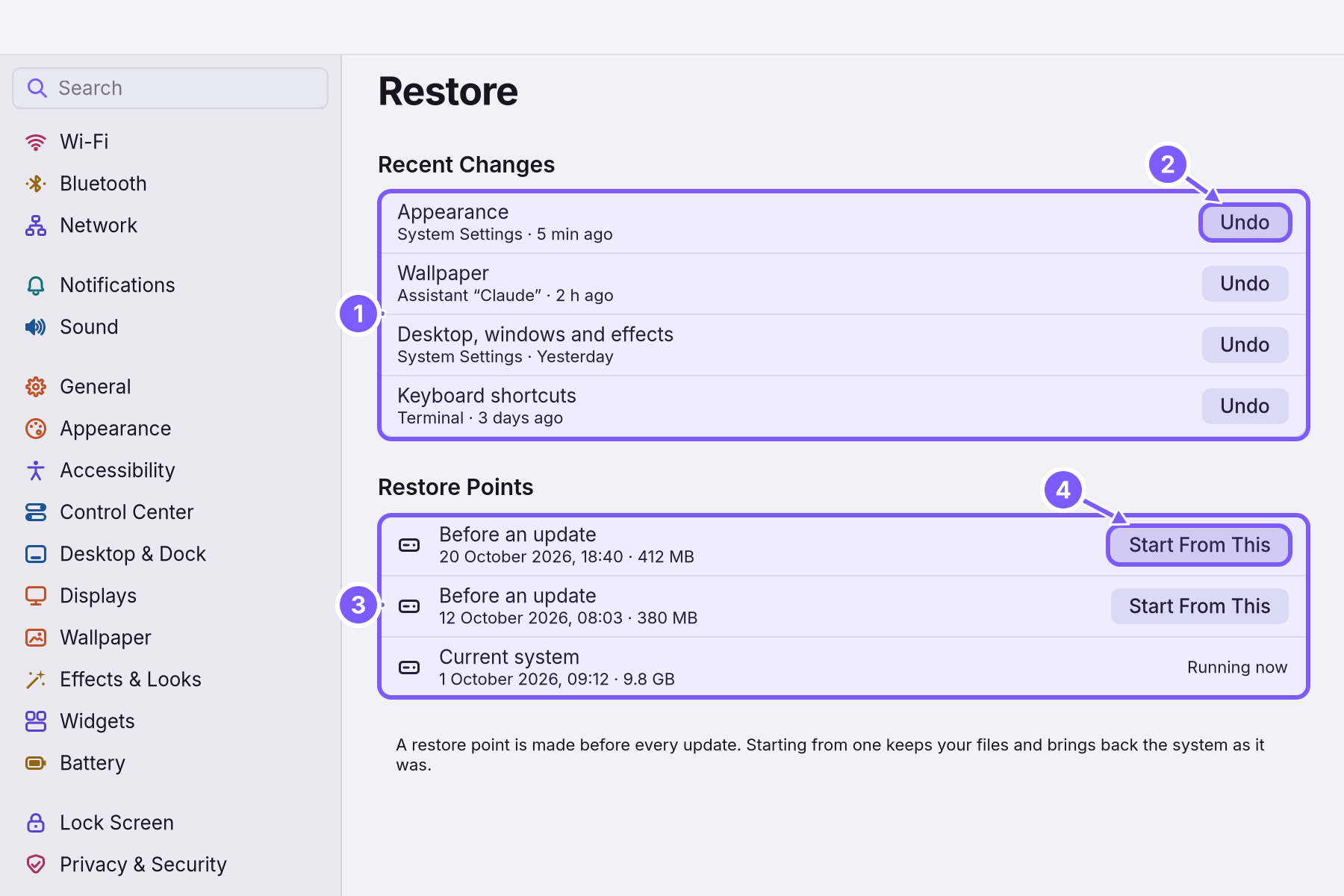
System Settings > Restore lists the restore points under Restore Points: one "Before an update" for each update, and the Current system marked "Running now". Click Start From This next to one; you see "Restart to use this restore point.", and the next start uses it. Your files are not touched. See Backups and undo.
Who has to say yes
Installing WolOS updates and going back to a restore point change the system for everyone, so they show a A small window that asks you to confirm something before it happens, for example Allow or Deny, or your password. and ask for an An account allowed to change things that affect everyone on the computer. The account you make while installing is one.'s password. Nothing happens until you confirm.
A worked example
On Monday Alice sees a notification: updates are ready, one of them fixes a security problem. She opens System Settings > General > Software Update, clicks Update Now, and keeps writing while it installs. At lunch she restarts; the computer starts the new system and everything is where she left it. On Tuesday the printer stops working. She opens System Settings > Restore, clicks Start From This next to "Before an update" and restarts: the system from Monday morning starts, with her files and the letter she wrote on Monday afternoon still there. When a fixed update arrives a few days later, she installs it.
If something goes wrong
| What you see | What to do |
|---|---|
| "WolOS is up to date" but a friend already has the new version | Click Check Now: WolOS looks by itself at most every 20 hours. |
| The update stops with an error | The half-made copy was deleted and your system is unchanged. Check that you are online and click Update Now again. |
| After a restart the computer shows the old version | The new system did not start three times, so the old one started by itself. Nothing is lost. Try the update again later; if it keeps happening, report it. |
| A switch under Automatic updates flips back | The change was not made. Try again in a moment; if a password sheet appears, confirm it. |
| Software Update cannot check while offline | It keeps the last list it had. Connect to the internet and click Check Now. |
| An app broke after its update | Open its page in the Store and click Roll Back, then Keep This Version. |
| The computer does not start at all | See Recovery. |
Related
- Privacy and permissionsWhat apps may use and how you allow it, the questions WolOS asks on screen, the firewall and the malware check, and where to take any permission back.
- Backups and undoTake back a setting you changed, go back to the system from before an update, and keep copies of your own files on a USB disk.
- Recovery: when something does not startThe disk will not unlock, an update went wrong, a screen stays black, or a setting broke the desktop. What WolOS does on its own and what you can do.
- The StoreFind an app, get it with one click, keep it up to date or go back to the version before, add a Kit, and remove what you no longer use.
- Your first daySign in for the first time, finish the setup, and spend ten minutes making WolOS yours: Wi-Fi, updates, looks and your first apps.