
Start here
The Store
Find an app, get it with one click, keep it up to date or go back to the version before, add a Kit, and remove what you no longer use.
On this page
What it is
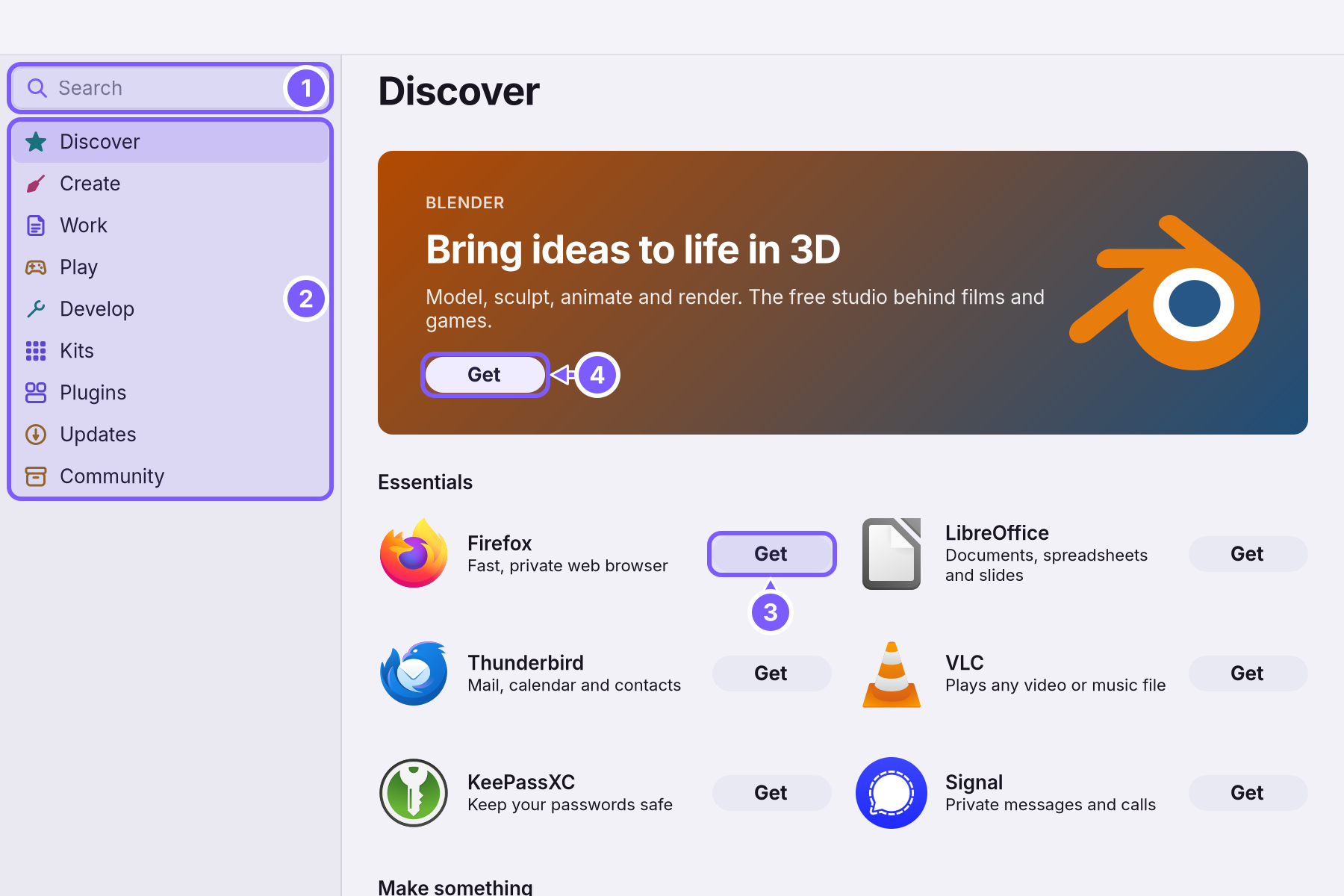
The App Store is where you get apps for WolOS. It shows apps picked for you in five shelves (Discover, Create, Work, Play and Develop), a search field that finds any app by name or by what it does, Kits that add a whole set of things in one step, Plugins that add to the desktop itself, and Updates. Its icon in the Dock is the shopping bag.
Why WolOS does it this way
The same app often exists in several places, packed in different ways, each with its own idea of an update. You should not have to know that. So the Store shows one entry per app, and its page says where it comes from and which version you get. Every app on the shelves was picked by people, and every install can be taken back: update it, keep a version that works for you, or roll back to the one before.
How
Find an app
- Open the App Store from the Dock, or choose App Store… in the WolOS menu.
- Browse (2): Discover has the essentials and a featured app at the top; Create has drawing, photo, video and music apps; Work has office, mail and notes; Play has games; Develop has the tools for programming.
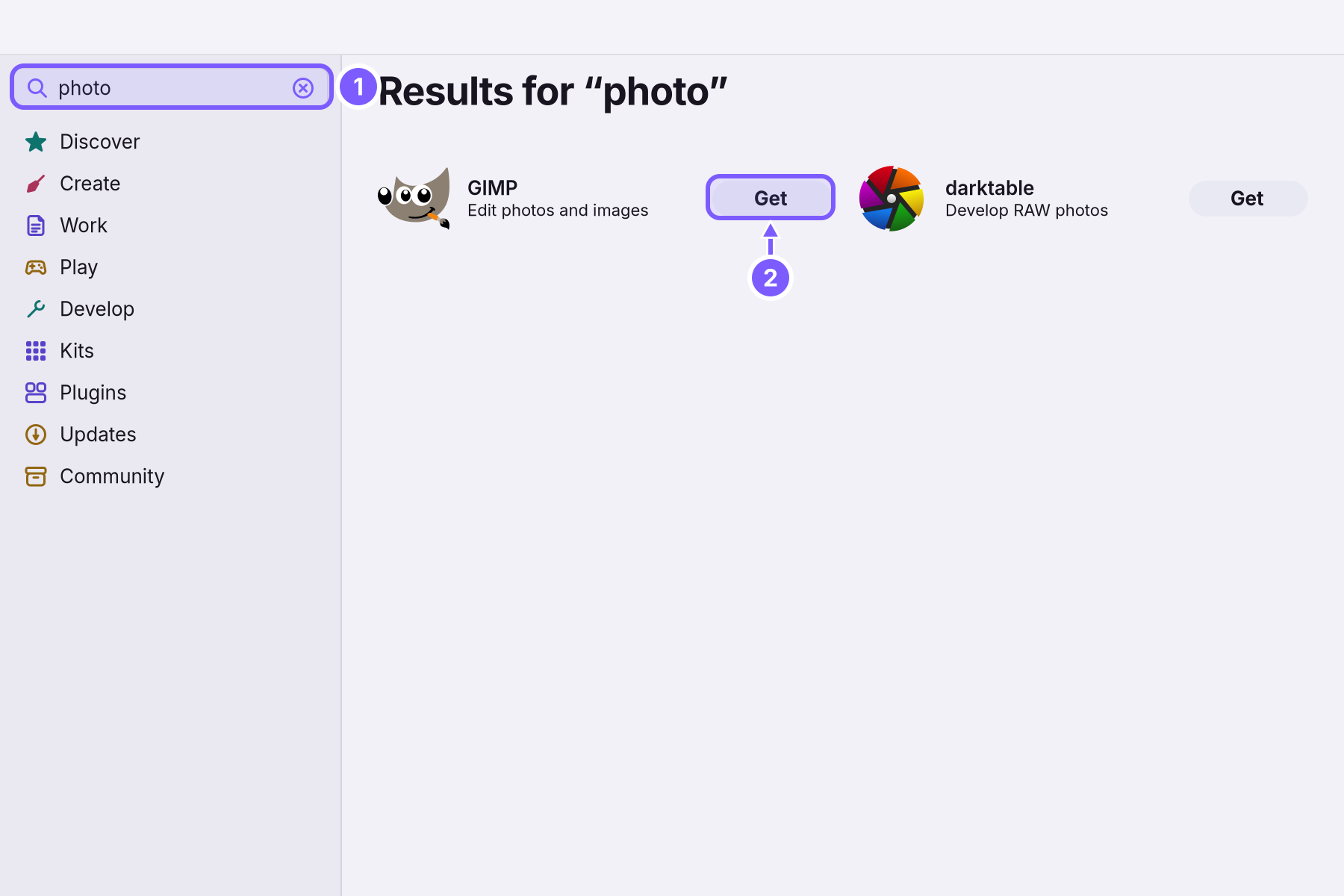
- Or search (1): click the search field at the top of the sidebar and type a name ("Firefox") or what you want to do ("photo").
Get an app
- Click Get next to an app (3 or 4 on Discover, 2 in search results), or click the app to see its page first.
- Type your password if it asks. Most apps are installed for every account on the computer, which needs an An account allowed to change things that affect everyone on the computer. The account you make while installing is one.'s password. The password counts for five minutes, so a second app right after does not ask again.
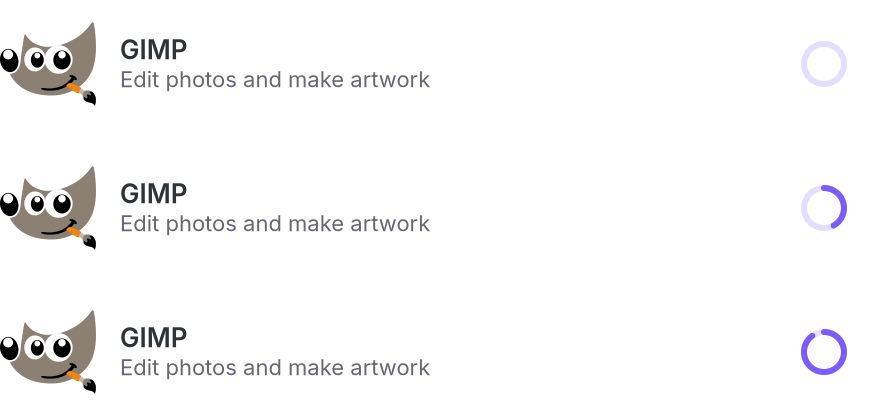
- Watch the ring. A ring next to the app fills as it downloads and installs; the button reads Installing…. When it is done the button reads Open, and the app is in Search and in Launchpad.
An app's page
Click an app's name or icon to open its page.
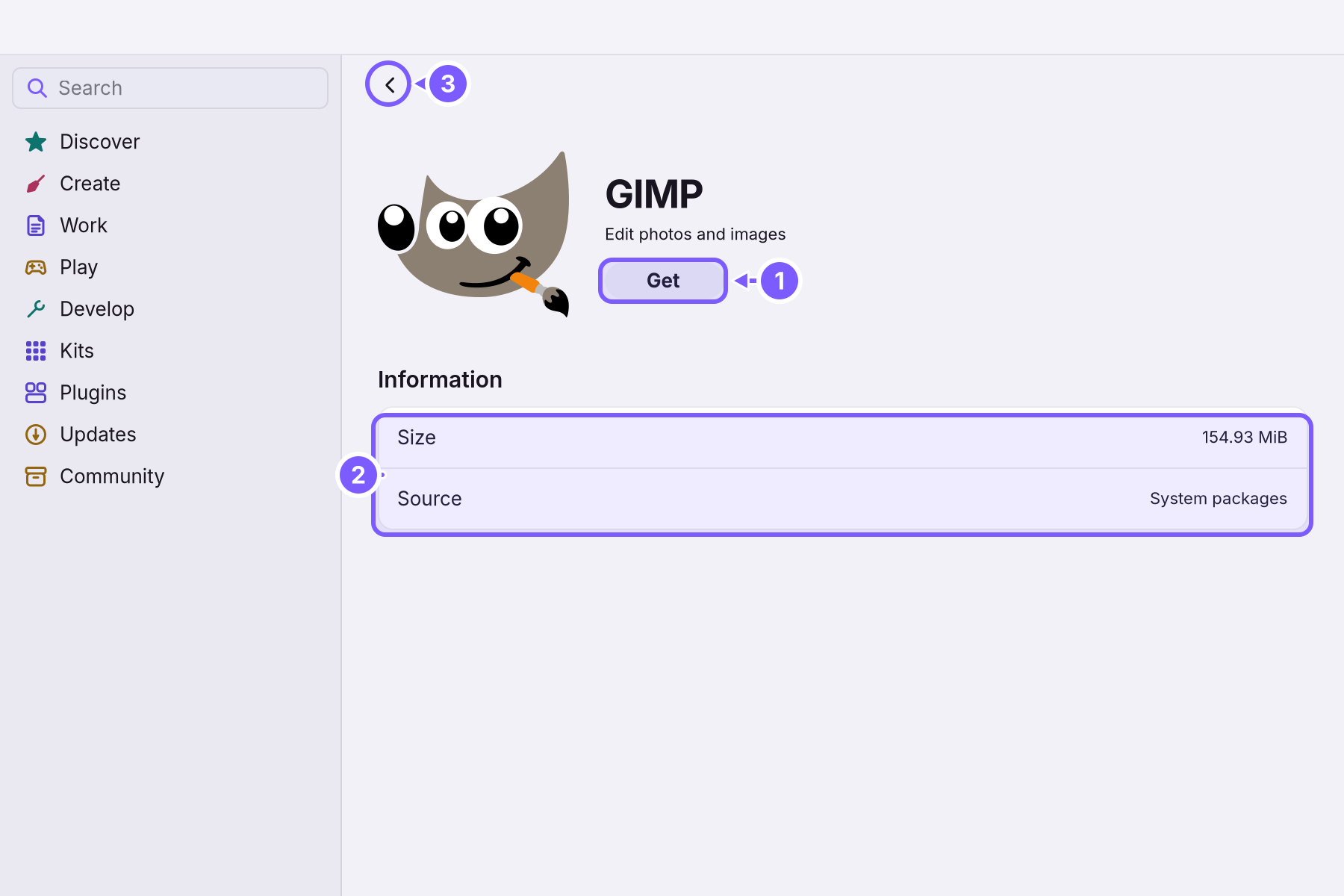
- Get (1), Open once it is installed, or Update when a newer version is ready.
- Information (2) says how big the app is, who made it and where it comes from: System packages (WolOS's own collection, checked against its signature) or another collection that the page names. Installed for says whether it is for all accounts or only yours.
- What It Can Do lists what the app may use, such as the camera or your files, when it says.
- The back arrow (3) returns to the shelf you came from.
When the app is installed, its page also offers:
| Button | What it does |
|---|---|
| Update | Installs the newer version. |
| Keep This Version | Stops updates for this app; the page says "It stays at this version." Click it again ("It updates again.") to let it update. Use it when a new version broke something you need. |
| Roll Back | Goes back to the version before the last update; the page says "Rolled back." |
| Versions | Lists the versions you can choose from. |
| Remove | Takes the app off the computer. Your own files made with it stay in your home folder. |
Keep your apps up to date
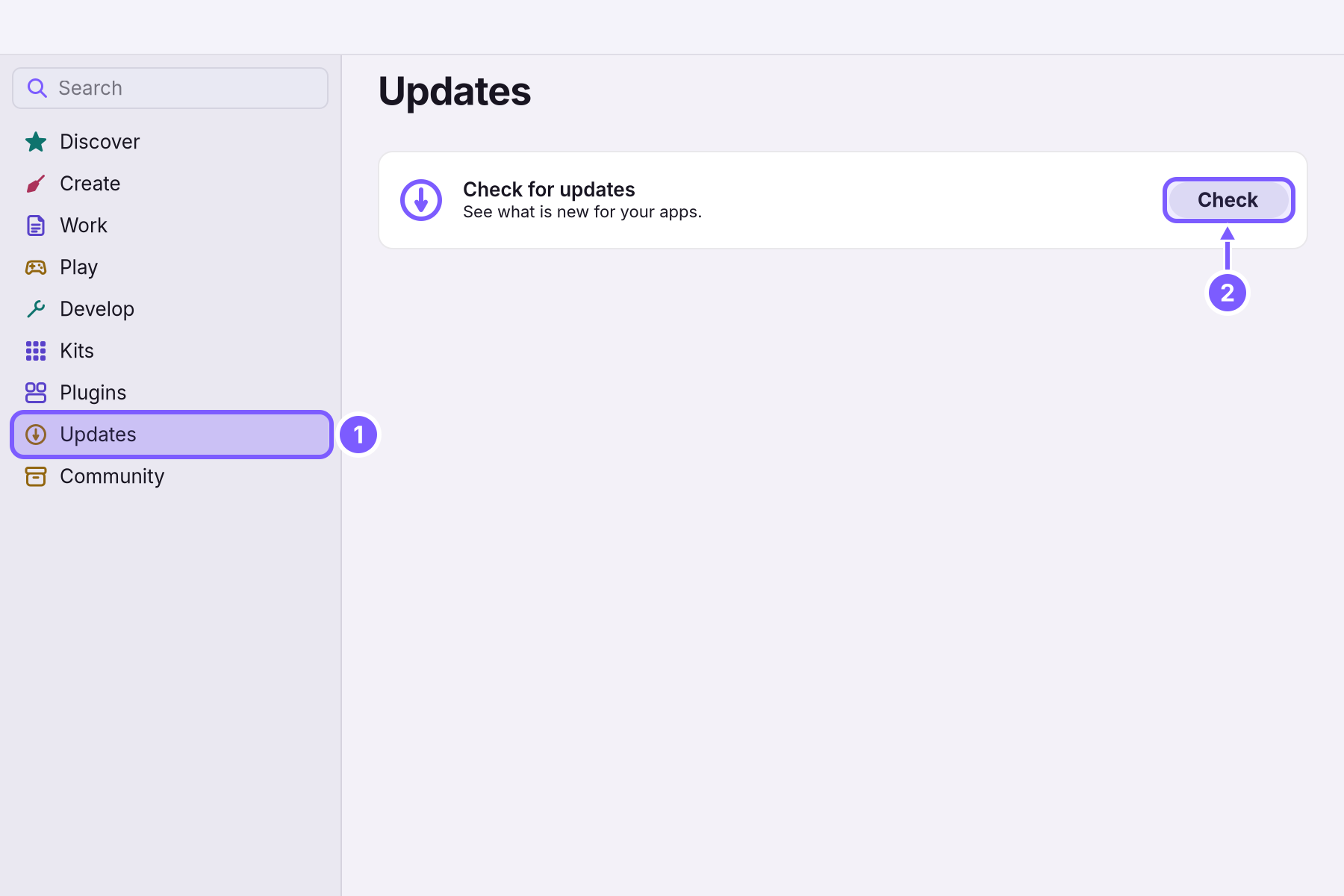
Click Updates in the sidebar (1) and then Check (2): "See what is new for your apps." The Store lists every app with a newer version, each with Update. Updates of WolOS itself are in System Settings > Software Update; see Updates.
Kits: a set in one click
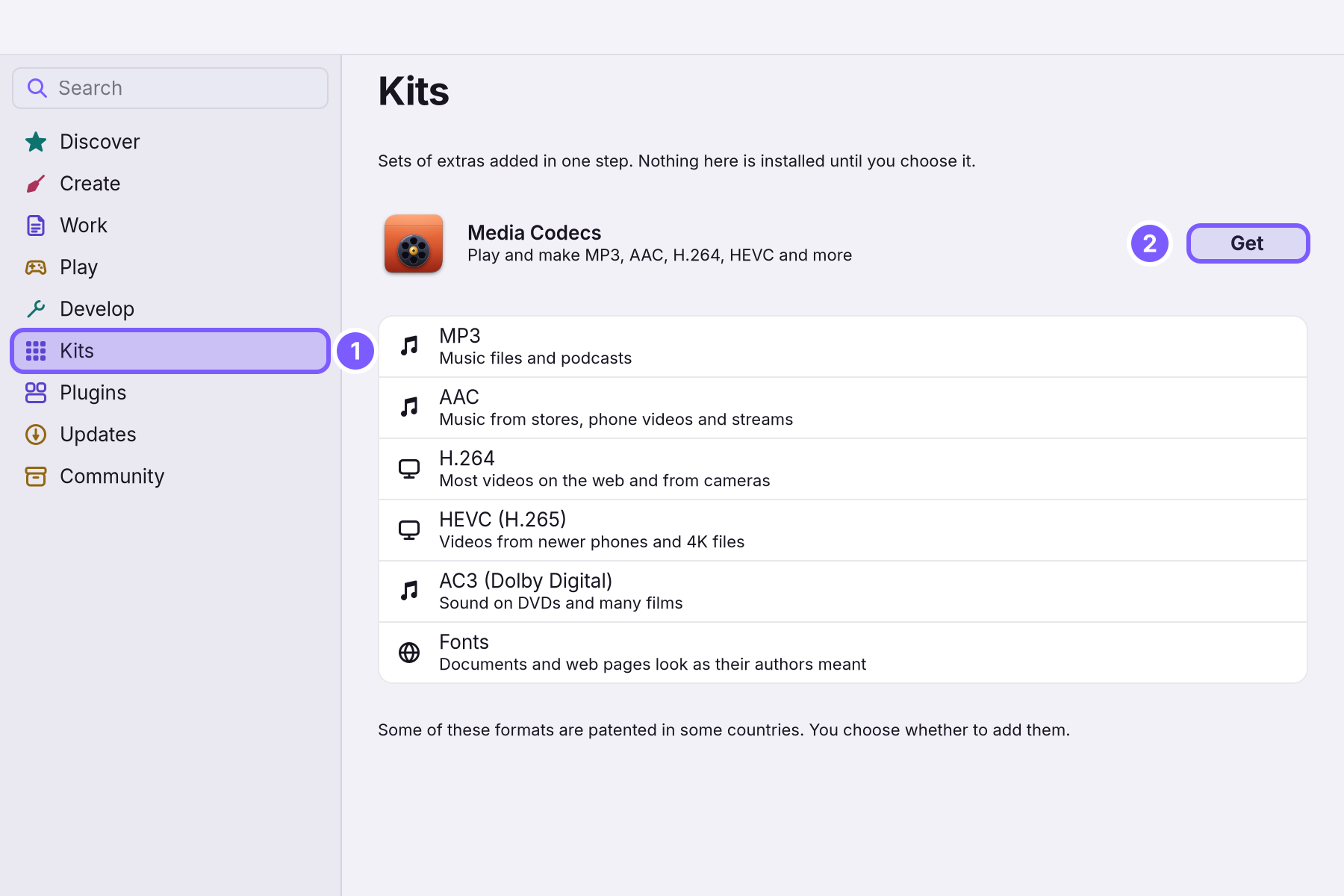
A A set of packages for one job that the Store installs in one step, such as Media Codecs. adds several things you need for one job at once. Click Kits in the sidebar (1). Media Codecs plays and makes MP3, AAC, H.264, HEVC and AC3 files and adds common fonts; click Get (2), and the list (3) says what each part is for. "Nothing here is installed until you choose it." Once added, the button reads Added. See Music and video formats.
Bigger sets of tools, for programming, creative work, games and AI, are modules in System Settings > Modules; see Modules.
Plugins
Plugins in the sidebar lists A small add-on for the desktop: a menu bar item, a widget, a search result or a theme. It runs in a sandbox.: small additions to the desktop itself, such as a weather item in the menu bar, a timer in Control Center or a clock widget. Each says what it does and what it asks for, with Get, Turn On, Update or Remove. Every plugin on this page was checked and signed. See Plugins.
Apps from a file
A friend may send you an app as a single file. Double-click it: the Store opens its install sheet and says whether WolOS can check it:
| You see | What it means |
|---|---|
| "Verified" | "Signed by a developer WolOS trusts, and unchanged since." Install it if you want it. |
| "Not signed" | "WolOS can’t check who made this app. Install it only if you trust where it came from." |
| "Can’t be installed" | "This file is damaged, was changed after it was signed, or comes from a developer WolOS doesn’t know." Delete the file. |
Community packages
The Community tab at the bottom of the sidebar holds A package anyone can publish, outside the reviewed repositories. Nobody at WolOS reviews it; WolOS checks it against named rules before it installs.: recipes anyone can publish. Nobody at WolOS reviews them, so they are kept apart: they never appear in Discover or in search, and the tab opens only after your password ("Community packages are not reviewed by WolOS. Enter your password to open them."). Each package shows what WolOS's check found before you decide. Most people never need this tab.
A worked example
Alice wants to edit her holiday photos. She opens the App Store, types "photo" in the search field and sees GIMP and darktable. She clicks GIMP to read its page: 155 MB, from System packages. She clicks Get, types her password, and watches the ring fill; the button changes to Open. A month later an update makes a filter she uses look different, so she opens GIMP's page and clicks Roll Back, then Keep This Version so it stays that way until she is ready.
If something goes wrong
| What you see | What to do |
|---|---|
| "That did not finish. Nothing was changed." | The install or update stopped part-way and was undone. Check that you are online (Control Center > Wi-Fi) and click Get again. |
| The password sheet keeps asking | Your account is not an administrator. Ask the person who looks after the computer, or get the app for your account only if its page offers that. |
| An app you know is not found | Try another word, or what it does instead of its name. Community packages never appear in search; they are on the Community tab. |
| Get stays grey | The app is being installed or updated already, or the Store is still loading ("Loading…"). Wait a moment. |
| An app needs a restart to finish | The page says so. Restart when it suits you; the app is kept. |
| A Kit you expected is not there | It does not apply to this computer. Modules are in System Settings > Modules. |
| A plugin says it needs a newer WolOS | Update WolOS in System Settings > Software Update, then try again. |
Related
- Creative apps in one stepThe Creative module adds nine apps for drawing, photos, video, 3D, streaming and music in one step, with colour management and low-latency sound.
- Modules: tools for what you doDeveloper tools, AI assistants, creative apps, games and a richer terminal, each added in one step from Settings > Modules and removed in one step.
- Your first daySign in for the first time, finish the setup, and spend ten minutes making WolOS yours: Wi-Fi, updates, looks and your first apps.
- Plugins: add to the desktop itselfWeather in the menu bar, a timer in Control Center, a clock on the desktop: get a plugin in the Store, see what it asks for, turn it on and off, and make your own.
- The desktopThe menu bar, the Dock, windows, Search, switching apps and the four desktops: what each part of the screen is for and how to use it.