
Start here
Backups and undo
Take back a setting you changed, go back to the system from before an update, and keep copies of your own files on a USB disk.
On this page
What it is
Three ways back, for three kinds of mistakes:
| What went wrong | The way back | Where |
|---|---|---|
| You changed a setting and regret it | Undo the change | System Settings > Restore > Recent Changes |
| An update made something worse | Start the system from before the update | System Settings > Restore > Restore Points |
| A file is lost, damaged or deleted | A copy you made of your files | A USB disk, another computer or a cloud folder |
WolOS keeps the first two for you without being asked. The third, copies of your own files, is yours to make: this page shows how, with nothing more than Files and a USB disk.
Why WolOS does it this way
Most trouble with a computer comes from a change: a setting, an update, a deleted file. So WolOS writes down every change you make in System Settings and every change a script or assistant makes, each with Undo, and saves a An earlier state of a setting or of the system that you can go back to, listed in Settings > Restore. of the whole system before every update. Your files are kept apart from the system, so going back to an earlier system never takes your files with it. That also means a restore point cannot bring back a file you deleted: for that you need a copy somewhere else, ideally on a disk you keep away from the computer.
How
Undo a change to a setting
- Open System Settings > Restore.
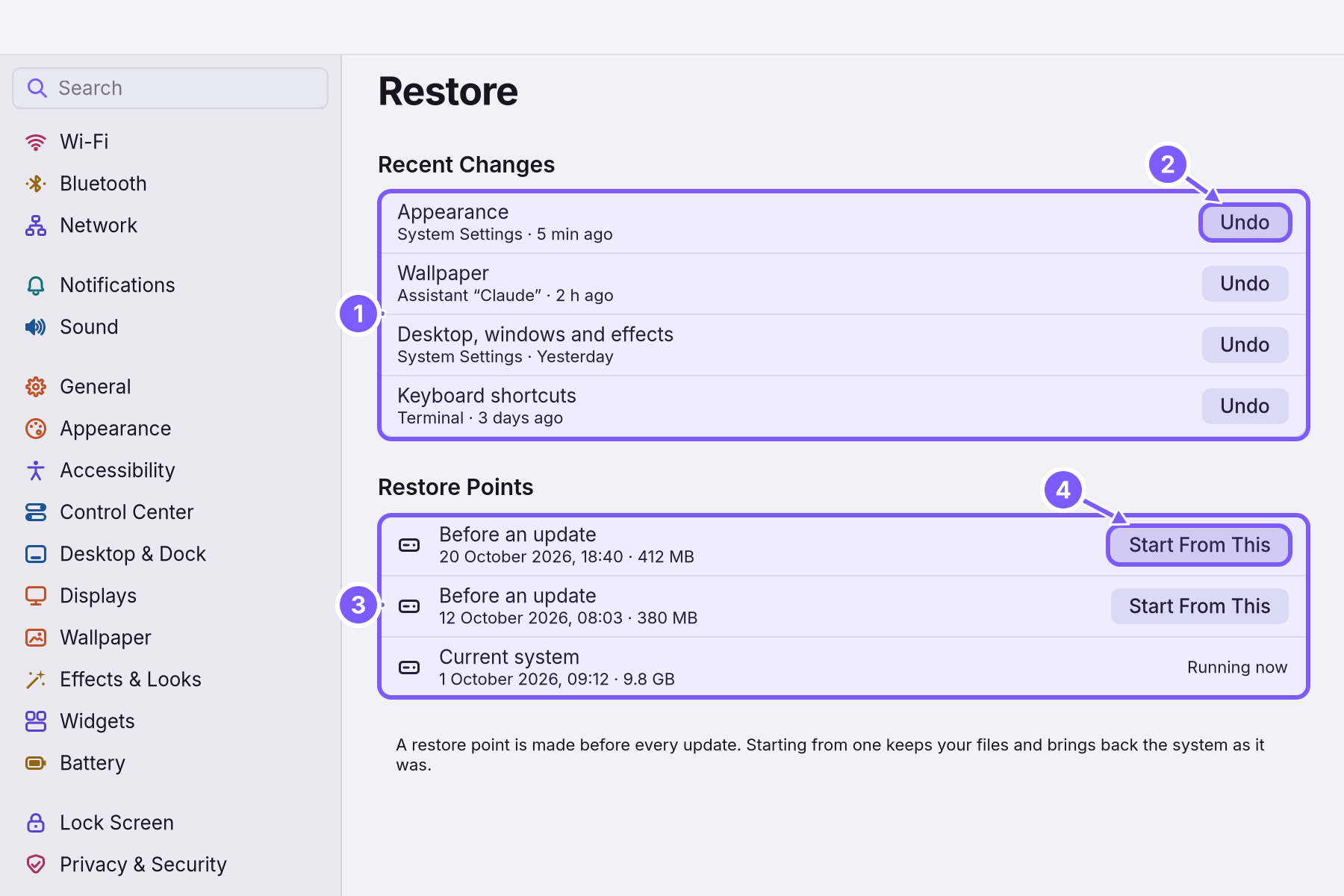
- Find the change under Recent Changes (1). Each line names what changed (Appearance, Wallpaper, Desktop & Dock, Keyboard shortcuts, Displays, Sound…), who changed it (System Settings, Control Center, Terminal, a script or an assistant) and when ("Just now", "5 min ago", "Yesterday").
- Click Undo (2) next to it. The setting goes back to what it was before that change.
With nothing to undo you see "No changes to undo" and "Changes to settings show here, so you can take any of them back."
Go back to the system from before an update
- Open System Settings > Restore and look under Restore Points (3). There is one "Before an update" for each update, with its date and size, and the Current system, "Running now".
- Click Start From This (4) next to the one you want. You see "Restart to use this restore point." and the line changes to "Starts next time".
- Restart. The computer starts the system as it was then.
"A restore point is made before every update. Starting from one keeps your files and brings back the system as it was." The oldest restore points are removed first when the disk runs low; System Settings > General > Storage shows how many there are and how much room they take.
If the computer does not start far enough to open System Settings, Recovery shows how to pick an earlier system while the computer starts.
Keep copies of your files
You need a USB disk or stick with more room than the files you want to keep. An external disk you use only for copies is best.
- Plug the disk in. It appears in the sidebar of Files.
- Open your home folder in Files and select the folders you want to keep: usually Documents, Pictures, Music, Videos and Desktop (hold Ctrl and click each).
- Copy them: right-click > Copy to…, choose the disk, and click Select. Files shows the progress at the top of the window.
- Eject the disk with the arrow next to its name in the sidebar, wait until it disappears, then unplug it.
Do it again regularly, for example every Friday. Name a folder on the disk by date (Copy 2026-11-03) each time, so an old copy is still there if a file was already damaged when you copied it.
Get files back from a copy
Plug the disk in, open it in Files, find the file or folder, and copy it back into your home folder. If a file with the same name is there, Files asks whether to replace it or keep both.
A worked example
Alice changes her wallpaper and the accent colour, then decides she liked the old look better. In System Settings > Restore she clicks Undo next to "Appearance" and next to "Wallpaper": both are back. A week later she spills tea on her laptop. Her photos survive, because every Friday she copies Pictures and Documents to a USB disk she keeps in a drawer. On her new laptop she installs WolOS, plugs in the disk and copies the folders back.
If something goes wrong
| What you see | What to do |
|---|---|
| "No changes to undo" | No setting was changed since the list was last cleared, or the change was not made in System Settings (an app's own settings are kept by the app). |
| Undo does nothing visible | Some changes show only in a new window or after the app restarts. Open the pane again to check the setting. |
| No restore points under Restore Points | Restore points are made before updates; a new WolOS has none until its first update ("None yet" in General > Storage). |
| The copy to the USB disk stops because the disk is full | Use a bigger disk, or copy fewer folders at a time. |
| A file is missing from the copy | It was saved after the copy was made, or it was in a folder you did not select. Make copies more often. |
Related
- The desktopThe menu bar, the Dock, windows, Search, switching apps and the four desktops: what each part of the screen is for and how to use it.
- Looks and themesLight, Dark or Auto, an accent colour, a gallery of themes that restyle the whole desktop and your apps, and a theme made from your wallpaper.
- System SettingsThe one window for everything you can change: how to open it, find any setting by typing, what every pane holds, and how to take a change back.
- Privacy and permissionsWhat apps may use and how you allow it, the questions WolOS asks on screen, the firewall and the malware check, and where to take any permission back.
- Your first Ruby scriptWrite a small Ruby script in a text editor, check it with wol script check, run it with wol script run, and see what WolOS asks before a script changes anything.