
Start here
Files and folders
Find, open, copy, move, rename and delete your files in Files, get them back from the Trash, and check one for malware.
On this page
What it is
Files is the app that shows what is on your computer: your documents, pictures, music, downloads and USB sticks. It is the first icon in the Dock. A One document, picture, song or program, stored on the disk under a name. is one document, picture or song; a A container for files and other folders, like a drawer. Also called a directory. holds files and other folders, the way a drawer holds papers.
Everything you keep lives in your Your own folder, with Documents, Downloads, Pictures and the rest. Every account has one. In a terminal its short name is ~ (tilde).. It starts with these folders:
| Folder | What goes in it |
|---|---|
| Desktop | Files you want close at hand. Screenshots are saved here. |
| Documents | Letters, spreadsheets, notes, anything you write. |
| Downloads | What your browser and other apps download. The Downloads icon in the Dock shows the newest. |
| Music, Pictures, Videos | Your songs, photos and films. |
| Public | Files you mean to share with other people on your network. |
| Templates | Documents you use as a starting point. |
| Projects, Work | Folders for your own projects. The Developer module puts new programming projects in Work. |
Why WolOS does it this way
Your files belong to you, not to the system. That is why they live in one place that nothing else touches: updates replace the system and never your home folder, and going back to an earlier version of WolOS leaves your files exactly as they are. Deleting goes to the Trash first, because the most common way to lose a file is a click too many.
How
Find your way
Click Files in the Dock. The window opens on your home folder.
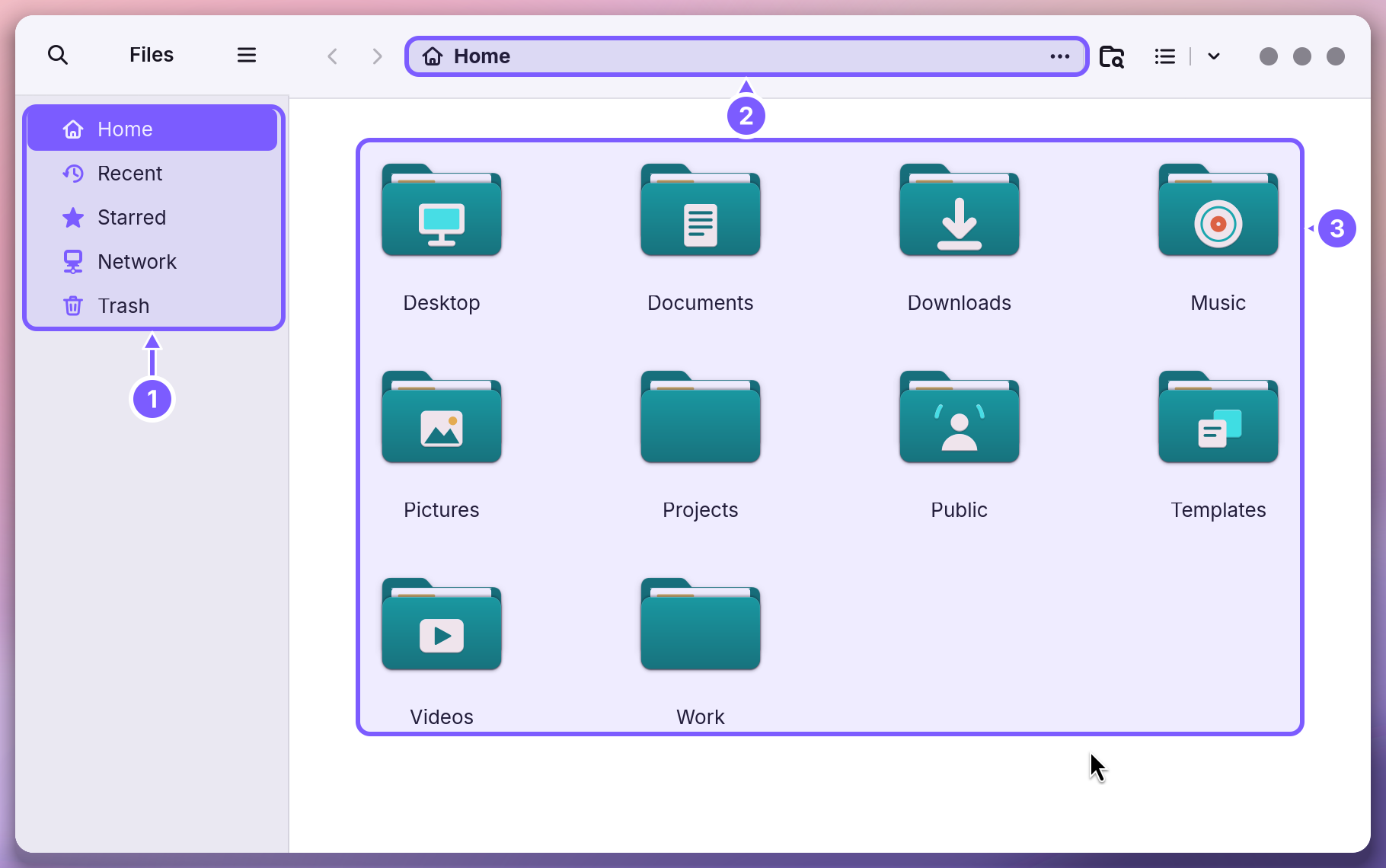
- The sidebar (1) has the places you go most: Home; Recent, the files you opened lately; Starred, files you marked with a star; Network, other computers and shared folders near you; and Trash. A USB stick or a second disk appears here too while it is plugged in.
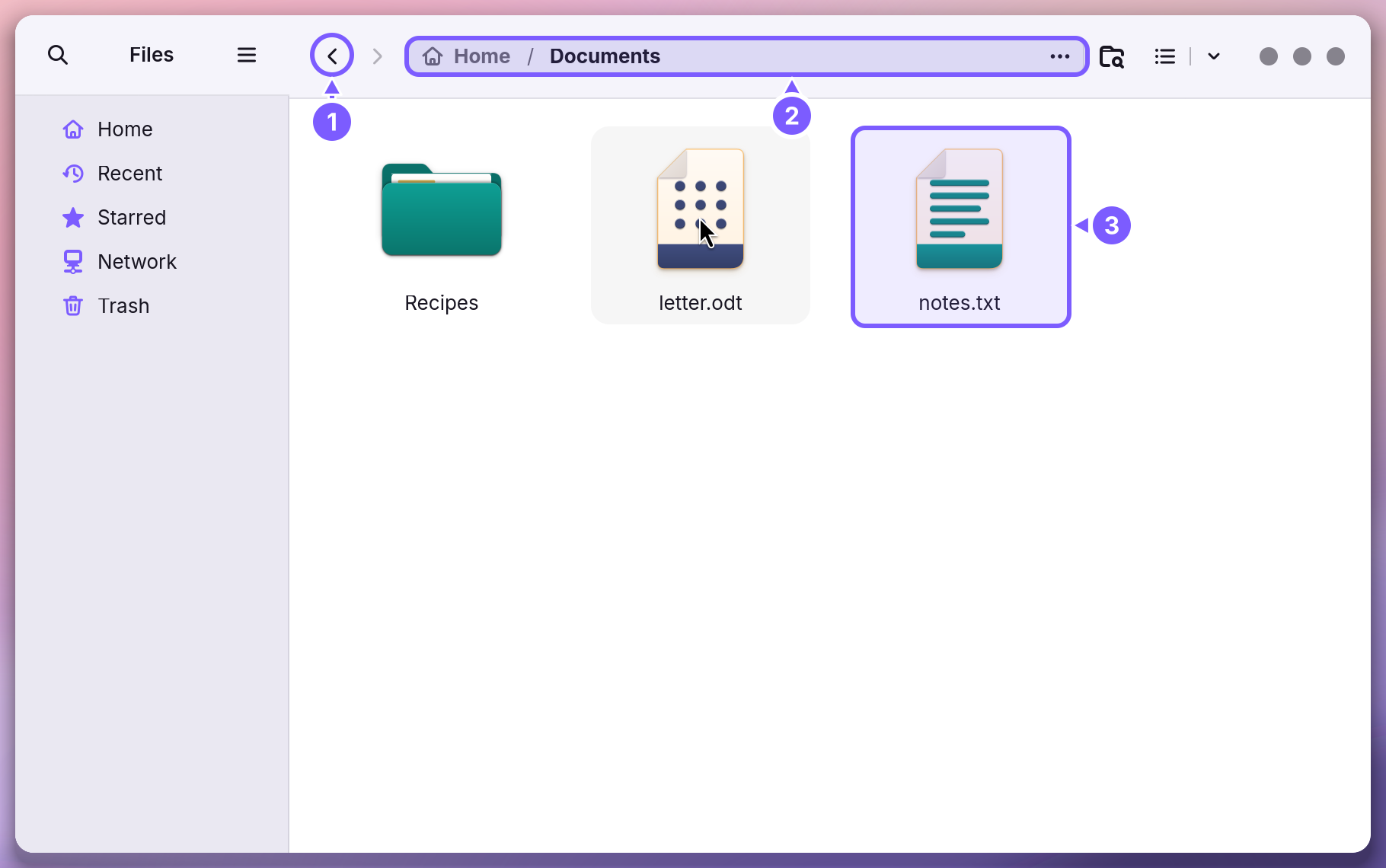
- The path bar (2) shows where you are. Inside Documents it reads Home / Documents; click Home in it to go back up.
- Double-click a folder (3) to open it. The arrows at the top left go back and forward, like in a browser.
The magnifying glass at the top left searches the folder you are in and the folders inside it. To find a file anywhere in your home folder, Search from the menu bar (Super+Space) is faster.
The list button at the top right switches between big icons and a list with sizes and dates; the small arrow next to it sorts by name, size, type or date.
Open a file
Double-click it. Files opens it in the app made for that kind of file: a text file in Text Editor, a photo in Photos, a song in Music. To choose another app, right-click the file and pick Open With….
Copy, move, rename and delete
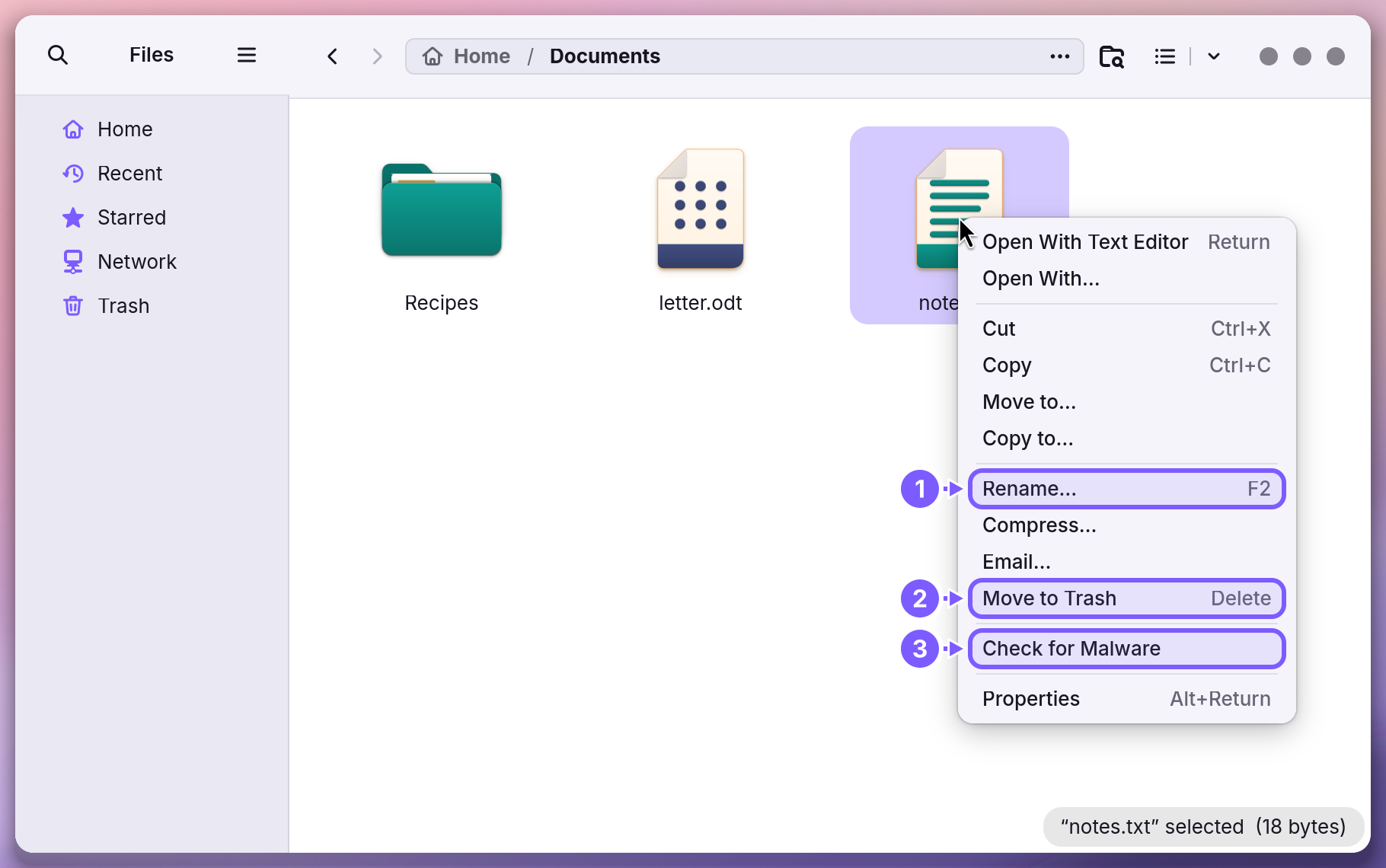
Right-click a file to see what you can do with it.
| To | Do this |
|---|---|
| Copy a file to another folder | Right-click > Copy, open the other folder, then right-click an empty spot > Paste (or Super+C and Super+V). Copy to… does the same through a list of folders. |
| Move it | Cut and Paste (Super+X, Super+V), Move to…, or drag it onto a folder in the window or in the sidebar. |
| Rename it | Rename… (1) or F2. Type the new name and press Return. Keep the part after the last dot, the The letters after the last dot in a file name, such as .txt or .png. They tell WolOS which kind of file it is.: it tells WolOS what kind of file it is. |
| Make a new folder | Right-click an empty spot in the window > New Folder…, type its name, press Return. |
| Delete it | Move to Trash (2) or the Delete key. The file waits in the Trash. |
| Pack several files into one | Select them, right-click > Compress…. You get one file that is easy to send. |
| Send it by email | Email… opens a new message with the file attached. |
| See its size and dates | Properties (Alt+Return). |
To select several files, hold Ctrl and click each one, or drag a box around them.
Get a file back from the Trash
Click Trash in the sidebar (or the Trash in the Dock). Right-click the file > Restore From Trash: it goes back to the folder it came from. Empty Trash at the top deletes everything in it for good.
Check a file for malware
Right-click a file you downloaded or were sent > Check for Malware (3). WolOS compares it, on this computer, with millions of signatures of known Software made to harm you or your computer: viruses, spyware and the like., and tells you what it found:
| You see | What it means |
|---|---|
| "Nothing Found" | The check compared the file with the signatures and found no match. |
| "Malware Found" | The file matches known malware, and the message names it. Move it to the Trash and do not open it. |
| "Check Not Finished" | Nothing was found, but part of the file could not be checked. Treat it with care. |
| "Signatures Are Off" | The full check needs its signature set. Turn it on in System Settings > Privacy & Security; it downloads to this computer. Nothing was checked. |
Separately from this button, WolOS checks every program the first time it runs. If you open a new program and see "Not Checked Yet", wait a moment and open it again. See Privacy and permissions.
Hidden files
Names that start with a dot, such as .config, are : the settings of your apps. Files does not show them, so you cannot delete one by mistake. Press Ctrl+H to show them, and again to hide them.
USB sticks and other disks
Plug the stick in and it appears in the sidebar. Click it to see what is on it, and copy files to and from it like any folder. Before you pull it out, click the eject arrow next to its name and wait until it disappears from the sidebar; that makes sure everything has been written.
A worked example
Alice downloaded a recipe as pancakes.pdf and wants it with her other recipes. She clicks Downloads in the Dock, then Open in Files. She right-clicks pancakes.pdf > Move to…, chooses Documents > Recipes and clicks Select. In Recipes she right-clicks the file > Rename…, types Pancakes for Sunday.pdf and presses Return. Later she deletes an old recipe by mistake, opens the Trash, right-clicks it and chooses Restore From Trash: it is back in Recipes.
If something goes wrong
| What you see | What to do |
|---|---|
| A file opens in the wrong app | Right-click it > Open With…, choose the app, and turn on the option to always use it for this kind of file. |
| "Your Disk Is Almost Full" | Only a little space is left on the disk. Empty the Trash, then delete or move big files you do not need (the list view sorted by size helps). |
| A file you deleted is not in the Trash | The Trash was emptied, or the file was on a network folder, which has no Trash. A copy you made yourself is then the only way back; see Backups and undo. |
| The USB stick does not appear | Try another port. If it still does not appear, the stick may be broken or formatted for another kind of computer. |
| "Not Checked Yet" when you open a program | WolOS checks a program the first time it runs and opens it once the check is done. Try again in a moment. |
| You cannot rename or delete a file | It belongs to the system or to another account. Files you can change are in your home folder. |
Related
- Privacy and permissionsWhat apps may use and how you allow it, the questions WolOS asks on screen, the firewall and the malware check, and where to take any permission back.
- The desktopThe menu bar, the Dock, windows, Search, switching apps and the four desktops: what each part of the screen is for and how to use it.
- PowerShell basicsUse PowerShell on WolOS: add it, open it, the Verb-Noun commands, objects in the pipeline, help, and making it the shell of every new terminal window.
- Getting startedWhat WolOS is, what you need, and the way from the download to your own desktop, in five steps.
- zsh basicsThe shell in every WolOS terminal: history, Tab, suggestions, the colours of a command line, wildcards, pipes, saving output to a file, and your own settings.