
Power user
Scripts and shells
Run sh, bash and Ruby scripts with wol script: checked before they run, as you, every change asked on screen and every run recorded. And choose the shell new terminal windows open in, PowerShell included.
On this page
What it is
Two things for people who use the terminal: scripts, and the The program inside a terminal that reads what you type and runs it. WolOS uses zsh unless you choose another. a terminal window opens in.
A A text file of commands that runs them in order, so a task you repeat becomes one command. is a text file of commands that you edit and run: tidy a folder, back something up, turn on Do Not Disturb while a long job runs. WolOS runs three kinds the same way: sh, bash and A programming language known for reading almost like English. WolOS runs Ruby scripts the same way as shell scripts.. The first line names the interpreter (#!/bin/sh, #!/usr/bin/env bash, #!/usr/bin/env ruby), or, without that line, the name ends in .sh, .bash or .rb.
wol script is the one command for all of them: check reads a script without running it, run runs it here, on runs it on another computer.
The shell is the program that reads what you type in a terminal window. Every account logs in with zsh; Settings > General > Shell in the terminal chooses another one for new terminal windows: bash, fish, nu or pwsh (A shell from the Windows world that works with objects, not just text. On WolOS it is an option for terminal windows.), when installed.
The full reference for scripts, with every rule, is Scripts: sh, bash and Ruby.
Why
A script should run the moment you save it, with nothing to compile and nothing to install: sh, bash and ruby are part of every WolOS. But a script also runs with your permissions, often copied from somewhere, so wol script run takes away the easy ways to go wrong: it never runs as root, it hands your arguments to the script as they are (never through a shell that could reinterpret them), it leaves the tokens and keys in your terminal's environment out, and every change it makes through wol appears on screen first. Every run is recorded, so you can see later what ran.
The shell is a matter of habit: someone who works in PowerShell all day should not have to retrain their fingers. But the login shell is what the desktop session and remote logins hand plain POSIX commands to, and PowerShell, fish or nu would not run them. So the choice applies to terminal windows only, and the login shell stays zsh.
How: scripts
Check a script
$ wol script check backup.rb
backup.rb: ruby script, parses and rubocop is clean
wol script check <file> reads the file without running any of it, then runs that language's linter when one is installed (the Developer module brings the Ruby one). Each problem is one sentence, with the line and column above it. wol script alone prints the three kinds and how each is checked.
Run it
wol script run backup.rb ~/Documents- As you, never as root.
sudo wol script runis refused. - Your arguments as they are. Put
--before arguments that start with--(wol script run tidy.rb -- --dry-run). - A clean environment. The script keeps who you are and where (your home, user name, language, the terminal and the desktop session) and gets a fixed search path. Everything else from your shell is left out.
- Changes ask. The script runs as a helper named after its file (
script:backup.rb). When it callswolto change something (a setting, an app, a module), the approval sheet appears; an administrator change asks for the password. Reads run without asking. Your choices for helpers apply (Assistants and automation). - One record per run, in Settings > Assistants & Automation: which script, when, and how it ended. Its arguments are not recorded, since they may hold secrets.
The script's exit code is passed on as it is.
Run it on another computer
wol script on studio.local backup.rb ~/DocumentsThe file is sent over ssh and run there the same way, with that computer's interpreter. Nothing is copied to its disk. ssh uses your keys and never asks for a password here. The other computer needs remote login turned on (Settings > General > Sharing). On another WolOS a change through wol is refused there, because nobody is at that screen to approve it; reads work.
Elsewhere
The same file works wherever WolOS runs a program: as a widget's data source, as a plugin command or hotkey, as a .wol bundle's entry. Each place keeps its own permission (plugins need the run permission, for example).
A first Ruby script
#!/usr/bin/env ruby
# Turns Do Not Disturb on while a backup runs.
# How: wol script run backup.rb <folder>
# frozen_string_literal: true

folder = ARGV.fetch(0)
system('wol', 'focus', 'on', exception: true)
system('tar', 'czf', "#{folder}.tar.gz", folder, exception: true)
Two habits keep scripts safe: give commands their words separately (system('tar', 'czf', out, dir), never one string), and read data with JSON.parse, never with loaders that can run code. Only the interpreter's own libraries are there; no extra packages are needed.
What it does not do
wol script run is not a jail. A script can read and write what you can, like any program you start.
How: the shell in the terminal
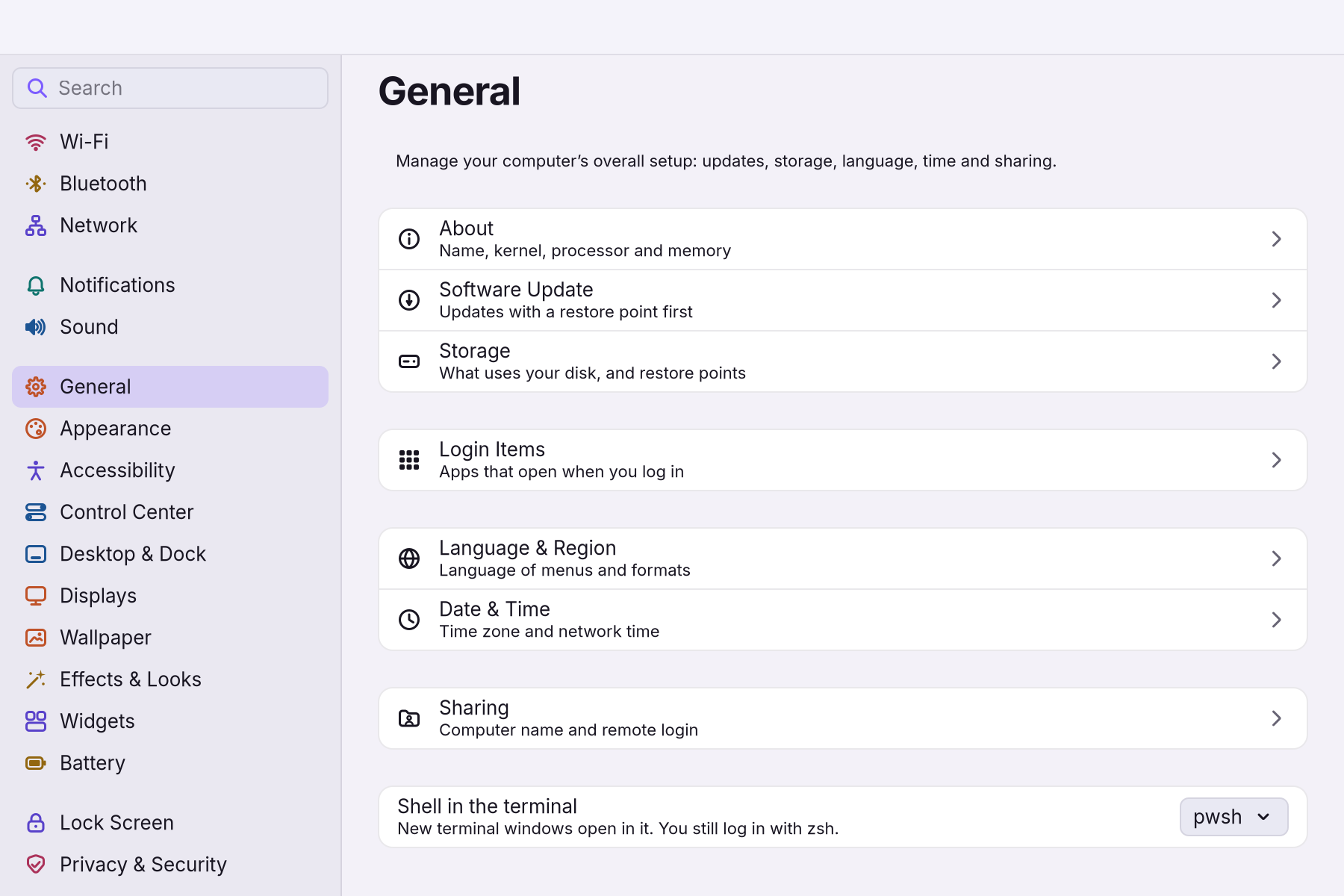
- Open Settings > General. The last row is Shell in the terminal.
- Pick a shell from its menu. It lists only the shells installed on this computer, by program name:
zsh,bash,fish,nu,pwsh. - Open a new terminal window. It starts in that shell. Windows already open keep theirs.
The choice is recorded like any setting, so wol undo takes it back. The account's login shell stays zsh.
PowerShell, fish and nu
They come with the Console module (Settings > Modules > Console, which asks for an administrator's password). PowerShell installs into your account only (~/.local/bin/pwsh), the others system-wide. Each gets the same prompt, keys and history size as zsh, in the theme's colours. In PowerShell that means the folder and git branch in the prompt, an arrow in the theme's OK or error colour, 50,000 lines of history without duplicates, and Ctrl+R to search it (Modules).
A worked example
Alice writes a six-line script that copies her Documents folder to a USB stick. She checks it first with wol script check, which reads the script without running it and says whether it is in order. Then she runs it with wol script run, and WolOS asks her on screen to approve the change it makes. Every run is recorded, so next month she can see exactly what happened.
If something goes wrong
What wol script says in the terminal:
| It says | What to do |
|---|---|
wol: notes.txt: no such script (or it is not text) | Check the file name and folder. |
wol: tidy.py is a python3 script; wol script runs sh, bash and ruby. | Only these three kinds run through wol script. Run other programs directly. |
wol: 'my box' is not a host name, an address or user@host | Use the name or address from your ssh setup. |
| Problem | What to do |
|---|---|
| An approval sheet appears while the script runs | That is the gate: the script asked wol to change something. Allow it, or deny it if you did not expect it. |
| The script cannot find a program it used in your terminal | It gets a fixed search path. Call the program by its full path, or install it system-wide. |
| A token or key your script needs is missing | Your shell's environment is left out on purpose. Read the secret from a file in your home instead. |
wol script on changes are refused | Nobody is at the other computer's screen to approve them. Run the script there in person, or only read. |
| A terminal window says the shell chosen in Settings is not installed, so it uses The shell WolOS uses in every terminal unless you choose another: it suggests from your history and completes names with Tab. | The shell was removed or the Console module is not installed. Install it, or pick another shell in Settings > General. |
| The shell couldn’t be changed. Try again in a moment. under the menu | The choice was not saved, and the menu shows the saved shell again. Try once more. |
| PowerShell is not in the menu | Install the Console module first; the menu lists installed shells only. |
Related
- Your first Ruby scriptWrite a small Ruby script in a text editor, check it with wol script check, run it with wol script run, and see what WolOS asks before a script changes anything.
- PowerShell basicsUse PowerShell on WolOS: add it, open it, the Verb-Noun commands, objects in the pipeline, help, and making it the shell of every new terminal window.
- zsh basicsThe shell in every WolOS terminal: history, Tab, suggestions, the colours of a command line, wildcards, pipes, saving output to a file, and your own settings.
- What a terminal isThe window where you type instead of click: what the prompt, a command, an argument and a path are, how to copy and paste, Tab, Ctrl+C, and your first five commands.
- Sessions: reopen last time's windowsWith the Sessions module, WolOS remembers your terminal and coding-agent windows and offers once at login to reopen them on their desktops, in their folders.