
Start here
Privacy and permissions
What apps may use and how you allow it, the questions WolOS asks on screen, the firewall and the malware check, and where to take any permission back.
On this page
What it is
A One thing an app may do, such as use the camera or read your files. You allow or deny it, and can change your mind in Settings. is one thing an app may do on your computer: show you notifications, use your home folder, keep the computer awake, change the volume. WolOS asks you before an app, a A small add-on for the desktop: a menu bar item, a widget, a search result or a theme. It runs in a sandbox. or a A script or AI assistant that changes WolOS for you through wol. Every change it makes is shown on screen for you to allow first. gets one, remembers your answer, and shows every answer in one place, System Settings > Privacy & Security, where you can take it back.
This page covers that pane, the questions WolOS puts on your screen (the A small window that asks you to confirm something before it happens, for example Allow or Deny, or your password.), the A filter that stops other computers on the network from reaching programs on yours unless you allow it., and the check for Software made to harm you or your computer: viruses, spyware and the like..
Why WolOS does it this way
A permission you never see is not consent. So WolOS puts the question on your screen, names who is asking and what for, waits for you, and lets you change your mind later. Where WolOS can only record your wish and not enforce it (some older apps do not ask), the pane says so instead of showing a switch that promises more than it does. And WolOS sends nothing about you anywhere: the malware check runs on this computer, and error reports are off unless you turn them on.
How
See and change what apps may do
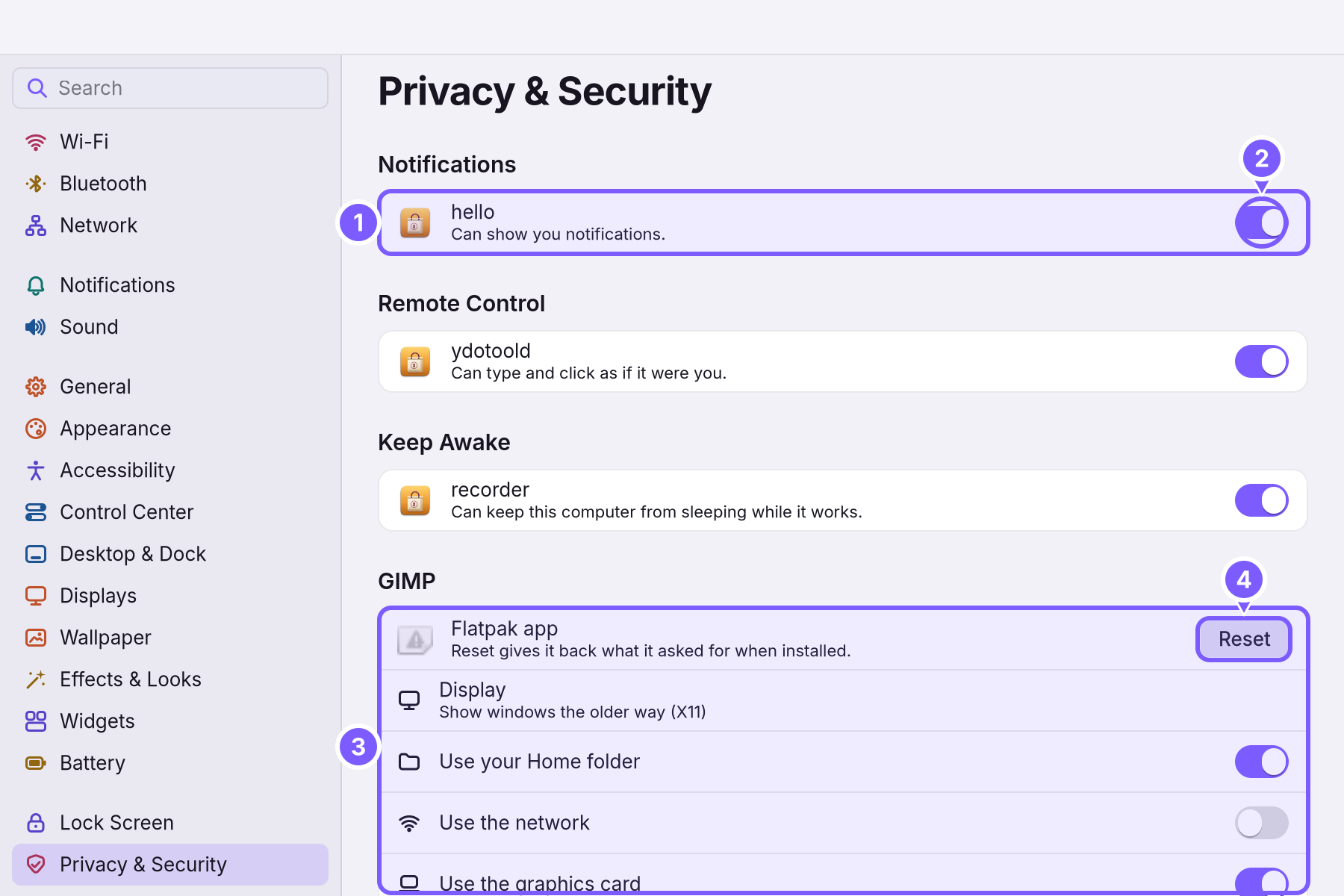
- Open System Settings > Privacy & Security (Super+, then Privacy & Security in the sidebar).
- Read the groups. Each kind of permission has a group with one row per app that has it (1): Notifications ("Can show you notifications."), Remote Control ("Can type and click as if it were you."), Keep Awake ("Can keep this computer from sleeping while it works.") and so on.
- Turn a switch off (2) to take that permission away.
- Apps that asked for more have a group of their own (3), with one switch for each thing they asked for: your home folder, the network, the graphics card. Reset (4) gives the app back exactly what it asked for when it was installed.
Further down the pane:
| Part | What it is | Default |
|---|---|---|
| Screen Recording | Not a switch per app: an app asks each time it wants to share your screen, and you choose which screen or window. Only WolOS's own screenshot and recording tools take a picture without asking. | Ask every time |
| Firewall | Stops other computers on the network from connecting to programs on yours unless you started the connection. | On |
| Disk encryption | Whether your disk is encrypted, as chosen in the installer. | As installed |
| Malware Check | Checks programs and files the first time they open; see below. | On |
| Full Signature Database | A larger check against millions of known malware signatures, downloaded to this computer. It uses about 1 GB of memory while it runs. | Off |
| Startup Security | How this computer starts, and the Secure Boot step if one is waiting. See Startup Security. |
When WolOS asks you
When an app or a helper wants to change something for you, a sheet appears and names it. Nothing happens until you answer.
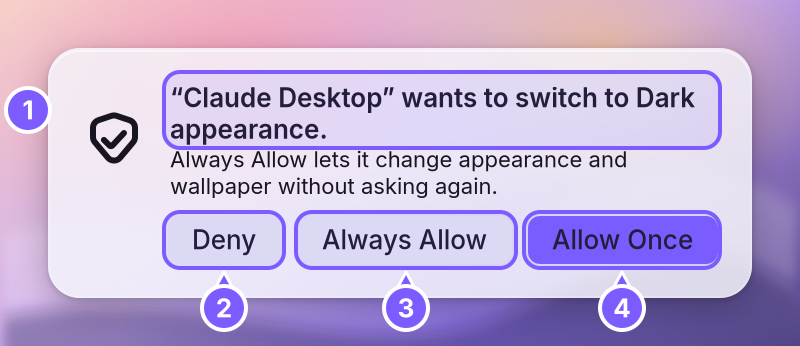
- Read the question (1): who asks, and exactly what they want to do.
- Deny (2) refuses. It is the button the keyboard starts on, so a stray Return never says yes.
- Always Allow (3) says yes now and from now on, for this helper and this kind of change only. You can take it back in System Settings > Assistants & Automation.
- Allow Once (4) says yes this time only.
A sheet nobody answers closes by itself after a short while and refuses, so nothing changes while you are away.
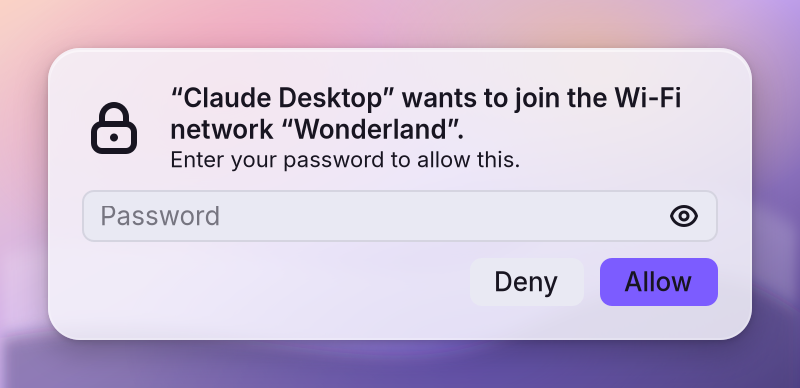
For changes that affect everyone on the computer, the sheet asks for an An account allowed to change things that affect everyone on the computer. The account you make while installing is one.'s password instead, every time:
| When | You are asked for |
|---|---|
| An app is installed, removed or updated for everyone | Your administrator password; the sheet names what will change. |
| An account is added or changed, remote login or the firewall is changed, a restore point is chosen | The administrator password, every time, even right after you typed it. |
| A helper wants to change a setting | Deny, Always Allow or Allow Once. |
| A helper wants to add a web app, a module or a reminder | It asks every time; a reminder shows its full text before you allow it. |
When an app is installed
An app from the Store's app collection says what it wants before it is installed, and you choose:
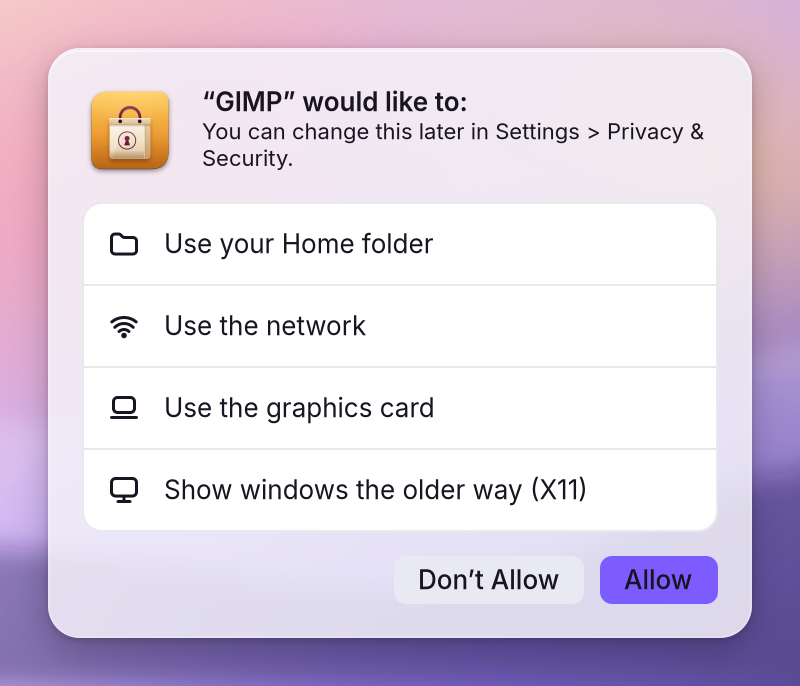
Allow installs it with those permissions; Don't Allow installs nothing. Either way you can change each permission later in Privacy & Security.
The malware check
The first time a program or a downloaded file opens, WolOS checks it on this computer against known malware. Nothing leaves the computer, and nothing appears when nothing is wrong. If the check finds something, you get one notification and a row in Privacy & Security with Move to Trash and Open Anyway….
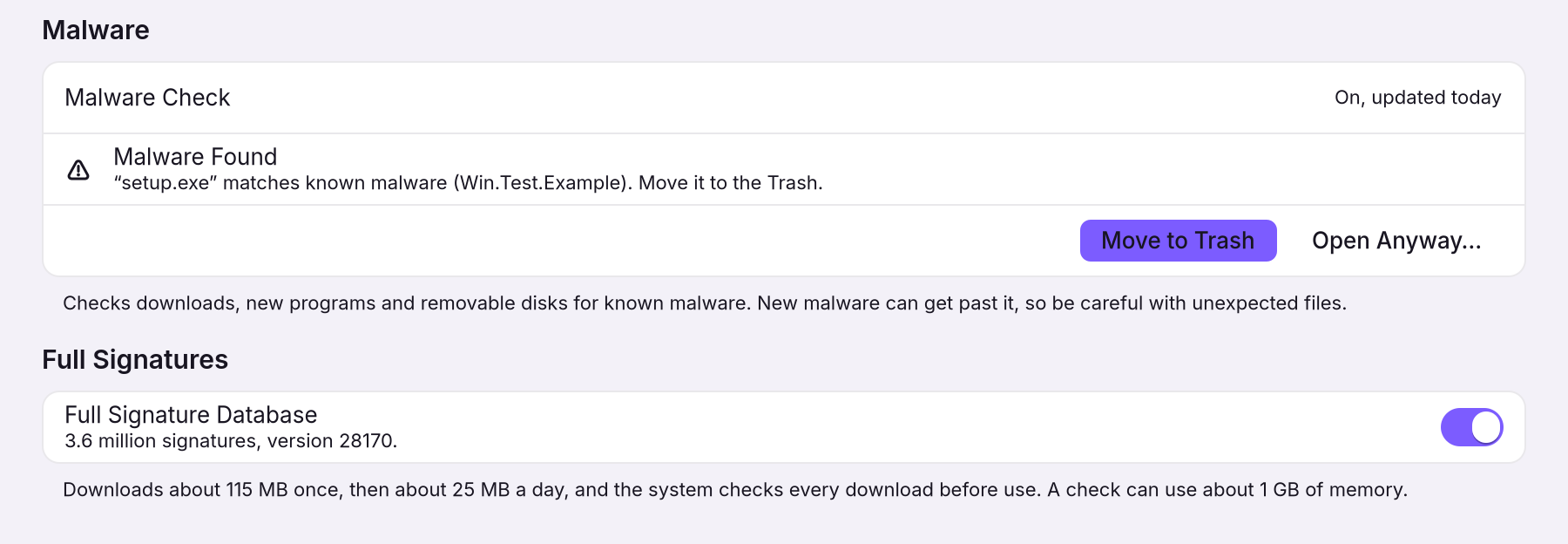
- Move to Trash moves the file to the Trash, where it cannot run.
- Open Anyway… opens it after one more question. Use it only for a file you trust completely.
For a file you were sent, right-click it in Files > Check for Malware for the full check; see Files and folders.
Plugins and helpers
A plugin says on its Store page what it asks for ("Asks to: read data from the web"). A tile or a Dock item from a plugin that runs something does so only after you allowed it. A helper (a script or an AI assistant) can read without asking, but every change it wants goes through the sheet above. System Settings > Assistants & Automation lists each helper, what you always allow it, and what it did.
Clipboard and history
Clipboard history keeps the last things you copied so you can paste them again; it never keeps one-time codes, and Clear empties it. System Settings > Restore lists the changes made to your settings and who made them.
A worked example
Alice installs a recording app. Before it installs she sees what it wants: the microphone, her home folder and the network. She clicks Allow. Later she wonders why it needs the network, opens System Settings > Privacy & Security, finds the app's group and turns Use the network off. When an AI assistant she uses wants to switch her desktop to dark, a sheet asks first; she clicks Allow Once, because she wants to decide each time.
If something goes wrong
| What you see | What to do |
|---|---|
| An app stopped working after you turned a permission off | Turn the switch back on, or click Reset in its group to give back what it asked for when it was installed. |
| A helper keeps asking | That is on purpose: every change asks. Choose Always Allow for that kind of change, or take it back later in System Settings > Assistants & Automation. |
| A sheet appeared that you did not expect | Click Deny. Then look in System Settings > Assistants & Automation for the helper that asked. |
| "No WolOS session is showing" | A helper asked for a change while nobody was signed in at the screen. Sign in and let it ask again. |
| The malware check stopped a file you trust | In Privacy & Security, click Open Anyway… next to it. |
| A permission says it is not enforced | WolOS records it, but that app does not ask before it acts. Remove the app if that matters to you. |
Related
- Files and foldersFind, open, copy, move, rename and delete your files in Files, get them back from the Trash, and check one for malware.
- Plugins: add to the desktop itselfWeather in the menu bar, a timer in Control Center, a clock on the desktop: get a plugin in the Store, see what it asks for, turn it on and off, and make your own.
- System SettingsThe one window for everything you can change: how to open it, find any setting by typing, what every pane holds, and how to take a change back.
- The desktopThe menu bar, the Dock, windows, Search, switching apps and the four desktops: what each part of the screen is for and how to use it.
- Your first app in CrystalWrite, build and run a small WolOS app in Crystal with Cryswol: it reads the system, tries to post a notification, and handles a refusal the way every app must.