
Advanced
Recovery: when something does not start
The disk will not unlock, an update went wrong, a screen stays black, or a setting broke the desktop. What WolOS does on its own and what you can do.
On this page
What it is
A page of ways back, in the order to try them. WolOS keeps two One of two copies of the system on the disk. WolOS runs one and puts an update into the other, so the update can be undone. (copies of the system), asks for a A long key shown once at the end of an encrypted install. It opens the disk if the password and the security chip both fail. Write it down. if the disk cannot open, keeps a list of recent settings changes you can undo, and has checks that name what is wrong.
Think of it as the emergency card in a car: the first line is the thing most people need, and every line after it is rarer.
Why
When something does not start you have the least patience and the least information. Each tool here answers one question: which slot am I on, can I open my disk, what did I change, which file differs, which device lacks a driver.
How
Find your symptom, then follow the numbered steps.
The system will not start after an update
Nothing to do. If the new slot fails to start three times in a row, the computer starts the other slot by itself.
- Wait for the second start. The computer restarts by itself up to three times. You see the old system, with your files and apps as they were.
- Check which slot runs. Open a terminal and run
wol update status. You see which slot is running and what the last check found. - Try again later. The failed slot sorts last in the boot menu. An older slot cannot be started again once it is retired; this is deliberate (Secure Boot).
- To go back on purpose:
wol update rollback(asks for the administrator password) chooses the previous An earlier state of a setting or of the system that you can go back to, listed in Settings > Restore. for the next start. Settings > Restore lists the earlier system states.
The disk asks for a password
At start the computer tries the security chip (TPM), then your account password, then the recovery key. You are asked once; the password and the recovery key both answer the same prompt.
- Type your account password. This is the usual case after a Secure Boot or firmware change: the chip refuses because the measured state changed. You see WolOS start. The next start is automatic again, because the chip is sealed again to the state measured now.
- If you forgot the password, type the recovery key. It was shown once at the end of the install. If you chose Save to USB, it is a file on that stick.
- If you changed your password with
passwdin a terminal, the disk still wants the previous one; the chip and the recovery key still work. Change your password in Settings > Users & Groups instead, which keeps the disk password in step. - Accented letters cannot be typed before WolOS starts. That is why the installer asks for letters, digits and common symbols for a disk password.
With no password, no chip and no recovery key, the data cannot be read. That is what encryption means.
A setting broke the desktop
Open Settings > Restore. You see Recent Changes: what changed, when, and who made it (System Settings, Control Center, Terminal, a script or an assistant).
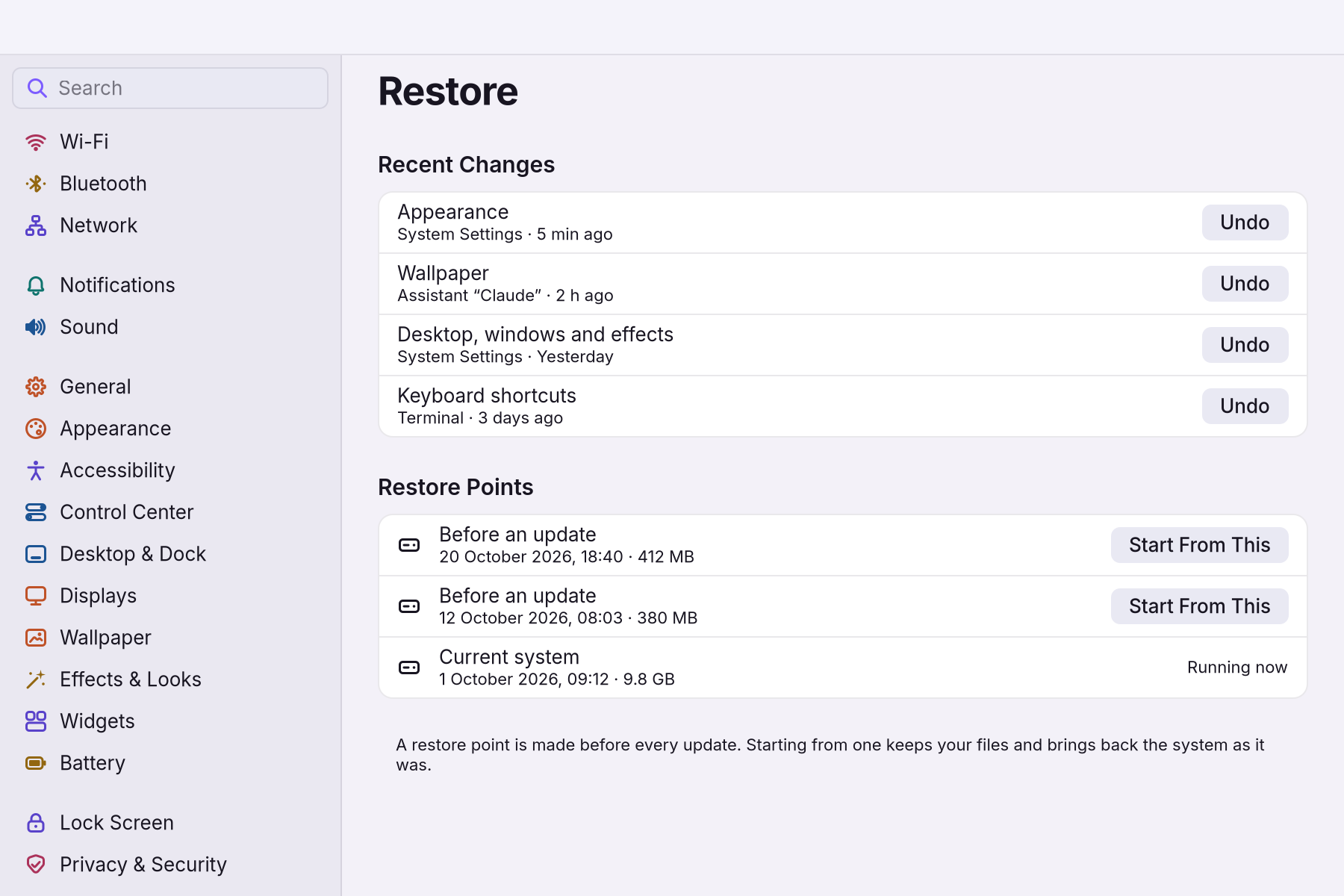
- Click Undo on the change. From a terminal:
wol historylists changes,wol undoundoes the last one. - If the desktop itself misbehaves, run
wol shell reload. The desktop reconnects to the window manager by itself after it restarts, and the lock screen comes back if it crashes. - If a theme or plugin is the cause:
wol theme listthenwol theme set wol-dark(or any listed id) sets a theme again;wol plugin disable <id>turns a plugin off. A plugin that keeps failing is turned off on its own.
An app stopped answering
Press Alt+Super+Esc. You see Force Quit Applications: "If an app doesn't respond for a while, choose it and click Force Quit."
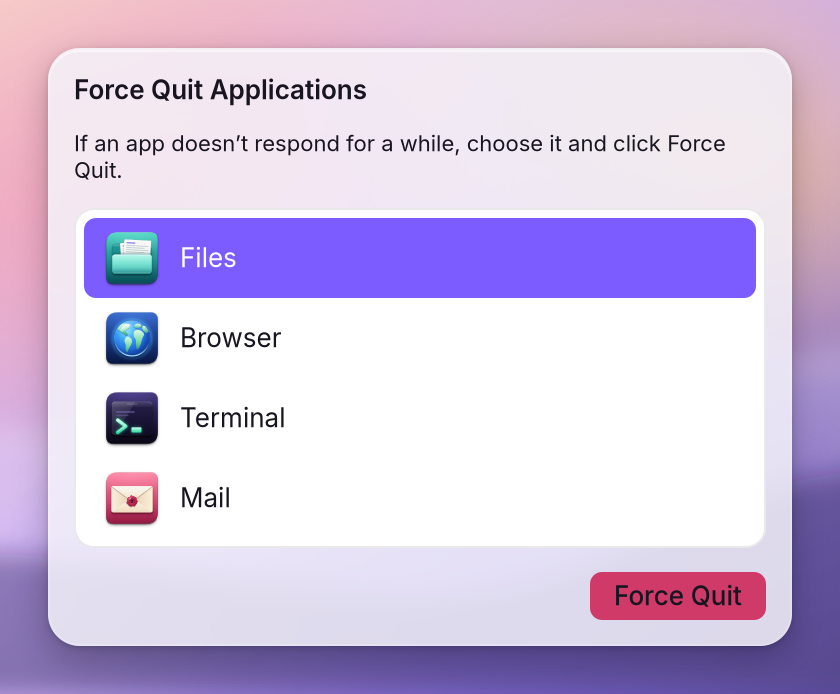
- Choose the app and click Force Quit. The other apps and the desktop keep running. It works over a full-screen game too.
A system file or a device is wrong
- Check the system files:
wol base verify. You see every base file that differs from the signed list, or nothing. The same check runs at every start. - Check devices:
wol hw status. You see devices that need a driver or firmware, each with the fix.wol hw fixloads missing drivers (administrator password);wol hw fix --yesalso installs packages. - Check sound:
wol audio doctor.wol audio reset --yesforgets stored sound defaults and restarts the sound server. - Check games:
wol games doctorprints the command that fixes each failed check. - Deliberate changes: on a sealed system,
wol seal offmakes it writable until the next update (developer mode).
A black screen after the install
- VirtualBox: check the virtual machine's display settings on Download.
- Real hardware: if you can reach a terminal,
wol hw statusnames devices that need a driver and prints the fix.
Starting over
- Try WolOS from the stick changes nothing on the disk.
- The installer can install again over an earlier WolOS. Next to Windows, the other system is kept (Installing next to Windows).
- If an install fails, the Failed page names the step. The log stays on the installed system at
/var/log/wolos-install.log. See Installing WolOS.
What to include in a report
wol about, wol update status, wol boot status (Secure Boot, TPM and seal state), and for sound the diagnostics that Copy diagnostics in Settings > Sound > Troubleshooting puts on the clipboard. Report on GitHub.
A worked example
After an update Alice's computer does not reach the desktop. She restarts it twice more; on the third failed start WolOS switches to the other copy of the system by itself and her desktop appears. She opens Settings > Restore, looks at the list of recent changes and clicks Undo on the one she made last. Her files were never touched.
If something goes wrong
| What you see | What to do |
|---|---|
| WolOS does not appear at start | Open the firmware's startup menu (often F12, F9 or Esc) and pick the WolOS entry. |
| The boot loader update failed on a shared startup partition | The other system's loader is put back; start it from the firmware menu. |
| You cannot unlock the disk | Use the recovery key (section "The disk asks for a password"). |
| Nothing here helps | Collect the items under "What to include in a report" and open an issue. |
Related
- Secure BootAn option in the installer. Every computer makes its own start-up keys; at most one blue key screen, once, with the password boot.
- Installing WolOSErase a disk, share it with Windows or Linux, or lay out partitions by hand. Nothing is written before you confirm the summary.
- Installing next to Windows or LinuxShare a disk: your other system keeps its files, gets smaller, and you pick one at start. What to do first, and what to do when the installer refuses.
- The terminal and the wol commandOpen Terminal, ask wol for help, read before you change, undo a change, and see why some commands ask for your password. Ten commands worth knowing.
- Getting startedWhat WolOS is, what you need, and the way from the download to your own desktop, in five steps.