
Make it yours
Looks and themes
Light, Dark or Auto, an accent colour, a gallery of themes that restyle the whole desktop and your apps, and a theme made from your wallpaper.
On this page
What it is
How WolOS looks is three choices, from small to large:
- Light, Dark or Auto (Auto is light from 7:00 and dark from 19:00) and an The one colour WolOS uses for what is selected or switched on: buttons, switches, highlights. You pick it in Settings > Appearance., in System Settings > Appearance.
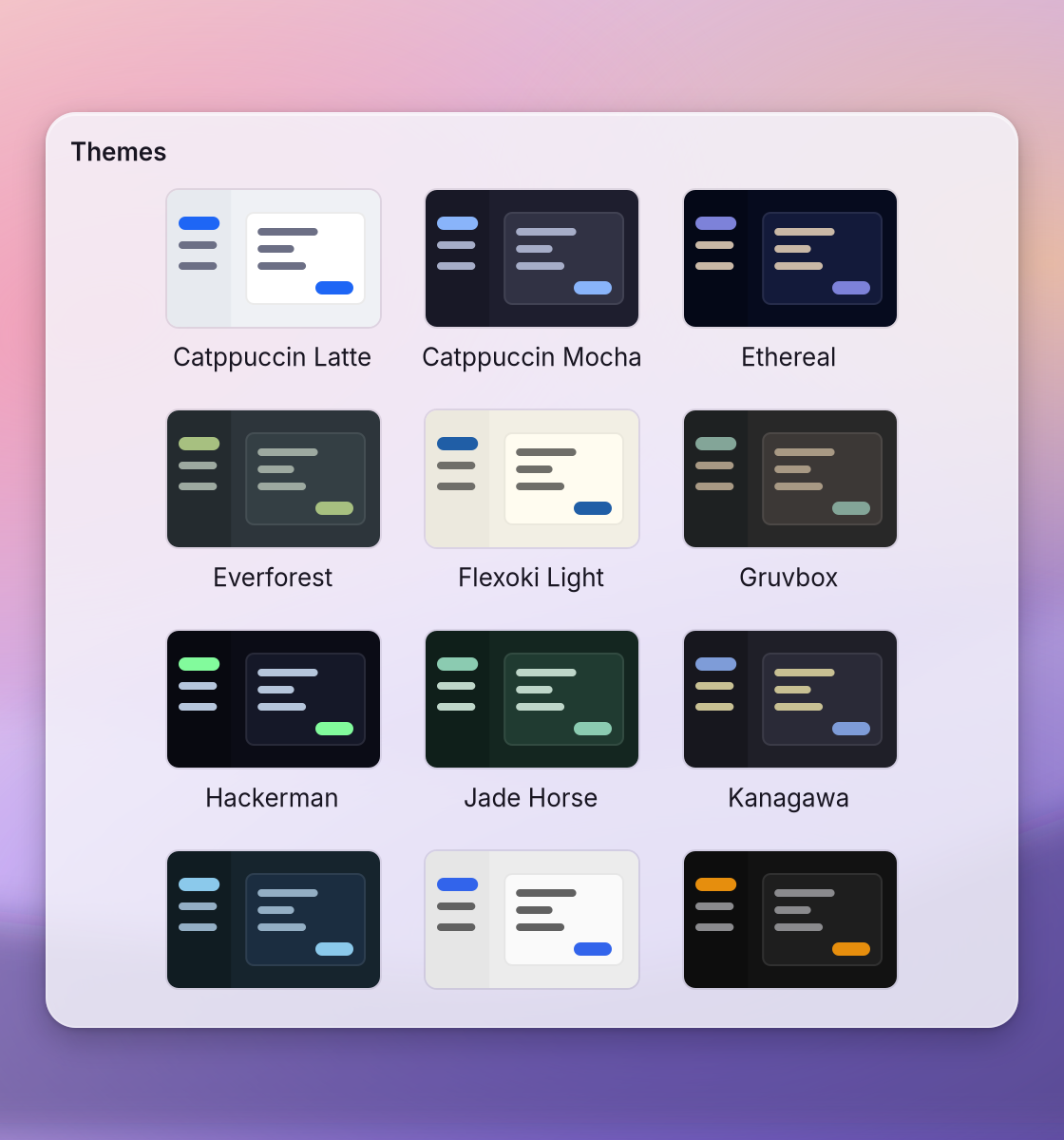
- A A set of colours that restyles the whole desktop and your apps at once.: a complete set of colours for the desktop, window borders, the lock screen, the terminal and your apps. WolOS ships 21 of them; A small add-on for the desktop: a menu bar item, a widget, a search result or a theme. It runs in a sandbox. can add more.
- A theme from your wallpaper, made from the colours of your desktop picture in one click.
The theme picker (Ctrl+Super+T) shows every theme as a small preview card, so you can switch without opening Settings.
Why WolOS does it this way
People change a look far more often than they change anything else, so it has to be safe and quick: one click, the whole system at once, and an undo. A theme that only restyled the desktop's own apps would leave every other window looking out of place, so one choice restyles every kind of app, the terminal included. And every theme, including the one made from your picture, is checked so text stays readable on its background.
How
Pick a theme
- Press Ctrl+Super+T, or open System Settings > Appearance.
- Choose Light, Dark or Auto (1), and click an accent colour (2): Violet (the default), Lake, Orchid, Rose, Tangerine, Marigold, Jade or Slate.
- Or click a theme in the gallery (3). The desktop and your apps change at once. Themes that plugins bring are listed after WolOS's own, under "From plugins" in the picker (with the plugin's name after each) and "From Plugins" in System Settings.
- Escape closes the picker.
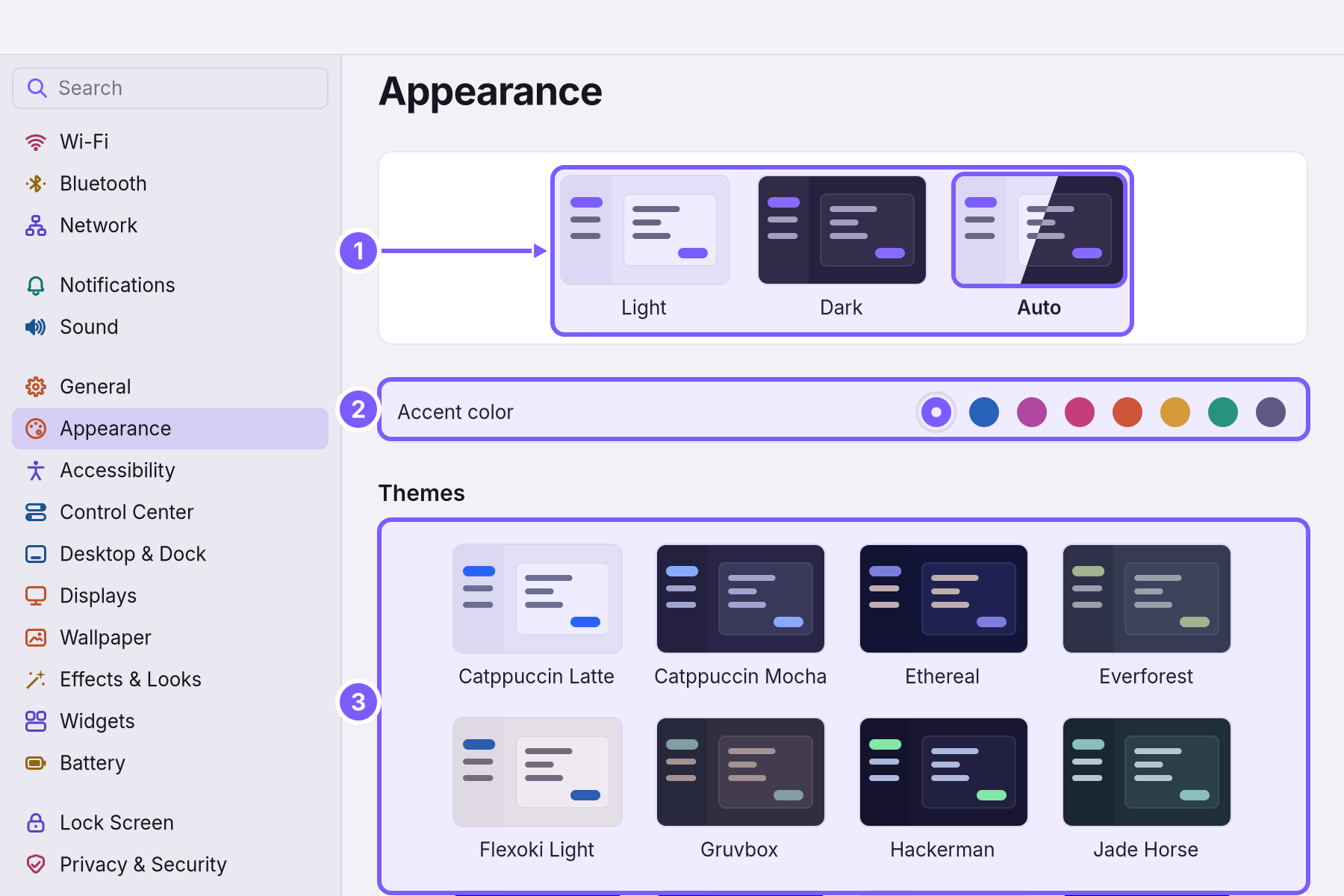
The accent colours apply to the WolOS Light and Dark looks; a theme brings its own. In Settings the footnote says it: "A theme restyles the whole desktop and your apps at once. Accent colors apply to the WolOS Light and Dark looks."
Switch between light and dark from anywhere with Dark Mode in Control Center; see Dark Mode.
A theme from your wallpaper
- Choose a desktop picture (Settings > Wallpaper, or Choose… on the Wallpaper row of Appearance).
- Press Make Theme on the row Theme from your wallpaper ("Colors taken from the desktop picture, readable everywhere.").
- The new theme, called From Your Wallpaper, is applied at once.
The colours are picked so every text and background pair stays readable, so a dark or busy picture still gives a theme you can read.
Make your own
Make a theme > Open Studio in System Settings > Appearance opens Theme Studio, where you build one from scratch and share it as a plugin (The Maker).
Take it back
Every change of look is recorded: System Settings > Restore > Recent Changes > Undo takes it back (Backups and undo).
Blur, corners and animations
System Settings > Effects & Looks sets how glassy and soft the desktop is: blur and transparency behind panels, rounded corners, window borders and shadows, and animations, with presets that set all of them at once. System Settings > Accessibility > Reduce motion turns most animations off.
A worked example
Alice likes the look of her beach photo. She opens Settings > Appearance, chooses Dark, picks a blue accent, then clicks the theme made from her wallpaper. The windows, the Dock, the terminal and the lock screen all take the colours of the photo. She dislikes it next week and picks another theme from the picker with Ctrl+Super+T.
If something goes wrong
| What you see | What to do |
|---|---|
| "The desktop picture couldn’t be read. Choose another in Wallpaper." | Make Theme could not decode the picture. Pick another picture, then press Make Theme again. |
| An app kept its old colours | Most apps change at once; some only when they start again. Quit the app (Super+Q) and open it. |
| The accent colour does nothing | A theme from the gallery is active, and themes bring their own accent. Pick Light, Dark or Auto to use the accent colours. |
| A plugin's themes are missing | The plugin is off. Turn it on in the App Store, Plugins. |
Related
- Dark ModeLight text on dark backgrounds everywhere, all the time or only in the evening, switched in one click from Control Center.
- Backups and undoTake back a setting you changed, go back to the system from before an update, and keep copies of your own files on a USB disk.
- Control CenterThe panel at the top right for the things you change every day: Wi-Fi, Bluetooth, Focus, Dark Mode, brightness, sound, music and quick switches.
- System SettingsThe one window for everything you can change: how to open it, find any setting by typing, what every pane holds, and how to take a change back.
- The desktopThe menu bar, the Dock, windows, Search, switching apps and the four desktops: what each part of the screen is for and how to use it.