
Advanced
Secure Boot
An option in the installer. Every computer makes its own start-up keys; at most one blue key screen, once, with the password boot.
On this page
What it is
A check built into the computer that starts only signed software. WolOS can use it with keys made for this computer only. is the check, made by the computer's The small program built into the computer that starts it before any system does. Its menus come up with keys such as F2, F12 or Del., that lets only signed programs start. WolOS signs its boot images with keys made on your computer, at install. No image carries a shared WolOS key, and no two computers share one. In the installer it is a page you choose: Use Secure Boot is off unless you turn it on, and you can turn it on later in Settings > Privacy & Security > Startup Security.
Think of it as a seal on a jar: at every start the computer checks that the seal is unbroken, which means nobody changed WolOS while the computer was off. The seal is made with a key that only your computer has.
Why
A vendor key that signs every copy of a system is one secret that, once leaked, unlocks every copy. A key per computer has no such single point (the decision: Signed boot with this computer's keys). The price is that the computer signs its own updates, so its key lives on it, encrypted to the TPM chip when there is one. The other price is the blue key screen: your firmware has never seen this computer's key, so it asks you once.
How
Which path your computer takes
The installer picks the simplest path your firmware allows (wol boot detect shows which) and the Secure Boot page says what On and Off mean for it:
| Your firmware | What happens when Secure Boot is on |
|---|---|
| In Setup Mode | WolOS puts its own keys next to Microsoft's. "Nothing to click". |
| Microsoft's third-party certificate present (most PCs), Secure Boot on or off | A signed, unmodified first stage starts WolOS's loader. "One blue screen after the restart" asks you to confirm the key once. If Secure Boot is already on in the firmware you cannot leave it off here (WolOS would only start after a trip to the startup settings), so the page just says one blue screen will come. |
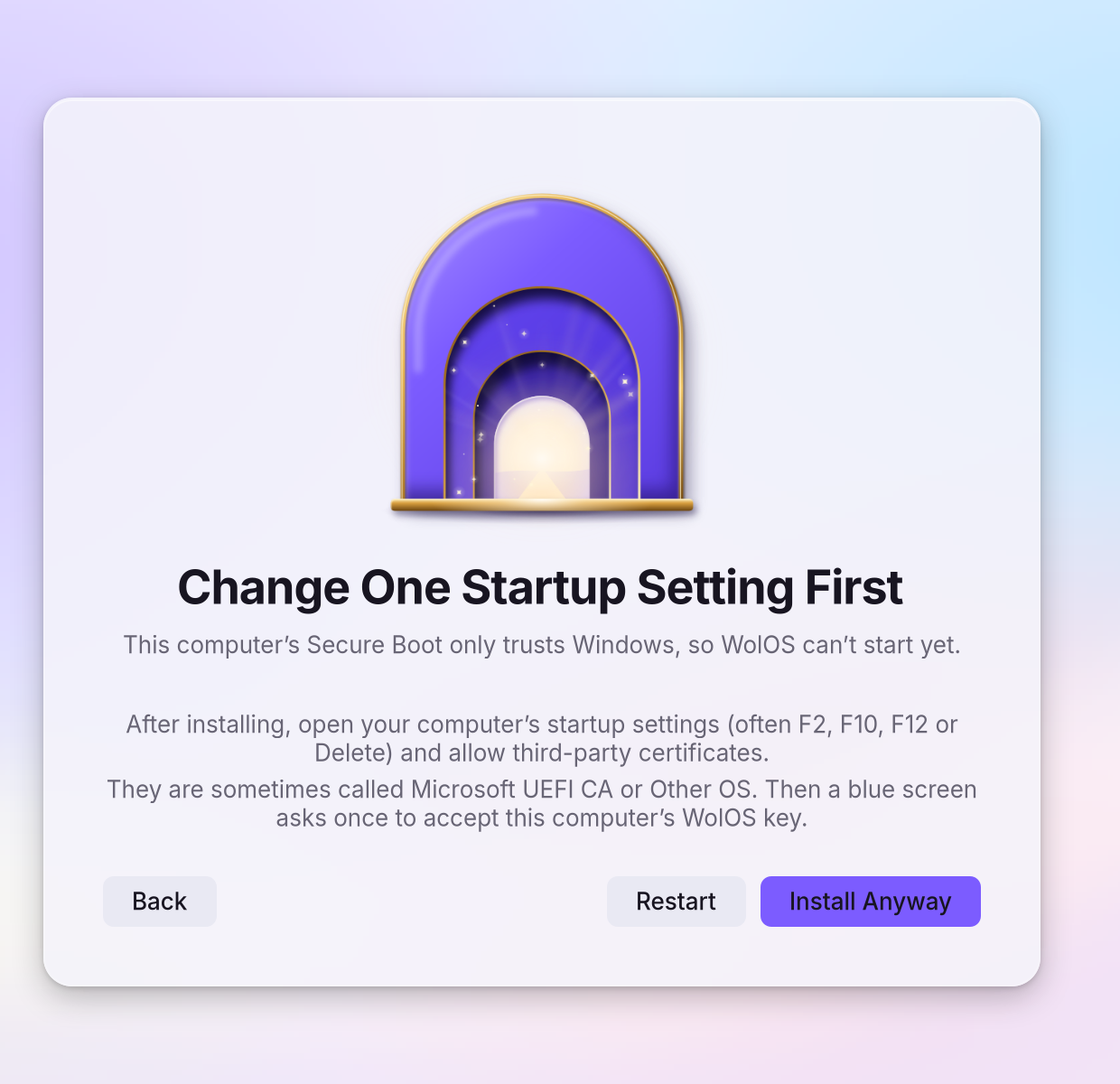
| Secure Boot on and the firmware trusts only Windows | A firmware setting has to change first. The installer's sheet "Change One Startup Setting First" says: after installing, open the startup settings (often F2, F10, F12 or Delete) and allow third-party certificates (sometimes called Microsoft UEFI CA or Other OS). Then the blue screen asks once. |
| None of the above | WolOS starts without signatures and Settings says so. |
On a computer that trusts WolOS only through its firmware keys, Secure Boot switches itself to the stronger setup after the key has been enrolled.
The key screen on the installed system, step by step
After the restart a blue screen appears: the A blue screen from the computer itself, shown once, where you confirm that WolOS's key may be trusted. The password it asks for is boot.. It comes from your computer's firmware, not from WolOS, and it waits for you. It looks like an old computer screen: blue, white letters, a short menu. The mouse does not work there: use the arrow keys and Enter.
Press a key. You see a short menu that includes Enroll MOK.
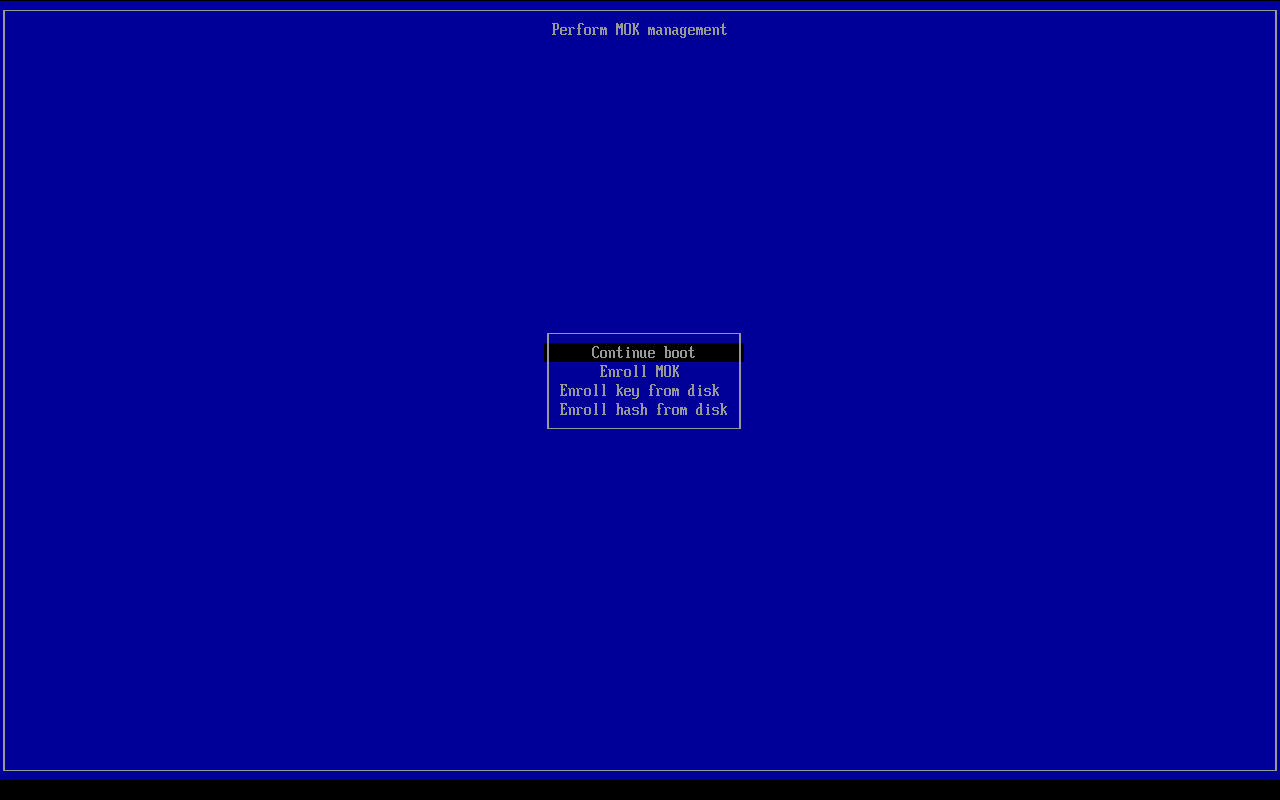
- Choose Enroll MOK, then Continue, then Yes. You see a prompt for a password.
- Type
boot. Nothing shows while you type. Press Enter. - Choose Reboot. WolOS starts. You will not see this screen again.
The word comes from wol boot password. The blog post The blue screen at first start tells the story of this screen.
The live USB stick with Secure Boot on
The The USB stick with WolOS on it. Try WolOS runs the desktop from it and changes nothing on the computer. boots with Secure Boot on. Its first-stage loader, boot loader and kernel image are signed with the WolOS live-image key. The first start from the stick asks once to enrol that key. The certificate is on the stick as ENROL_THIS_KEY_FOR_WOLOS.cer (also EFI/wolos/), with a README.txt that says the same as these steps:
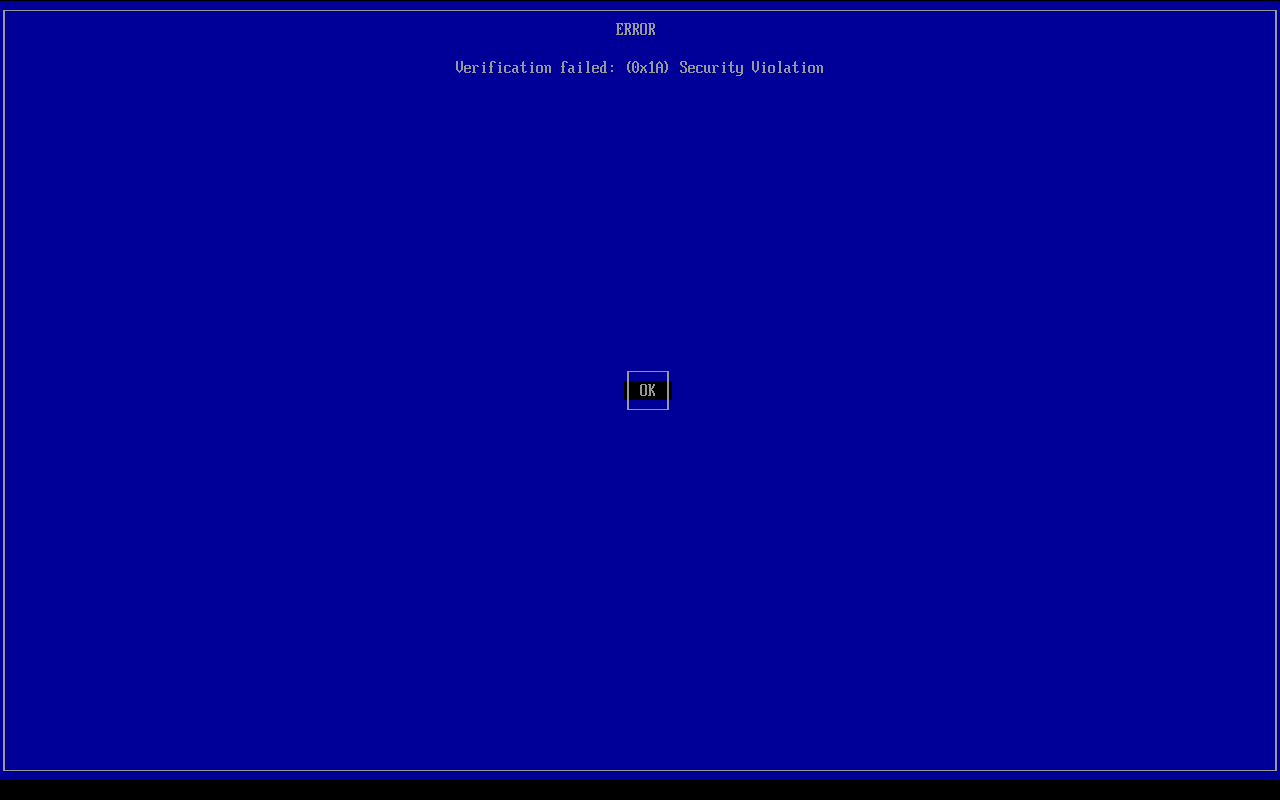
If a screen says "Verification failed", press Enter.
At "Press any key", press a key within 10 seconds. You see the same kind of blue menu.
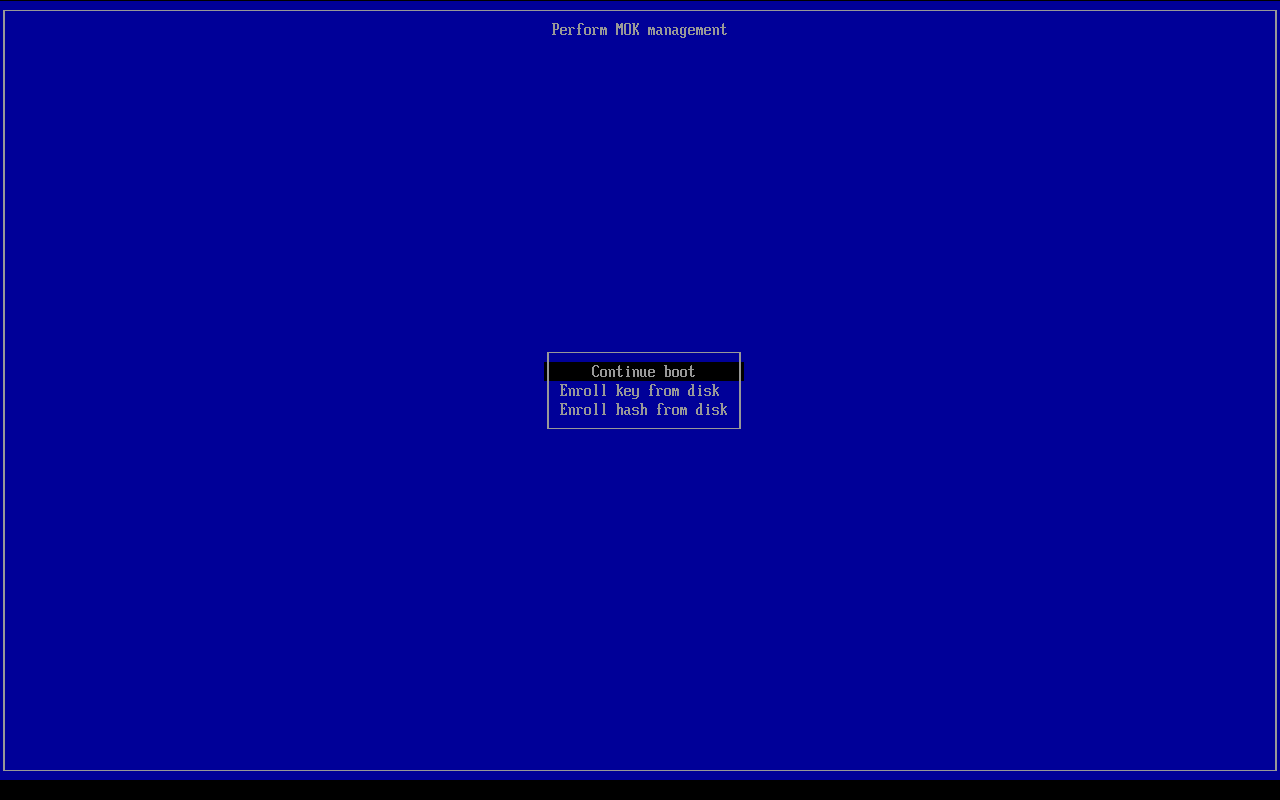
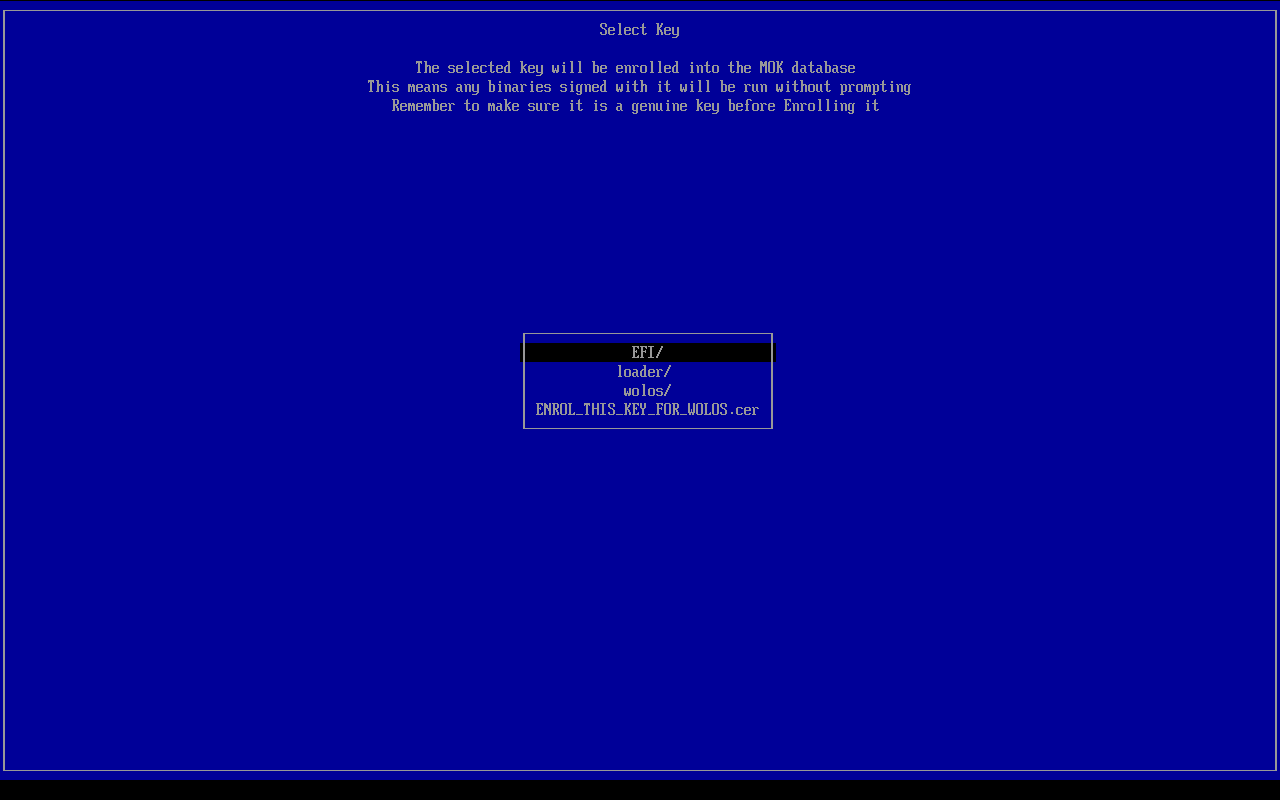
Choose Enroll key from disk, then the volume that holds
ENROL_THIS_KEY_FOR_WOLOS.cer(your USB stick, often the last one in the list; if you seeEFI\Microsoft, press Esc and pick the next one), then the file.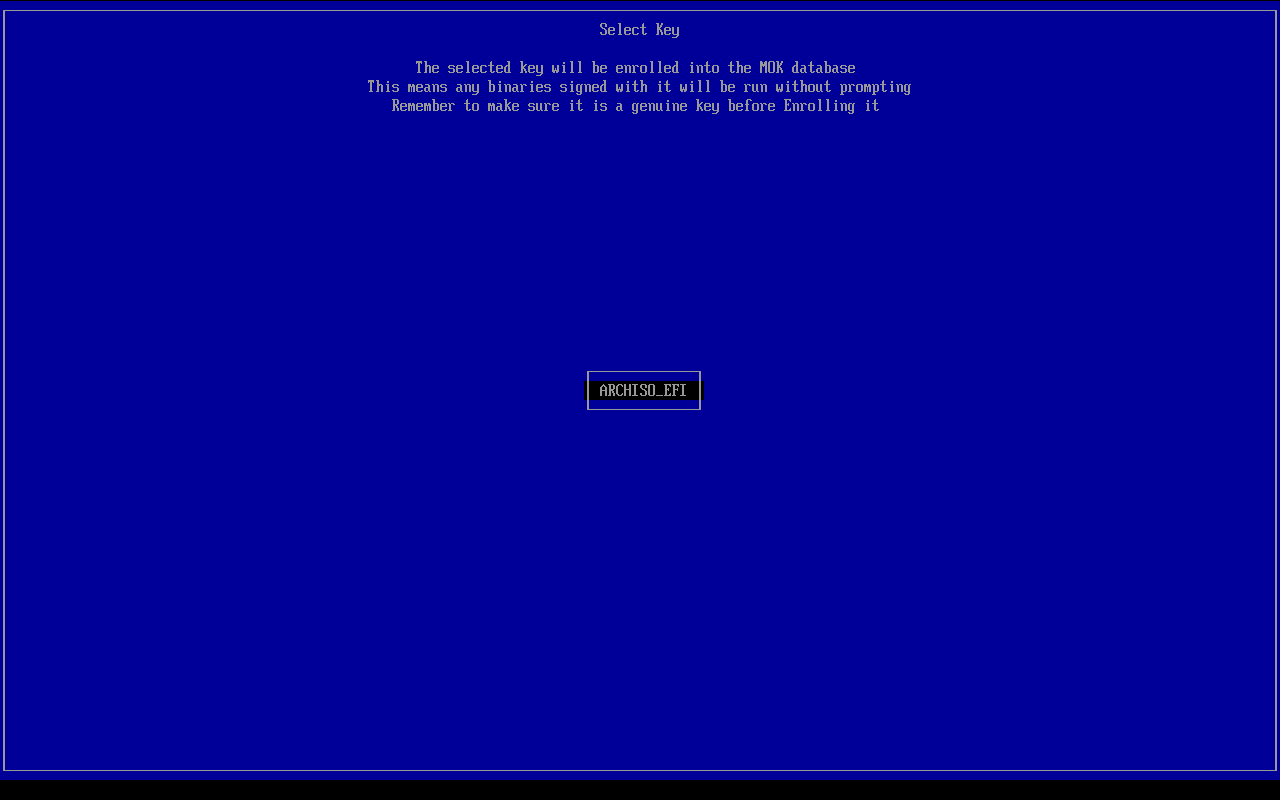
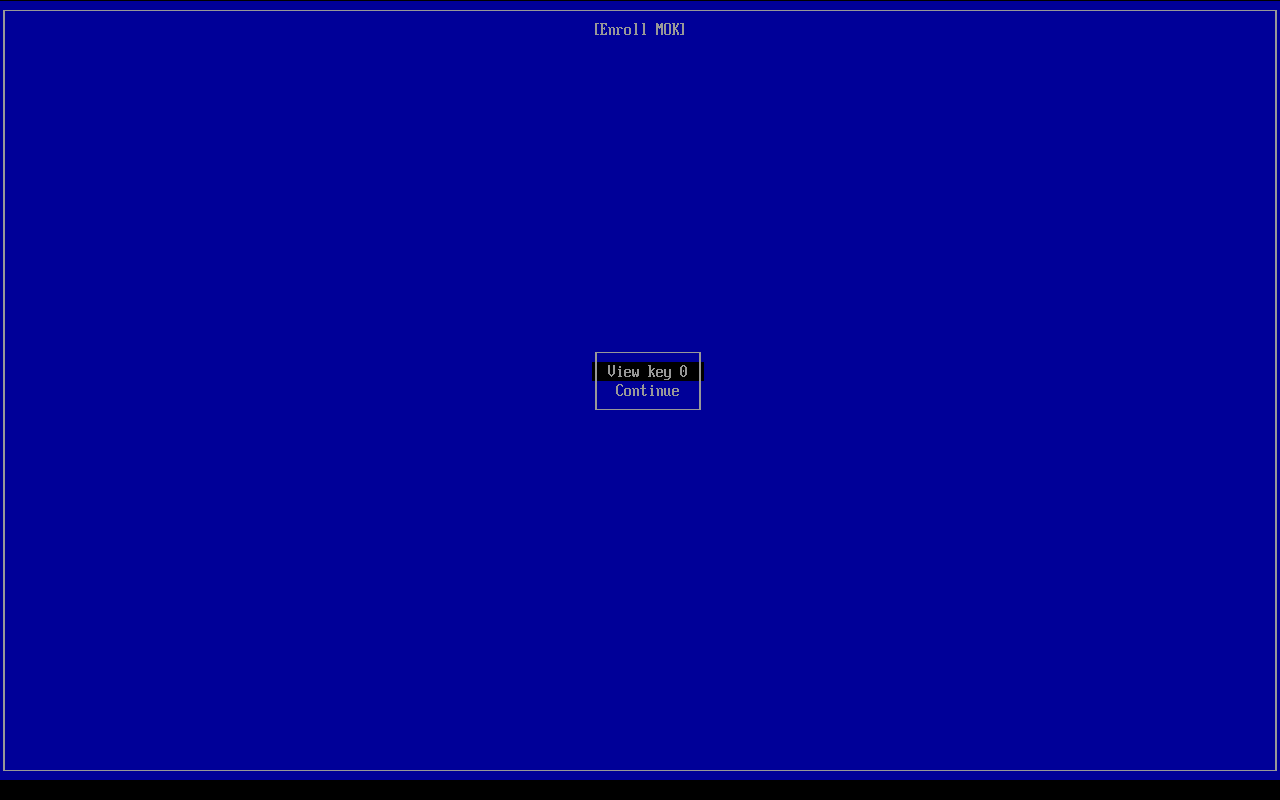
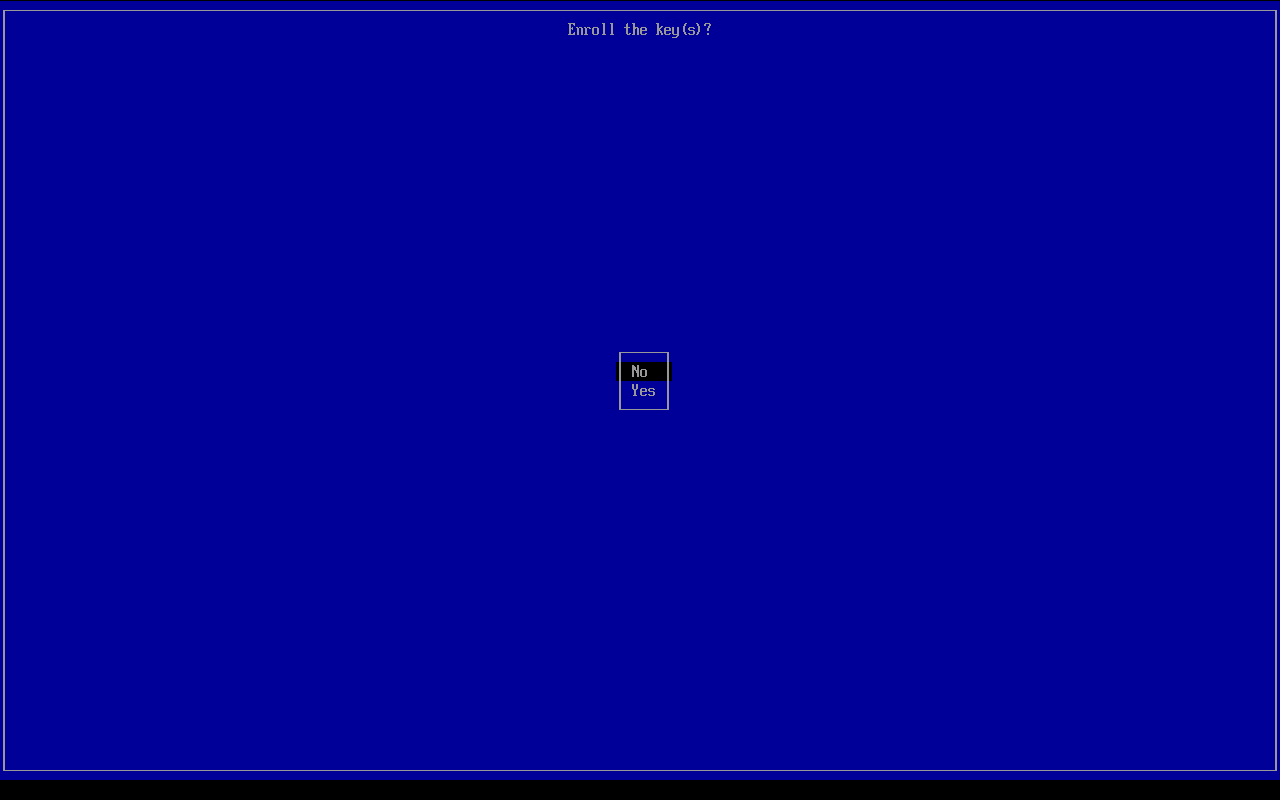
Choose Continue, then Yes.
Choose Reboot. WolOS starts and the blue screen does not come back.
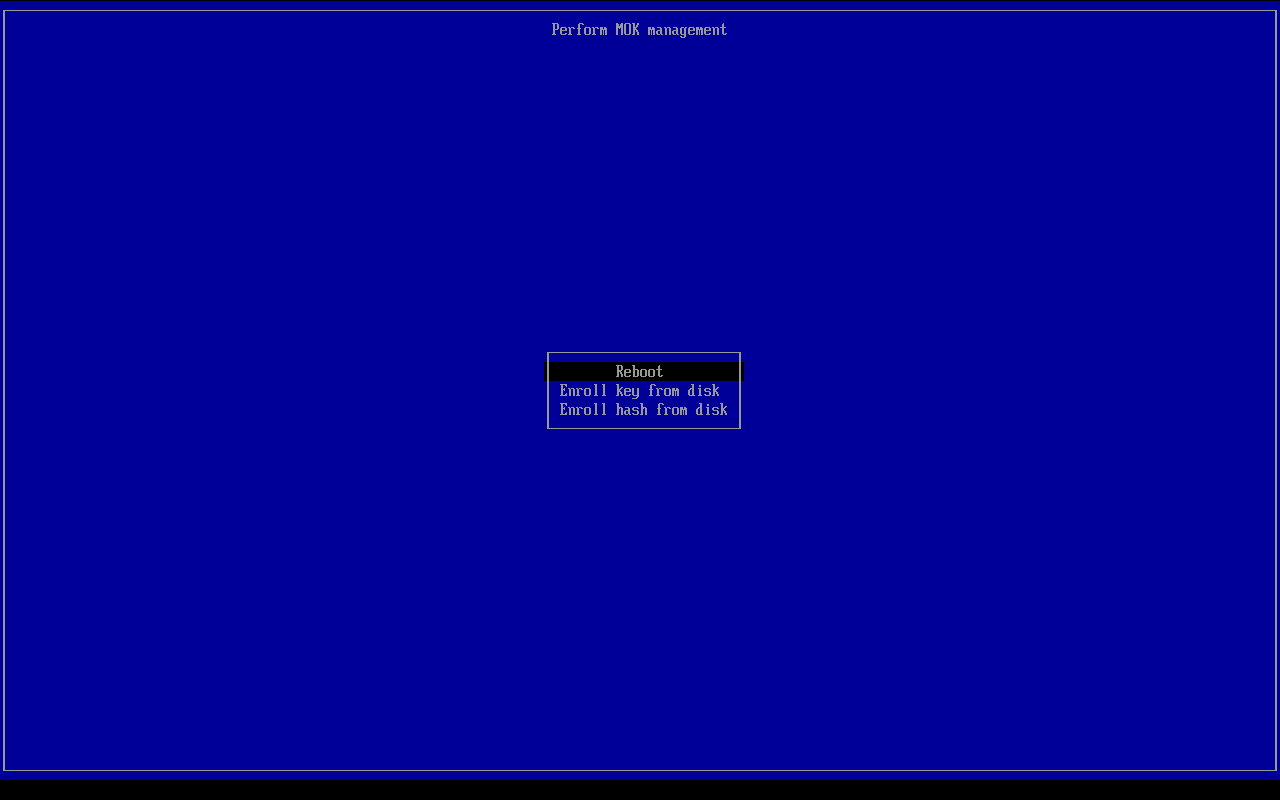
Missed the 10 seconds? Start from the stick again: the screen comes back. This key starts the WolOS stick only. An installed WolOS uses its own key, and the installer says what to expect before its restart. With Secure Boot off in the firmware, none of this is read and the stick starts straight away.
When the install put WolOS's own keys into the firmware (Setup Mode), the stick is not signed with those keys and will no longer start on that computer. Remove it when the screen goes dark.
Checking and repeating it
| Command or place | Does |
|---|---|
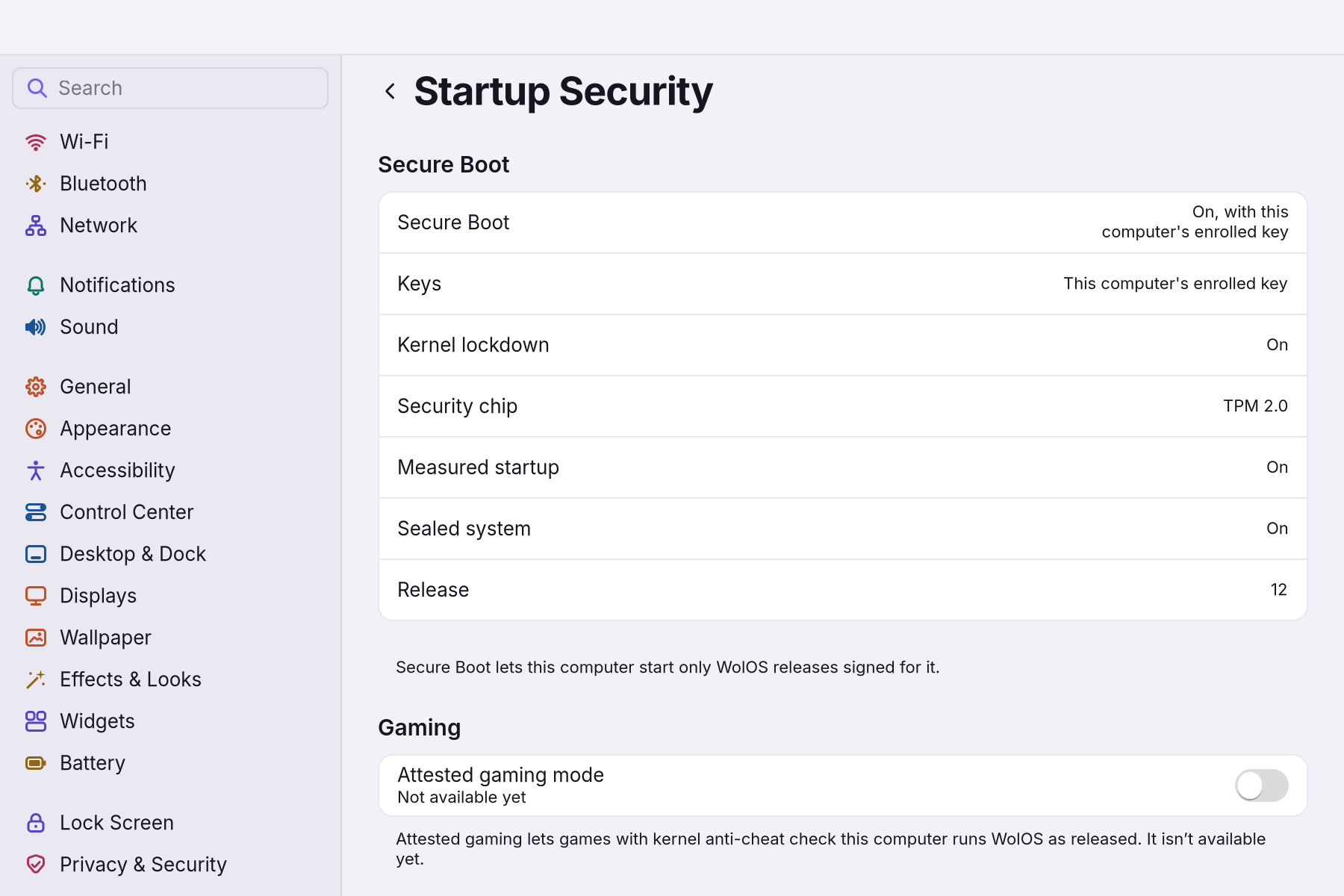
wol boot status | Prints how well this computer is protected at start: the Secure Boot level, the A small chip in the computer (the TPM) that can hold the disk's key, so the disk opens by itself on this computer only., kernel lockdown and the state of the system seal. Settings reads the same facts. |
| Settings > Privacy & Security > Startup Security | Shows how this computer starts. If a key is waiting it says "This computer's key is queued: a blue screen asks once at the next restart", and Finish Secure Boot setup finishes it (it runs once, then the page reads the facts again). |
wol boot enroll (administrator) | Queues this computer's key for the key screen again. Restart. |
What signing protects
When WolOS starts signed, the The core of the system that talks to the hardware and runs every program. WolOS ships its own, WolKernel. runs locked down and accepts only signed drivers. The seal on the system files and a version number are part of what is signed, so an older, retired copy of the system cannot be started again. The key that opens your disk follows signed kernels: updates keep unlocking the disk, while a kernel that someone changed does not. The boot menu can no longer be edited at start.
What it costs: a locked-down kernel does not hibernate, and extra drivers from outside WolOS, such as NVIDIA's, need the same key screen once.
A worked example
Alice installs WolOS with Use Secure Boot on. Her computer trusts the usual third-party certificate, so the installer says "One blue screen after the restart". After the first restart a blue screen appears. She presses a key, uses the arrow keys to choose Enroll MOK, then Continue, then Yes, types boot (nothing shows while she types) and presses Enter, then chooses Reboot. WolOS starts, and the blue screen never comes back. Total time: under a minute.
If something goes wrong
| What you see | What to do |
|---|---|
| I missed the blue screen, or the computer started without asking | WolOS starts without the key and asks again at the next start (wolos-mok-enroll.service repeats it until the key is enrolled). Or run wol boot enroll and restart. |
The password boot seems wrong | Nothing shows while you type, so type it and press Enter. If the screen refuses it, run wol boot enroll, restart and try again. wol boot password prints the word. |
| The blue screen comes back at every start | The key was not enrolled: you chose a different option or did not finish. Repeat the steps, ending with Reboot. |
| Windows asks for its {{tip:bitlocker | BitLocker}} recovery key after the Secure Boot step |
| The disk asks for a password (or the recovery key) after a Secure Boot or firmware change | The security chip refused because the measured state changed. Type your account password; the next start is automatic again because the chip is sealed again (wol encrypt reseal runs on its own). See Recovery. |
| The stick says "Verification failed" and nothing else | Follow the live-stick steps above, or turn Secure Boot off in the firmware for the first start. |
| WolOS will not start at all with Secure Boot on | Open the firmware's startup menu and pick the other slot, or turn Secure Boot off. Settings > Privacy & Security > Startup Security says what the installed system expects. |
| Settings says the computer starts without signatures | The firmware was neither in Setup Mode nor trusting Microsoft's third-party certificate when you installed, so WolOS started unsigned and said so. If you change that setting later, Startup Security is where you finish the setup. |
| A {{tip:virtual-machine | virtual machine}} such as VirtualBox |
Related
- Installing WolOSErase a disk, share it with Windows or Linux, or lay out partitions by hand. Nothing is written before you confirm the summary.
- Recovery: when something does not startThe disk will not unlock, an update went wrong, a screen stays black, or a setting broke the desktop. What WolOS does on its own and what you can do.
- Getting startedWhat WolOS is, what you need, and the way from the download to your own desktop, in five steps.
- Installing next to Windows or LinuxShare a disk: your other system keeps its files, gets smaller, and you pick one at start. What to do first, and what to do when the installer refuses.
- Startup SecurityThe Settings page that says how this computer starts: Secure Boot, whose keys it trusts, kernel lockdown, the security chip, the sealed system, and the one button that finishes a waiting setup.