
Advanced
Plugins: add to the desktop itself
Weather in the menu bar, a timer in Control Center, a clock on the desktop: get a plugin in the Store, see what it asks for, turn it on and off, and make your own.
On this page
What it is
A A small add-on for the desktop: a menu bar item, a widget, a search result or a theme. It runs in a sandbox. adds something to the desktop itself, not a new window: an item in the , a card on the desktop, a A square button in Control Center that turns one thing on or off, such as Dark Mode or Stay Awake. in The panel behind the icon at the top right of the menu bar: Wi-Fi, Bluetooth, Focus, brightness, sound and quick switches., an icon in the The row of app icons at the bottom of the screen. Click an icon to open the app; a dot under it means the app is running. or results in The box that finds apps, files, folders and Settings pages as you type. Super+Space opens it.. Plugins install for you only and update on their own, apart from WolOS updates. Every plugin in the Store was checked and signed by the WolOS plugin index.
Why WolOS does it this way
A plugin sits very close to your desktop, so it must say what it wants before it gets it. Each plugin lists what it asks for in plain words ("Asks to: show notifications"), and gets only that. A plugin that asks for nothing can do nothing but draw. If a plugin fails three times in a row, WolOS turns it off by itself, so one broken plugin cannot spoil your desktop.
How
Open the App Store and choose Plugins in the sidebar. You see Your Plugins (the ones you have) and Available (the ones you can get).
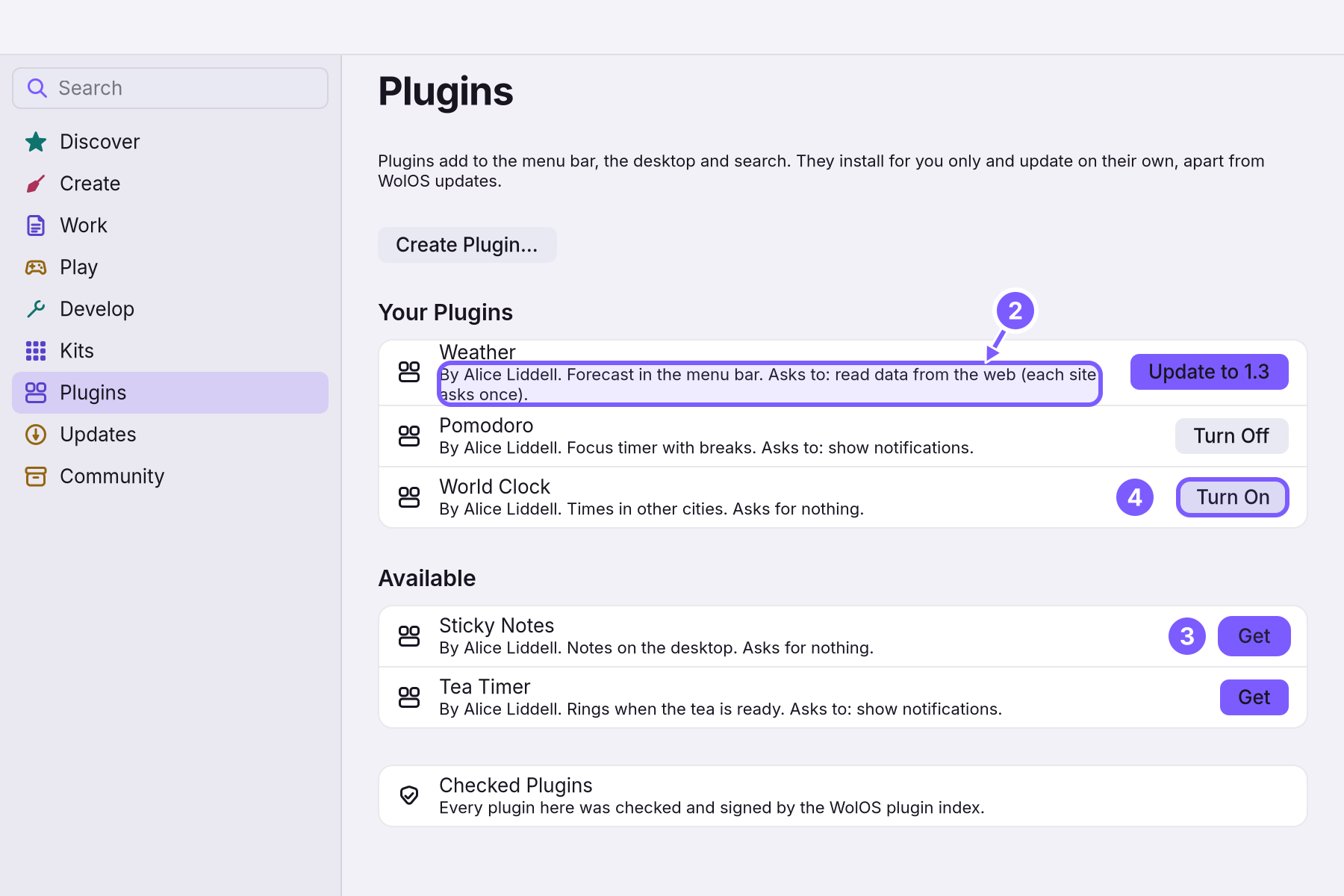
- Read what it asks for. Under every name is one line: what the plugin does and what it asks for ("Asks for nothing", "Asks to: read data from the web").
- Click Get on a plugin you want. It installs for you and does not need an administrator.
- Click Turn On. Its parts appear where they belong: the weather in the menu bar, the clock card on the desktop.
- Turn it off or remove it from the same row (Turn Off, Remove). When a new version is out, the row says Update, with the version.
A tile or a Dock item from a plugin that runs something only does so after you allowed it, the first time. The answer is kept and can be changed in System Settings > Privacy & Security (Privacy and permissions).
Make your own
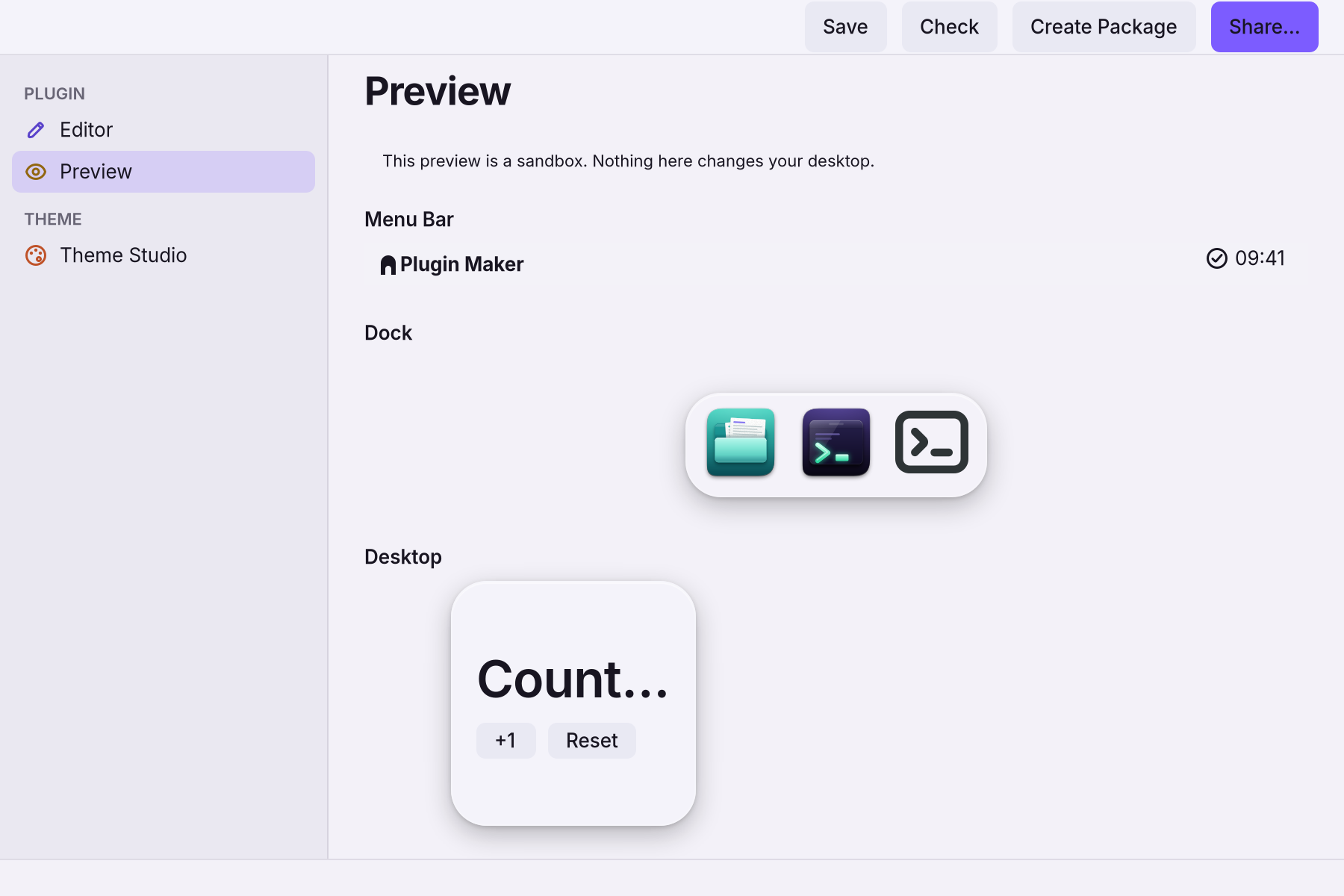
Create Plugin… at the top of the Plugins page opens Plugin Maker, an app with an editor that checks your work as you type and a preview of the menu bar, Dock and desktop that cannot change your real desktop. When it is ready, Create Package writes one file you can share. Share… shows the steps to send it to the plugin index. The same app has Theme Studio, for making a theme with sliders and contrast checks (Looks and themes). The full description of a plugin file is in the Reference (Plugin API reference).
A worked example
Alice wants to know the time in Lisbon without opening anything. In the App Store she opens Plugins, reads "World Clock: Times in other cities. Asks for nothing.", clicks Get and then Turn On. A card with the times appears on her desktop. Later she finds she does not use it, so she opens the same row and clicks Turn Off. The card disappears; the plugin stays installed in case she wants it back.
If something goes wrong
| What you see | What to do |
|---|---|
| A plugin says it needs a newer WolOS | Update WolOS in System Settings > Software Update, then try again. |
| A plugin turned itself off | It failed three times in a row. Turn it on again; if it stops again, remove it and tell its author. |
| A tile or a Dock item from a plugin does nothing | It is waiting for your permission to run. Click it once and answer the sheet. |
| A plugin's web request fails | A plugin may only talk to the sites it named, and cannot be sent to another one. |
| Too many notifications from a plugin | Plugin notifications are limited in number. Turn the plugin off in the Store, or turn its notifications off in System Settings > Notifications. |
| Create Plugin will not use a name | The first part of the name, org.wolos, is kept for the plugins WolOS ships. Choose another. |
Related
- Privacy and permissionsWhat apps may use and how you allow it, the questions WolOS asks on screen, the firewall and the malware check, and where to take any permission back.
- The StoreFind an app, get it with one click, keep it up to date or go back to the version before, add a Kit, and remove what you no longer use.
- Control CenterThe panel at the top right for the things you change every day: Wi-Fi, Bluetooth, Focus, Dark Mode, brightness, sound, music and quick switches.
- Your first daySign in for the first time, finish the setup, and spend ten minutes making WolOS yours: Wi-Fi, updates, looks and your first apps.
- Your first app in CrystalWrite, build and run a small WolOS app in Crystal with Cryswol: it reads the system, tries to post a notification, and handles a refusal the way every app must.