
Everyday
Battery and sleep
Make the battery last or get full speed, what happens when you close the lid, the battery warnings, and Memory Saver.
On this page
What it is
WolOS decides how hard the computer works from whether it is plugged in: on battery it saves energy, on the charger it runs at full speed. System Settings > Battery (on a computer without a battery: Energy) shows the charge and the battery's health, and lets you choose differently.
Why WolOS does it this way
Most people never open power settings, and they should not have to. A laptop on battery should last, and the same laptop on the desk should be fast, without anyone choosing that twice a day. When you do want something else (a long train ride, a render that should finish quickly) one choice overrides the automatic one until you switch back.
How
Open System Settings > Battery.
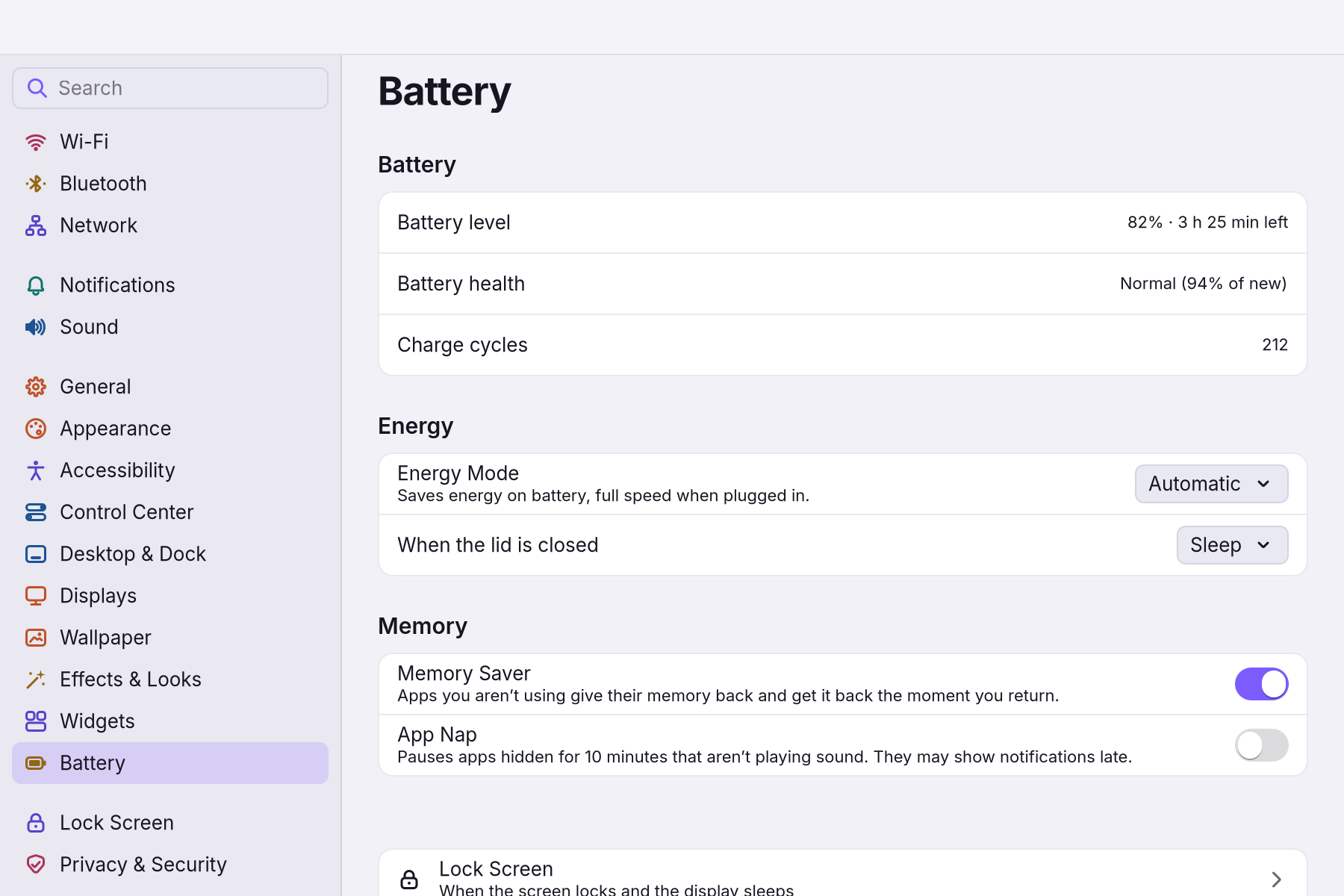
| Setting | Default | What it does |
|---|---|---|
| Battery level | The charge, and the time left on battery. | |
| Battery health | How much the battery holds compared with new, and how many times it was charged. | |
| Energy Mode | Automatic | Automatic saves energy on battery and runs at full speed when plugged in. Low Power saves energy all the time (longer battery, a little slower). High Power runs at full speed all the time (faster, warmer, shorter battery). |
| When the lid is closed | Sleep | What a laptop does when you close it. |
| Memory Saver | On | Apps you have not used for a while give their memory back, so the app you work in has more. They come back exactly as they were when you click them. The app in front, apps playing sound or video, and games are never touched. |
| App Nap | Off | Pauses an app that has been hidden and idle for 10 minutes, to save energy. |
Sleep
Close the lid, choose Sleep in the WolOS menu's Shut Down… panel, or let the computer go to sleep by itself when you leave it. Every sleep locks the screen first, so the computer wakes to the lock screen. Press a key or open the lid to wake it.
On battery the screen turns off and the computer sleeps sooner than on the charger. Stay Awake in Control Center keeps it awake for a presentation or a long download.
Battery warnings
A notification comes at 20%, at 10% and at 5% left. At 3% you see "Your computer is going to sleep now. Connect to power to keep working." and it sleeps by itself, so nothing is lost when the battery runs out.
A worked example
Alice has a five-hour train ride and an old battery. She opens System Settings > Battery, sees "Battery health 81% of new" and chooses Low Power. Her laptop lasts the whole ride. At home, on the charger, she switches back to Automatic.
If something goes wrong
| What you see | What to do |
|---|---|
| The battery runs down fast | Choose Low Power, lower the brightness in Control Center, and check that Stay Awake is off. |
| "Your computer is going to sleep now. Connect to power to keep working." | The battery is at 3%. Plug the charger in. |
| The computer does not sleep | Stay Awake may be on (Control Center), or an app keeps it awake (System Settings > Privacy & Security, Keep Awake). |
| Wi-Fi feels slow on battery | Wi-Fi saves power on battery. Choose High Power while you need speed. |
| The Energy Mode choice is missing | This computer does not let WolOS change its speed. The automatic setting still saves energy on battery. |
| "Your Disk Is Almost Full" | Less than 5% of the disk is free. Empty the Trash and remove files you do not need. |
Related
- Control CenterThe panel at the top right for the things you change every day: Wi-Fi, Bluetooth, Focus, Dark Mode, brightness, sound, music and quick switches.
- When a game will not startOne command checks everything Steam and Windows games need on this computer and prints the exact fix for each missing piece.
- Your first daySign in for the first time, finish the setup, and spend ten minutes making WolOS yours: Wi-Fi, updates, looks and your first apps.
- Privacy and permissionsWhat apps may use and how you allow it, the questions WolOS asks on screen, the firewall and the malware check, and where to take any permission back.
- The desktopThe menu bar, the Dock, windows, Search, switching apps and the four desktops: what each part of the screen is for and how to use it.