
Power user
The terminal and the wol command
Open Terminal, ask wol for help, read before you change, undo a change, and see why some commands ask for your password. Ten commands worth knowing.
On this page
What it is
A window where you type commands instead of clicking. Super+Return opens one. is the app where you type commands instead of clicking. You never need it for everyday things in WolOS, but it is often the fastest way. wol is WolOS's own One instruction you type in a terminal, such as ls (list the files here). Return runs it.: one word in front of everything the system can do, from the theme and the volume to updates, modules, games and Secure Boot. Think of it as a remote control with a button for every setting: Settings, scripts and AI helpers all press the same buttons, so what works in one works in the others.
Why
One command for the whole system means one place to find help, one set of words to learn, and one gate. A command that only reads never asks for anything. A command that changes your own settings just does it, and you can undo it. A command that changes the system for every account asks for an An account allowed to change things that affect everyone on the computer. The account you make while installing is one.'s password, and a A script or AI assistant that changes WolOS for you through wol. Every change it makes is shown on screen for you to allow first. program can never answer that question for you.
How
Open Terminal. Press Super+Space, type
teand press Return. Or press Super+Enter.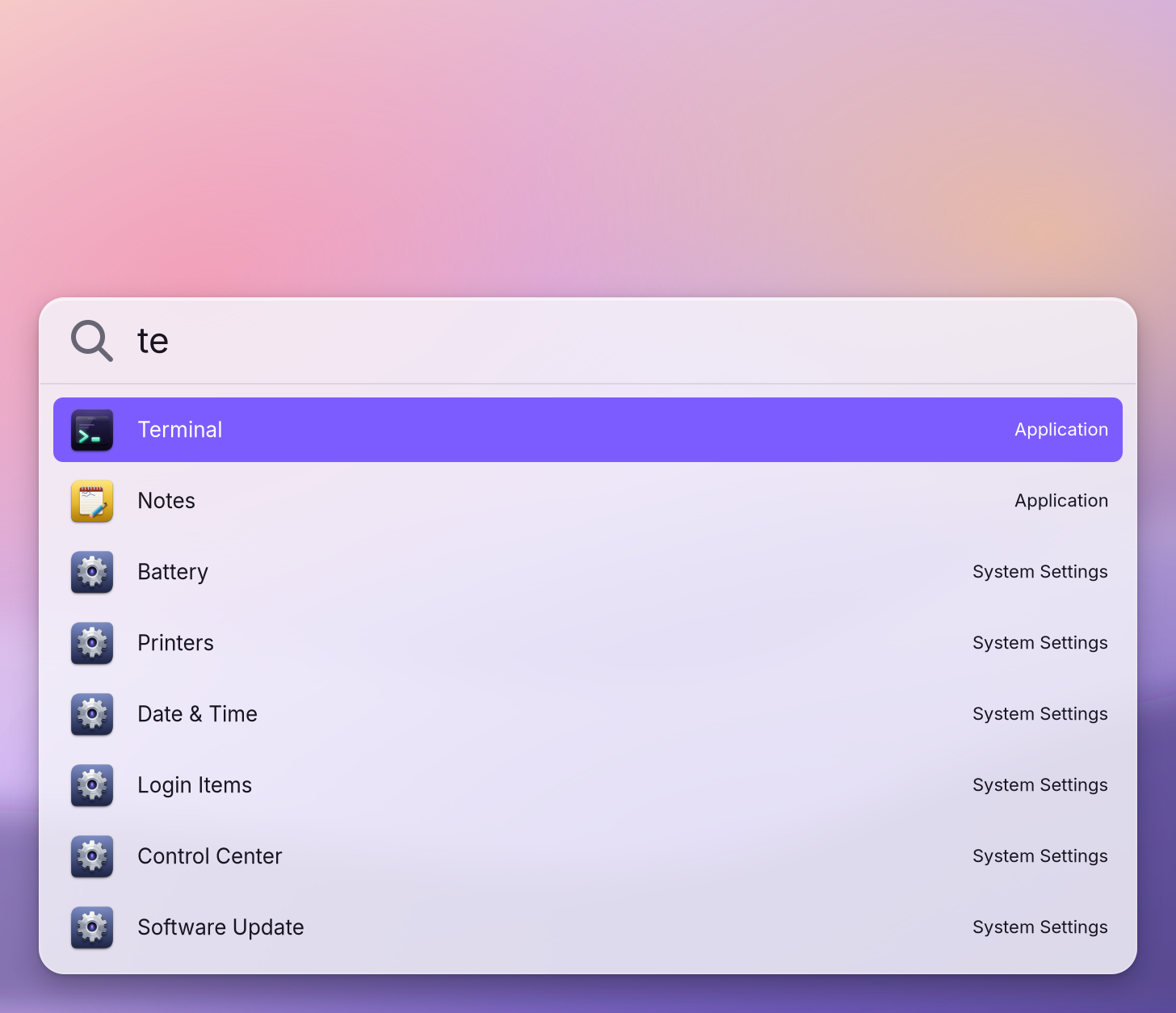
You see a Terminal window with a prompt (
~ ❯): the place to type.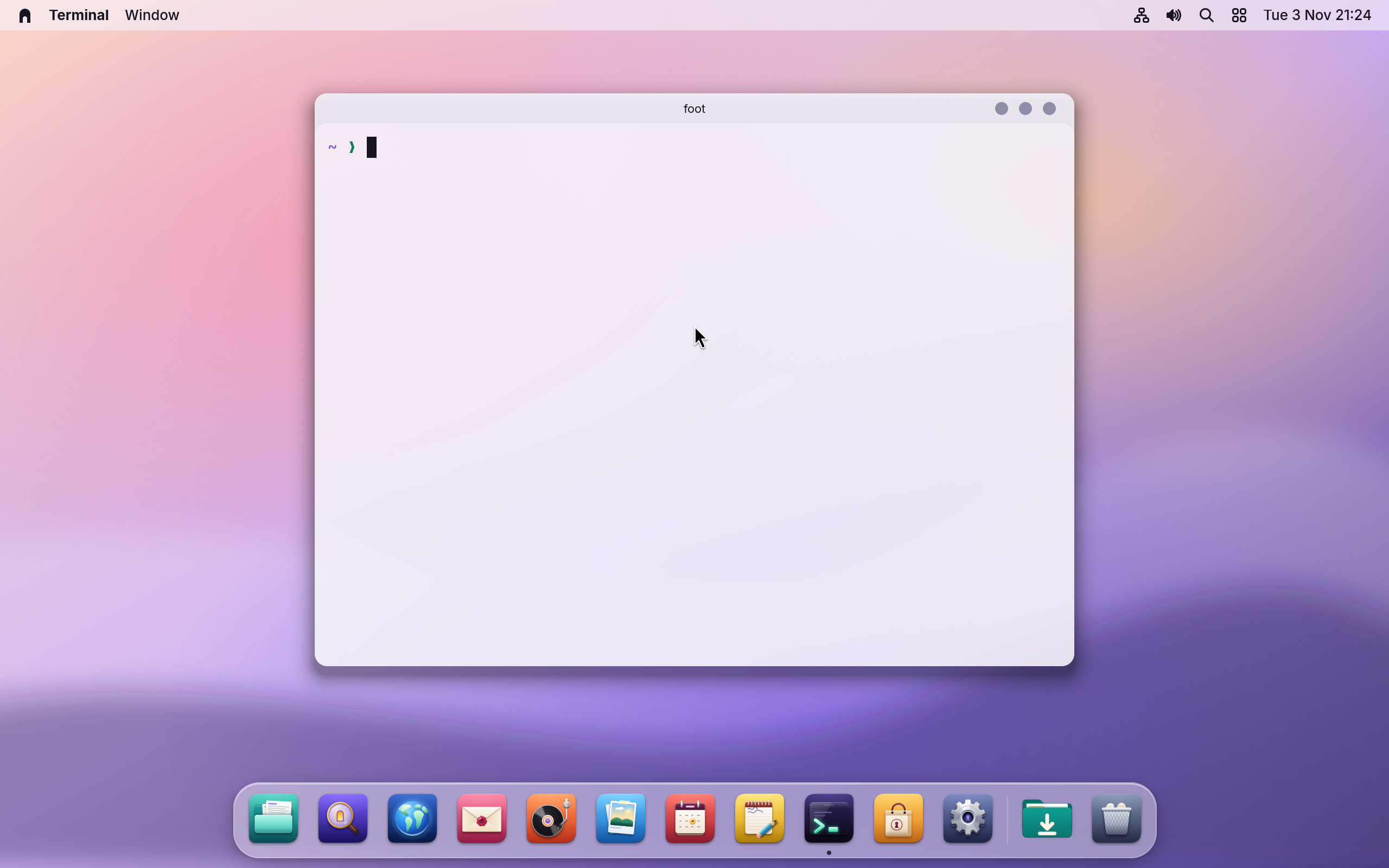
- Ask for help. Type
wol --helpand press Return. You see every command with one line on what it does; the list is long, so scroll up for the start. Add--helpto any command to see what it does without running it:wol update --help. Read something. Try:
wol settings
wol battery
wol network
You see your desktop settings, the battery's charge and health, and whether you are online. Reading never asks for anything.
Change something of yours. Try:
wol appearance set darkYou see the menu bar and the window title bars turn dark, as if you had chosen Dark in Settings > Appearance, and
okfor each part of the desktop that switched.Undo it.
wol undoYou see the change reversed, and which change was undone with the command that would redo it.
wol historylists your recent changes, and Settings > Restore shows the same list with an Undo button on each.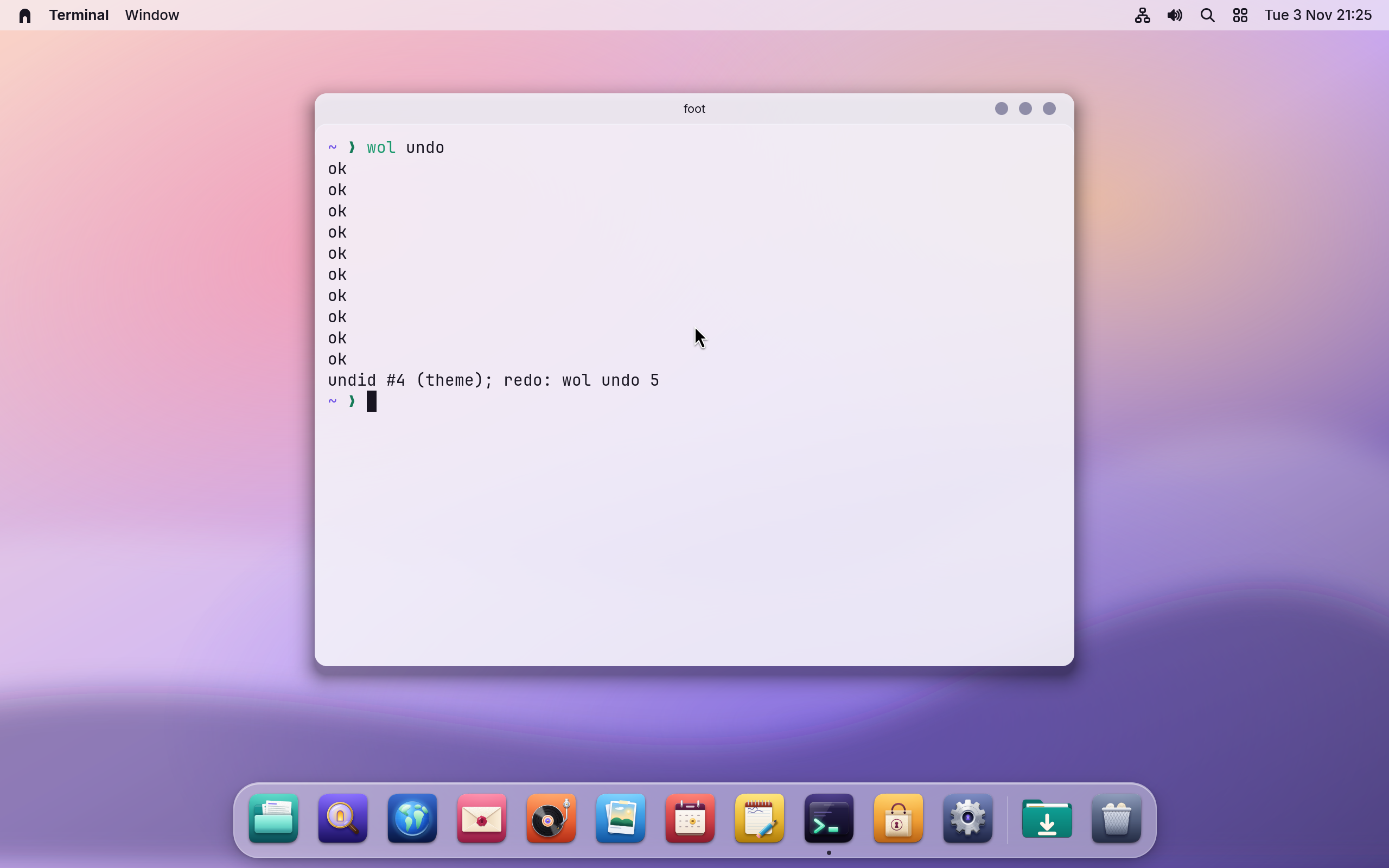
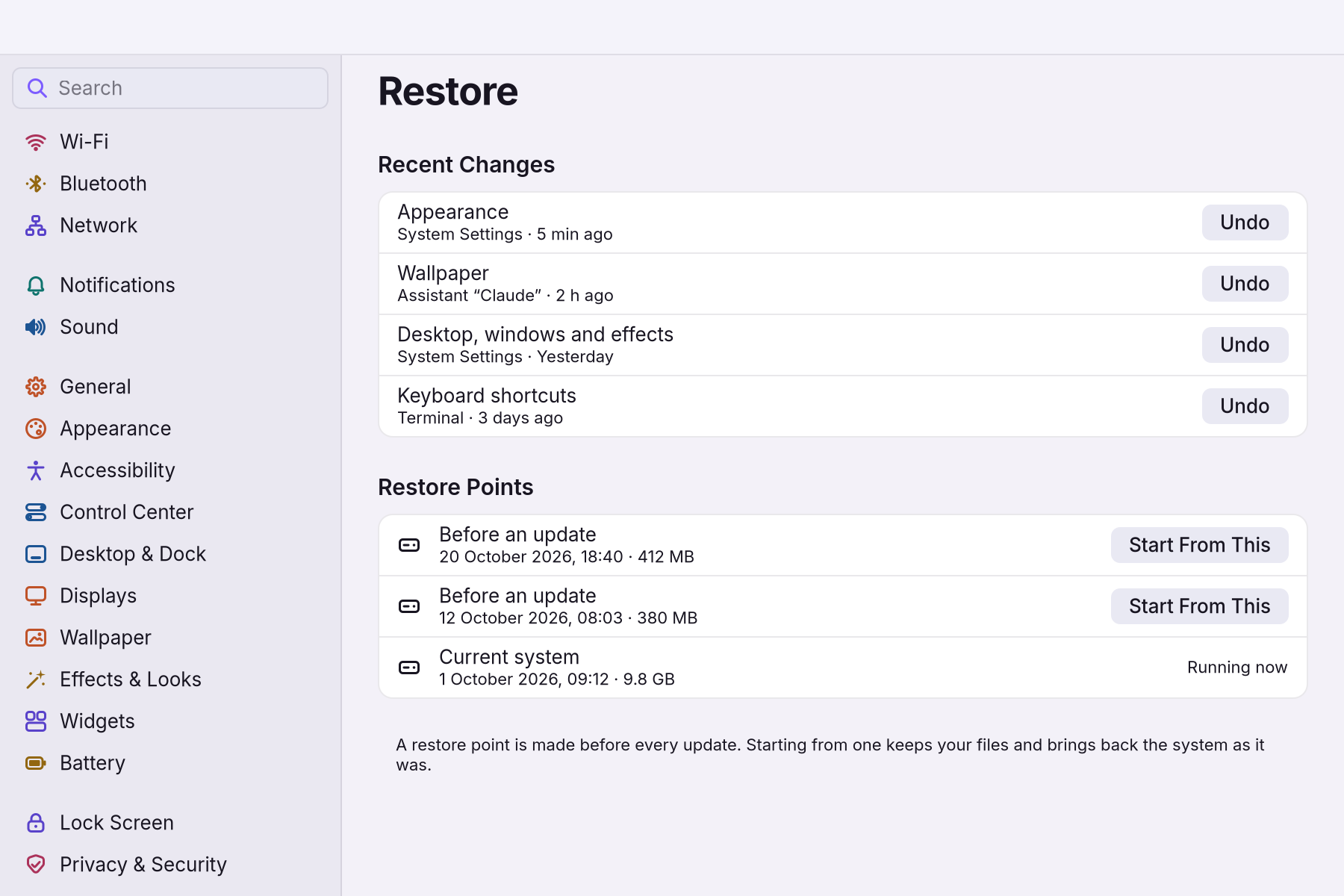
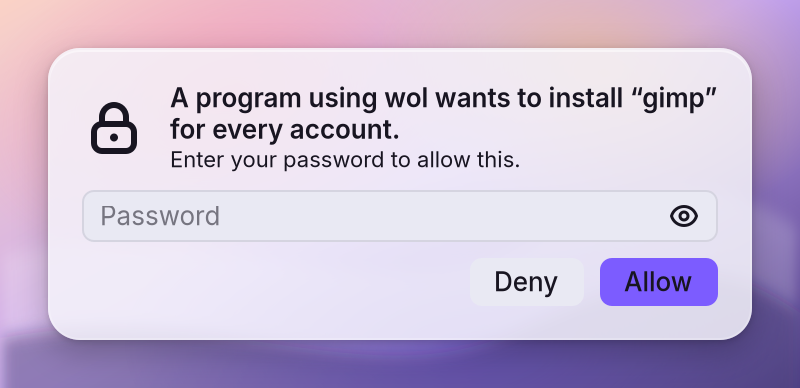
Change the system. Commands that install for every account, or change how the computer starts, ask for an administrator's password. When the request comes from a program, the sheet names it:
Ten commands worth knowing
| Command | Does |
|---|---|
wol --help | Every group of commands |
wol settings | Your desktop settings |
wol appearance set light, dark or auto | Light, dark, or following the time of day |
wol audio volume 50 | The volume, in percent |
wol toggle nightlight | Warmer colours after dark, on or off |
wol undo | Undo the last change (wol history lists them) |
wol update status | What the daily check found: fixes, security fixes, a new release |
wol modules list | The optional modules and their state |
wol games doctor | What games need on this computer, with the fix |
wol audio doctor | A sound check, with the fix |
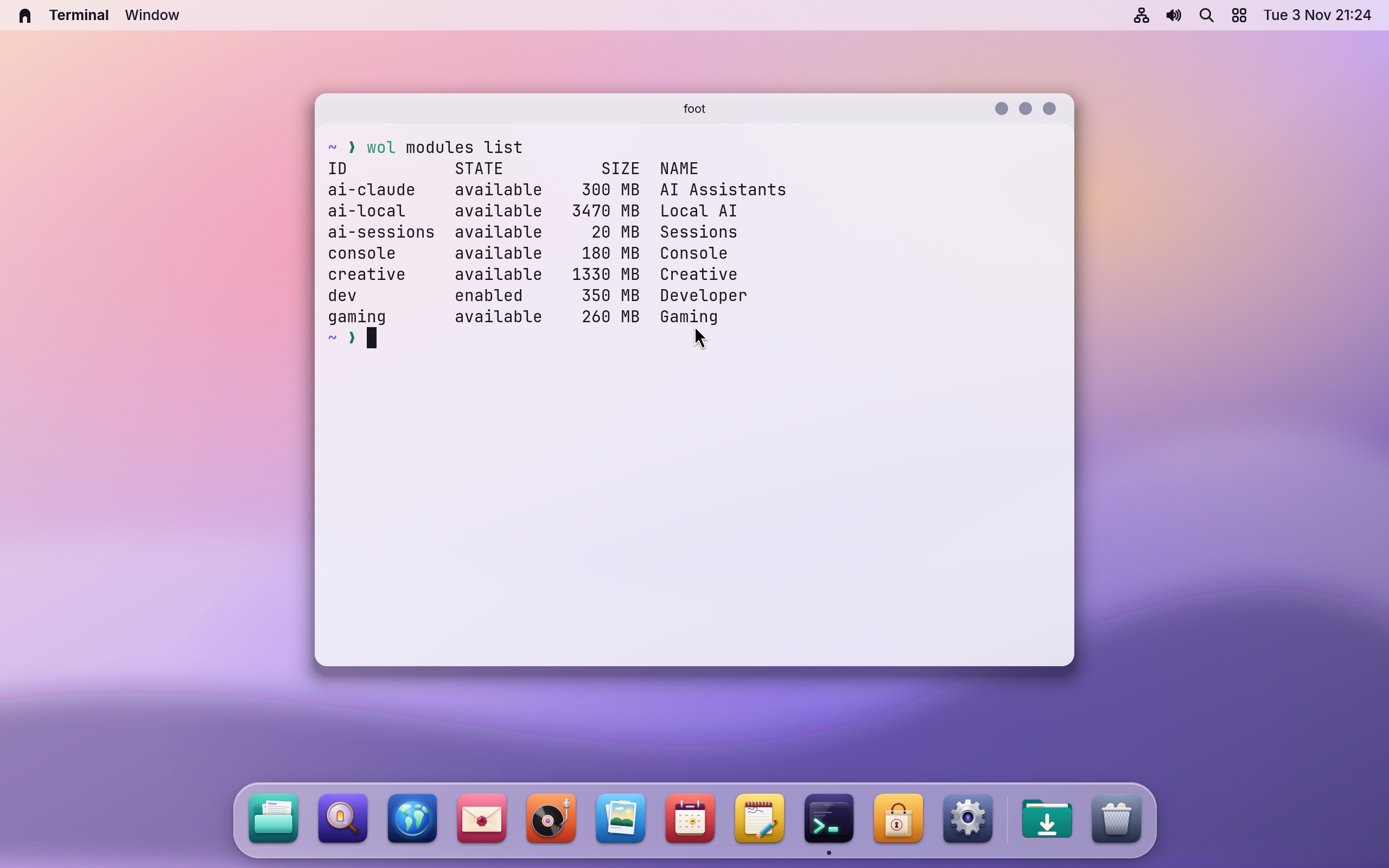
For example, wol modules list prints each optional An optional set of tools for one kind of work (development, creative work, gaming, AI) that you add or remove in Settings > Modules. with its state and size:
Add --json to a reading command to get data a script can use. The complete list has every command and says which ones helper programs may call.
A worked example
Alice wants a dark desktop in the evening. She opens Terminal, types wol appearance set dark and presses Return: the menu bar and the windows turn dark at once. The next morning she types wol undo and the light look is back. No password was asked, because both changes were hers alone.
If something goes wrong
| What you see | What to do |
|---|---|
command not found after a word | Check the spelling with wol --help. Commands are lowercase. |
| A command asks for a password and you are not an administrator | Ask the person who owns the computer; Settings > Users & Groups shows who is an administrator. |
| Nothing shows while you type a password | That is on purpose. Type it and press Return. |
| A change made from Terminal went wrong | wol undo, or Settings > Restore > Recent Changes > Undo. |
| A helper program wants to change something | It shows a sheet with its name. Deny stops it; Allow Once lets it this time only. See Assistants and automation. |
Related
The wol command (complete list) · Keyboard shortcuts · Assistants and automation · Recovery
Related
- Recovery: when something does not startThe disk will not unlock, an update went wrong, a screen stays black, or a setting broke the desktop. What WolOS does on its own and what you can do.
- Scripts and shellsRun sh, bash and Ruby scripts with wol script: checked before they run, as you, every change asked on screen and every run recorded. And choose the shell new terminal windows open in, PowerShell included.
- What a terminal isThe window where you type instead of click: what the prompt, a command, an argument and a path are, how to copy and paste, Tab, Ctrl+C, and your first five commands.
- Your first daySign in for the first time, finish the setup, and spend ten minutes making WolOS yours: Wi-Fi, updates, looks and your first apps.
- Privacy and permissionsWhat apps may use and how you allow it, the questions WolOS asks on screen, the firewall and the malware check, and where to take any permission back.