
Start here
Installing next to Windows or Linux
Share a disk: your other system keeps its files, gets smaller, and you pick one at start. What to do first, and what to do when the installer refuses.
On this page
What it is
Install Alongside puts WolOS on the same disk as Windows or another Linux. It makes the other system's One part of a disk with its own space. Windows and WolOS can each have their own on one disk. smaller (you drag a slider to split the room), adds WolOS's partitions in the freed space, and leaves every file of the other system where it was. At start you choose which system to run.
It is like moving a bookshelf to make room for a second one: nothing on the first shelf is thrown away, it just stands a little closer together.
Why
Sharing a disk is risky when a tool guesses. WolOS reads the disk first (which systems are on it, whether Windows is hibernated or uses Windows's own disk encryption. Have its recovery key at hand before you change anything at start-up.), shows exactly what changes in the summary, and refuses the cases where shrinking could damage files. The plan names the partitions it may touch; if anything else moves, the install stops.
How
Before you start
- Back up what matters. As with any change to a disk, back up first. The installer says so on the Alongside page.
- Shut Windows down fully. A Windows that is hibernated or was shut down with A Windows setting that saves its state to the disk instead of shutting down fully. Turn it off before you install next to Windows. is refused, so its files cannot be damaged. In Windows turn off Fast Startup, choose Shut down (not Restart), then start the stick.
- Know your BitLocker state. The installer cannot shrink a BitLocker-protected partition ("BitLocker protects Windows here"). Turn BitLocker off in Windows for that partition, then try again. If Windows keeps BitLocker on and A check built into the computer that starts only signed software. WolOS can use it with keys made for this computer only. changes, Windows asks once for its A long key shown once at the end of an encrypted install. It opens the disk if the password and the security chip both fail. Write it down. (see below).
- macOS is not shrunk by the installer. Make room with Disk Utility in macOS, then start the installer again.
In the installer
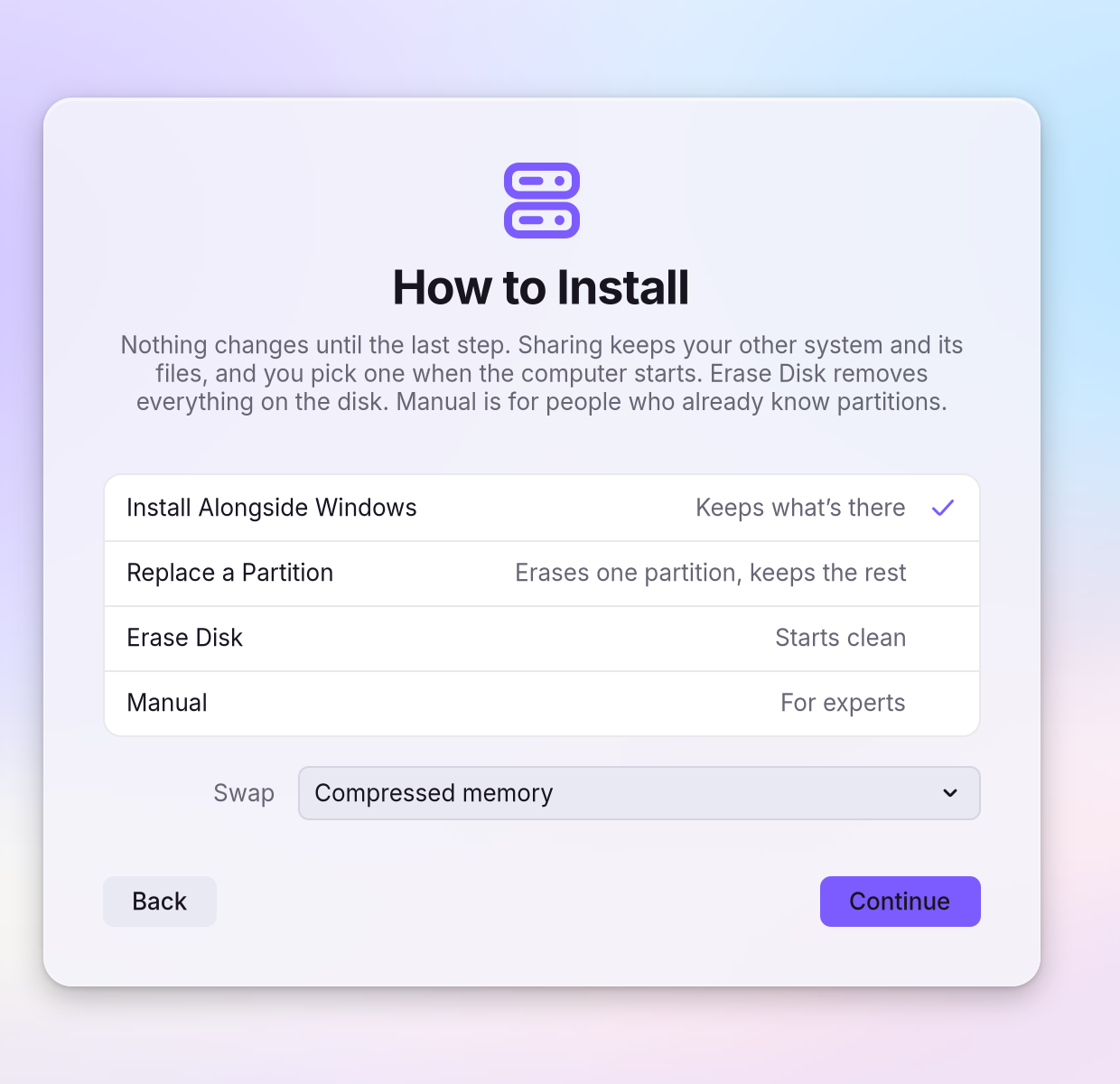
Choose the disk, then Install Alongside. You see "Nothing changes until the last step." on the method page, with Install Alongside Windows at the top, then "Drag to choose how much room each system gets." The page names each system found on the disk.
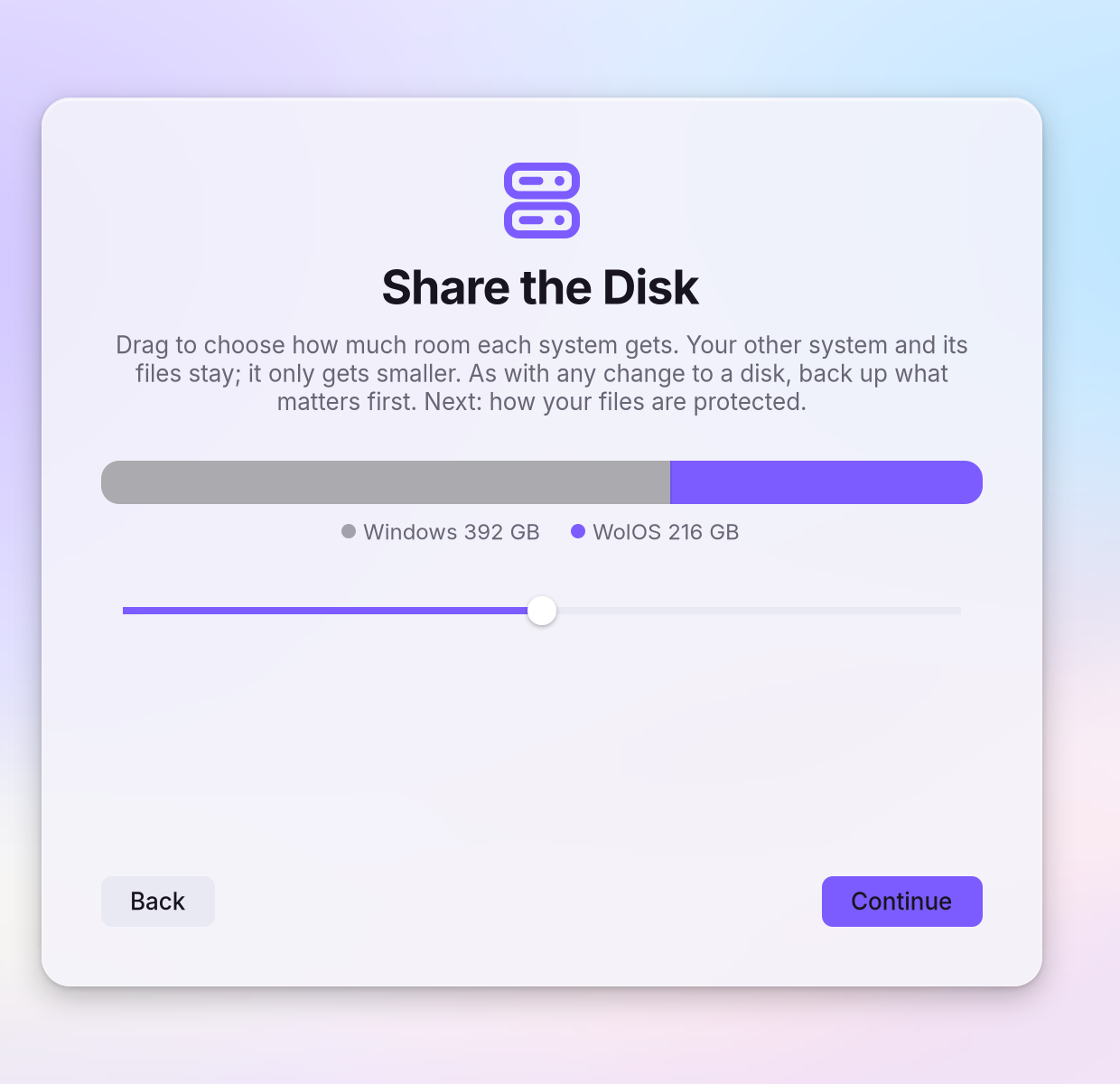
Drag the slider to split the room. The other system only gets smaller; its files stay. If a partition cannot be shrunk, the page says why in one sentence (see the table below).
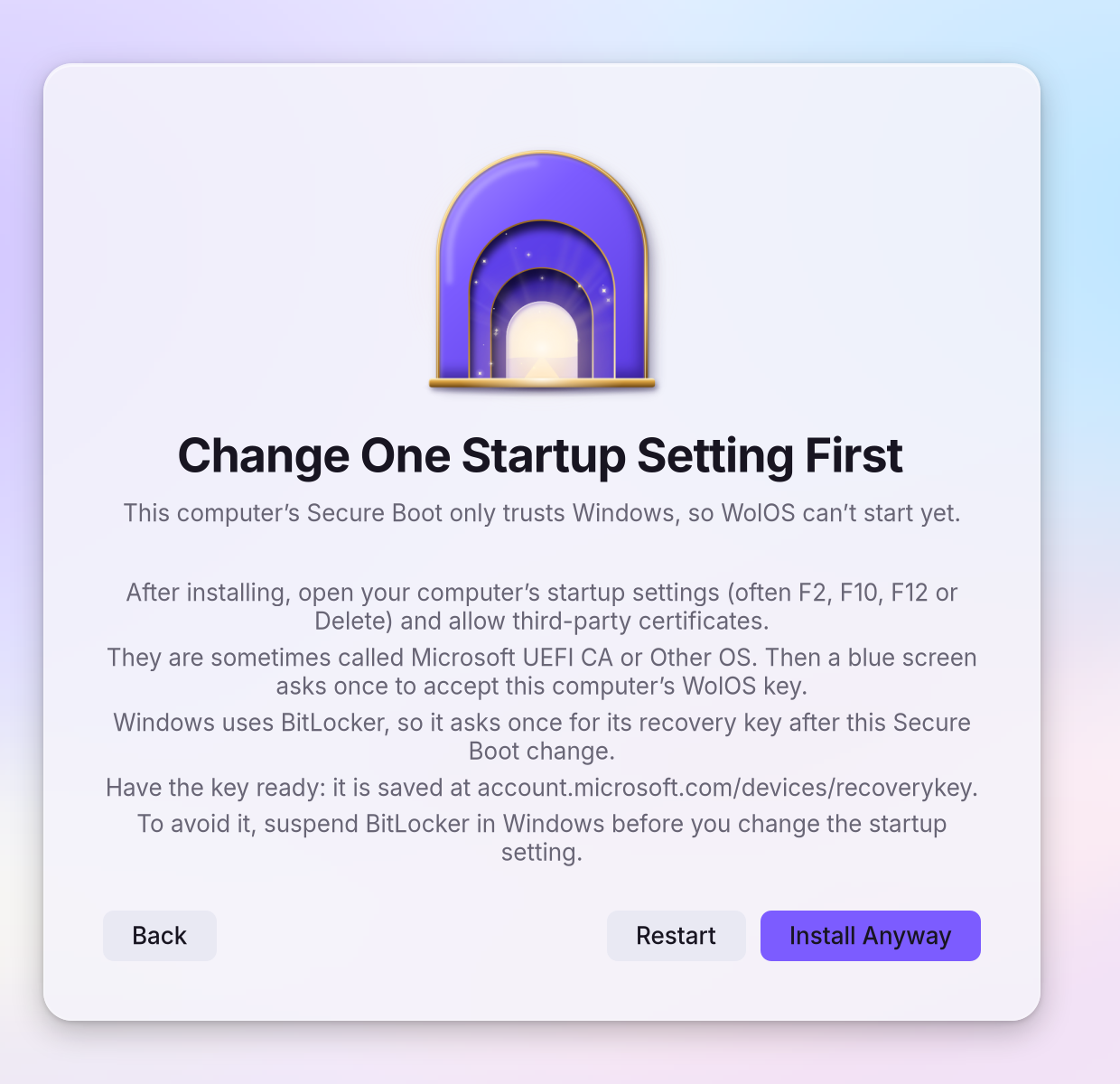
Continue through encryption, Secure Boot, account and modules as in Installing WolOS. If Windows uses BitLocker and its computer trusts only Windows at start, you see "Change One Startup Setting First" with the steps, and the warning that Windows will ask once for its recovery key.
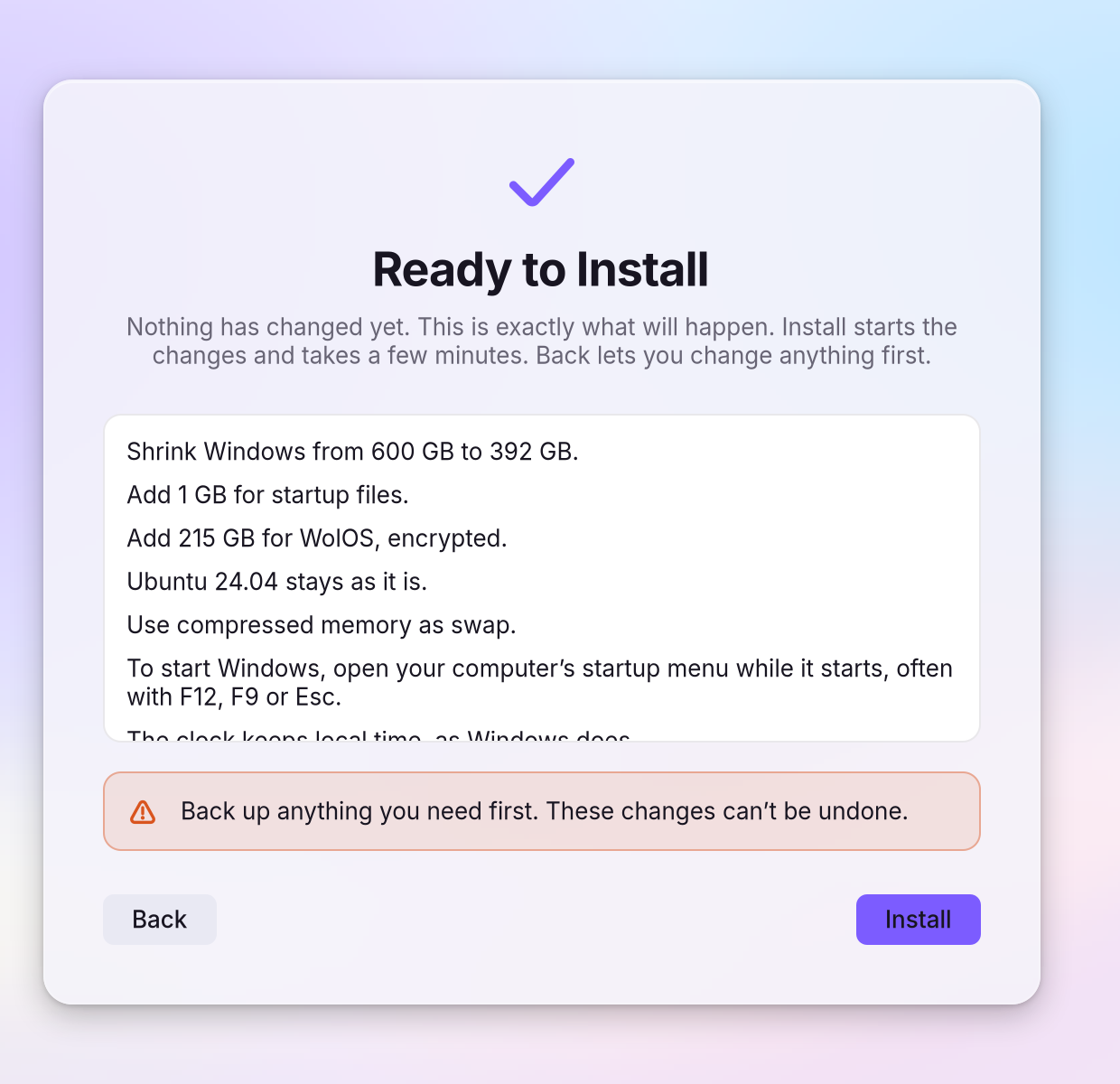
Read the summary. You see "Nothing has changed yet. This is exactly what will happen." It lists what is kept, what is shrunk and what is created. If Windows stays with BitLocker and Secure Boot is on, it also tells you about the BitLocker recovery key.
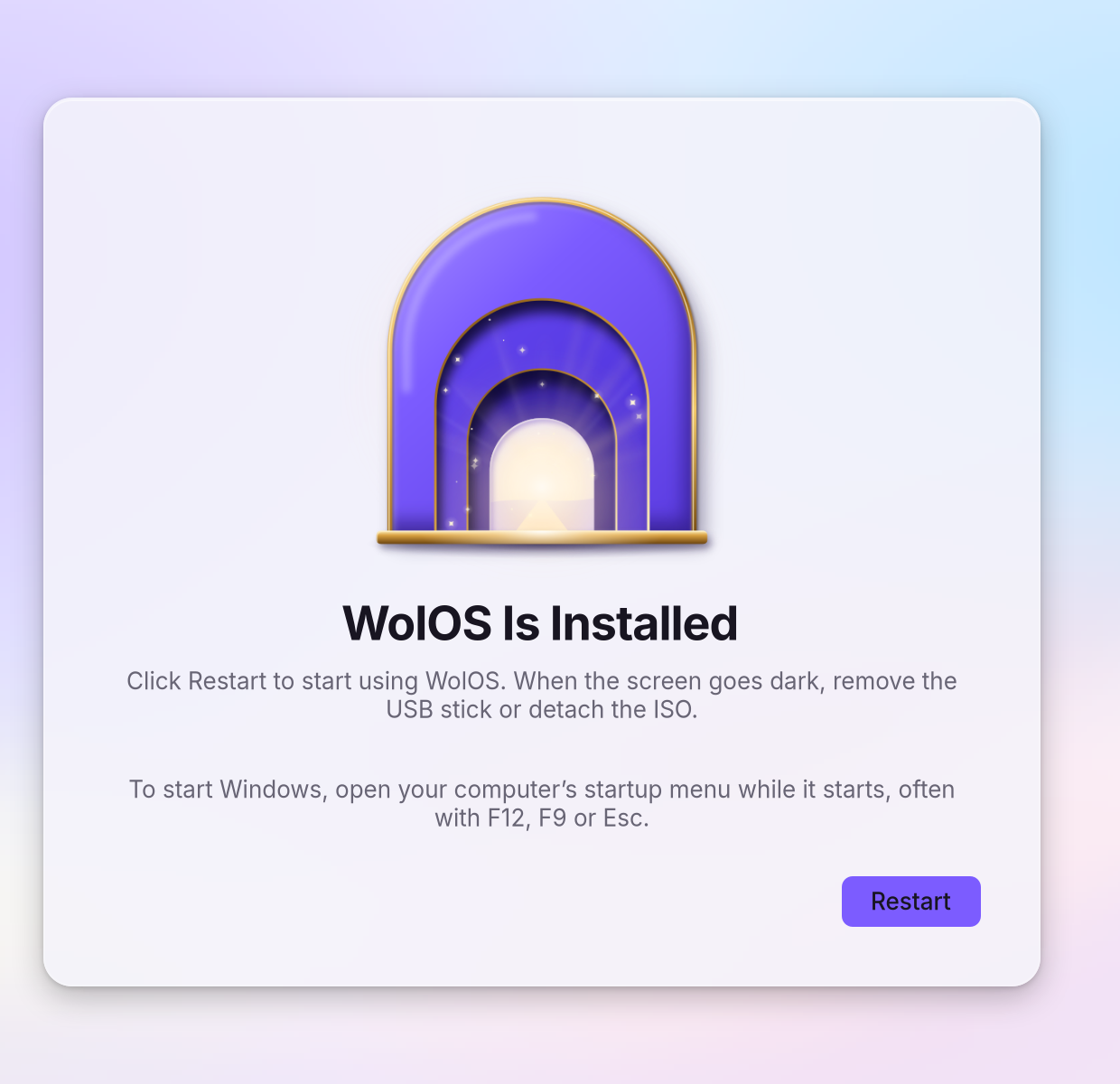
Click Install, wait, and read the last page. You see how to start the other system, for example "To start Windows, open your computer's startup menu while it starts, often with F12, F9 or Esc."
Replacing one partition instead
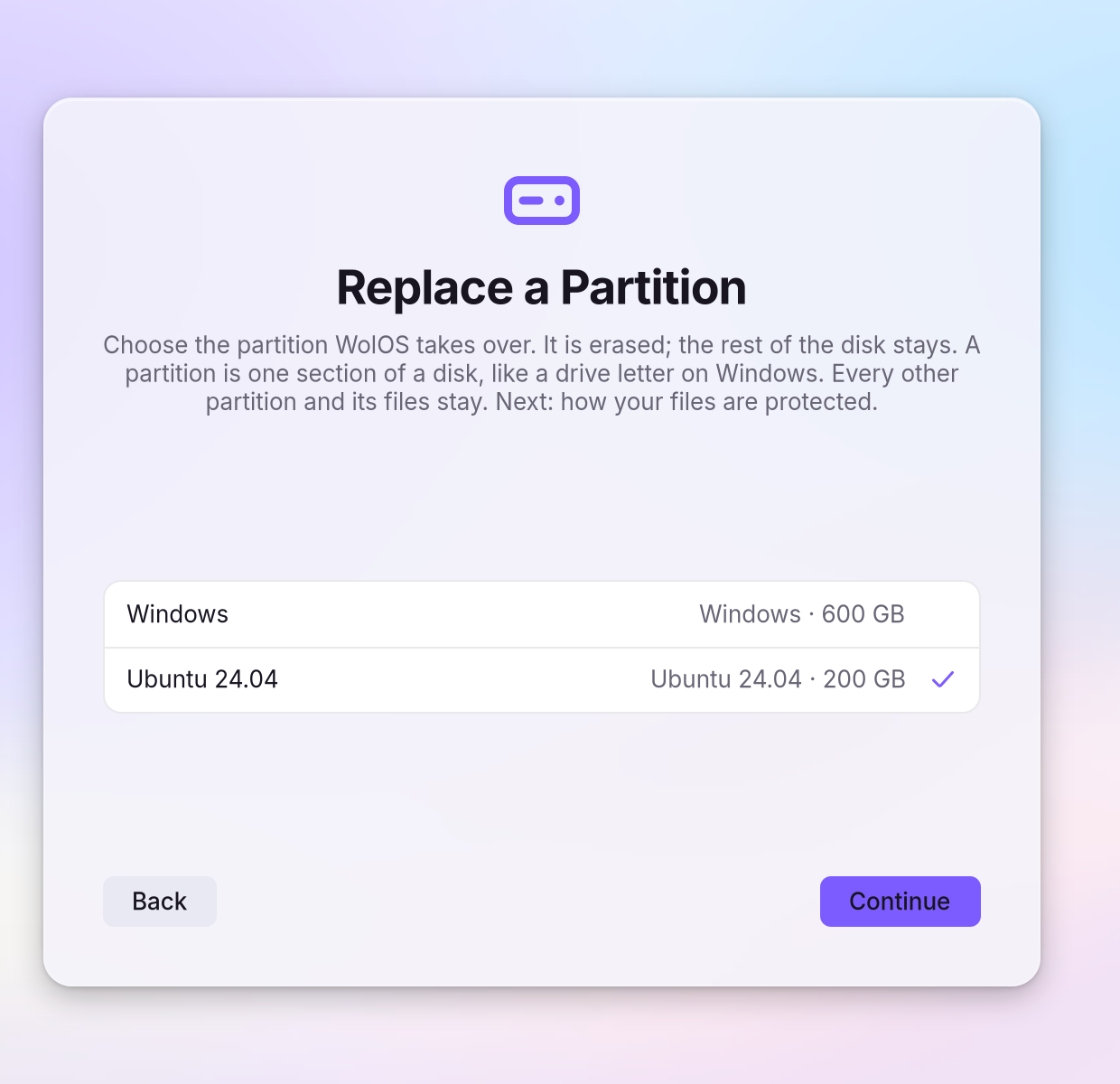
Replace a Partition on the method page erases one partition you choose and gives it to WolOS; every other partition and its files stay. Use it when you already made room, or to replace an old Linux.
If the disk already holds an earlier WolOS, you can install again over it: the old WolOS's startup files are cleared first and the rest of the disk stays.
Choosing a system at start
- When another system stays on the disk, WolOS's waits a moment so you can choose.
- When WolOS gets its own A small partition the computer starts from. Every computer that runs Windows already has one. next to Windows', the WolOS menu lists WolOS only, because it cannot reach the other partition. Start Windows from your computer's startup menu, which you open while the computer starts, often with F12, F9 or Esc. The installer's last page says the same, with the other system's name.
- Another system's boot manager can start WolOS too. Most find it on their own. How to add WolOS to one that does not is in the Reference.
The clock
WolOS keeps the clock in local time when Windows stays, as Windows does, so neither system shows the wrong time after the other has run.
Secure Boot and BitLocker
Secure Boot changes can make Windows ask once for its BitLocker recovery key. When Windows stays with BitLocker on, the Secure Boot page and the Summary tell you before it happens:
- Have the key ready; it is saved at
account.microsoft.com/devices/recoverykey. - To avoid the prompt on a computer in Setup Mode, restore the factory Secure Boot keys in the startup settings first; WolOS then uses a one-time key screen instead.
- On a computer whose Secure Boot trusts only Windows, suspend BitLocker in Windows before you change the startup setting.
- Or leave Secure Boot off in the installer; Windows' keys are then untouched. You can turn it on later (Secure Boot).
A worked example
Alice has Windows on a 600 GB disk and wants to try WolOS without losing it. In Windows she turns off Fast Startup and shuts down fully. She starts the stick, chooses Install Alongside Windows, drags the slider until WolOS has 215 GB and reads the summary: Windows shrinks from 600 GB to 392 GB and keeps every file. After the restart she presses F12 to choose a system. Windows opens as before, and WolOS opens when she picks it.
If something goes wrong
| What you see | What to do |
|---|---|
| "This disk is empty, so there's nothing to install alongside" | Use Erase Disk. A disk with an older kind of layout (not GPT, the layout every recent computer uses) can only be erased too. |
| "Windows didn't shut down fully" | Turn off Fast Startup in Windows, shut down fully, try again. |
| "BitLocker protects Windows here" | Turn BitLocker off in Windows, then try again. |
| "{partition} can't get that small" | Choose a larger size for that partition (give WolOS less). |
| "There isn't enough room for that" | Delete or shrink a partition first, or give WolOS less. |
| "Another system starts from that partition, so it can't be erased" (Manual) | Do not erase Windows' startup partition: keep it as it is, or add a new startup partition of 1 GB for WolOS. |
| After the install Windows is not in the menu | Start it from the firmware's startup menu (F12, F9 or Esc). |
| Windows asks for a BitLocker recovery key | Enter it from account.microsoft.com/devices/recoverykey. It asks once. |
| WolOS does not appear at all | Open the firmware's startup menu and pick the WolOS entry; see Recovery. |
Related
- Installing WolOSErase a disk, share it with Windows or Linux, or lay out partitions by hand. Nothing is written before you confirm the summary.
- Recovery: when something does not startThe disk will not unlock, an update went wrong, a screen stays black, or a setting broke the desktop. What WolOS does on its own and what you can do.
- Secure BootAn option in the installer. Every computer makes its own start-up keys; at most one blue key screen, once, with the password boot.
- Getting startedWhat WolOS is, what you need, and the way from the download to your own desktop, in five steps.
- Startup SecurityThe Settings page that says how this computer starts: Secure Boot, whose keys it trusts, kernel lockdown, the security chip, the sealed system, and the one button that finishes a waiting setup.