
Make it yours
Night Shift
Warmer screen colours for the evening, on and off from Control Center, the keyboard or System Settings > Displays.
What it is
Warmer screen colours in the evening, easier on the eyes at night. makes the colours of the screen warmer: whites turn a soft yellow-orange, as under a lamp, and the blue glow of the screen goes down. It changes the picture of every screen at once and nothing in your files or photos.
Why WolOS does it this way
A cold, blue-white screen late in the evening keeps many people awake and is hard on tired eyes. A warm screen is calmer. WolOS keeps it one switch, in all the places you would look for it, so turning it on is never more than one click or one key.
How
Turn it on or off in any of these places; they are the same switch:
- Control Center: click the Night Shift tile. A tile that is on is filled with the accent colour.
- The keyboard: Ctrl+Super+N.
- Control Center's Display page: click the arrow at the end of the Display slider; Night Shift is listed with On or Off.
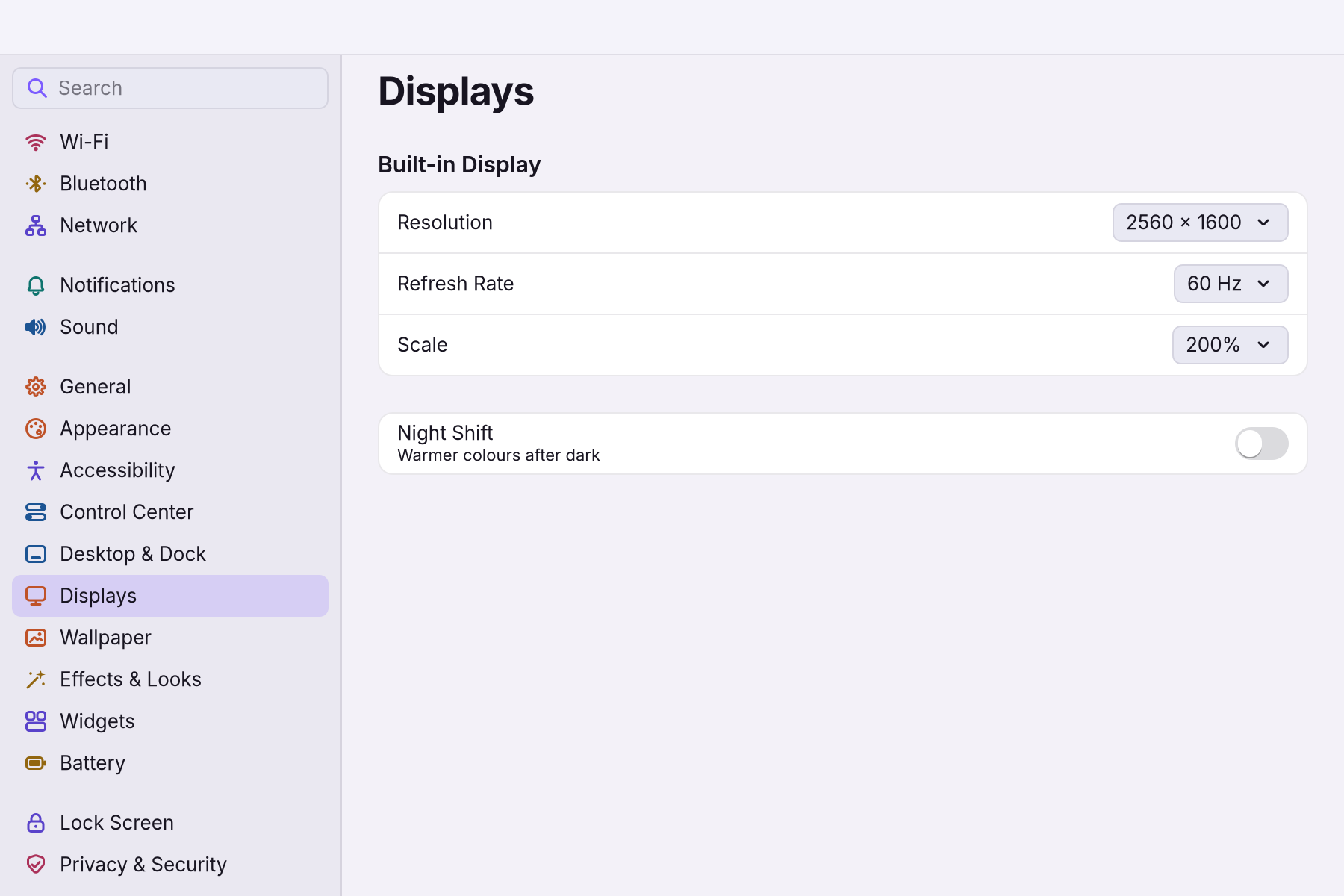
- System Settings > Displays: the last row, Night Shift, "Warmer colours after dark", has a switch.
| Setting | Default | What it does |
|---|---|---|
| Night Shift | Off | Warms the colours of every screen until you turn it off. |
Night Shift stays on until you turn it off; it does not switch by itself at a time of day. Many people press Ctrl+Super+N in the evening and again in the morning.
A worked example
Alice reads in bed on her laptop. She presses Ctrl+Super+N, and the white pages turn warm. In the morning she presses it again before she looks at the photos from her holiday, so their colours look right.
If something goes wrong
| What you see | What to do |
|---|---|
| The screen looks yellow and you do not know why | Night Shift is on. Press Ctrl+Super+N, or click the Night Shift tile in Control Center. |
| The switch flips back | Night Shift could not be turned on. Try again; if it keeps happening, restart the computer. |
| The shortcut does nothing | It may have been changed. System Settings > Keyboard > Keyboard Shortcuts shows it as Turn Night Shift on or off. |
Related
- Control CenterThe panel at the top right for the things you change every day: Wi-Fi, Bluetooth, Focus, Dark Mode, brightness, sound, music and quick switches.
- System SettingsThe one window for everything you can change: how to open it, find any setting by typing, what every pane holds, and how to take a change back.
- Backups and undoTake back a setting you changed, go back to the system from before an update, and keep copies of your own files on a USB disk.
- Playing full screenWhat WolOS does while a game fills the screen: banners wait, frames go out at once, the refresh rate follows the game, and Force Quit still opens.
- The desktopThe menu bar, the Dock, windows, Search, switching apps and the four desktops: what each part of the screen is for and how to use it.