
Start here
System Settings
The one window for everything you can change: how to open it, find any setting by typing, what every pane holds, and how to take a change back.
On this page
What it is
System Settings is the window where you change how WolOS looks, sounds and behaves: the Wi-Fi, the sound, the wallpaper, the Dock, your password, the updates and everything else. On the left is a sidebar of panes, one per subject, in groups. On the right is the pane you picked, made of rows: a switch, a slider, a menu, or an arrow that opens more.
Why WolOS does it this way
A setting is only useful if you can find it, trust it and take it back. So System Settings has one search field that finds every row in every pane; every switch you see either does what it says or is not shown at all; a change that could not be saved puts the control back to what is really set and says so under it; and every change is written down, so System Settings > Restore can take it back later.
How
Open System Settings
Press Super+, (Super and comma), click the gear icon in the Dock, or choose System Settings… in the WolOS menu at the top left.
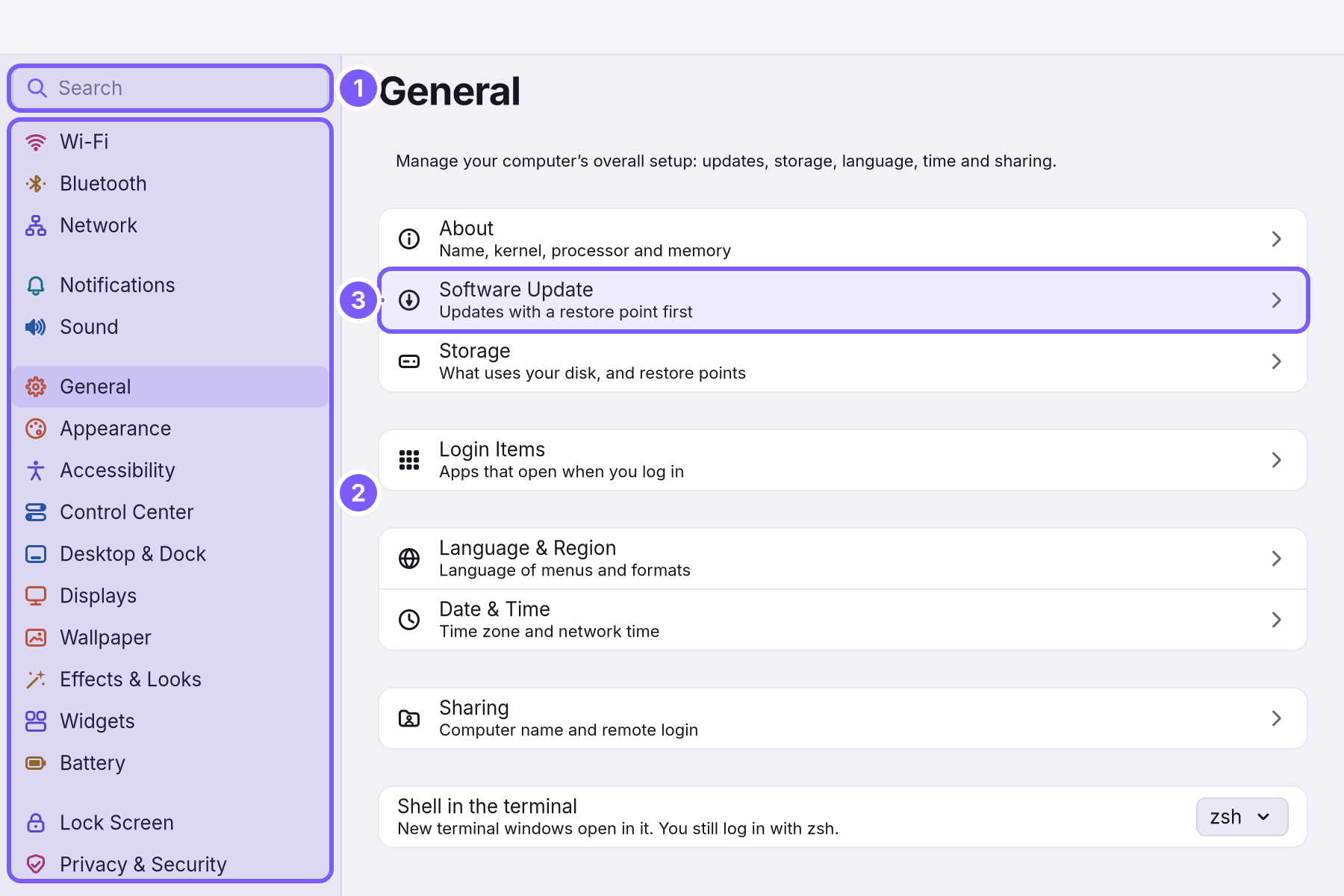
- The search field (1) at the top of the sidebar finds any setting; see below.
- The sidebar (2) lists the panes in groups: the network, then notifications and sound, then the desktop, then security and your account, then devices, then the rest. Click a pane to open it.
- Rows with an arrow (3) open a page of their own. General is made of such rows: About, Software Update, Storage, Login Items, Language & Region, Date & Time and Sharing. The back arrow at the top returns to General.
Find any setting by typing
Click the search field and type a word, for example "volume", "dark" or "menu bar".
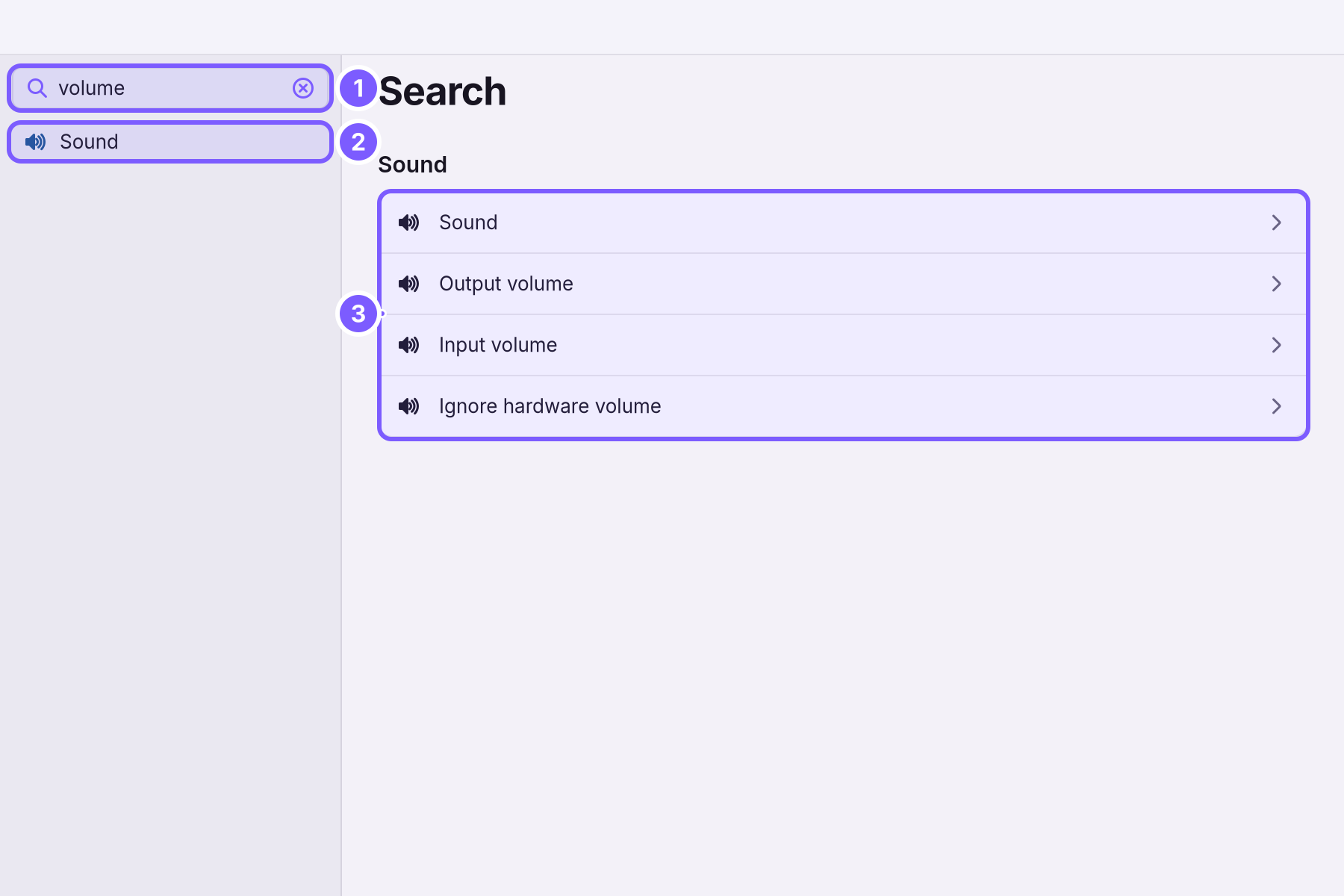
- As you type, the sidebar keeps only the panes that have a match (2), and the right side lists every matching row (3).
- Click a row, or press Return for the first one, to go straight to it.
- The round × at the end of the field clears it, and the full sidebar comes back.
When nothing matches you see "No Results" and "No settings match. Try another word." A shorter word usually helps.
Every pane
| Pane | What you change there | More |
|---|---|---|
| Wi-Fi | Turn Wi-Fi on and off, join a network, forget one. | Control Center |
| Bluetooth | Turn Bluetooth on and off, pair headphones, mice, keyboards and phones. | Control Center |
| Network | Cable connections, A private tunnel through the internet to another network, such as your office's., addresses. | |
| Notifications | Which apps may show banners, Focus and Do Not Disturb. | Notifications |
| Sound | Speakers and headphones, the microphone, volume and balance, voice effects. | Sound |
| General | About This Computer, Software Update, Storage, Login Items, Language & Region, Date & Time, Sharing, and the shell of new terminal windows. | Updates, Sharing |
| Appearance | Light, Dark or Auto, the accent colour, themes, the wallpaper. | Looks and themes, Dark Mode |
| Accessibility | Reduce motion and transparency, more contrast, zoom, a bigger pointer. | |
| Control Center | Which switches and tiles Control Center and the menu bar show. | Control Center |
| Desktop & Dock | The Dock's size, magnification and hiding, the date and battery in the menu bar, tiling windows. | The Dock |
| Displays | Resolution, size of everything on screen, refresh rate, several screens, Night Shift. | Night Shift |
| Wallpaper | The picture on the desktop. | Wallpapers |
| Effects & Looks | Blur, transparency, rounded corners, shadows and animations. | Looks and themes |
| Widgets | Cards on the desktop: clock, weather, calendar, music. | Arranging widgets |
| Battery or Energy | Power modes, sleep, the lid, Memory Saver. | Battery and sleep |
| Lock Screen | When the screen locks by itself. | Lock Screen |
| Privacy & Security | What apps may use, the firewall, the malware check, how the computer starts. | Privacy |
| Users & Groups | Accounts on this computer, passwords, who is an administrator. | |
| Keyboard | Key repeat, keyboard layouts, keyboard shortcuts. | The keyboard |
| Trackpad & Mouse | Pointer speed, scrolling direction, tap to click. | |
| Printers | Add a printer or scanner, choose the default. | |
| Hardware | The devices in the computer and whether each works. | |
| Assistants & Automation | What scripts and AI assistants may change, and what they did. | Your first Ruby script |
| Modules | Add or remove sets of apps for development, creative work, games and more. | Modules |
| Restore | Undo a recent change, or go back to an earlier state. | Backups and undo |
How a change takes effect
Most changes take effect the moment you make them: there is no Save or Apply button. A few ask first, and say why:
- A change that affects everyone on the computer (a new account, a module, a printer) shows a A small window that asks you to confirm something before it happens, for example Allow or Deny, or your password. and asks for an An account allowed to change things that affect everyone on the computer. The account you make while installing is one.'s password.
- A new screen resolution is saved only once the screen has really switched to it.
If a change could not be saved, the switch, slider or menu goes back to what is really set, and a line under the section says what happened, for example "The shell couldn’t be changed. Try again in a moment."
Take a change back
System Settings > Restore > Recent Changes lists what you changed, newest first, each with Undo. Undo puts that setting back as it was before. See Backups and undo.
A worked example
Alice finds the volume of her laptop too low. She presses Super+, and types "louder" in the search field: the Sound pane stays in the sidebar, with the row Allow louder. She clicks it, turns the switch on, and the volume slider can now go past 100%. The next day she decides it was too much, opens System Settings > Restore > Recent Changes, and clicks Undo next to the change: the switch is off again.
If something goes wrong
| What you see | What to do |
|---|---|
| A switch flips back after you click it | The change could not be saved, so the switch shows what is set. The line under the section says why. Try again. |
| "No settings match. Try another word." | Search found no pane or row. Try a shorter or more common word, like "sound" instead of "speakers". |
| A pane says "Displays appear here once the desktop is running" | Open System Settings from your desktop, not from a remote session. |
| "That name is reserved by the system" when adding a user | The system uses that account name itself. Pick another. |
| A setting you need is not where this page says | Type its name in the search field: it finds rows wherever they are. |
| You changed something and regret it | System Settings > Restore > Recent Changes > Undo. |
Related
- Control CenterThe panel at the top right for the things you change every day: Wi-Fi, Bluetooth, Focus, Dark Mode, brightness, sound, music and quick switches.
- The desktopThe menu bar, the Dock, windows, Search, switching apps and the four desktops: what each part of the screen is for and how to use it.
- Backups and undoTake back a setting you changed, go back to the system from before an update, and keep copies of your own files on a USB disk.
- Privacy and permissionsWhat apps may use and how you allow it, the questions WolOS asks on screen, the firewall and the malware check, and where to take any permission back.
- Your first Ruby scriptWrite a small Ruby script in a text editor, check it with wol script check, run it with wol script run, and see what WolOS asks before a script changes anything.