
Everyday
Sharing and devices
Your computer's name on the network, Bluetooth headphones and mice, playing sound from an iPhone, sending files, and showing your screen on a second display.
On this page
What it is
Everything that connects this computer to other devices and people near you: the name other devices see, A short-range radio for wireless headphones, mice, keyboards and phones. headphones, keyboards and mice, sound played from a phone, files you send, and a second screen or projector. Most of it lives in System Settings > General > Sharing and System Settings > Bluetooth.
Why WolOS does it this way
Sharing means opening a door, so every door starts closed: nobody can log in to your computer from another one, and it does not receive sound from phones, until you switch that on. The switches say in one line what they open, and the computer's name is the only thing other devices see by default.
How
Your computer's name
- Open System Settings > General > Sharing.
- The Computer name field (1) is the name other computers on your network see, "and Bluetooth devices show it when pairing." Click it, type a new name and press Return. Use lowercase letters, digits and hyphens, up to 63 characters.
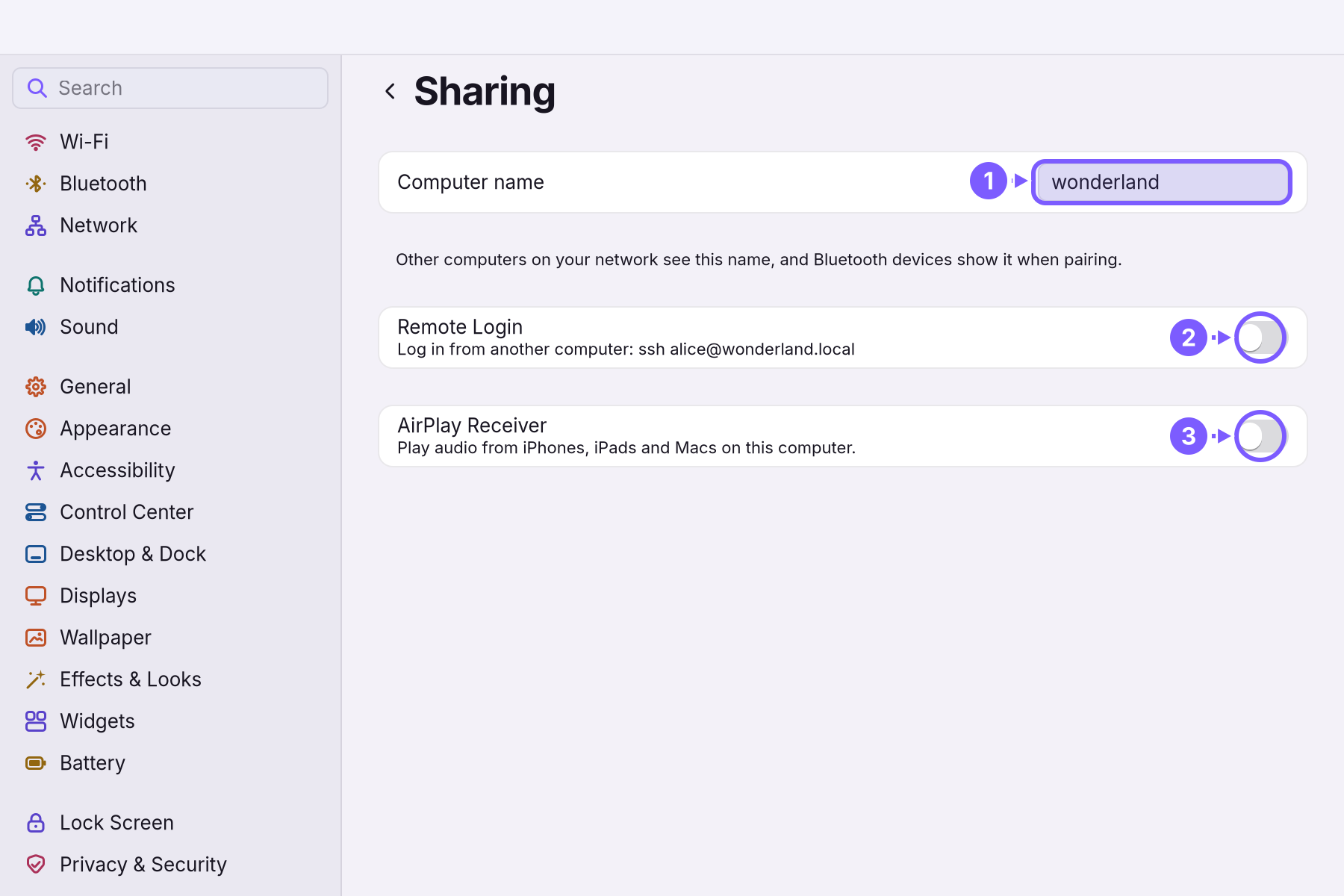
Settings on the Sharing page
| Setting | Default | What it does |
|---|---|---|
| Computer name (1) | The name from the installer | The name on the network and for Bluetooth pairing. |
| Remote Login (2) | Off | Lets you log in to this computer from another one over the network, in a terminal. The line under it shows exactly what to type there. Turning it on asks for an administrator's password. Leave it off unless you need it. |
| AirPlay Receiver (3) | Off | "Play audio from iPhones, iPads and Macs on this computer." With it on, this computer appears in the phone's sound menu, and what you play there comes out of this computer's speakers. |
Bluetooth headphones, keyboards and mice
- Put the device in pairing mode. Its own manual says how; often you hold a button until a light blinks.
- Open System Settings > Bluetooth. It says "This computer appears as “…”." and lists My Devices.
- Click the device when it appears and wait for Connected. That is Introducing a Bluetooth device to this computer once, so they connect by themselves after that.: from now on it connects by itself when both are on.
- Next time, Control Center > Bluetooth lists it; click it to connect or disconnect.
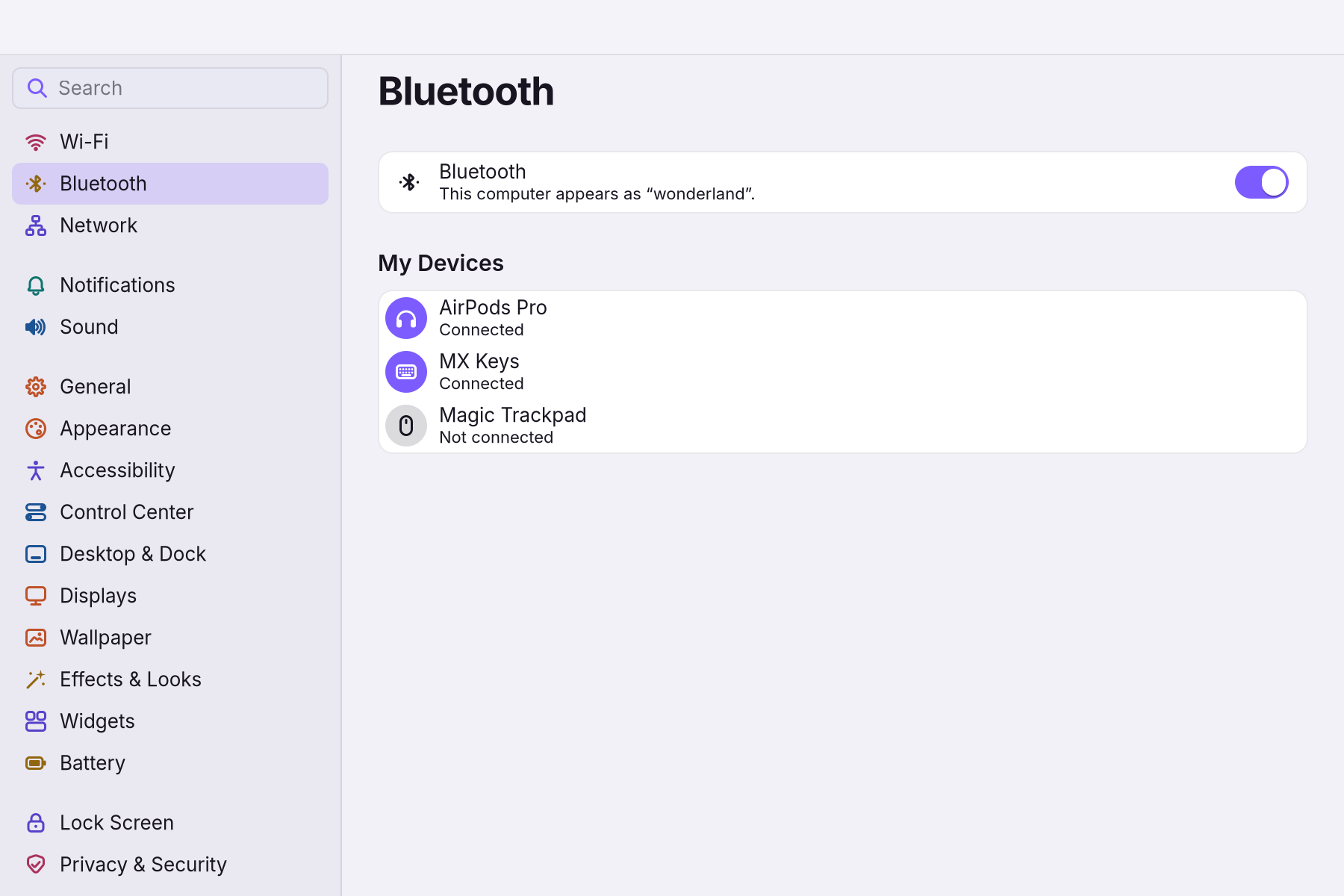
Headphones play the computer's sound once connected; choose them in Control Center's Sound page if the sound stays on the speakers. See Sound.
Send a file to someone
- By email: right-click the file in Files > Email…: a new message opens with the file attached.
- On a USB stick: copy it in Files; see Files and folders.
- In the Public folder: files you put in Public are the ones meant for other people on your network.
A second screen or a projector
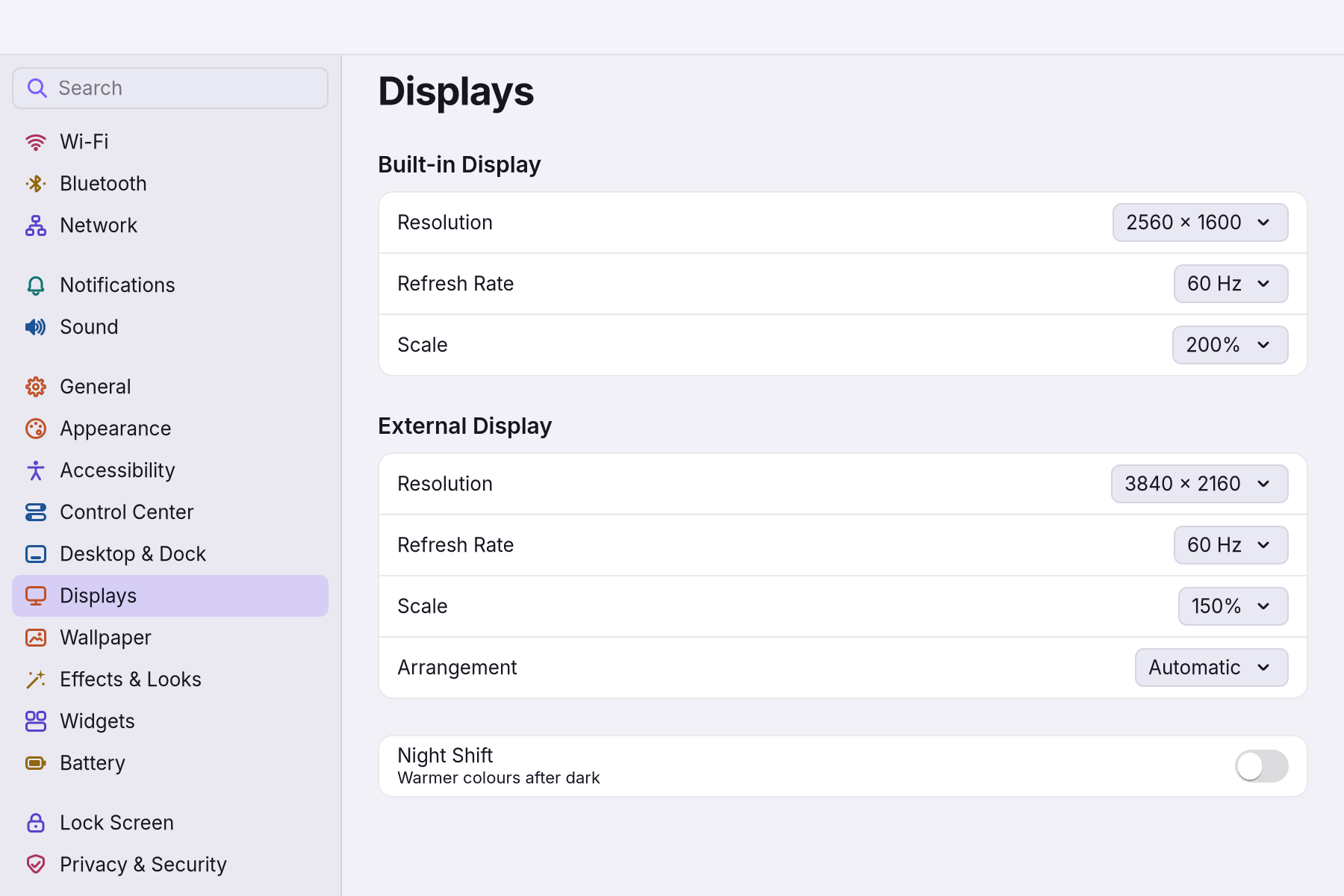
Plug it in: WolOS uses it as more room for your windows, next to the laptop's screen. To show the same picture on both, open Control Center > Display (the arrow at the end of the Display slider) and click Screen Mirroring. System Settings > Displays has a card for each screen with its Resolution, Refresh Rate (how many pictures a second), Scale (the size of everything on it) and, for the second screen, Arrangement (where it stands next to the first).
An iPhone on a cable
Plug an iPhone into the computer with its cable: WolOS says "iPhone connected" once, so you know the computer sees it.
A worked example
Alice's new wireless headphones arrive. She holds their button until the light blinks blue, opens System Settings > Bluetooth, and clicks "Hatter Buds" when they appear: Connected. A video in the browser now plays in the headphones. In the evening her son wants to play music from his iPhone through the laptop's speakers; she turns on AirPlay Receiver in Sharing, and the laptop appears in his phone's sound menu as "wonderland".
If something goes wrong
| What you see | What to do |
|---|---|
| "No Bluetooth Hardware" | "This computer has no Bluetooth adapter. Plug in a USB adapter to use wireless devices." |
| "No devices yet" | Nothing was paired. "Put a device in pairing mode to connect it the first time." |
| The device stays at "Connecting…" | Turn the device off and on, keep it close to the computer, and click it again. |
| The headphones are connected but the sound comes from the speakers | Control Center > the arrow at the end of the Sound slider > tick the headphones. |
| The computer name is refused | Use lowercase letters, digits and hyphens only, up to 63 characters. |
| A second screen stays black | Check the cable and the screen's own input button, then System Settings > Displays: choose a lower Resolution for it. |
| The phone does not show this computer for AirPlay | Both must be on the same Wi-Fi network, and AirPlay Receiver must be on. |
Related
- Control CenterThe panel at the top right for the things you change every day: Wi-Fi, Bluetooth, Focus, Dark Mode, brightness, sound, music and quick switches.
- The desktopThe menu bar, the Dock, windows, Search, switching apps and the four desktops: what each part of the screen is for and how to use it.
- Backups and undoTake back a setting you changed, go back to the system from before an update, and keep copies of your own files on a USB disk.
- SoundVolume, speakers and headphones, the microphone, voice effects for calls, and what to do when there is no sound or it crackles.
- System SettingsThe one window for everything you can change: how to open it, find any setting by typing, what every pane holds, and how to take a change back.