
Make it yours
The keyboard
How fast keys repeat, keyboard layouts for other languages, and changing or adding a keyboard shortcut.
On this page
What it is
System Settings > Keyboard sets how your keyboard behaves: how quickly a held key repeats, which layouts you type in (for example English and German, or a layout with accents), and every keyboard shortcut of WolOS.
Why WolOS does it this way
Shortcuts are only quick if they are the keys your fingers already know. So WolOS uses The key with the Windows logo, shown as ⌘ in WolOS. Super with a letter gives the app in front its command, so Super+C copies in every app. (the Windows key) as its command key, the way Command works on a Mac: Super with a letter always goes to the app in front, Ctrl keeps the meaning each app gives it, and every shortcut can be changed and set back.
How
Key repeat
| Setting | Default | What it does |
|---|---|---|
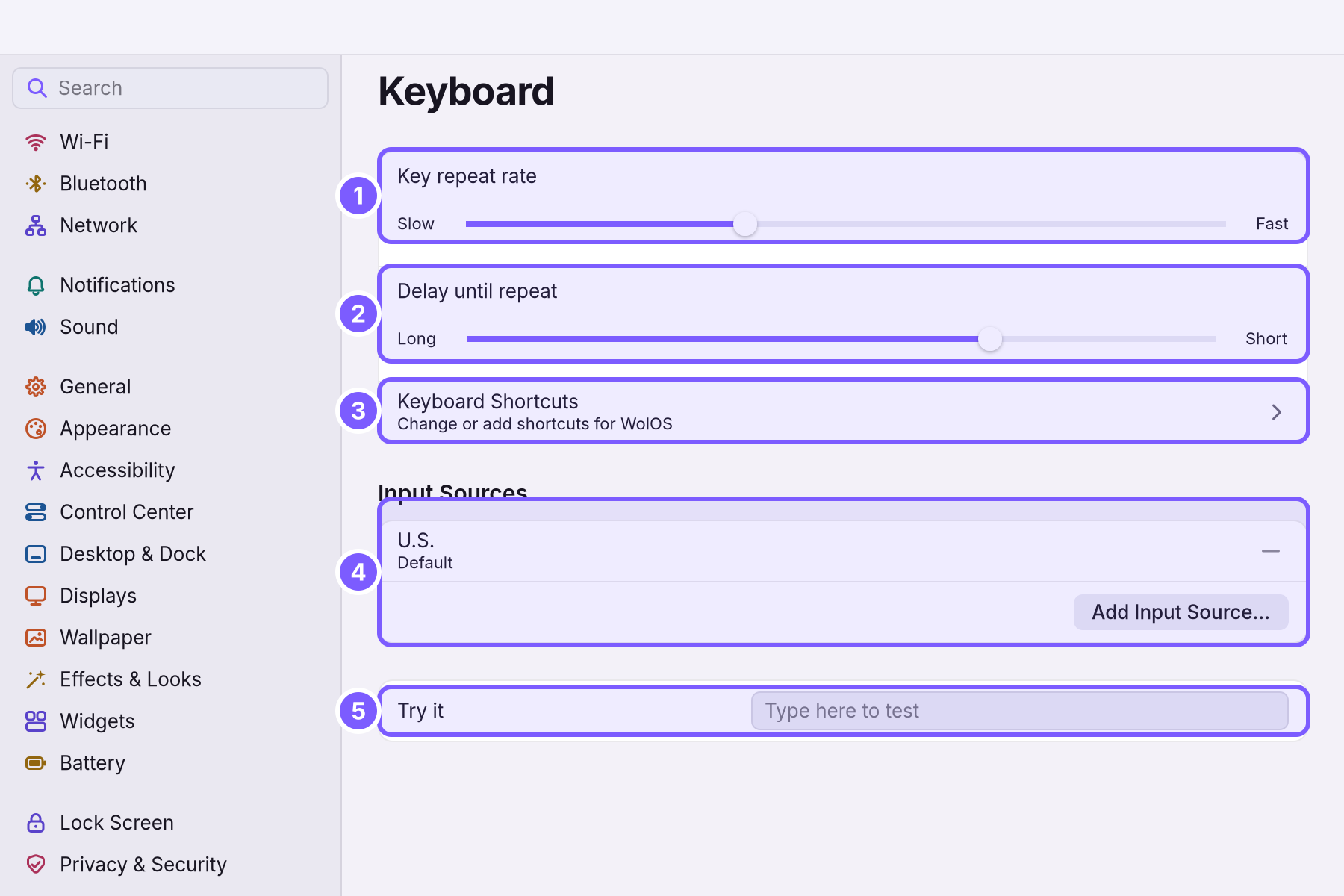
| Key repeat rate (1) | 25 a second, between Slow and Fast | How quickly a held key types the letter again. |
| Delay until repeat (2) | 0.4 seconds, between Long and Short | How long you hold a key before it starts repeating. Make it longer if letters come out twice when you type slowly. |
Type in Try it (5), "Type here to test", to feel the change before you leave the pane.
Keyboard layouts (input sources)
An input source is a keyboard layout: which letter each key types. The one you chose while installing is listed under Input Sources (4) as Default.
- Click Add Input Source… and choose a language and layout.
- To switch while you type, press Ctrl+Space: "Press ⌃Space to switch to the next input source."
- To remove one, click Remove on its row.
Change a keyboard shortcut
- Click Keyboard Shortcuts (3), "Change or add shortcuts for WolOS".
- The page starts with what the symbols mean: ⌘ is "Command: the Windows or Super key", ⌥ is "Option: Alt", ⌃ is "Control: Ctrl" and ⇧ is "Shift". Then every shortcut, grouped: Search, Overview, Windows, Apps, Screenshots and the rest.
- Click a shortcut and press the new keys. If another shortcut already has them, WolOS asks whether to swap the two.
- The reset arrow on a row brings back that shortcut's key; Restore Defaults at the bottom brings back all of them.
- To add your own, a custom shortcut opens an app or runs a command; it needs a name and what to run.
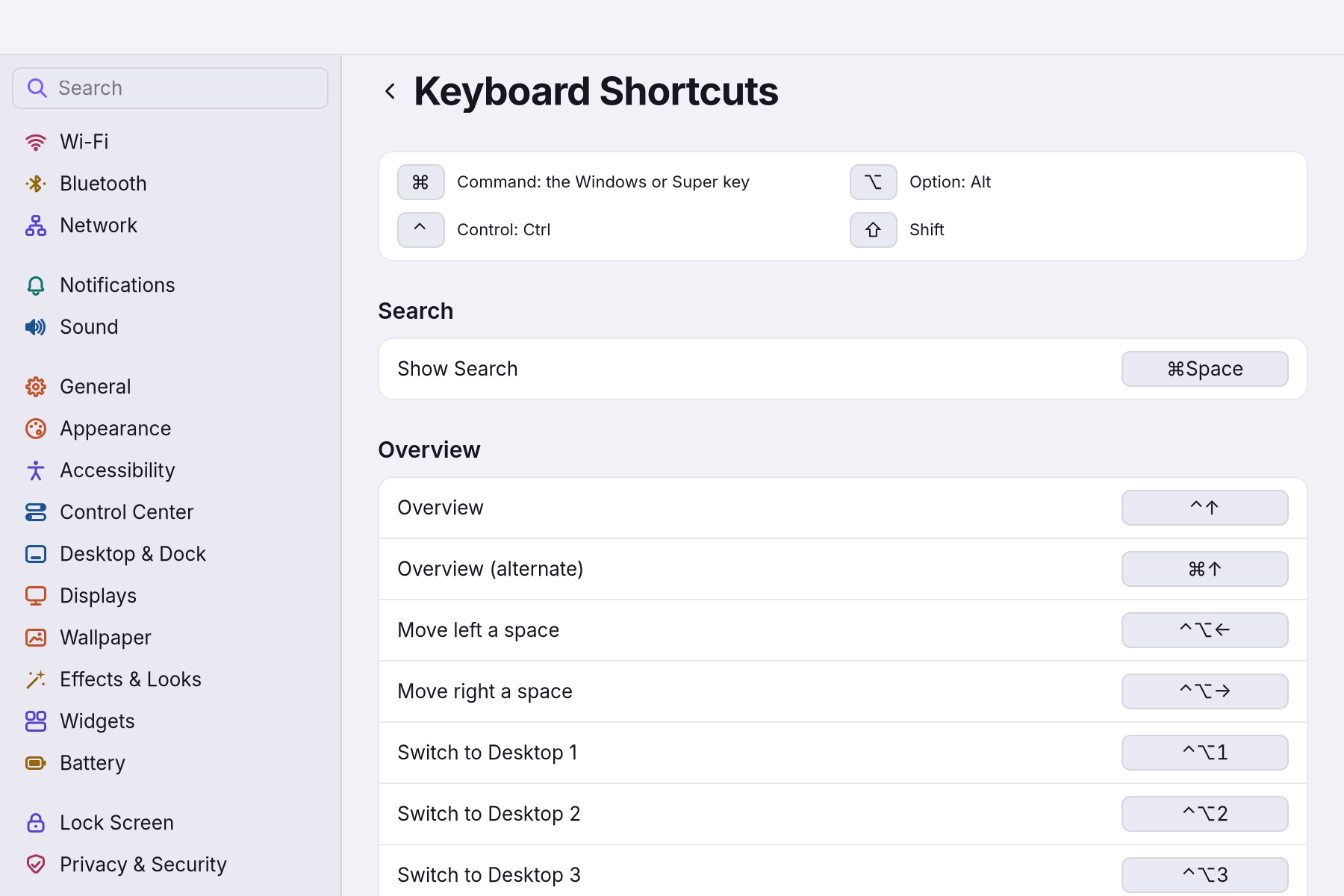
Press Shift+Super+/ anywhere for a sheet of every shortcut. The complete list, with every key in words, is in the Reference.
The shortcuts worth learning first
| Keys | What they do |
|---|---|
| Super+Space | Search |
| Super+Tab | Switch apps |
| Super+, | System Settings |
| Super+Return | A terminal |
| Super+C, Super+V | Copy, paste |
| Shift+Super+V | Clipboard history |
| Shift+Super+3, 4, 5 | Screenshot of the screen, an area, or the toolbar |
| Ctrl+Super+Q | Lock the screen |
| Ctrl+Super+N, D, I | Night Shift, Do Not Disturb, Stay Awake |
| Ctrl+Alt+Left, Right | The desktop to the left or right |
A worked example
Alice writes in English and in German. She clicks Add Input Source…, chooses German, and from then on presses Ctrl+Space to switch between the two whenever she changes language. She uses Super+Return for the terminal so rarely that she gives it Shift+Super+T instead: she clicks the shortcut, presses the new keys, and it is changed.
If something goes wrong
| What you see | What to do |
|---|---|
| The wrong letters appear | The other input source is on. Press Ctrl+Space, or check Input Sources. |
| Letters come out twice | Make Delay until repeat longer. |
| A shortcut does nothing | It may have been changed or given to another action. Restore Defaults in Keyboard Shortcuts brings back WolOS's keys. |
| An app's own shortcut no longer works | A WolOS shortcut has the same keys. Give the WolOS shortcut other keys, and the app gets them back. |
| The volume or brightness keys do nothing | Some keyboards send them only with the Fn key held. |
Related
- The desktopThe menu bar, the Dock, windows, Search, switching apps and the four desktops: what each part of the screen is for and how to use it.
- System SettingsThe one window for everything you can change: how to open it, find any setting by typing, what every pane holds, and how to take a change back.
- Control CenterThe panel at the top right for the things you change every day: Wi-Fi, Bluetooth, Focus, Dark Mode, brightness, sound, music and quick switches.
- Night ShiftWarmer screen colours for the evening, on and off from Control Center, the keyboard or System Settings > Displays.
- The terminal and the wol commandOpen Terminal, ask wol for help, read before you change, undo a change, and see why some commands ask for your password. Ten commands worth knowing.