
Power user
PowerShell basics
Use PowerShell on WolOS: add it, open it, the Verb-Noun commands, objects in the pipeline, help, and making it the shell of every new terminal window.
On this page
What it is
A shell from the Windows world that works with objects, not just text. On WolOS it is an option for terminal windows. is a The program inside a terminal that reads what you type and runs it. WolOS uses zsh unless you choose another. that many people know from Windows. Its commands have names made of a verb and a noun (Get-ChildItem, Set-Location), and instead of plain text it hands objects from one command to the next: a list of files is a list of files with names, sizes and dates, not lines of text you have to cut apart.
On WolOS PowerShell is one choice next to zsh. It comes with the Console module and, once installed, you can open it inside any terminal or make it the shell every new terminal window opens in.
Why WolOS does it this way
If you have years of PowerShell in your fingers, you should not have to relearn them to use a terminal on WolOS. So PowerShell gets the same treatment as zsh: the same prompt (folder, project branch, an arrow that turns red after a failure), the same keys, a history of 50,000 lines without duplicates, grey suggestions from your history, and the colours of your theme. What WolOS does not change is the shell your account logs in with, which stays zsh: the desktop and many programs hand it short commands written for zsh, and PowerShell reads those differently.
How
Add PowerShell
- Open System Settings > Modules.
- Find Console and click Install. It asks for an administrator's password, because it adds programs for the whole computer; PowerShell itself goes into your account only.
- Wait until Console shows Ready. See Modules.
Open it
- For one session: in any terminal, type
pwshand press Return. The prompt changes to PowerShell's. Typeexitto go back to zsh. - For every new terminal window: System Settings > General > Shell in the terminal, choose
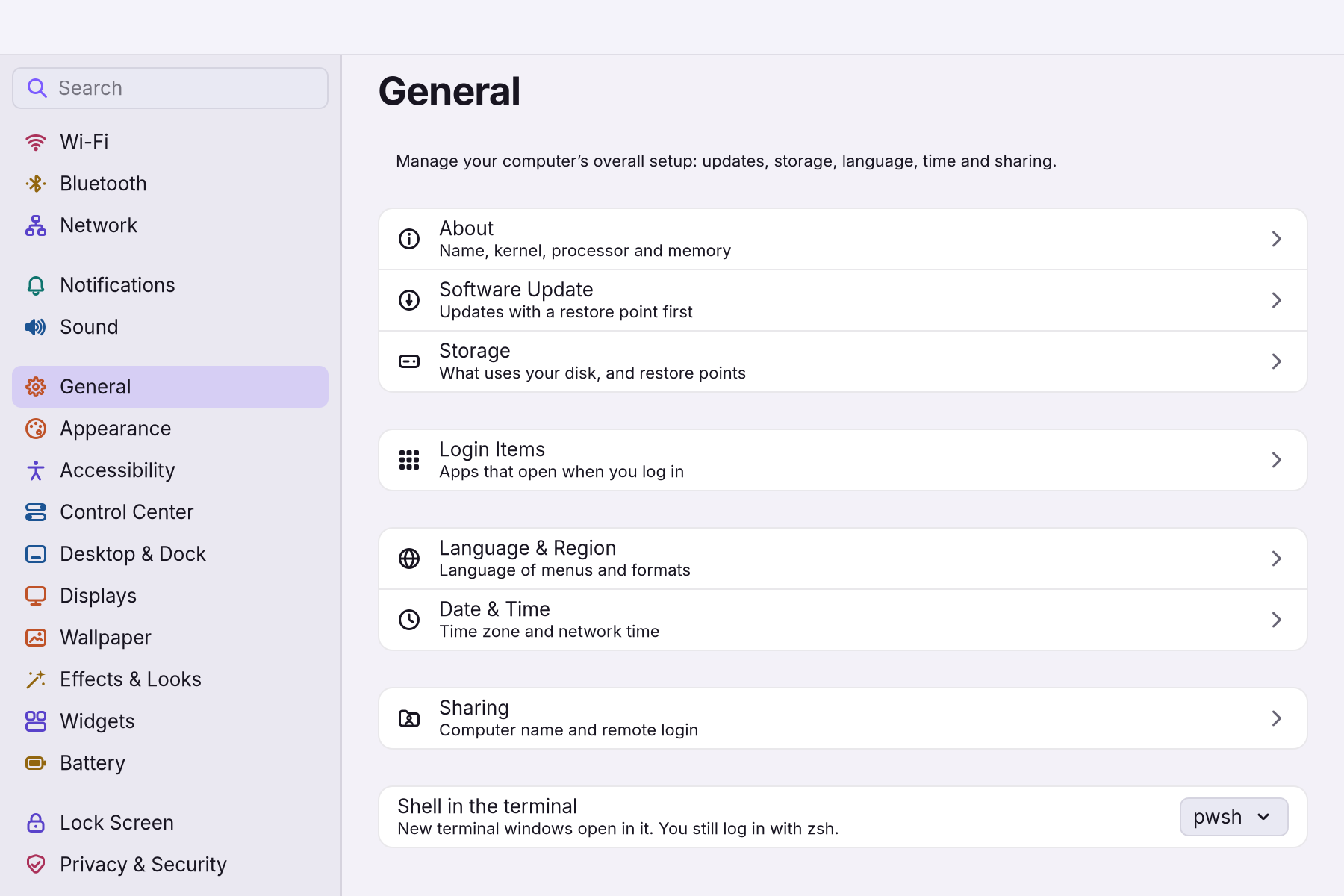
pwsh. You see under the menu "New terminal windows open in it. You still log in with zsh." Windows that are already open keep their shell.
The commands are Verb-Noun
| PowerShell | Short form that also works | What it does |
|---|---|---|
Get-ChildItem | ls, dir, gci | Lists the files and folders where you are |
Set-Location Documents | cd Documents | Goes into a folder |
Get-Location | pwd | Shows where you are |
Get-Content notes.txt | cat, type | Shows a text file |
Copy-Item a.txt b.txt | cp, copy | Copies a file |
Move-Item a.txt Documents | mv, move | Moves a file |
Remove-Item old.txt | rm, del | Deletes a file (without the Trash) |
New-Item -ItemType Directory Garden | mkdir Garden | Makes a folder |
Get-Help Get-ChildItem | help ls | Explains a command |
The verbs are few and always mean the same: Get reads, Set changes, New makes, Remove deletes. Once you know them you can often guess a command: Get-Date, Get-Process, Get-Command *Item* (every command with "Item" in its name). Capitals do not matter.
Options start with a dash and can be shortened
Get-ChildItem -Recurse -Filter *.jpg lists every JPEG here and in all folders below. You may shorten an option as long as it stays clear (-Rec), and Tab completes it: type Get-ChildItem - and press Tab to walk through every option.
Objects in the pipeline
The bar | hands the result of one command to the next, as in zsh, but what travels is objects. That makes sorting, filtering and choosing columns one word each:
Get-ChildItem ~/Pictures -Recurse -Filter *.jpg |
    Sort-Object Length -Descending |
    Select-Object -First 5 Name, Length
This lists your five biggest photos with their names and sizes. Sort-Object Length sorts by size because every file object has a Length; nothing had to be cut out of text. Where-Object filters: Get-ChildItem | Where-Object Length -gt 1MB keeps files over one megabyte.
Variables
A name with $ in front holds a value: $folder = "~/Documents", then Get-ChildItem $folder. $HOME is your home folder, and $PROFILE is the path of your own settings file.
Keys
They are the same as in zsh, so switching between the two is painless:
| Keys | What they do |
|---|---|
| Tab, Shift+Tab | A menu of completions you can walk through, forward and back |
| Up, Down | Earlier commands; with some letters typed, only the ones that start the same way |
| Right arrow or End | Take the grey suggestion from your history |
| Ctrl+Left, Ctrl+Right | One word left or right |
| Ctrl+C | Stop the running command, or give up on this line |
| Ctrl+L | Clear the window |
A line that starts with a space is not kept in the history.
Your own settings
Type $PROFILE to see where your settings file is. Open it with code $PROFILE (if you have the Developer module) or any text editor, add your own functions or aliases, and open a new window. WolOS's own settings are read first and yours afterwards, and updates never touch your file.
A worked example
Bill moved to WolOS from Windows. He installs the Console module, chooses pwsh in System Settings > General > Shell in the terminal, and opens a terminal. To find what fills his Downloads folder he types gci ~/Downloads | sort Length -Desc | select -First 3 Name, Length and sees his three biggest downloads. He removes an old installer with Remove-Item ~/Downloads/setup.exe. Later, a tutorial gives him a zsh command; he types zsh, pastes it, and exit brings him back to PowerShell.
If something goes wrong
| What you see | What to do |
|---|---|
zsh: command not found: pwsh | PowerShell is not installed. Install the Console module (System Settings > Modules). |
| PowerShell is not in the Shell in the terminal menu | The menu lists only shells that are installed. Install the Console module, then open System Settings again. |
| "The shell couldn’t be changed. Try again in a moment." | The choice was not saved, and the menu shows the shell that is still set. Choose again. |
| A terminal says the chosen shell is not installed, so it uses zsh | PowerShell was removed. Install Console again, or choose another shell in System Settings > General. |
| A command from a website does not work in PowerShell | It was written for zsh or bash. Type zsh, run it there, and exit to come back. |
The term '…' is not recognized | No command has that name. Check the spelling, or find it with Get-Command *word*. |
Related
- zsh basicsThe shell in every WolOS terminal: history, Tab, suggestions, the colours of a command line, wildcards, pipes, saving output to a file, and your own settings.
- Scripts and shellsRun sh, bash and Ruby scripts with wol script: checked before they run, as you, every change asked on screen and every run recorded. And choose the shell new terminal windows open in, PowerShell included.
- What a terminal isThe window where you type instead of click: what the prompt, a command, an argument and a path are, how to copy and paste, Tab, Ctrl+C, and your first five commands.
- Files and foldersFind, open, copy, move, rename and delete your files in Files, get them back from the Trash, and check one for malware.
- Your first Ruby scriptWrite a small Ruby script in a text editor, check it with wol script check, run it with wol script run, and see what WolOS asks before a script changes anything.