
Advanced
Modules: tools for what you do
Developer tools, AI assistants, creative apps, games and a richer terminal, each added in one step from Settings > Modules and removed in one step.
On this page
What it is
A An optional set of tools for one kind of work (development, creative work, gaming, AI) that you add or remove in Settings > Modules. is a bundle of tools for one kind of work, kept together as one unit: add it with one click, remove it with one click, and everything it brought goes with it. WolOS has seven:
| Module | What it brings | Download |
|---|---|---|
| Developer Tools | Git, a code editor, containers, every programming language one project at a time, and Crystal with Cryswol (Set up for development) | about 350 MB |
| AI Assistants | A coding assistant in the terminal that can act on WolOS only through approval sheets | about 300 MB |
| Local AI | Open AI models that run on this computer, using your graphics card when it can | up to 3.5 GB |
| Sessions | Terminal windows reopen where they were (Sessions) | about 20 MB |
| Creative Apps | Blender, GIMP, Krita, Inkscape, OBS Studio, darktable, Kdenlive, Ardour and Audacity (Creative apps in one step) | about 1.3 GB |
| Gaming | Tools for Windows games that do not come from Steam (Steam and your game library) | about 260 MB |
| Console | A themed prompt and handy terminal tools, the same keys and colours in every shell | about 180 MB |
None of them is switched on for you.
Why WolOS does it this way
Most people never write code or edit video, and a base system that carried every tool would be huge for them. So WolOS stays small and quick to install, and a person who needs a tool set gets it in one approval instead of a day of setting up. Removing a module takes away what it added, so trying one costs nothing.
How
While you install WolOS
On the page "Apps for What You Do", turn on the modules you want. The installer offers five of them: Developer Tools, AI Assistants, Local AI, Creative Apps and Gaming. The size to download is under the list.
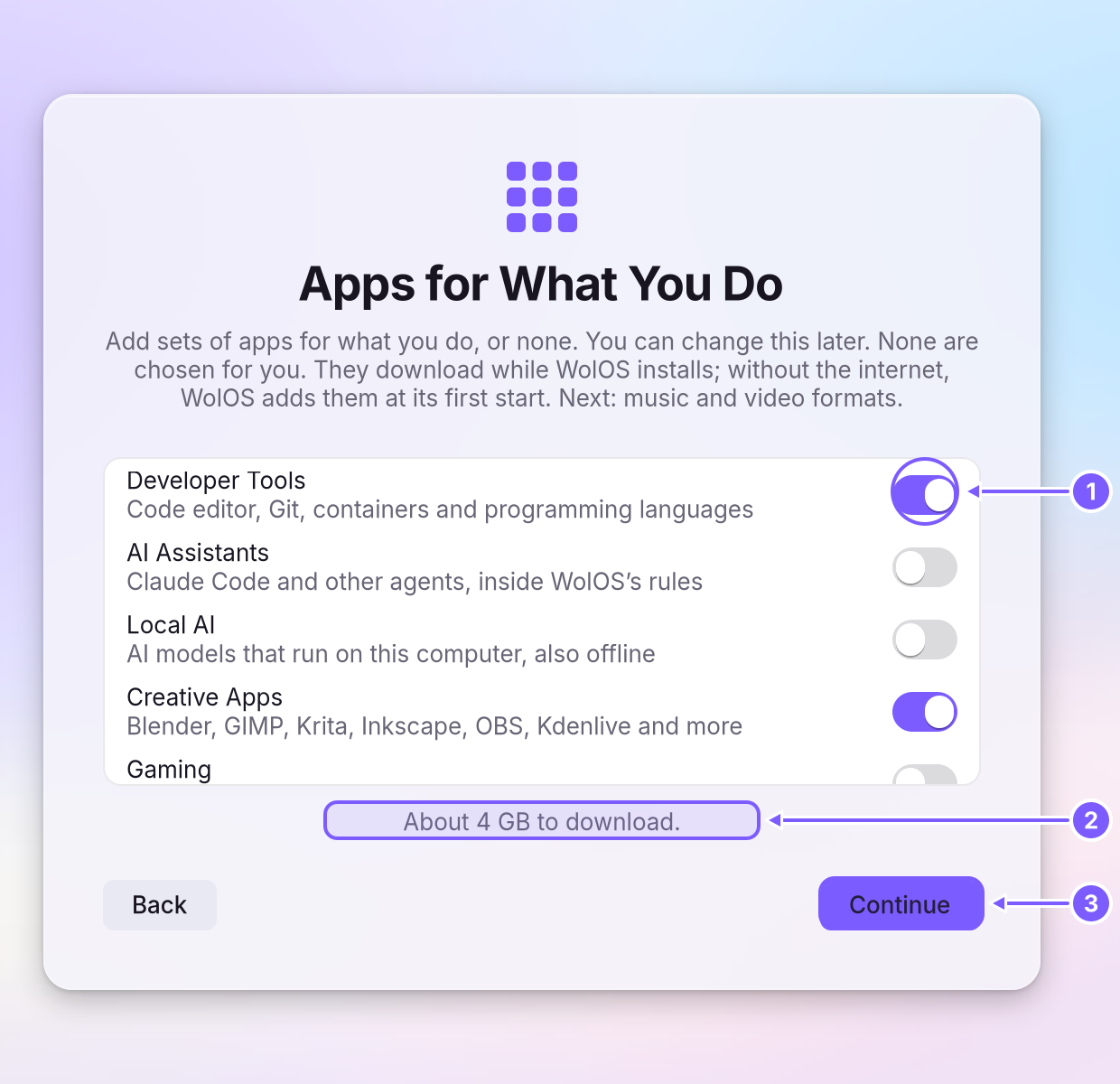
- Finish the install. The modules download while WolOS installs. Without internet, WolOS remembers what you ticked and adds it at the first start with a network.
Later, in Settings
Open System Settings > Modules. Press Super+, and choose Modules. You see Installed modules above and Available ones below, each with its size.
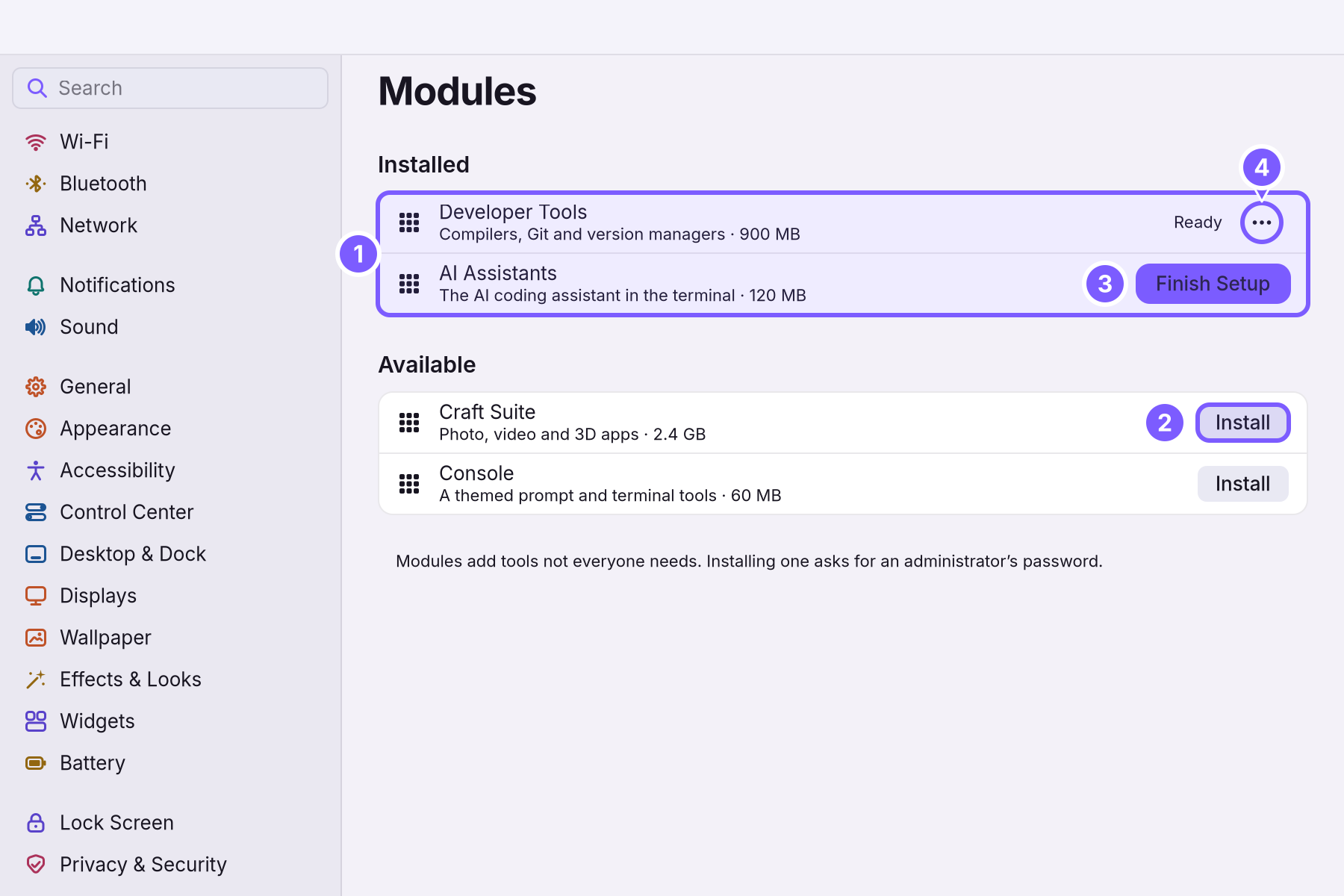
- Click Install next to a module. You see a password A small window that asks you to confirm something before it happens, for example Allow or Deny, or your password.: adding tools for every account needs an An account allowed to change things that affect everyone on the computer. The account you make while installing is one.. Type your password and click Allow.
- Watch the row move to Installed. It reads Ready when it is done. If it reads Finish Setup instead, click the button: this runs the part that belongs to your own account, and takes a few seconds.
- To remove a module, click the three dots next to it and choose Remove. What it added goes with it. Your own files are not touched.
A worked example
Alice wants to edit a video her friend sent. She opens System Settings > Modules, clicks Install next to Creative Apps, types her password and clicks Allow. A few minutes later the row says Ready. She presses Super+Space, types "kdenlive" and opens the editor. When the project is finished she removes the module, and the 1.3 GB comes back.
If something goes wrong
| What you see | What to do |
|---|---|
| "Installs when this computer next starts online." | You ticked it in the installer but there was no network. It installs by itself when the network comes up, on Wi-Fi too. |
| A module under Could Not Be Added | It could not be downloaded after several tries. Check that you are online, then click Retry. |
| "No modules are available", or a message that the list could not be read | Try again in a minute. The Store's Create page still installs single apps. |
| Finish Setup stays | Click it again while you are online; the page says in one sentence what stopped. |
| Local AI is slow | It uses your graphics card when one fits; in a virtual machine or on a computer without a supported card it uses the processor, which is slower. |
| An AI assistant asks you to approve a change | That is the rule: it can look at things freely, but every change goes through an approval sheet that you answer (Privacy and permissions). |
Related
- Creative apps in one stepThe Creative module adds nine apps for drawing, photos, video, 3D, streaming and music in one step, with colour management and low-latency sound.
- Creatives
- Set up for developmentThe Developer module adds Git, a code editor, containers, runtimes for every language and Crystal with Cryswol in one step, and makes ~/Work for your projects.
- The StoreFind an app, get it with one click, keep it up to date or go back to the version before, add a Kit, and remove what you no longer use.
- Steam and your game libraryOpen Steam, sign in and play the games you already own. Windows games run through Steam's own compatibility tool, which Steam keeps up to date.