
Make it yours
Wallpapers
Choose the picture behind your windows: one that changes with the time of day, one of WolOS's own, or a photo of yours, and make a matching theme from it.
On this page
What it is
The The picture behind your windows on the desktop. is the picture on the desktop, behind your windows. WolOS comes with its own pictures, including Dynamic, which changes with the time of day, and you can use any photo of yours.
Why WolOS does it this way
The desktop is the one part of the screen that is only for you. A picture that follows the day (bright in the morning, dusk in the evening, night after dark) makes the computer feel calmer without asking you to do anything. And because colours matter, WolOS can make a whole A set of colours that restyles the whole desktop and your apps at once. from your picture in one click.
How
Open System Settings > Wallpaper, or Choose… on the Wallpaper row of System Settings > Appearance.
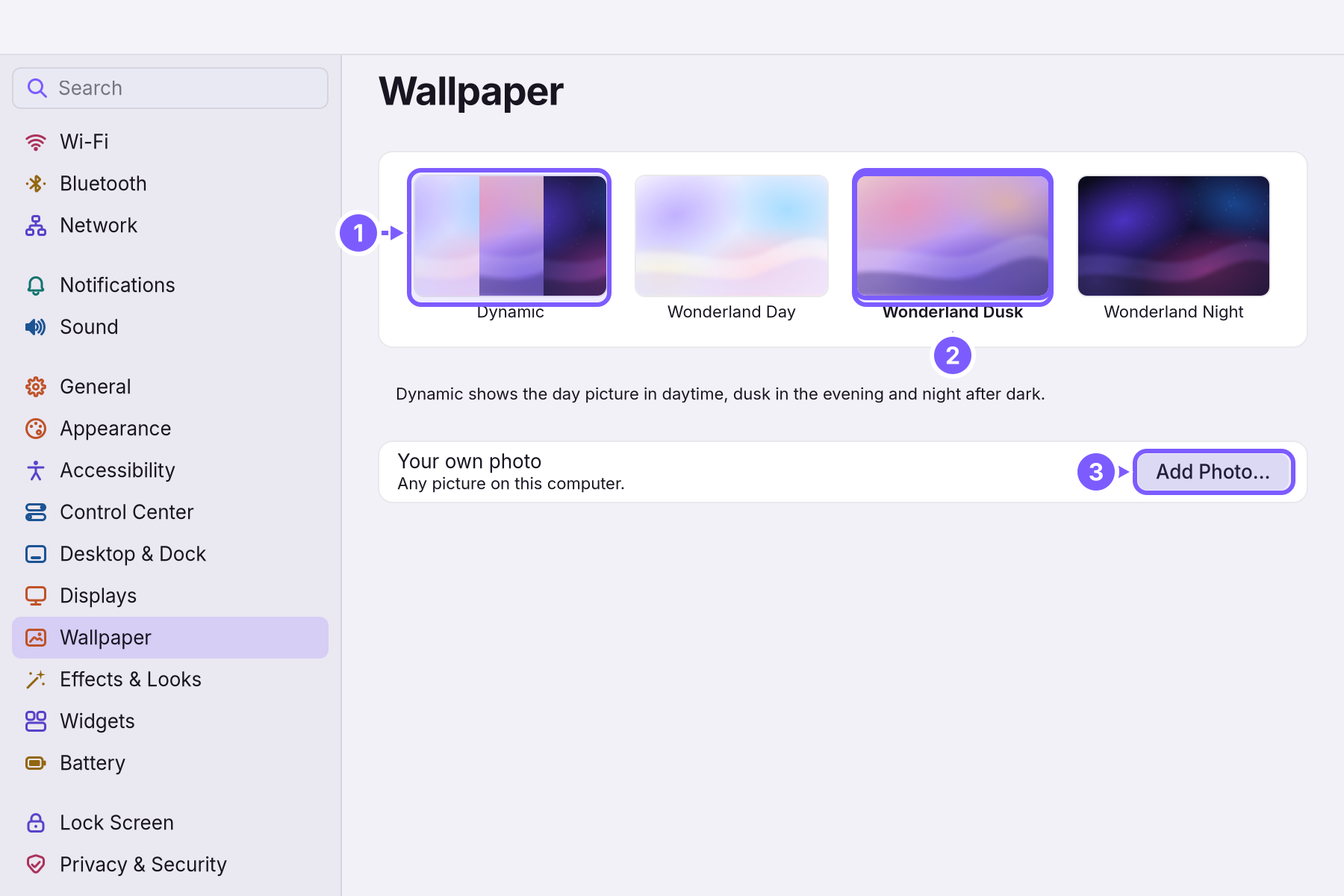
- Dynamic (1): "Dynamic shows the day picture in daytime, dusk in the evening and night after dark." It changes by itself.
- One of WolOS's pictures (2): Wonderland Day, Wonderland Dusk or Wonderland Night. Click one; the chosen picture has a coloured frame and its name in bold.
- Your own photo (3): click Add Photo… and choose any picture on the computer. It fills the screen.
The desktop changes as soon as you click. Like every look, the change can be undone in System Settings > Restore > Recent Changes.
A theme from your picture
In System Settings > Appearance, the row Theme from your wallpaper has Make Theme. It takes the colours of your desktop picture and makes a theme from them, checked so that text stays readable, and applies it at once. It is called From Your Wallpaper. See Looks and themes.
A worked example
Alice wants her cat on the desktop. She opens System Settings > Wallpaper, clicks Add Photo…, chooses Dinah.jpg in Pictures and clicks Open: Dinah fills the screen. In Appearance she clicks Make Theme, and the menus and buttons take on the ginger and cream of the photo.
If something goes wrong
| What you see | What to do |
|---|---|
| "The desktop picture couldn’t be read. Choose another in Wallpaper." | Make Theme could not read the picture. Choose another picture, then Make Theme again. |
| Your photo looks blurry | It is smaller than the screen. Use a photo with at least as many pixels as the screen (System Settings > Displays shows the resolution). |
| The wallpaper changes by itself | Dynamic is chosen; it follows the time of day. Choose another picture to keep one. |
| You want the old picture back | System Settings > Restore > Recent Changes > Undo next to Wallpaper. |
Related
- Looks and themesLight, Dark or Auto, an accent colour, a gallery of themes that restyle the whole desktop and your apps, and a theme made from your wallpaper.
- Backups and undoTake back a setting you changed, go back to the system from before an update, and keep copies of your own files on a USB disk.
- The desktopThe menu bar, the Dock, windows, Search, switching apps and the four desktops: what each part of the screen is for and how to use it.
- Dark ModeLight text on dark backgrounds everywhere, all the time or only in the evening, switched in one click from Control Center.
- The terminal and the wol commandOpen Terminal, ask wol for help, read before you change, undo a change, and see why some commands ask for your password. Ten commands worth knowing.