
Start here
The desktop
The menu bar, the Dock, windows, Search, switching apps and the four desktops: what each part of the screen is for and how to use it.
On this page
What it is
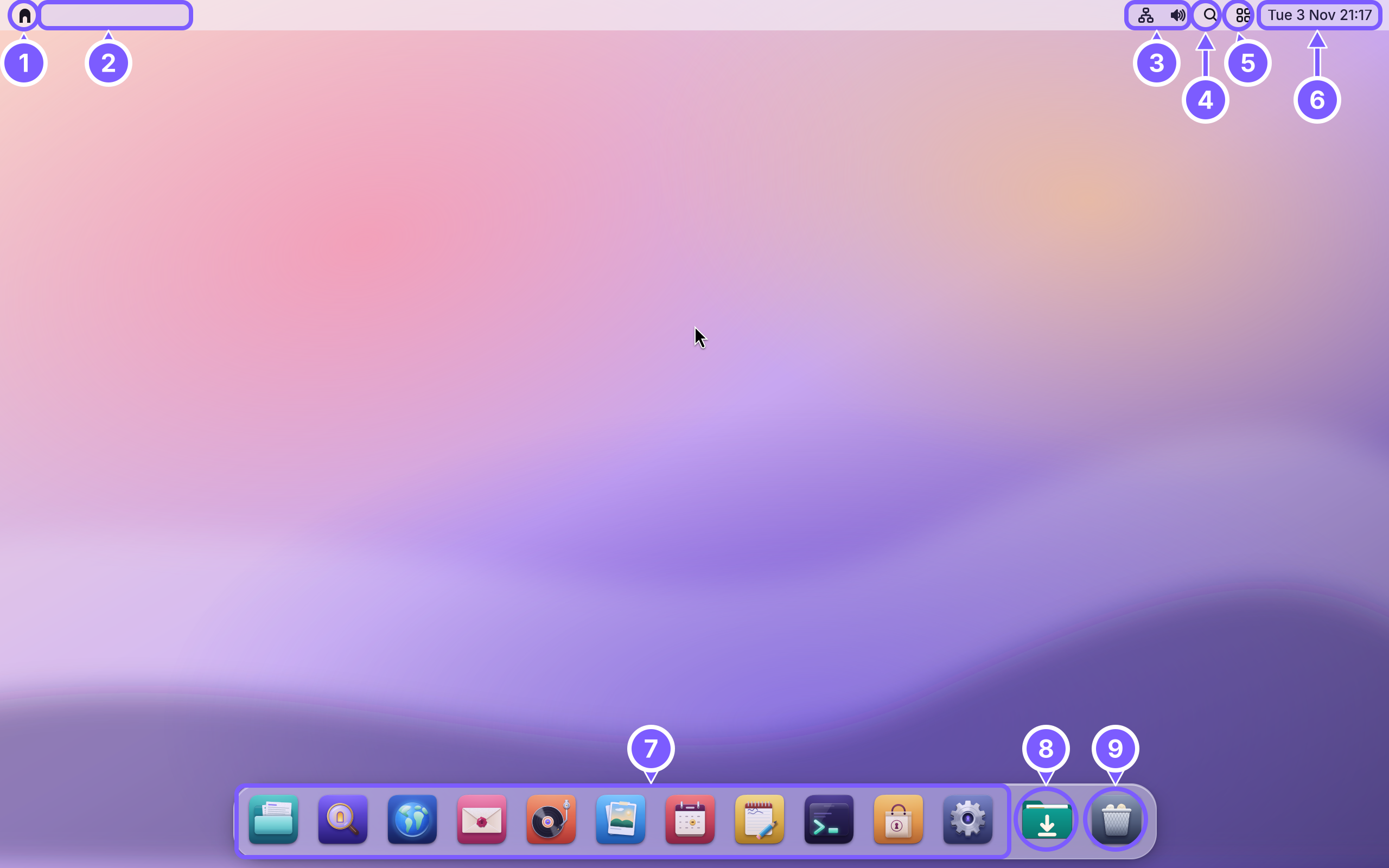
The desktop is everything you see once you are signed in. It has two bars and the space between them:
- the along the top, with the menus of the app in front on the left and the status of the computer on the right;
- the The row of app icons at the bottom of the screen. Click an icon to open the app; a dot under it means the app is running. along the bottom, with your apps, your Downloads and the Where deleted files wait. They can be put back until you empty the Trash. It is the last icon in the Dock.;
- the wallpaper in between, where your windows open.
Why WolOS does it this way
One bar for "what can this app do" and one for "which app do I want" is a layout millions of people already know, so there is nothing to learn before you can work. The bars stay thin and quiet: no ads, no news, no badges that want your attention. Everything else (settings, notifications, quick switches) is one click away and out of sight until you ask for it.
How
The menu bar
From left to right, the numbers match the picture above.
- The WolOS menu (the WolOS mark at the far left). It holds About This Computer, System Settings…, App Store…, Lock Screen, Log Out… and Shut Down…. Shut Down and Log Out ask first: you see "Are you sure you want to shut down your computer now?" with a countdown of 60 seconds. Cancel or Escape keeps you working; doing nothing shuts down when the countdown ends, so a computer left alone still turns off.
- The app in front. Its name in bold, then its own menus (for example Window). With no window in front, this part is empty. A plain click on a menu opens it; Ctrl+F2 moves the keyboard into the menu bar, Escape gives it back.
- Status icons: the network (Wi-Fi or cable) and the sound volume. A battery appears on a laptop, and a moon while Do Not Disturb for as long as you choose, from Control Center: for one hour, until tomorrow morning, or until you turn it off. is on. Click one for its details.
- Search (the magnifying glass, or Super+Space). See Find anything with Search below.
- Control Center (the four small squares): Wi-Fi, Bluetooth, Focus, brightness, sound, music and quick switches. See Control Center.
- The date and time. Click it to open The list of notifications you have not cleared yet. Click the clock in the menu bar to open it., the list of notifications you have not cleared yet.
What the menu bar shows can be changed in System Settings > Desktop & Dock (the date, the battery percentage) and System Settings > Control Center (which icons it shows).
The Dock
- Your apps. The Dock starts with Files, Apps, the Browser, Mail, Music, Photos, Calendar, Notes, Terminal, the App Store and System Settings. Click an icon to open the app. A small dot under an icon means the app is running; clicking it then brings its window to the front instead of opening a second one. Apps opens Search as a list of every app on the computer.
- Downloads. Click it to see your latest downloads stacked; click one to open it, or Open in Files for the whole folder.
- The Trash. Files you delete wait here until you empty it. Click it to open the Trash in Files, where you can put a file back.
The Dock grows icons under the pointer and can hide itself until the pointer reaches the bottom edge. Both are switches in System Settings > Desktop & Dock; see The Dock.
Windows
Every window has three round buttons at the top right. From left to right they minimize it (hide it to the Dock; click the app's icon to get it back), maximize it (make it fill the screen, click again to return) and close it, which is the rightmost. Drag a window by its title bar to move it, and by any edge to resize it.
Closing the last window of an app usually leaves the app running, with its dot in the Dock. Super+Q quits the app in front.
Switch between apps
Hold Super and press Tab: the switcher shows every running app in a row. Keep holding Super and press Tab again to move along the row; let go to bring the highlighted app to the front.

Four desktops
WolOS gives you four desktops (also called One of four desktops, each with its own windows. Ctrl+Alt+Left and Right move between them.), each with its own windows: one for work, one for chat, one for a game. Ctrl+Alt+Left and Ctrl+Alt+Right move between them, and Ctrl+Alt+1 to 4 jump straight to one. Ctrl+Up opens the One view of every open window and every desktop at once. Ctrl+Up opens it.: every window of the current desktop side by side and the four desktops in a row above them. Click a window to go to it, or a desktop to switch.
Find anything with Search
Press Super+Space (or click the magnifying glass) and start typing. Search finds apps, files and folders in your home folder, and System Settings pages, as you type. The arrow keys move through the results and Return opens the highlighted one. Each result says what it is on the right: Application, Folder, PDF Document, Image, Text and so on.
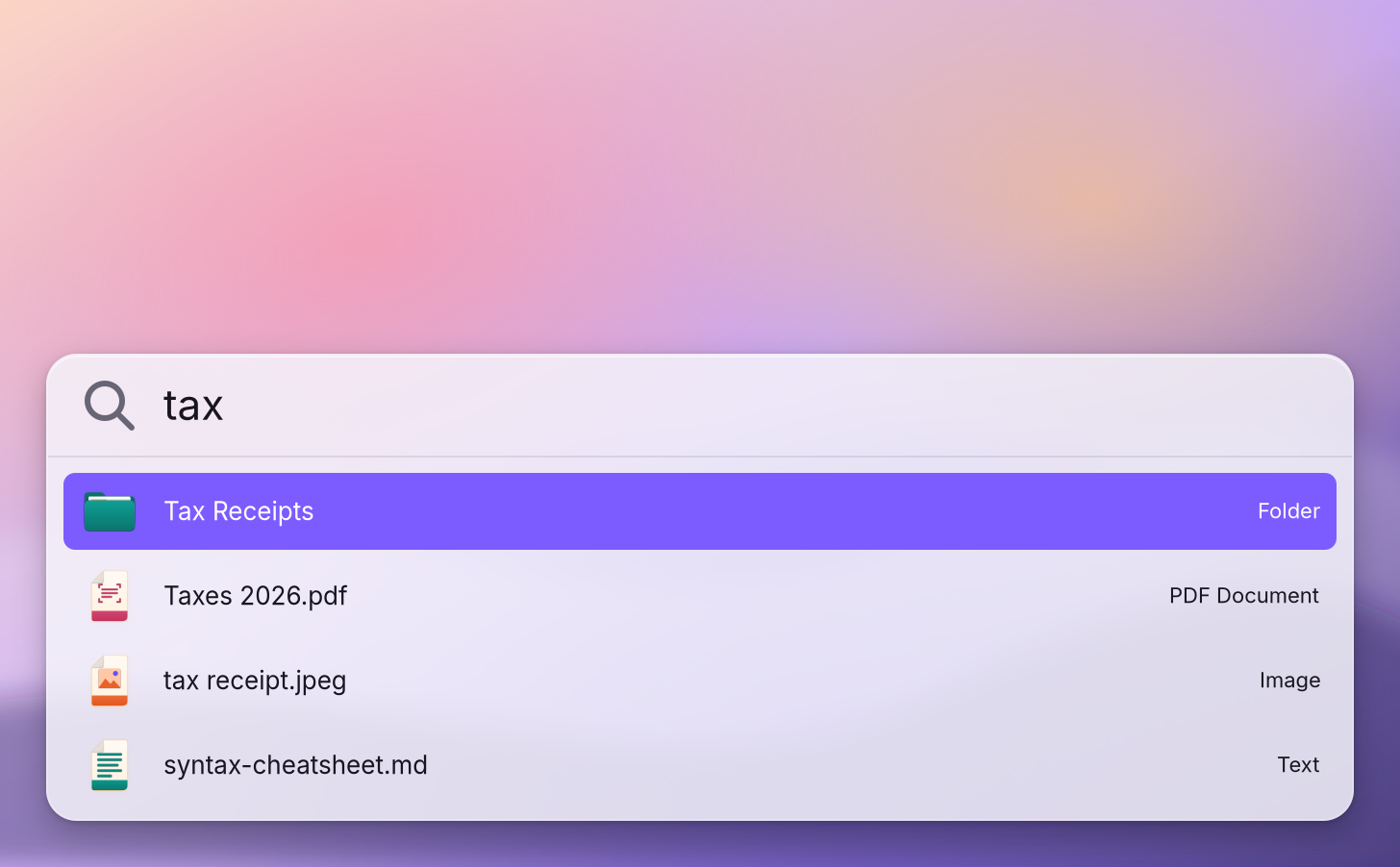
Search also works as a calculator: type 12*7 and the answer is the first result. When nothing matches you see "No results for “…”" and an offer to search the web for the words in your browser.
When an app stops answering
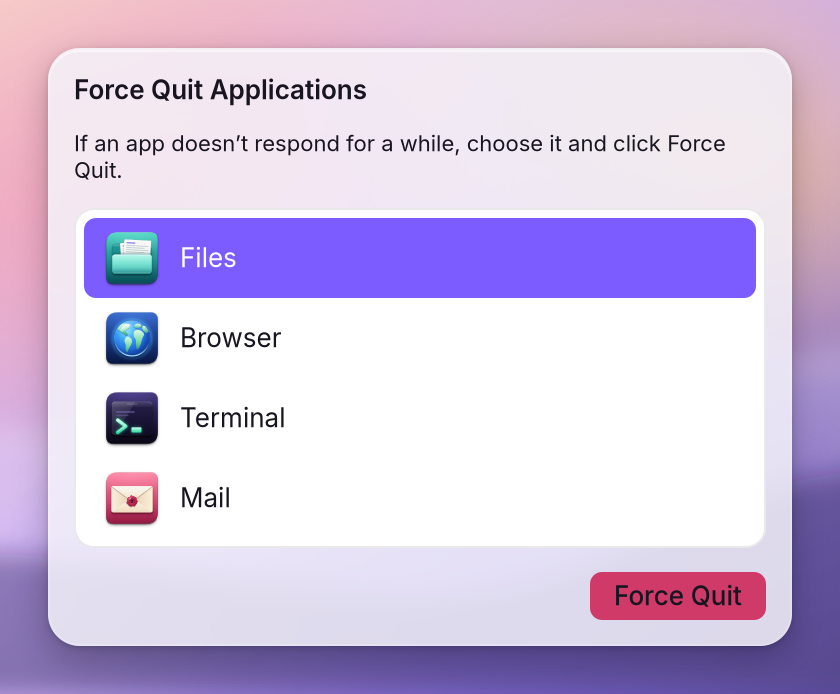
Press Alt+Super+Esc. Force Quit Applications lists the open apps: "If an app doesn’t respond for a while, choose it and click Force Quit." Choose the app and click Force Quit. Work you had not saved in that app is lost, so give it a minute first.
Every shortcut on one sheet
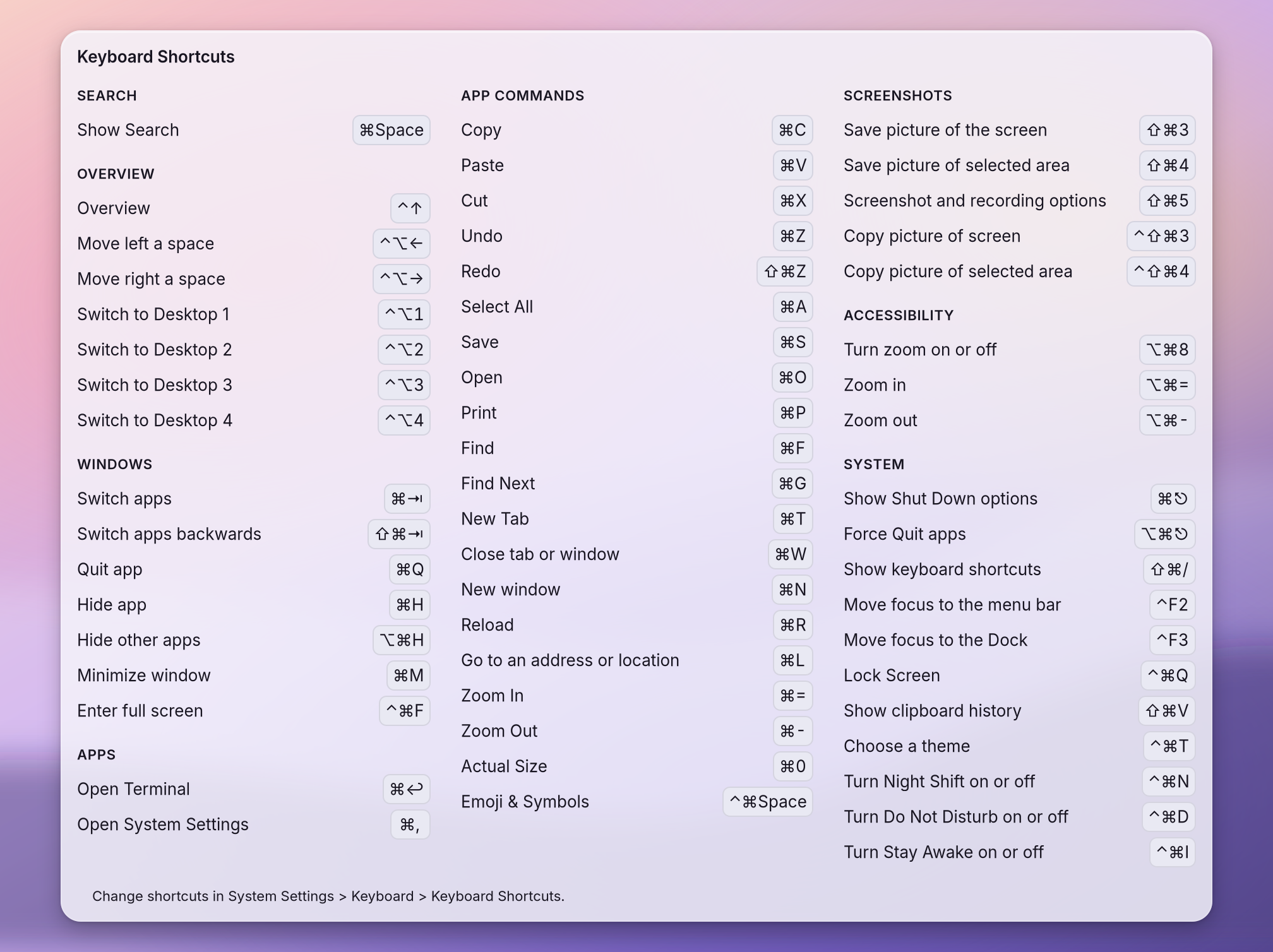
Press Shift+Super+/ (Super+?) and a sheet lists every keyboard shortcut, grouped: Search, Overview, Windows, Apps, App Commands, Screenshots, Accessibility and System. The symbols are the ones printed on some keyboards: ⌘ is The key with the Windows logo, shown as ⌘ in WolOS. Super with a letter gives the app in front its command, so Super+C copies in every app., ⌥ is Alt, ⌃ is Ctrl and ⇧ is Shift. The keyboard explains how to change a shortcut.
The keys worth knowing first
| Keys | What they do |
|---|---|
| Super+Space | Search |
| Super+Tab | Switch between apps |
| Super+, | Open System Settings |
| Super+Q | Quit the app in front |
| Super+W | Close the window or tab in front |
| Super+C, Super+V, Super+X | Copy, paste, cut in every app, the terminal included |
| Super+Z, Shift+Super+Z | Undo, redo |
| Shift+Super+V | The last things you copied (Clipboard history) |
| Shift+Super+3, 4, 5 | A A picture of what is on the screen. Shift+Super+3 takes the whole screen. of the screen, of an area, or the screenshot toolbar (Screenshots) |
| Ctrl+Up | Overview |
| Ctrl+Alt+Left, Right | The desktop to the left or right |
| Ctrl+Super+Q | Lock the screen |
| Ctrl+Super+F | Full screen on and off |
| Alt+Super+Esc | Force Quit Applications |
| Shift+Super+/ | Every shortcut on one sheet |
Super with a letter always goes to the app in front, the way Command does on a Mac, so the same keys copy and paste in a browser, a document and a terminal. Ctrl keeps the meaning each app gives it.
A worked example
Alice is writing a letter and needs a number from a PDF. She presses Super+Space, types "inv", and Search shows "Invoice March.pdf"; Return opens it. She selects the number, presses Super+C, then Super+Tab to go back to the letter, and Super+V to paste. Later a video call starts in the browser, so she presses Ctrl+Alt+Right to move to her second desktop, where only the browser is open. When the call ends, Ctrl+Alt+Left brings her back to the letter exactly as she left it.
If something goes wrong
| What you see | What to do |
|---|---|
| The Dock is gone | It may be set to hide: move the pointer to the bottom edge and wait. To keep it visible, turn off Automatically hide and show the Dock in System Settings > Desktop & Dock. |
| The menu bar shows no app name | No window is in front. Click a window, or an app in the Dock. |
| An app does not respond | Wait a minute, then Alt+Super+Esc > choose it > Force Quit. |
| A shortcut does nothing | It may have been changed. System Settings > Keyboard > Keyboard Shortcuts > Restore Defaults brings back the keys on this page. |
| Search does not find a file | Search looks in your home folder and skips hidden folders. It refreshes its list of files when you open it, so close Search and open it again for a file saved a moment ago. |
| Everything is too small or too big | System Settings > Displays > Scale sets the size of everything on the screen. |
Related
- Control CenterThe panel at the top right for the things you change every day: Wi-Fi, Bluetooth, Focus, Dark Mode, brightness, sound, music and quick switches.
- Your first daySign in for the first time, finish the setup, and spend ten minutes making WolOS yours: Wi-Fi, updates, looks and your first apps.
- Backups and undoTake back a setting you changed, go back to the system from before an update, and keep copies of your own files on a USB disk.
- System SettingsThe one window for everything you can change: how to open it, find any setting by typing, what every pane holds, and how to take a change back.
- Files and foldersFind, open, copy, move, rename and delete your files in Files, get them back from the Trash, and check one for malware.