
Everyday
Playing full screen
What WolOS does while a game fills the screen: banners wait, frames go out at once, the refresh rate follows the game, and Force Quit still opens.
On this page
What it is
When a game fills the whole screen, WolOS steps back. Notifications wait until you leave the game, each frame goes to the screen the moment the game finishes it, and a screen that can change its How many times a second the screen draws a new picture. A higher number looks smoother. (A feature of some screens that lets the refresh rate follow the game, so motion stays smooth. It needs no setup., VRR for short) follows the game's pace. If the game freezes, Force Quit still opens on top of it. You set none of this up: it happens because the window is full screen.
Why
A game that is interrupted, or that waits a few milliseconds for the screen, feels worse than a slower game that is never interrupted. So WolOS treats full screen as a promise: nothing of the desktop draws over the game, and nothing holds its frames back. Desktop A small card on the desktop that shows something at a glance: the time, the weather, music, battery. pause on that screen, Memory Saver never touches a game, and a banner that arrives while you play is kept for later rather than lost.
How
- Make the game full screen. Use the game's own video setting (Fullscreen, not Windowed), or press Ctrl+Super+F for any window. You see the game cover the menu bar and the Dock.
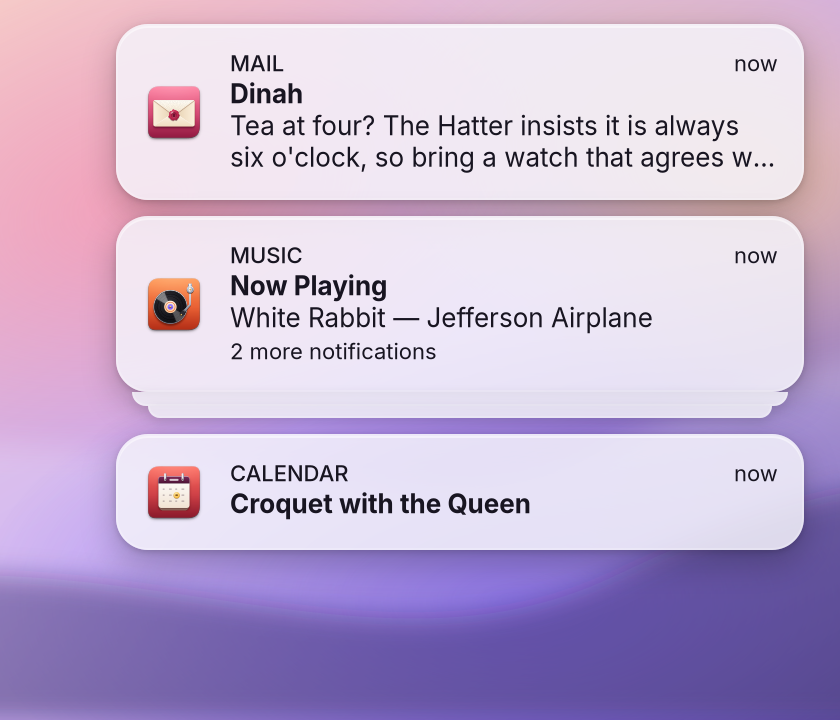
Play. A A short message from an app or from WolOS. It shows for a moment as a banner at the top right, then waits in Notification Center. that arrives now does not show. When you leave full screen, the banners you missed appear, and every one stays in The list of notifications you have not cleared yet. Click the clock in the menu bar to open it..
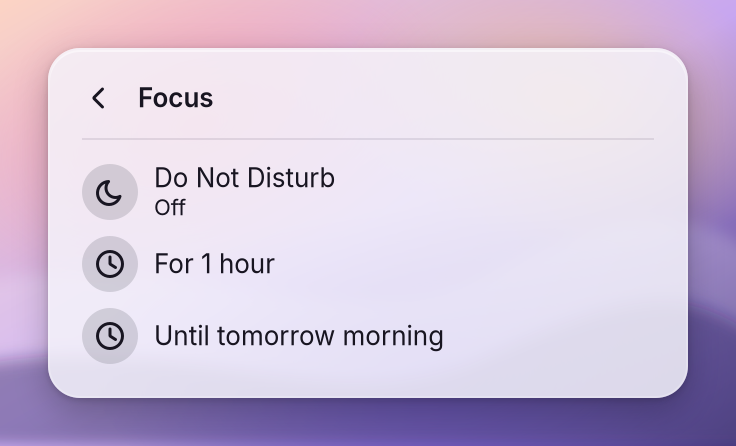
Want silence outside games too? Open Control Center and choose Do Not Disturb for as long as you choose, from Control Center: for one hour, until tomorrow morning, or until you turn it off., then A switch that keeps banners off the screen. Notifications still arrive and wait in Notification Center., For 1 hour or Until tomorrow morning. Ctrl+Super+D turns Do Not Disturb on or off.
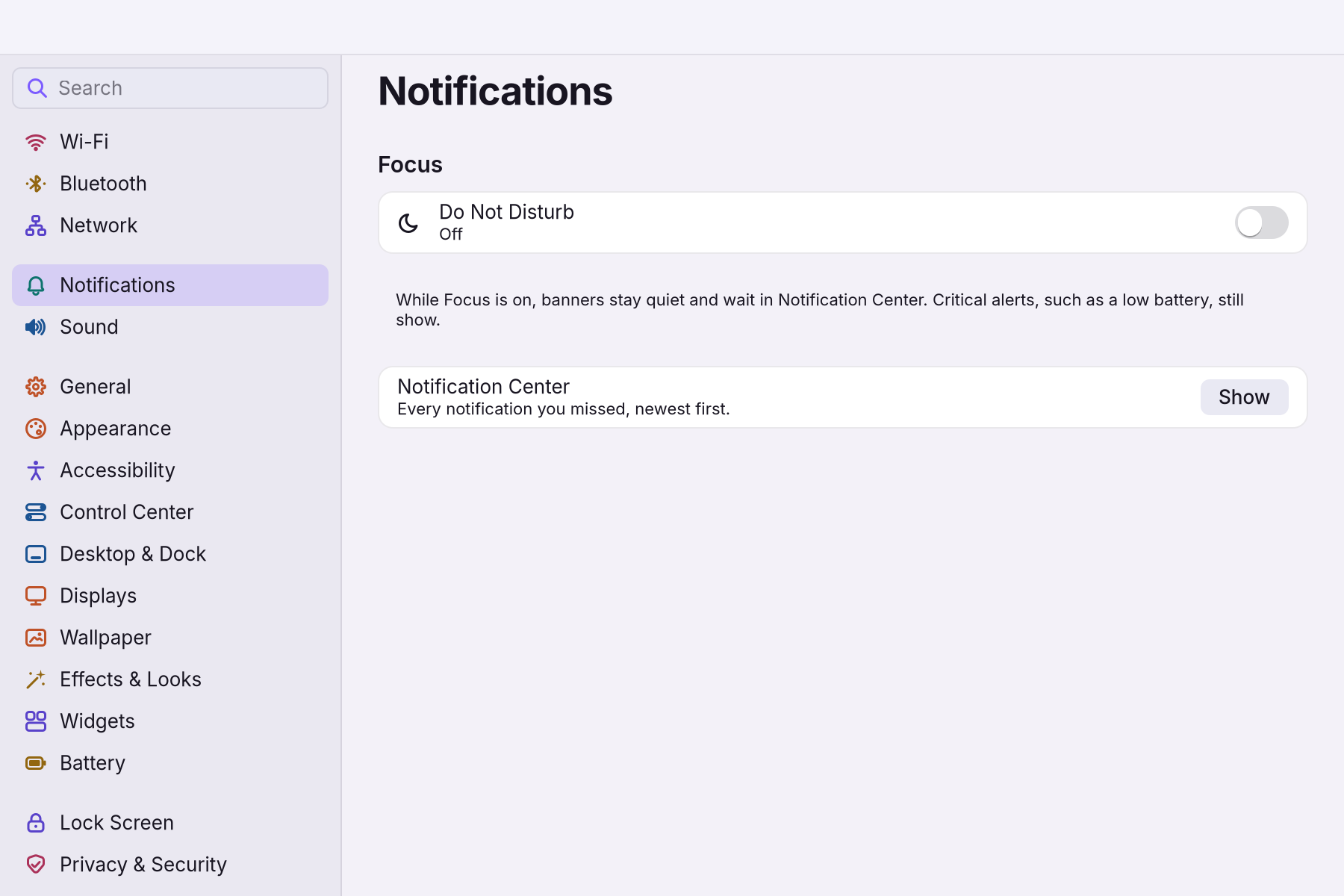
The same switch is in Settings > Notifications: "While Focus is on, banners stay quiet and wait in Notification Center. Critical alerts, such as a low battery, still show."
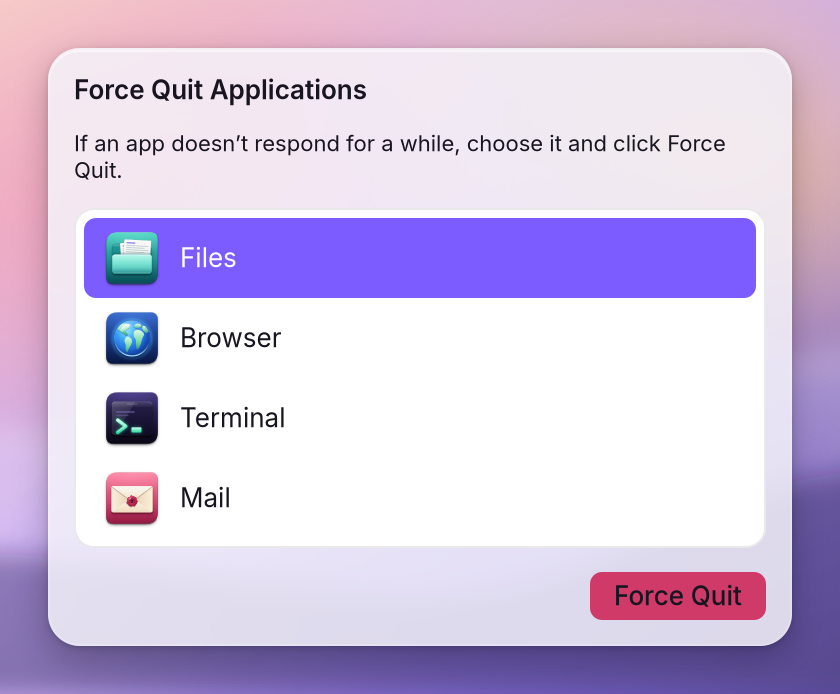
If the game stops answering, press Alt+Super+Esc. You see Force Quit Applications over the game. Choose the game and click Force Quit. The rest of the desktop is not affected.
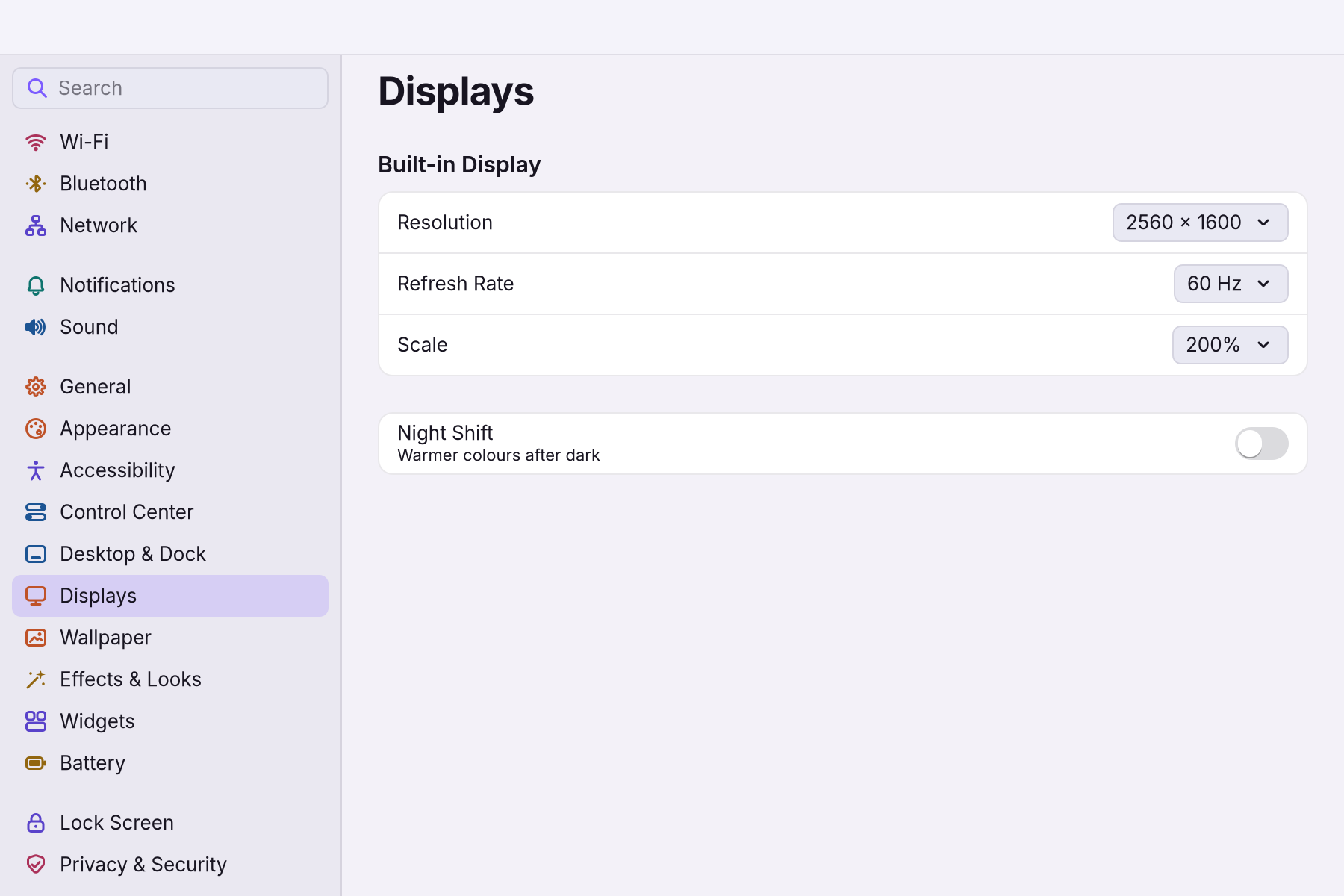
Check the refresh rate in Settings > Displays if your screen supports more than 60 Hz. You see Refresh Rate next to Resolution and Scale. Choose the highest the screen offers; the variable refresh rate turns on only for full-screen windows, so the desktop stays steady.
What changes while a game is full screen
| What | While you play | Why |
|---|---|---|
| Banners | Wait, then show when you leave | A banner drawn over the game would also slow its frames |
| The volume sign | Still shows for a moment | You need to see the level you set |
| Frames | Go out at once, even if that means a slight tear | Lower delay between your hand and the screen |
| Variable refresh rate | On, for full-screen windows only | The screen follows the game's pace |
| A game at a lower resolution | Scaled sharp, not blurred | Pixel art and text stay crisp |
| Desktop widgets | Paused on that screen | They would spend power you want for the game |
| Memory Saver | Never touches the game | Games are excluded by rule |
A worked example
Alice starts a game and presses Ctrl+Super+F to make it full screen. Halfway through a mail arrives and a calendar reminder fires, but nothing covers the game. When she quits, three banners appear at once and all three are waiting in Notification Center. The game was never interrupted.
If something goes wrong
| What you see | What to do |
|---|---|
| A banner showed over the game | The game is in a window, not full screen. Switch it to Fullscreen in its video settings, or press Ctrl+Super+F. |
| The picture tears on fast movement | That is the price of sending frames at once. Turn on the game's own V-Sync, or use a screen with variable refresh rate. |
| The game is frozen and the keys do nothing | Press Alt+Super+Esc and Force Quit it. |
| I missed a message while I played | Open Notification Center (Settings > Notifications > Show): every notification you missed is there, newest first. |
| The refresh rate stays at 60 Hz | Pick it in Settings > Displays. The list shows only what the screen and cable report; some older cables carry 60 Hz only. |
Related
Steam and your game library · When a game will not start · Keyboard shortcuts · Settings
Related
- NotificationsBanners at the top right, Notification Center for what you missed, Do Not Disturb and Focus for quiet, and what stays visible even then.
- Control CenterThe panel at the top right for the things you change every day: Wi-Fi, Bluetooth, Focus, Dark Mode, brightness, sound, music and quick switches.
- System SettingsThe one window for everything you can change: how to open it, find any setting by typing, what every pane holds, and how to take a change back.
- The desktopThe menu bar, the Dock, windows, Search, switching apps and the four desktops: what each part of the screen is for and how to use it.
- When a game will not startOne command checks everything Steam and Windows games need on this computer and prints the exact fix for each missing piece.