
Everyday
When a game will not start
One command checks everything Steam and Windows games need on this computer and prints the exact fix for each missing piece.
What it is
The check-up for games is one line, wol games doctor, that you type in the A window where you type commands instead of clicking. Super+Return opens one.. It looks at everything a game needs on this computer: Steam itself, the The part of the system that knows how to talk to one kind of device, such as a graphics card or a printer., the 32-bit graphics files Steam still uses, the graphics driver games talk to (The modern way games talk to the graphics card. A game needs a Vulkan driver for your card to run well., the modern way games reach the graphics card) and, on NVIDIA cards, files that must match the driver's version. Each check prints one line. A check that fails prints the line that fixes it right under it. Think of it as the warning lights on a car's dashboard, each with the name of the part.
Why
When a game does not start on most computers, you get a black window or nothing, and then an evening of forum threads. Almost every one of those cases is a missing piece in the list above. Checking for them is cheap, so WolOS does it in one place and says the fix in a sentence. The same checks run when you open Steam: if one fails, a notification tells you instead of Steam crashing silently.
How
Open Terminal. Press Super+Space, type
teand press Return.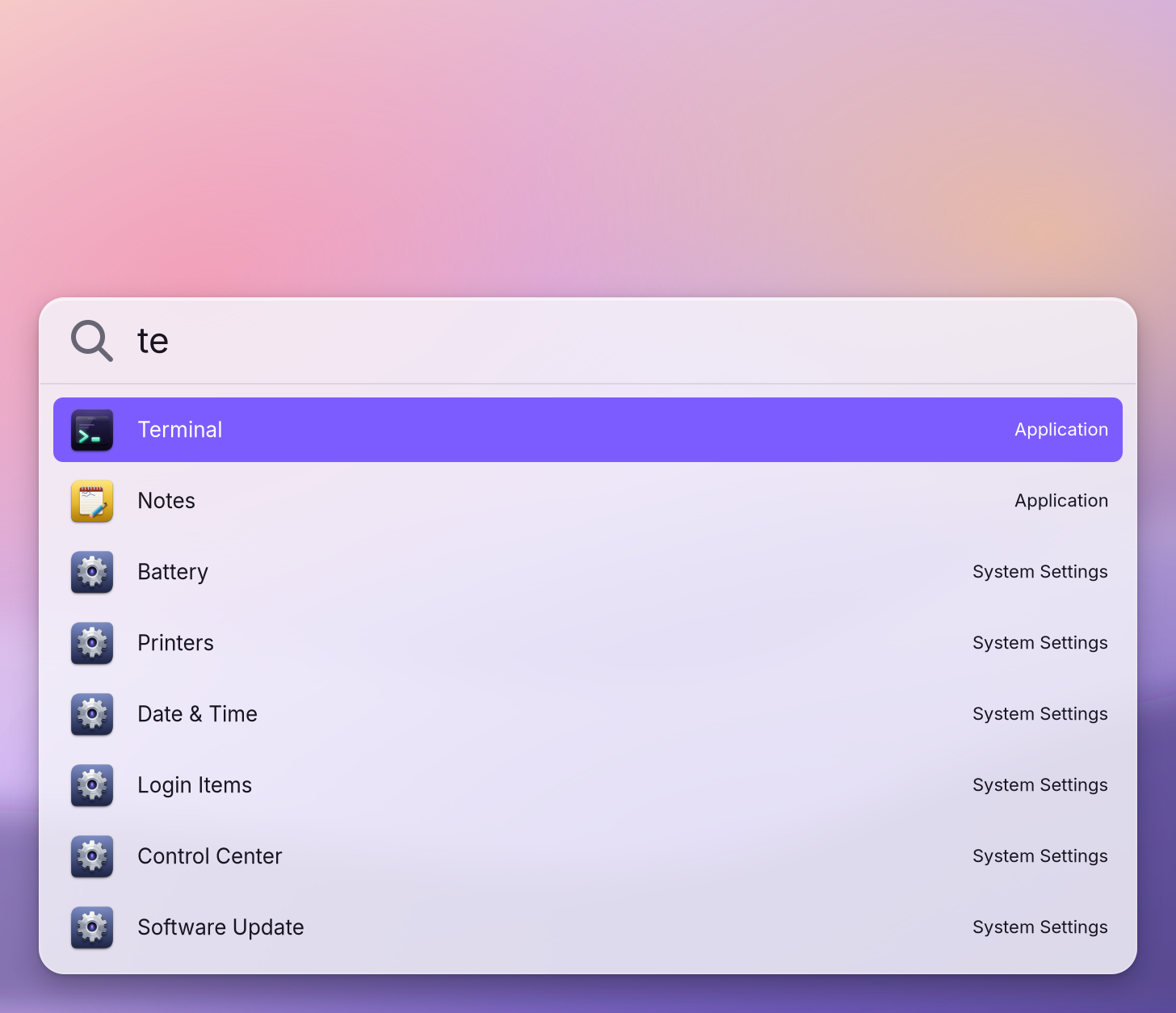
Run the check. Type this and press Return:
wol games doctorYou see one line per check:
ok,info,warnorFAIL, the check's name, and what it found. It ends with Ready: Steam and Windows games can run. or with the number of problems.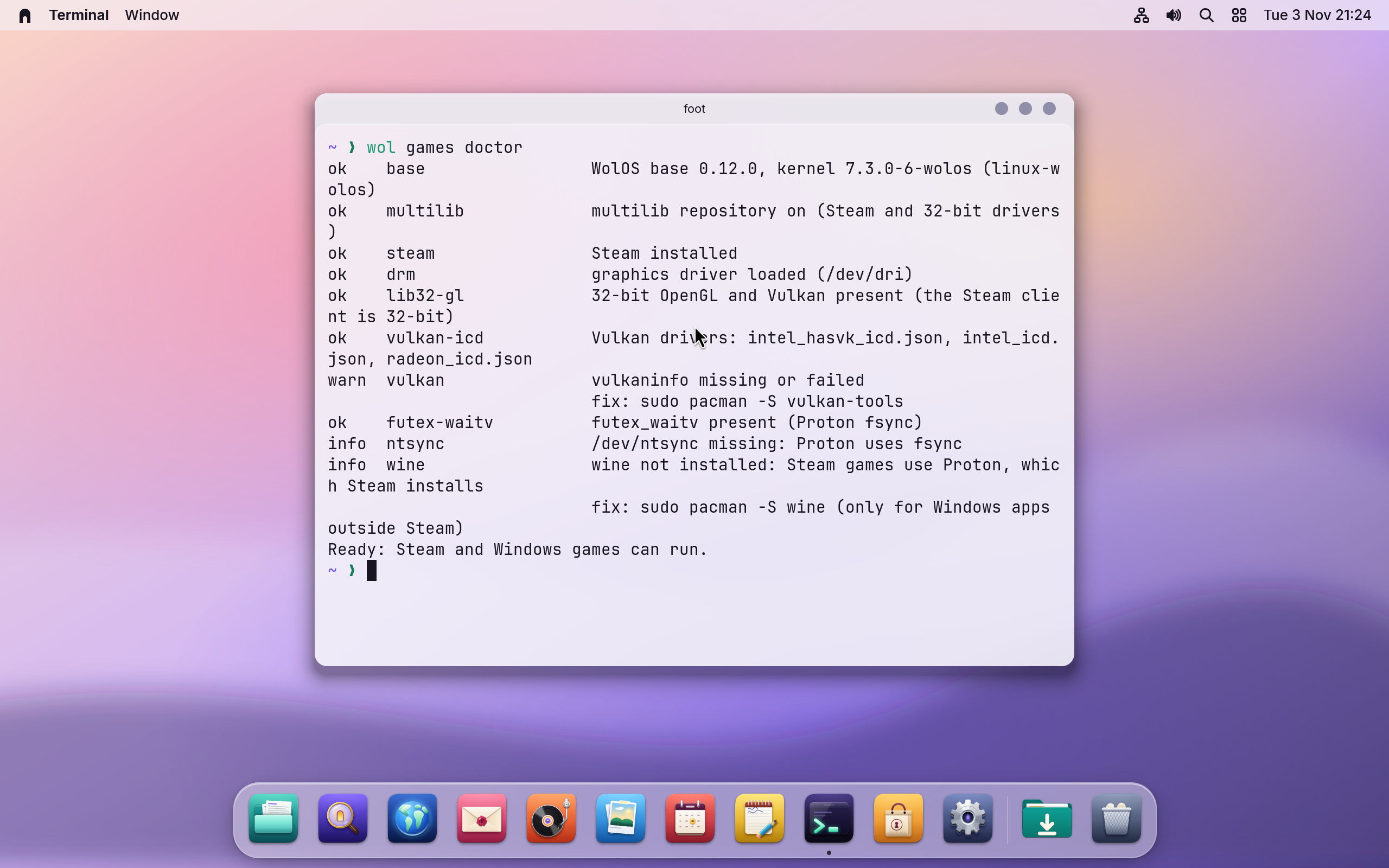
A failed check looks like this (the names after
fix:depend on your graphics card):FAIL lib32-gl 32-bit OpenGL or Vulkan missing (the Steam client is 32-bit) fix: sudo pacman -S --needed vulkan-icd-loader lib32-vulkan-icd-loader vulkan-radeon lib32-vulkan-radeon lib32-mesa Not ready: 1 problem(s). Run the fix lines above, then check again.- Copy the fix line and run it. Select the text after
fix:with the mouse, copy it, paste it into Terminal with Super+V and press Return. Terminal asks for your password, because the fix installs for every account. Nothing shows while you type, not even dots; press Return when done. - Check again with the same line, then start the game. You see Ready: Steam and Windows games can run.
What each check means
| Check | It looks at | When it fails |
|---|---|---|
multilib | The source of 32-bit software | Steam and the 32-bit drivers come from there. The fix turns it on. |
steam | Steam itself | The fix line puts it back. |
drm | A loaded graphics driver | Nothing can draw. Open Settings > Hardware: a device that needs attention has a Fix button. |
lib32-gl | 32-bit graphics files | The Steam window itself is a 32-bit program and cannot start. |
vulkan-icd, vulkan | A Vulkan driver for your card | Windows games need one. If Vulkan sees only the processor, games would crawl. |
nvidia | NVIDIA's 32-bit files, same version as the driver | Steam cannot use the card. |
futex-waitv, ntsync | Two features of the The core of the system that talks to the hardware and runs every program. WolOS ships its own, WolKernel. that make Windows games smoother | Only a warning: games still run, a little less smoothly. WolKernel has both. |
wine | The runner for Windows programs outside Steam | Only information: Steam games do not need it. The Gaming module adds it. |
A worked example
A game Alice just bought shows a black window and closes. She opens Terminal, types the check-up line and sees FAIL lib32-gl with a fix line under it. She copies the fix line, pastes it, types her password and waits. The second check-up ends with "Ready: Steam and Windows games can run." and the game starts.
If something goes wrong
| What you see | What to do |
|---|---|
Every check says ok and the game still does not start | Open the game's properties in Steam and choose another version of the compatibility tool, then try again. The game's page on community sites often names the version that works. |
drm fails after an update | Restart once. If it stays, open Settings > Hardware and click Fix on the device that needs attention. |
| The fix line says a package was not found | The list of available software is out of date. Open Settings > Software Update, let it check for updates, then run the fix line again. |
| A Windows program outside Steam does not open | Install the Gaming module in Settings > Modules: it adds the runner for such programs. |
| The game starts but stutters | Check that the game runs full screen (Playing full screen), and that a laptop is plugged in: with Energy Mode on Automatic (Settings > Battery), WolOS saves energy on battery and runs at full speed when plugged in. |
Related
Steam and your game library · Playing full screen · Games (reference) · Hardware and drivers
Related
- Steam and your game libraryOpen Steam, sign in and play the games you already own. Windows games run through Steam's own compatibility tool, which Steam keeps up to date.
- GamesWhich games run on WolOS and where to get them: the Store's Play shelf, Steam with your existing library, Windows games from elsewhere, and the Gaming module.
- Playing full screenWhat WolOS does while a game fills the screen: banners wait, frames go out at once, the refresh rate follows the game, and Force Quit still opens.
- Battery and sleepMake the battery last or get full speed, what happens when you close the lid, the battery warnings, and Memory Saver.
- Set up for developmentThe Developer module adds Git, a code editor, containers, runtimes for every language and Crystal with Cryswol in one step, and makes ~/Work for your projects.