
Make it yours
The Dock and the menu bar
Make the Dock bigger or smaller, let it grow under the pointer or hide until you need it, choose what the menu bar shows, and place windows side by side with tiling.
On this page
What it is
The The row of app icons at the bottom of the screen. Click an icon to open the app; a dot under it means the app is running. is the row of app icons at the bottom of the screen; the is the strip at the top. System Settings > Desktop & Dock decides how both look and behave, and how windows are placed.
Why WolOS does it this way
The Dock and the menu bar are on screen all day, so they should suit you: big icons for tired eyes or a touch screen, small ones for a small laptop, a Dock that hides when every pixel counts. Every option takes effect as you change it, so you see the result while you decide.
How
Open System Settings > Desktop & Dock.
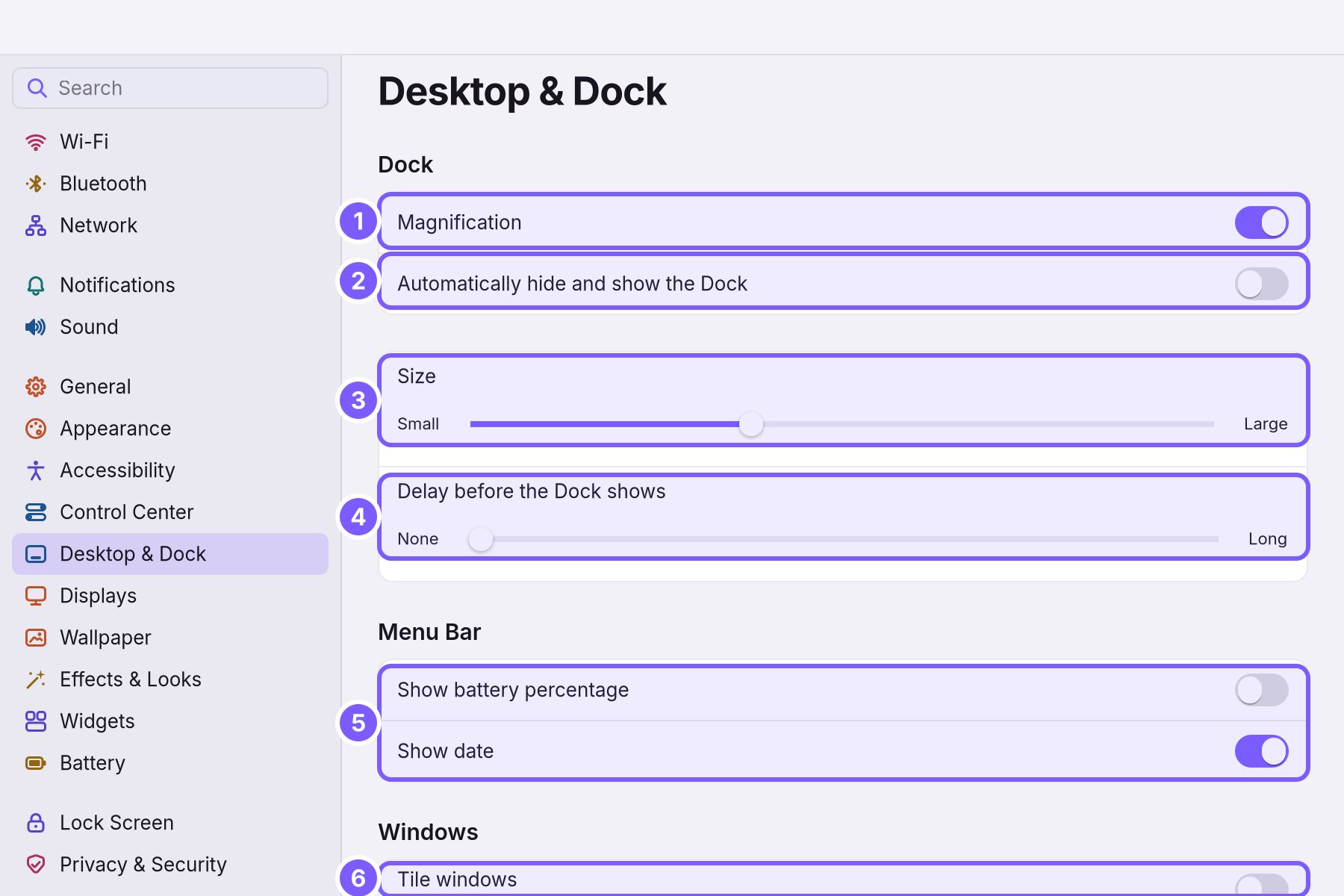
| Setting | Default | What it does |
|---|---|---|
| Magnification (1) | On | Icons grow under the pointer as it moves along the Dock, so the one you aim at is easy to hit. |
| Automatically hide and show the Dock (2) | Off | The Dock slides away and comes back when the pointer reaches the bottom edge of the screen. Windows get the whole height. |
| Size (3) | 56 points, between Small (32) and Large (96) | How big the icons are. |
| Delay before the Dock shows (4) | None | With hiding on: how long the pointer waits at the edge before the Dock comes, from None up to Long (5 seconds). A delay stops it from popping up when you only meant to reach the bottom of a window. |
| Show battery percentage (5) | Off | The number next to the battery icon in the menu bar. |
| Show date (5) | On | The date next to the time in the menu bar. |
| Tile windows (6) | Off | Places windows side by side to fill the screen; see below. |
Tiling: windows side by side
With Tile windows on, a new window takes a share of the screen instead of floating on top, and the windows together fill the screen without overlapping. The rows under it set how:
- Arrangement: Split the focused window (each new window halves the one you are in) or Main window and stack (one big window on one side, the others stacked beside it).
- Space between windows: from Narrow to Wide.
- Tiling shortcuts > Show… lists the keys that move and resize tiled windows.
- Keep Floating: apps that should always float above the others, like a calculator. Add App… adds one; Remove takes it off the list.
Turn Tile windows off again and every window floats as before.
What the menu bar shows
Besides the date and the battery here, System Settings > Control Center chooses which status icons and switches appear. See Control Center.
A worked example
Alice has a small laptop screen. She turns on Automatically hide and show the Dock, so her documents get the whole height, and sets the Delay a little above None, so the Dock does not jump up whenever she scrolls to the bottom of a page. She turns on Show battery percentage to see exactly how much charge is left on the train.
If something goes wrong
| What you see | What to do |
|---|---|
| The Dock is gone | Hiding is on. Move the pointer to the bottom edge and wait, or turn Automatically hide and show the Dock off. |
| The Dock shows up whenever the pointer is near the bottom | Raise Delay before the Dock shows. |
| Icons jump in size as you move along the Dock | That is Magnification. Turn it off for a calm Dock. |
| A switch flips back | The change could not be saved; the switch shows what is set. Try again. |
| Windows suddenly fill the screen side by side | Tile windows is on. Turn it off to let windows float. |
Related
- The desktopThe menu bar, the Dock, windows, Search, switching apps and the four desktops: what each part of the screen is for and how to use it.
- System SettingsThe one window for everything you can change: how to open it, find any setting by typing, what every pane holds, and how to take a change back.
- Control CenterThe panel at the top right for the things you change every day: Wi-Fi, Bluetooth, Focus, Dark Mode, brightness, sound, music and quick switches.
- Files and foldersFind, open, copy, move, rename and delete your files in Files, get them back from the Trash, and check one for malware.
- What a terminal isThe window where you type instead of click: what the prompt, a command, an argument and a path are, how to copy and paste, Tab, Ctrl+C, and your first five commands.