
Start here
Your first day
Sign in for the first time, finish the setup, and spend ten minutes making WolOS yours: Wi-Fi, updates, looks and your first apps.
On this page
What it is
The first start after the install, and the few things worth doing in the first ten minutes. When WolOS starts it shows the login window: the time, the date and one round picture per account. You click yours, type your password, and the desktop appears.
If WolOS was installed for you without an account (for example by a shop, a school or the person who looks after the computer), a short Setup Assistant opens instead and asks five questions, one card each: language, Wi-Fi, your account, a look, and, on some computers, one step for A check built into the computer that starts only signed software. WolOS can use it with keys made for this computer only..
Why WolOS does it this way
A new computer should not greet you with a list of chores. So WolOS asks only what it cannot guess (who you are and how you sign in), takes good defaults for the rest, and does any downloading in the background. Everything the first day touches can be changed later in System Settings, and every change you make there can be undone.
How
Sign in
- Click your account (1). A password field opens under the picture; Back returns to the list of accounts.
- Type your password and press Return. The eye button in the field shows what you typed. While Caps Lock is on, a line under the field says so.
- Or leave the computer for later: Sleep, Restart and Shut Down (2) work without signing in.
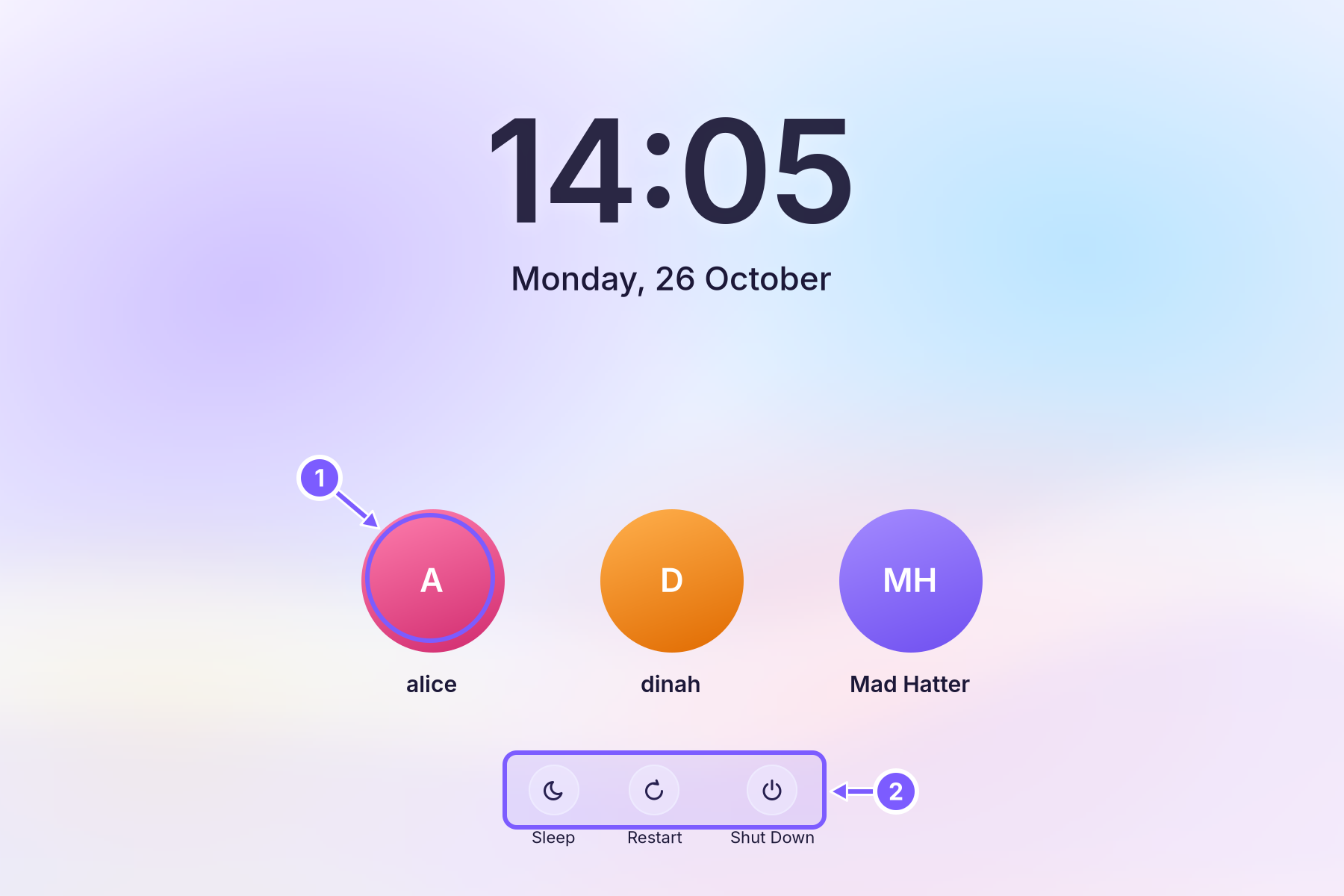
After three wrong passwords the login window shows the password hint of that account under the field, as "Hint: …", if one was set. It never shows the password.
The Setup Assistant (only on a computer without an account)
The assistant shows one card at a time over the blurred wallpaper. Continue (or Return) goes to the next card, Back (or Escape) to the one before.
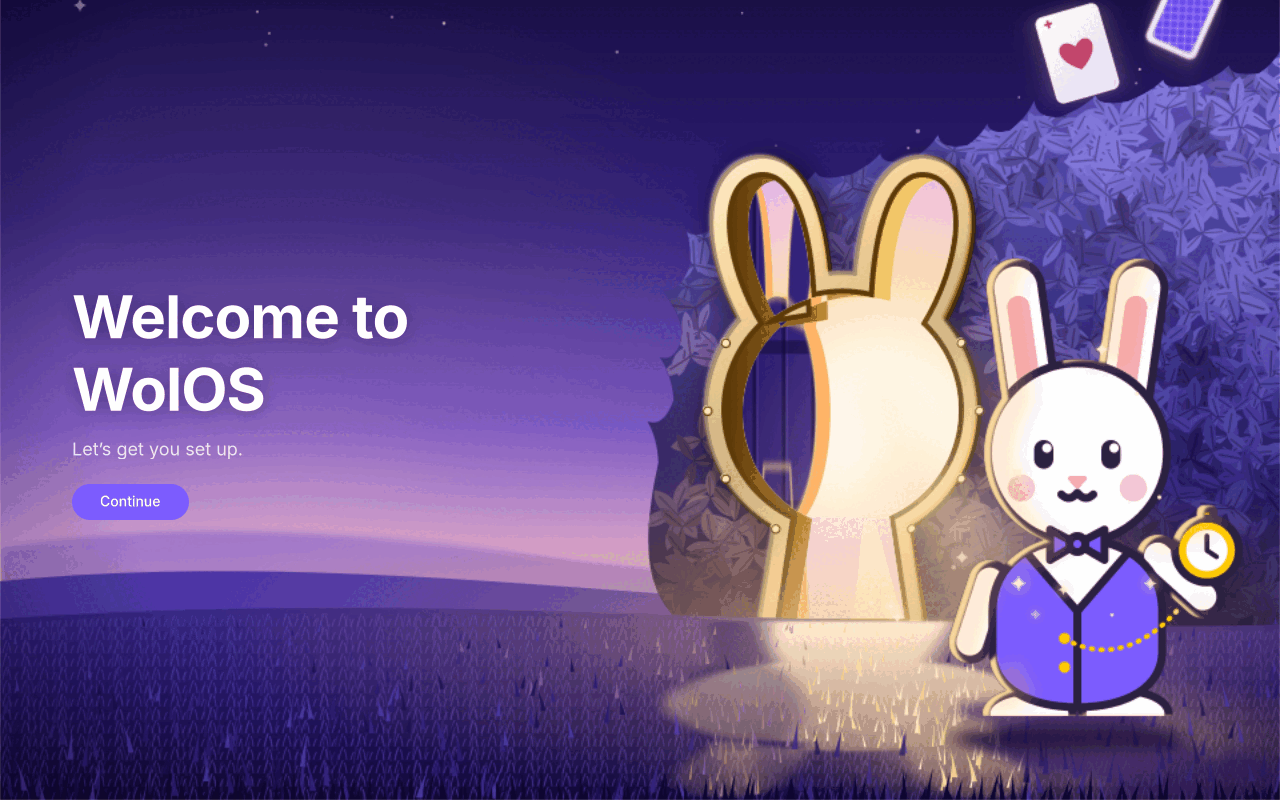
Welcome. You see "Welcome to WolOS" and "Let’s get you set up." Click Continue.
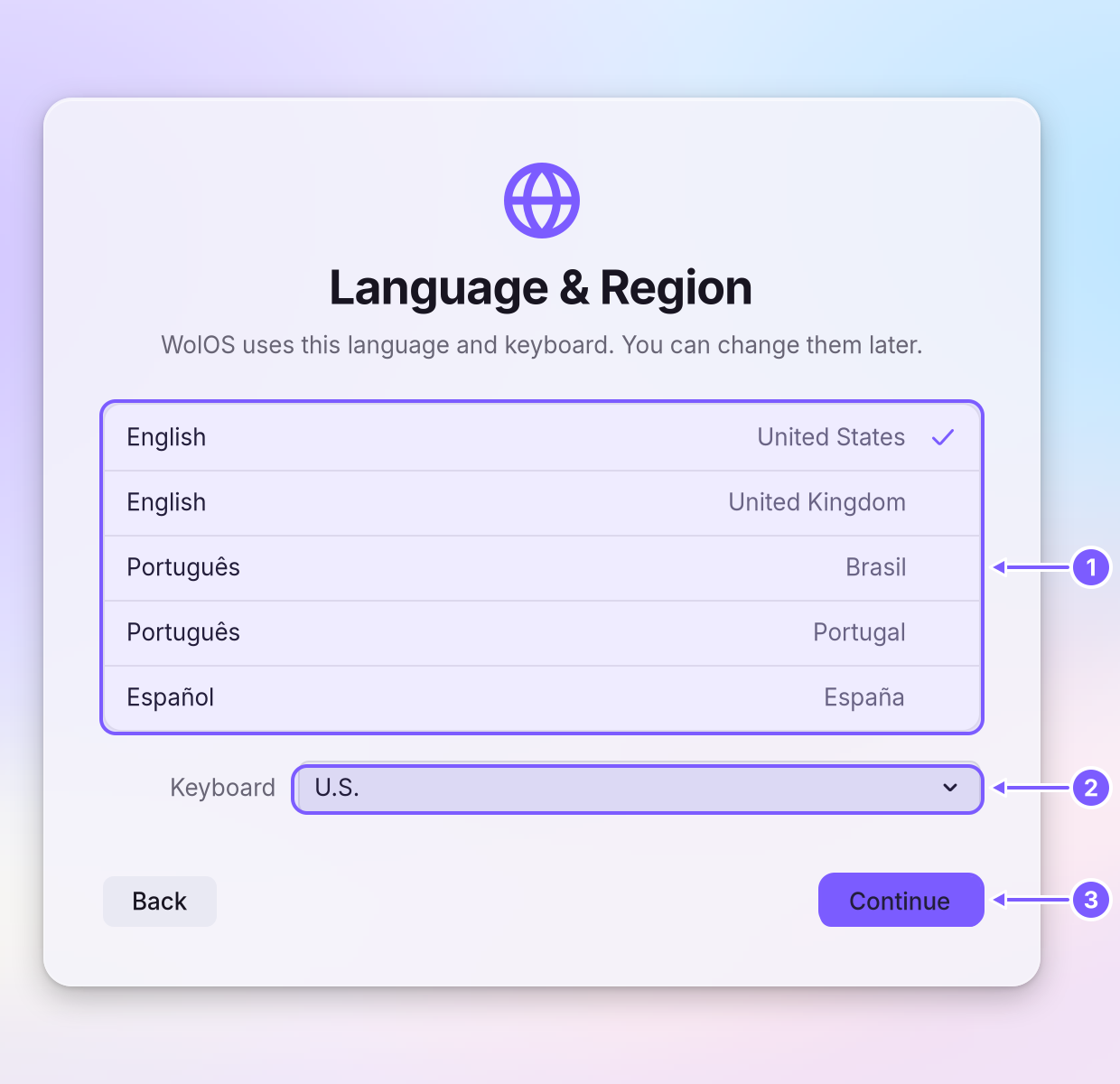
Language & Region. You see "WolOS uses this language and keyboard. You can change them later." Click your language and country in the list (1), check the Keyboard menu (2), then Continue (3).
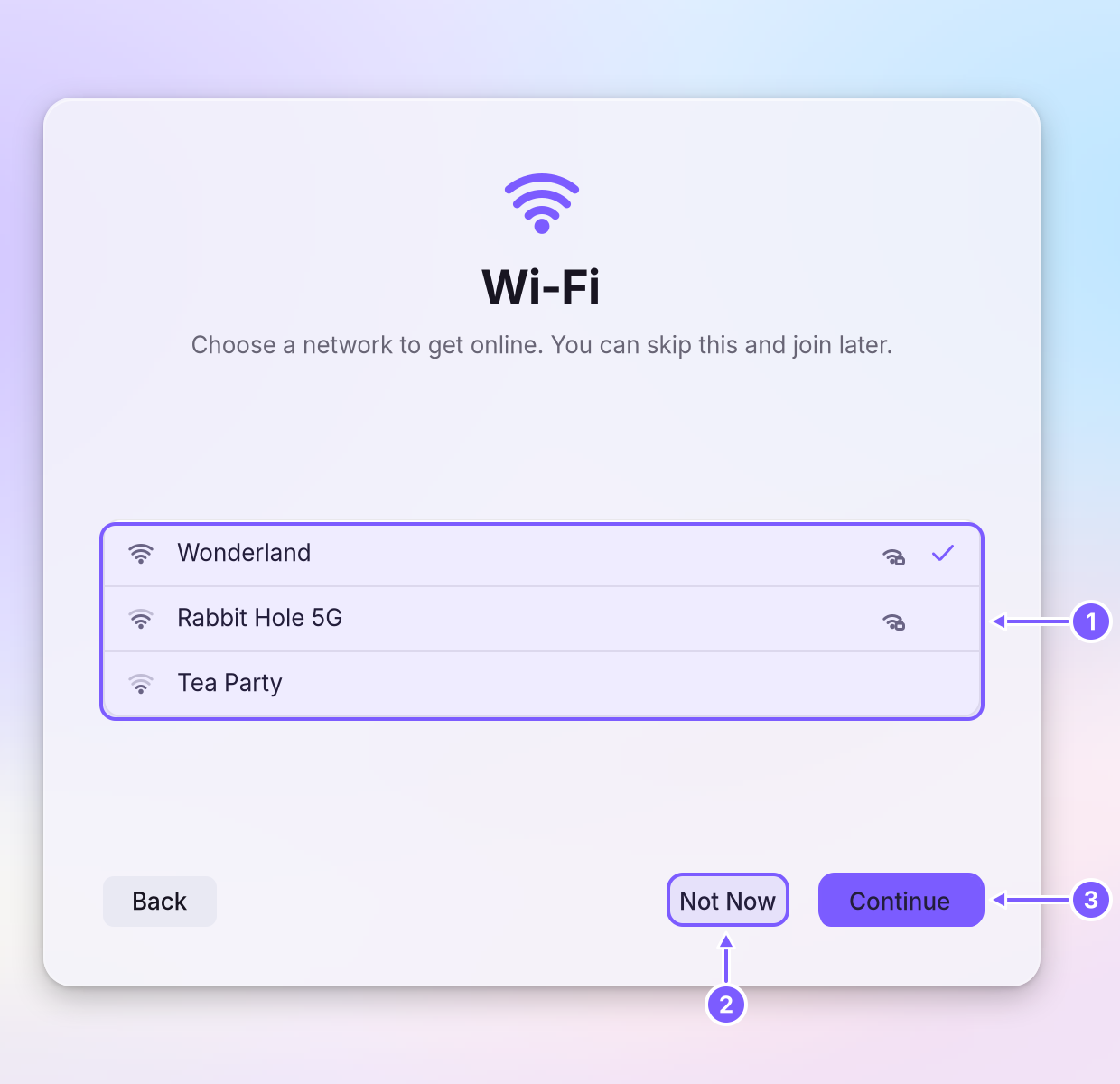
Wi-Fi. You see "Choose a network to get online. You can skip this and join later." Click your network (1); a lock means it asks for a password, which you type in the field that opens. Not Now (2) skips this card, and a computer on a network cable skips it by itself. Continue (3) joins. While it joins you see "Joining “…”…". If the password is wrong you see "“…” didn’t accept that password. Check it and try again."
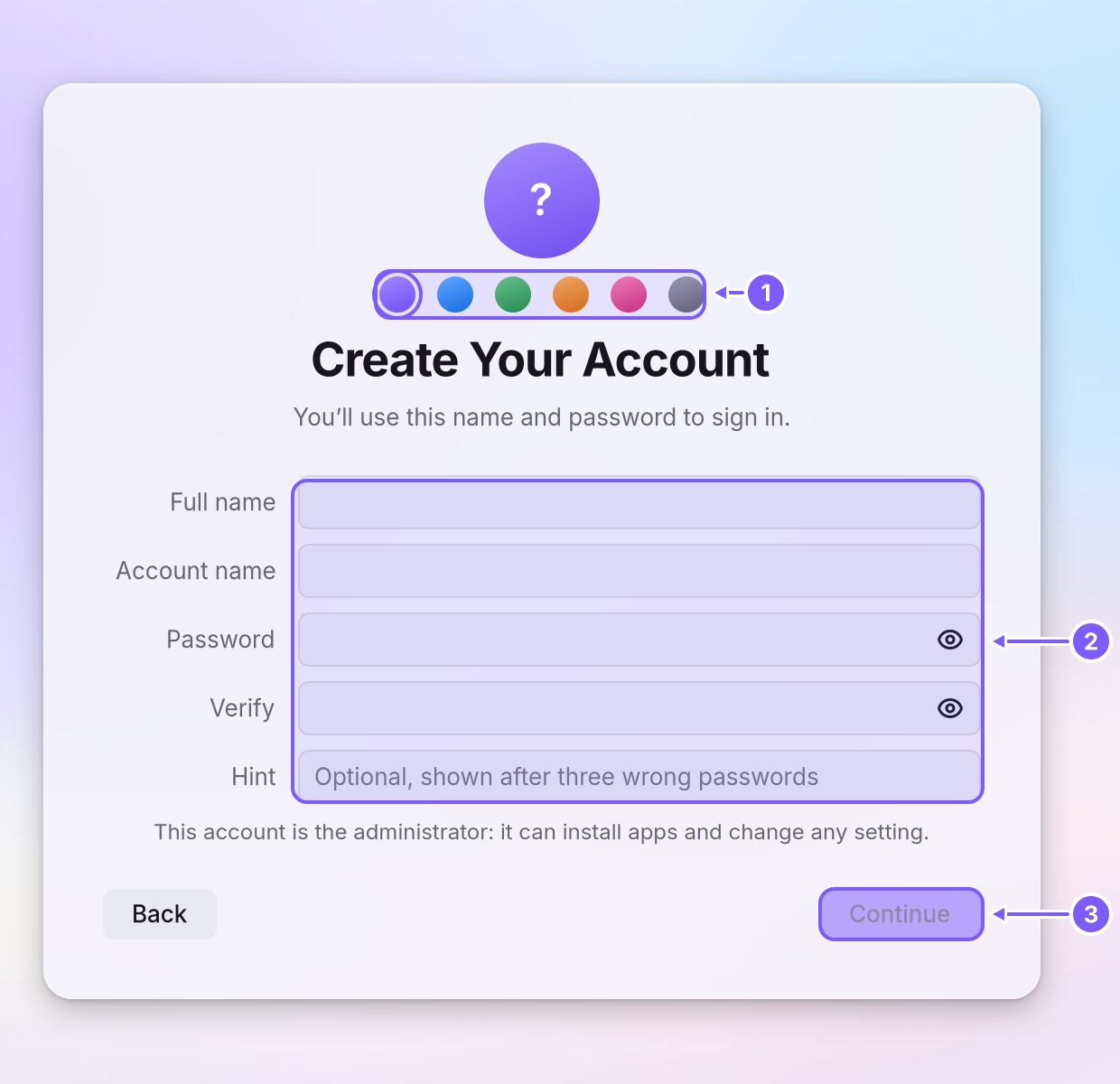
Create Your Account. You see "You’ll use this name and password to sign in." Pick a colour for your picture (1). Type your Full name; the Account name fills itself in from it. Type a Password of at least 8 characters twice, and if you like a Hint that is shown after three wrong passwords (2). The line under the fields reminds you: "This account is the administrator: it can install apps and change any setting." Continue (3) stays grey until every field that is needed is filled in.
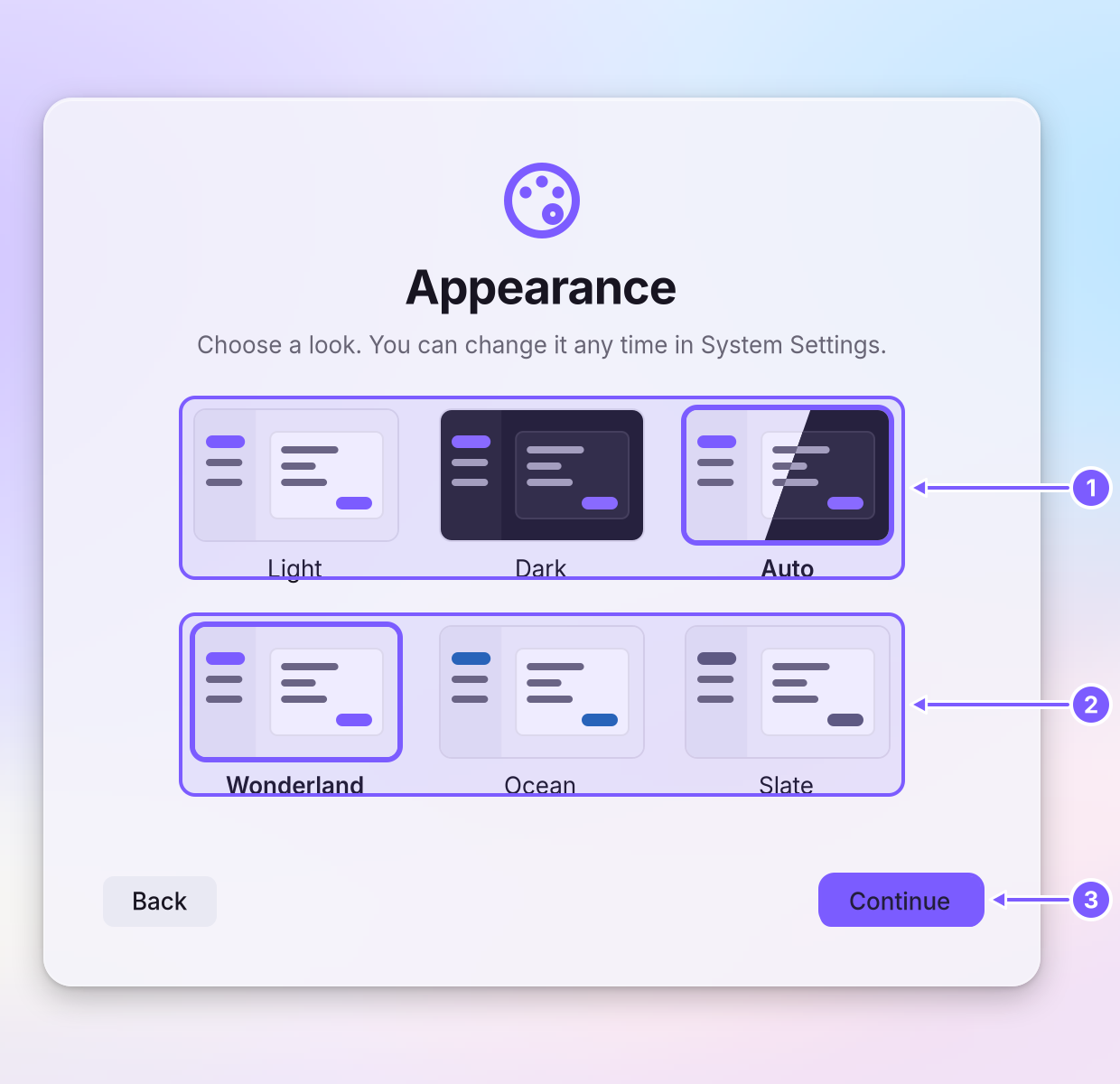
Appearance. You see "Choose a look. You can change it any time in System Settings." The top row (1) is Light, Dark or Auto (light by day, dark from the evening). The second row (2) is the colour family: Wonderland, Ocean or Slate. Click Continue (3).
Finish Secure Boot Setup (some computers only). You see "This computer hasn’t accepted its WolOS key yet. At the next restart a blue screen asks once." The five steps (1) say what that screen asks, and the password it wants is shown large (2):
boot. Read them, then Continue (3). You can also start this later from System Settings > Privacy & Security.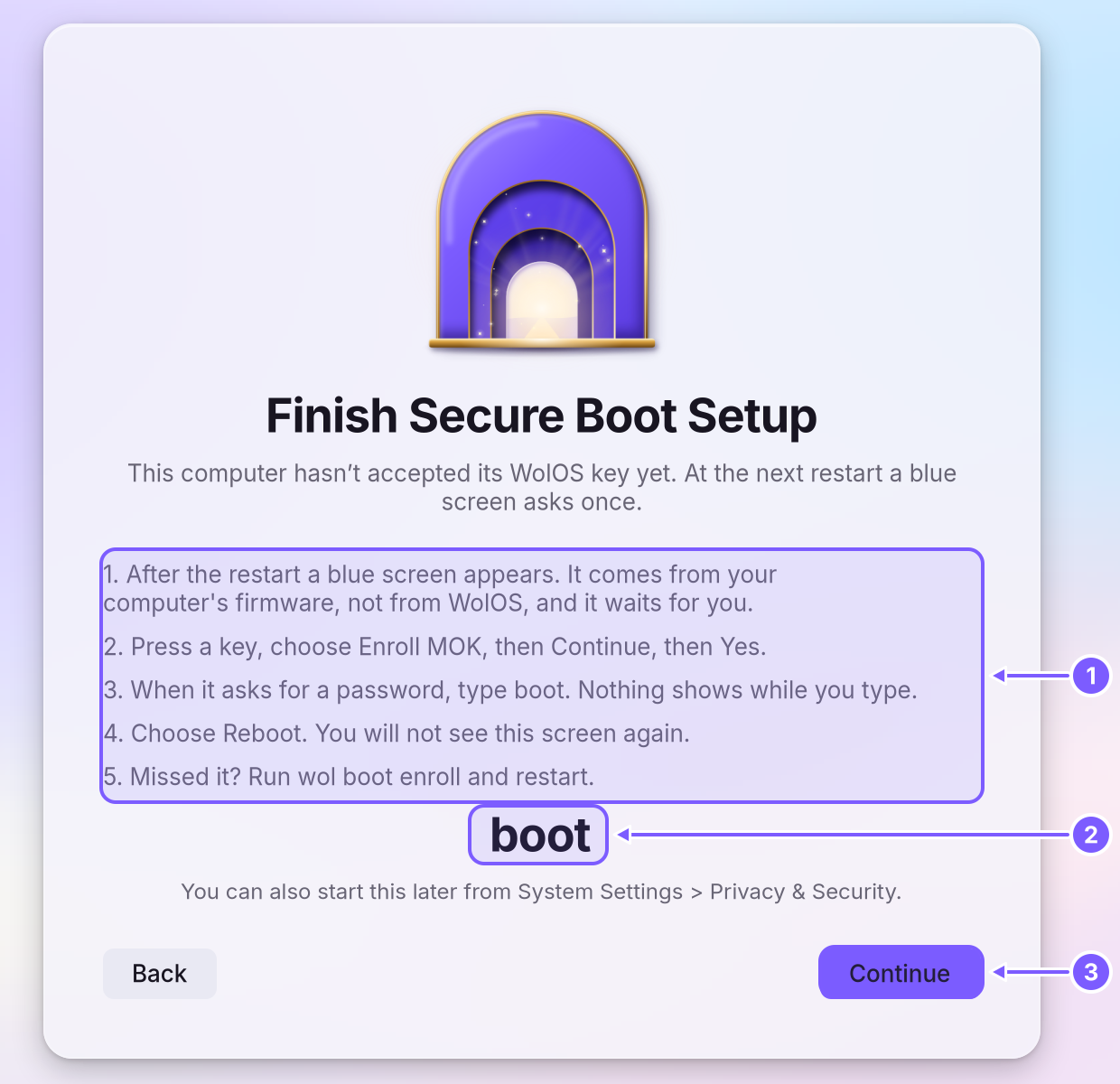
You're All Set. You see "Your account is ready." Click Get Started; the screen fades into your desktop.
The first ten minutes
You see your desktop: the along the top, the The row of app icons at the bottom of the screen. Click an icon to open the app; a dot under it means the app is running. along the bottom, and nothing else asking for your attention. The desktop explains every part of it. These five things are worth doing now:
- Get online, if the computer is not online already. Click the The panel behind the icon at the top right of the menu bar: Wi-Fi, Bluetooth, Focus, brightness, sound and quick switches. icon near the right end of the menu bar, click Wi-Fi and pick your network. See Control Center.
- Look for updates. Open System Settings (the gear icon in the Dock, or Super+,) and click Software Update. If a new version is listed, click to install it; it is prepared next to the running system and takes effect at the next restart. See Updates.
- Choose your look. System Settings > Appearance: Light, Dark or Auto, and an The one colour WolOS uses for what is selected or switched on: buttons, switches, highlights. You pick it in Settings > Appearance.. See Looks and themes.
- Get your apps. Open the Store (the shopping bag in the Dock) and click Get next to an app. See The Store.
- Learn three keys. Super+Space opens Search, which finds apps, files and settings as you type. Super+Tab switches between open apps. Shift+Super+/ shows every keyboard shortcut on one sheet. The key with the Windows logo, shown as ⌘ in WolOS. Super with a letter gives the app in front its command, so Super+C copies in every app. is the key with the Windows logo.
A worked example
Dinah's new computer came from a shop with WolOS on it and no account. She switches it on and the Setup Assistant greets her. She picks English (United Kingdom), and the keyboard follows. She chooses her home network, types the Wi-Fi password, and sees the next card a moment later. She types "Dinah Liddell"; the account name becomes dinahliddell. She picks the orange colour for her picture, a password, and "the cat" as a hint. She chooses Auto and Ocean, clicks Get Started, and lands on her desktop. In System Settings > Software Update she finds the computer is up to date. In the Store she gets a web browser she knows and a music app. Ten minutes, and nothing to type but her name, a password and the Wi-Fi password.
If something goes wrong
| What you see | What it means and what to do |
|---|---|
| "Incorrect password" | Check Caps Lock and the keyboard layout, then type again. After three tries the hint shows, if the account has one. |
| "Your password can’t be checked right now. Try again, or restart." | The password check did not answer. Wait a moment and try again; if it keeps saying this, click Restart. |
| "Passwords don’t match." | The two passwords on the account card differ. Type both again. |
| "Use at least 8 characters." | The password is too short. |
| "Use lowercase letters and digits, starting with a letter." | The account name has a capital, a space or another character. |
| "The hint can’t be the password." | Choose a hint that reminds you of the password without being it. |
| "That account name can’t be used. Press Back and choose another one." | The system uses that name for itself. Go back and change the account name. |
| "Your account couldn’t be created just now. Press Continue to try again." | Something stopped the account from being made. Press Continue again. |
| "No networks found" | Move closer to the Wi-Fi and click Look Again, or choose Not Now and join later from Control Center. |
| "“…” didn’t answer. Try again, or choose Not Now and join later." | The network did not respond in time. Try again, or skip and join later. |
| The desktop shows, but there is no internet | Click the Control Center icon and turn on Wi-Fi, or check the network cable. See Control Center. |
| A blue screen at the next restart | That is the one-time Secure Boot key screen. Follow the steps from the card, or Secure Boot. The password is boot. |
Related
- The desktopThe menu bar, the Dock, windows, Search, switching apps and the four desktops: what each part of the screen is for and how to use it.
- Control CenterThe panel at the top right for the things you change every day: Wi-Fi, Bluetooth, Focus, Dark Mode, brightness, sound, music and quick switches.
- Installing WolOSErase a disk, share it with Windows or Linux, or lay out partitions by hand. Nothing is written before you confirm the summary.
- Getting startedWhat WolOS is, what you need, and the way from the download to your own desktop, in five steps.
- The StoreFind an app, get it with one click, keep it up to date or go back to the version before, add a Kit, and remove what you no longer use.