
Power user
What a terminal is
The window where you type instead of click: what the prompt, a command, an argument and a path are, how to copy and paste, Tab, Ctrl+C, and your first five commands.
On this page
What it is
A A window where you type commands instead of clicking. Super+Return opens one. is a window where you tell the computer what to do by typing a sentence instead of clicking a button. You type a One instruction you type in a terminal, such as ls (list the files here). Return runs it., press Return, and the answer appears as text right under it. Then the terminal waits for the next one.
Inside the terminal window a program called the The program inside a terminal that reads what you type and runs it. WolOS uses zsh unless you choose another. reads what you type and runs it. WolOS uses a shell called The shell WolOS uses in every terminal unless you choose another: it suggests from your history and completes names with Tab. unless you choose another; zsh basics is the next page.
You never need the terminal for everyday things on WolOS: every page above this one works with windows and buttons. The terminal is for when you want to do something many times, or exactly the same way every time, or something no button offers.
Why you might want one
A button does one thing. A command can be combined with others, repeated, saved in a file and run again tomorrow. "Rename these 300 photos by date", "make a copy of my Documents folder every Friday" or "show me what is using the disk" are one line each in a terminal. And when someone helps you on a forum, a command is easier to send and to follow than ten screenshots.
WolOS's own command, The WolOS command for the system: settings, updates, apps and checks, from a terminal or a script., can change most of what System Settings changes, so whatever you learn here also works in a A text file of commands that runs them in order, so a task you repeat becomes one command. later. A setting it changes can be undone like one changed in Settings, and anything that affects the whole computer still asks for your password on screen.
How
Open a terminal
Press Super+Return, or click Terminal in the Dock (the dark icon with >_), or press Super+Space, type "terminal" and press Return.
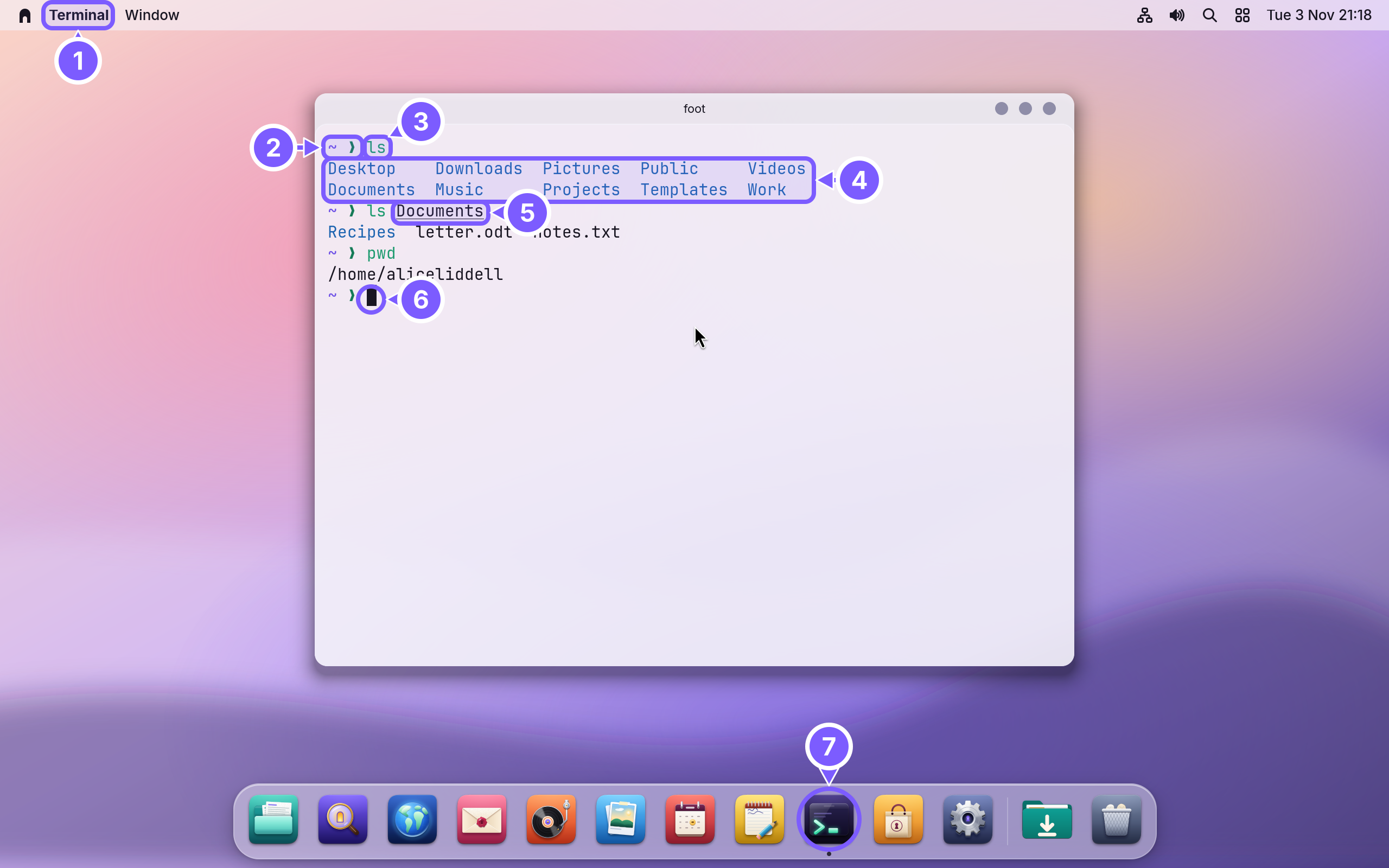
The numbers in the picture:
- Terminal in the menu bar. Like any app, it has its name and its menus at the top while its window is in front.
- The prompt,
~ ❯. This is where the shell waits for you. The part before the arrow says which folder you are in:~(a tilde) is the short name of your home folder. The arrow turns red after a command that failed, so you notice. - A command:
ls, short for list. It lists what is in the folder you are in. - The answer. The terminal prints it under the command. Folders are shown in colour, files in plain text.
- An argument.
ls Documentslists the Documents folder instead. Words after the command are its Extra words after a command that tell it what to work on, such as Documents in ls Documents.: they tell it what to work on. - The cursor. The block shows where the next letter you type will go.
- Terminal in the Dock, with a dot because it is running.
The parts of a command line
A command line is read from left to right, separated by spaces:
ls -l Documentsls is the command. -l is an An argument that changes how a command works, usually starting with - or --, such as -l in ls -l.: an argument that starts with a dash and changes how the command works (here: one line per file, with its size and date). Documents is an argument: what to list. Most commands follow this pattern: the command, then options, then what to work on.
Capitals matter: ls works and LS does not, and documents is a different name from Documents.
Paths: the address of a file
Every file has an address called a The address of a file: the folders you go through to reach it, separated by /. For example /home/alice/Documents/notes.txt.: the folders you go through to reach it, separated by /. Your notes file has the path /home/aliceliddell/Documents/notes.txt (with your own account name instead of aliceliddell). Because the home folder is used so often, ~ stands for it: ~/Documents/notes.txt is the same file.
A path that starts with / or ~ is complete. A path without them starts from the folder you are in. Two special names help: .. is the folder one level up, and . is the folder you are in.
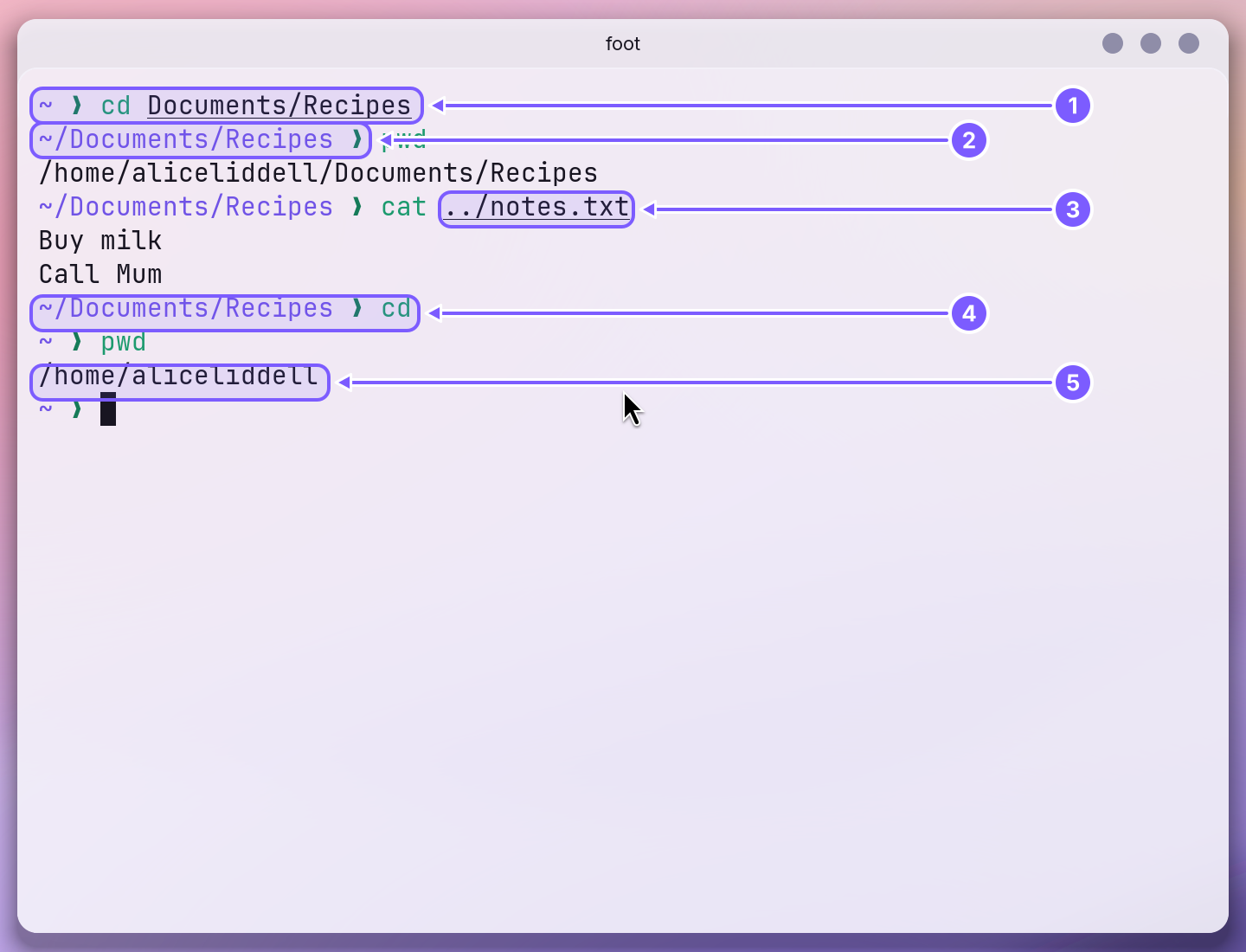
cd Documents/Recipes(change directory) moves you into the Recipes folder inside Documents. It prints nothing; silence means it worked.- The prompt now reads
~/Documents/Recipes ❯, so you always know where you are.pwd(print working directory) says the same in full. cat ../notes.txtshows the filenotes.txtfrom one folder up:..is Documents.cdwith nothing after it takes you home from anywhere.pwdprints/home/aliceliddell, the full path of the home folder.
Tab finishes names for you
Type the start of a name and press Tab: the shell completes it. That saves typing and, more important, spelling mistakes.
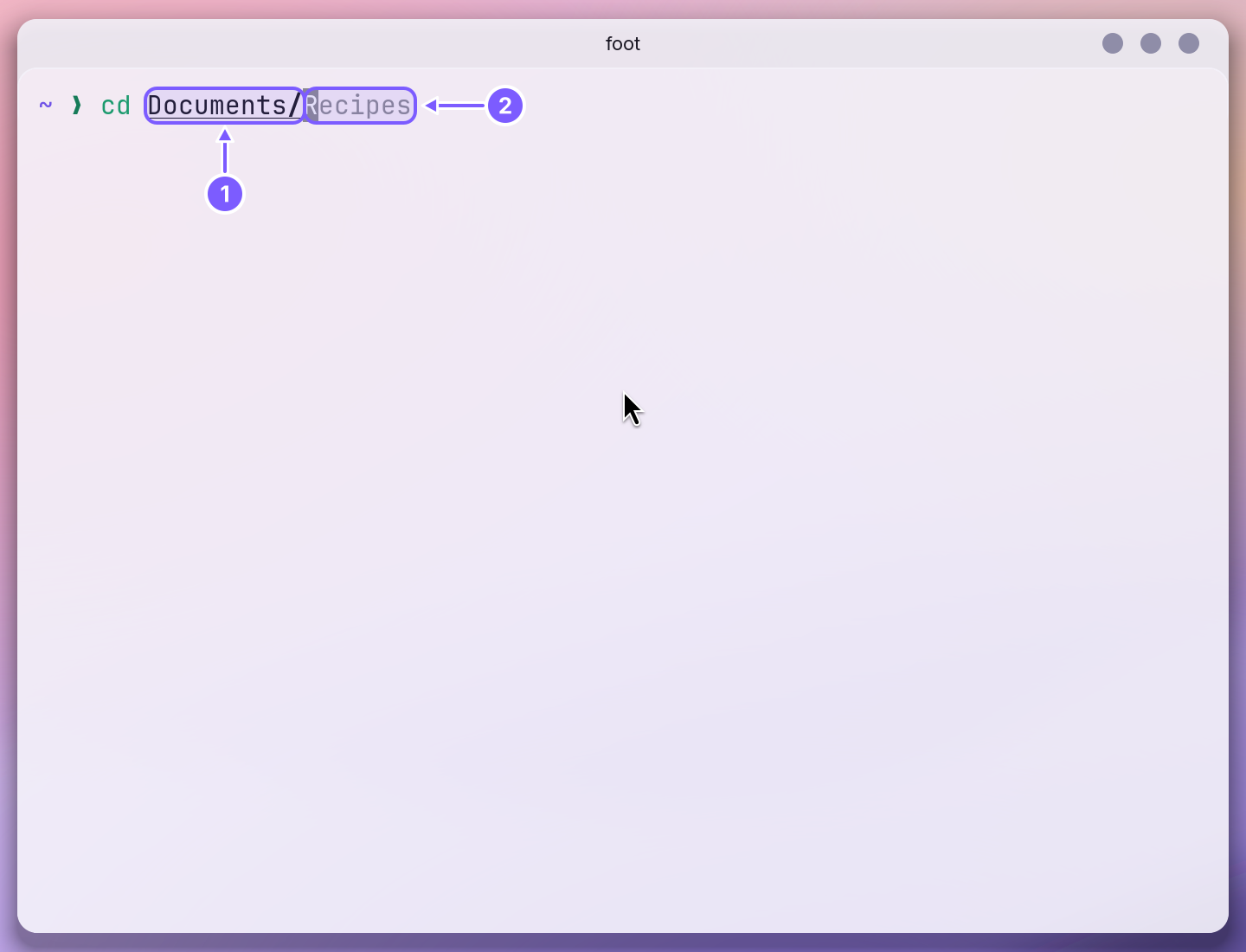
- After
cd Docand Tab, the line readscd Documents/(1): the only name starting with Doc is filled in. - The grey text after it (2) is a suggestion from the commands you typed before. Press the Right arrow key to take it, or keep typing to ignore it.
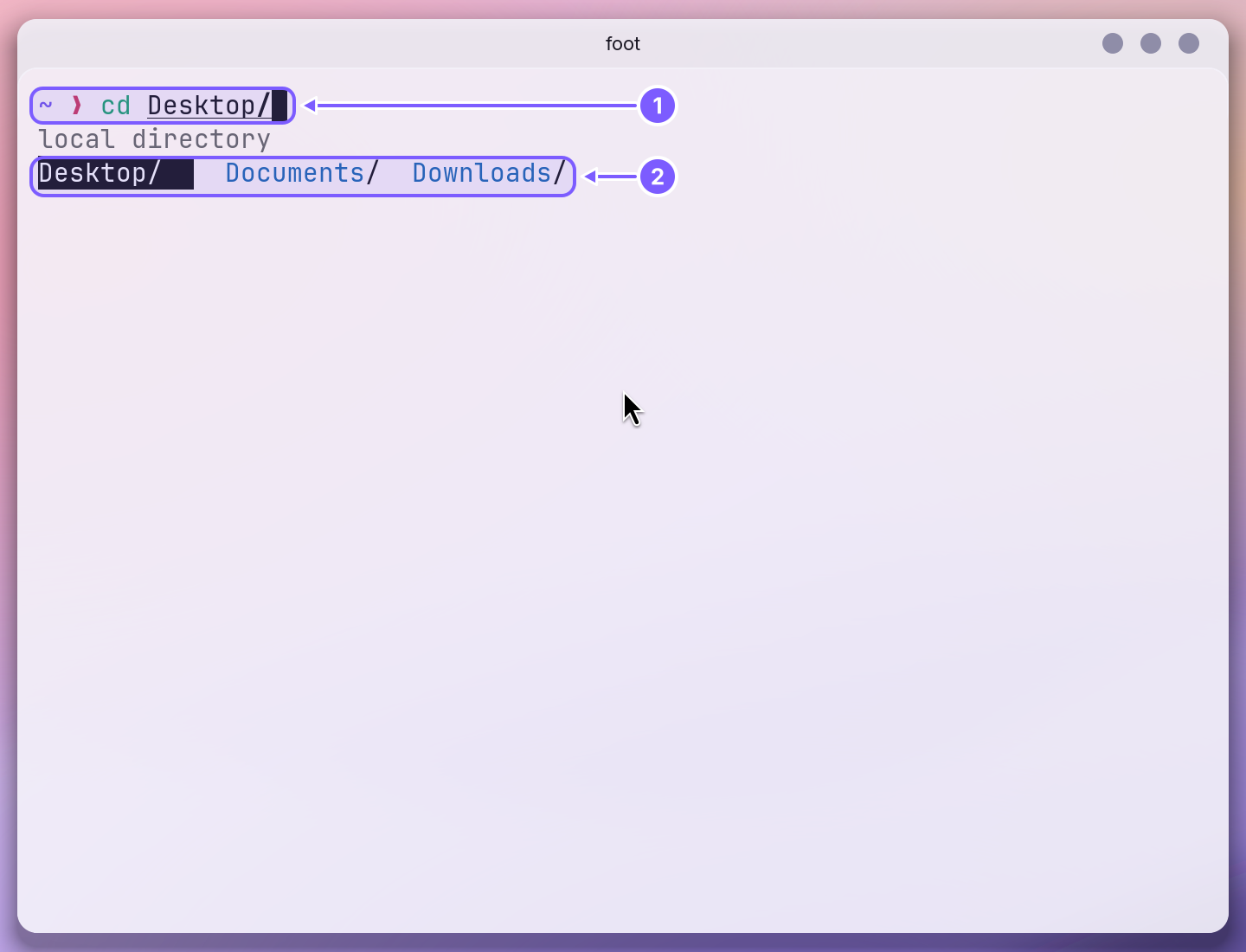
When several names fit, Tab shows them all; press Tab again to move through them and Return to pick one.
Stop a command: Ctrl+C
Some commands run until you stop them. ping localhost checks that the computer answers itself, once a second, for ever. Ctrl+C stops whatever is running and gives you the prompt back.
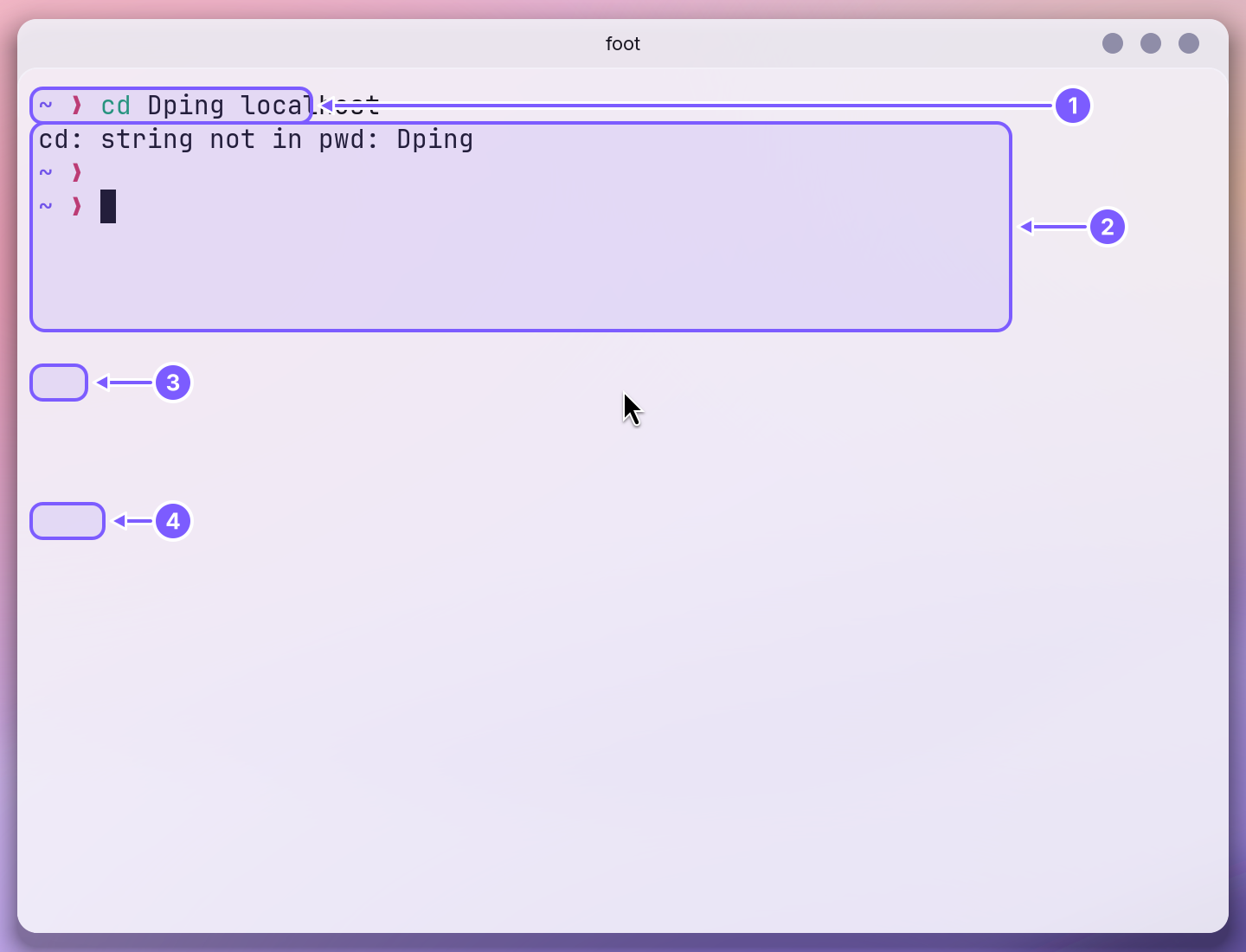
In a terminal, Ctrl+C means stop, not copy. That is why copying uses Super:
Copy and paste in a terminal
| To | Press |
|---|---|
| Copy what you selected | Super+C (or Ctrl+Shift+C) |
| Paste | Super+V (or Ctrl+Shift+V) |
| Stop the running command | Ctrl+C |
| Clear the window | Ctrl+L |
| Bring back an earlier command | Up arrow (then Return to run it again, or edit it first) |
| Close the window | Super+W |
Select text with the mouse as anywhere else: drag over it, or double-click a word.
Your first five commands
| Type | What it does |
|---|---|
ls | Lists the files and folders where you are. |
cd Documents | Goes into the Documents folder. cd .. goes up one, cd alone goes home. |
pwd | Prints the full path of the folder you are in. |
cat notes.txt | Shows what is in a text file. |
wol help | Lists what WolOS's own command can do; see The terminal and the wol command. |
A worked example
Alice wants to know how many photos she has from her holiday. She opens a terminal with Super+Return, types cd Pic, presses Tab (the line becomes cd Pictures/), types Hol, presses Tab again (cd Pictures/Holiday/) and presses Return. The prompt now reads ~/Pictures/Holiday ❯. She types ls and sees every photo. To count them she types ls | wc -l: the bar | hands the list to wc -l, which counts lines, and the terminal prints 214. She presses Up twice to get back ls, and Super+W to close the window.
If something goes wrong
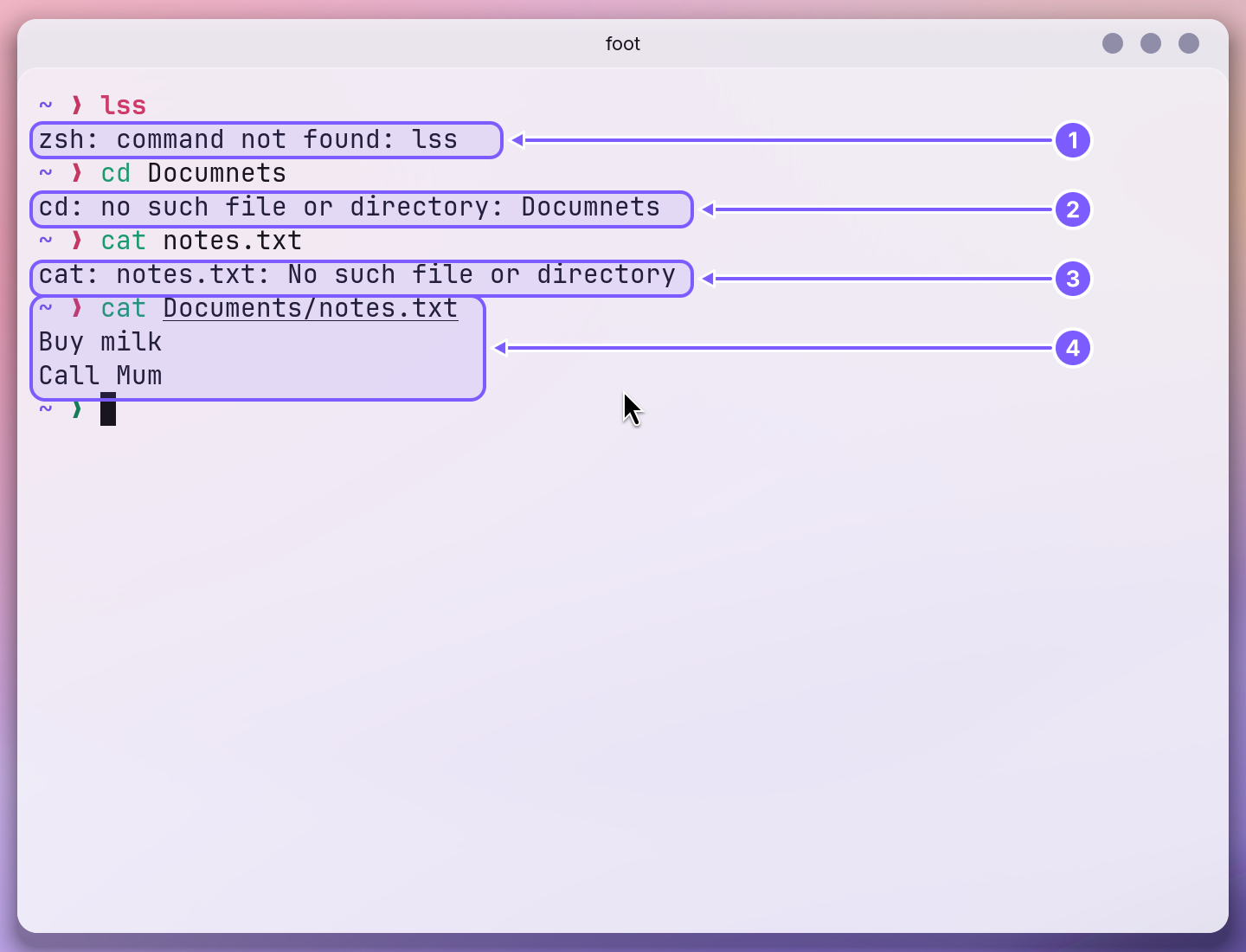
The shell tells you in one line what it did not understand, and the arrow of the next prompt turns red.
| What you see | What it means and what to do |
|---|---|
zsh: command not found: lss (1) | No command has that name. Check the spelling; ls was meant. If the spelling is right, the program is not installed. |
cd: no such file or directory: Documnets (2) | No folder has that name where you are. Press Tab after the first letters instead of typing the whole name. |
cat: notes.txt: No such file or directory (3) | The file is not in the folder you are in. Give its path, as in (4), or cd to its folder first. |
| Nothing happens and there is no prompt | A command is still running or waiting for you to type. Press Ctrl+C. |
> or quote> at the start of the line | The shell thinks a sentence is not finished, usually because of an unpaired quote mark. Press Ctrl+C and type the line again. |
Permission denied | The file belongs to the system or to another account. Your own files are in your home folder. |
| A command asks for a password and nothing appears as you type | That is on purpose: password letters are not shown. Type it and press Return. |
| The window is full of text | Ctrl+L clears it. Nothing is lost; scroll up to see it again. |
Related
- zsh basicsThe shell in every WolOS terminal: history, Tab, suggestions, the colours of a command line, wildcards, pipes, saving output to a file, and your own settings.
- Your first Ruby scriptWrite a small Ruby script in a text editor, check it with wol script check, run it with wol script run, and see what WolOS asks before a script changes anything.
- PowerShell basicsUse PowerShell on WolOS: add it, open it, the Verb-Noun commands, objects in the pipeline, help, and making it the shell of every new terminal window.
- Scripts and shellsRun sh, bash and Ruby scripts with wol script: checked before they run, as you, every change asked on screen and every run recorded. And choose the shell new terminal windows open in, PowerShell included.
- The terminal and the wol commandOpen Terminal, ask wol for help, read before you change, undo a change, and see why some commands ask for your password. Ten commands worth knowing.