
Advanced
Startup Security
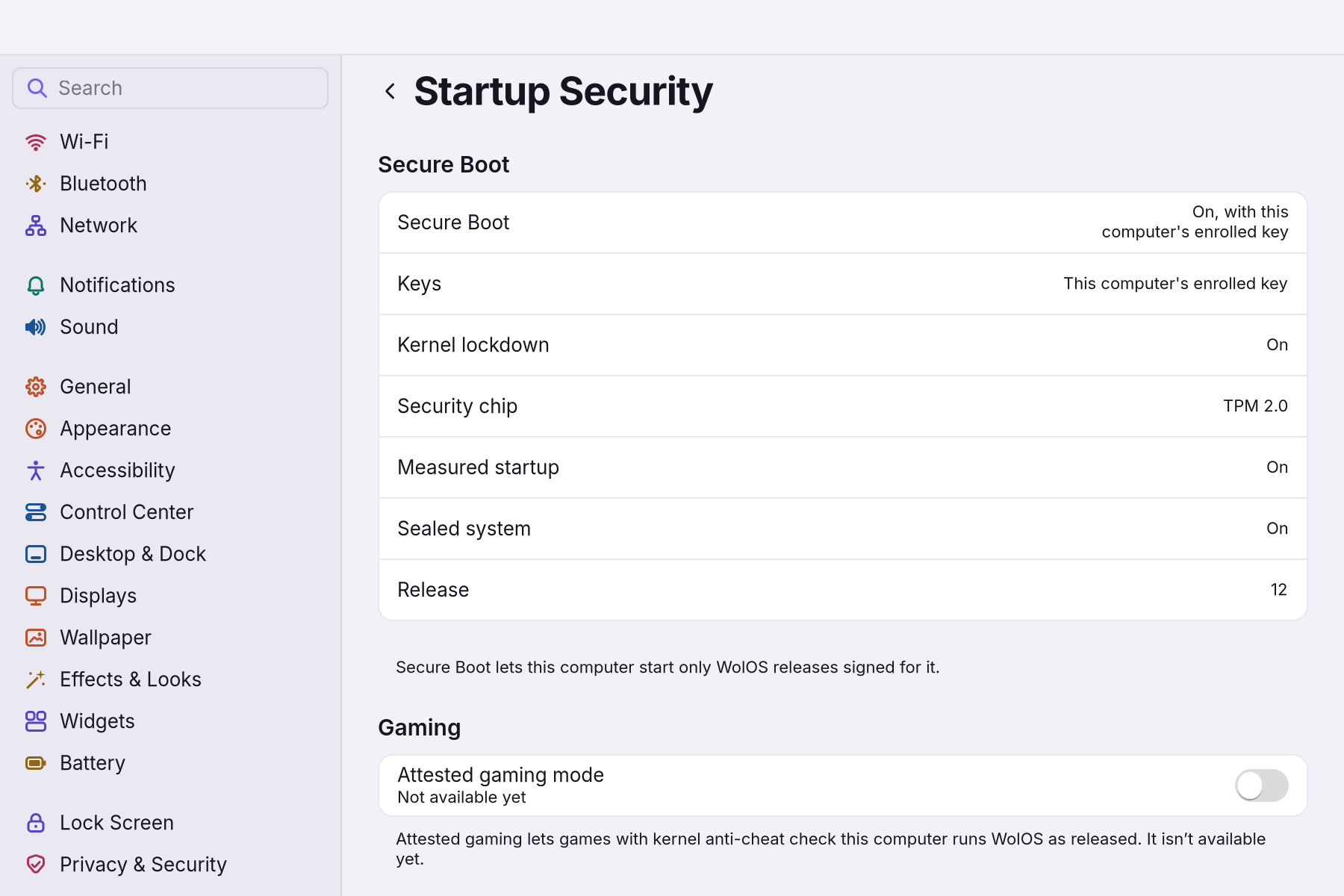
The Settings page that says how this computer starts: Secure Boot, whose keys it trusts, kernel lockdown, the security chip, the sealed system, and the one button that finishes a waiting setup.
On this page
What it is
Startup Security is a page in Settings, under Privacy & Security. It reads how this computer started and says it in one row per fact. When a Secure Boot setup is still waiting, it also has the button that finishes it. It changes nothing on its own.
Why
What protects a computer before anything is on screen is invisible: the firmware, its keys, the first program it starts. If something there is off, you would not notice until it matters. This page puts those facts where you can check them in a few seconds, in words, and offers the fix right there instead of in a terminal. How Secure Boot is set up in the first place is on Secure Boot.
How
Open Settings > Privacy & Security > Startup Security, or type "startup" in the Settings search.
Reading the rows
| Row | What it says | What it means |
|---|---|---|
| Secure Boot | On, with this computer's own keys / On, with this computer's enrolled key / On / Off in the firmware settings / Off | Whether the firmware checks the signature of what it starts, and with which keys. "Off in the firmware settings" means WolOS is set up for it but the firmware's switch is off. |
| Keys | This computer's own keys / This computer's enrolled key / The firmware's keys / None | Whose keys WolOS is signed for. Own keys: the installer put WolOS's keys into the firmware. Enrolled key: a key you confirmed once on the blue key screen. The firmware's keys: the keys the computer came with. |
| Kernel lockdown | On / On, strict / Off | Whether the running system refuses changes to itself while it runs (unsigned drivers, writing to its memory). It is on whenever WolOS started signed. |
| Security chip | TPM 2.0 / None | The chip that can open an encrypted disk by itself when the computer starts unchanged. |
| Measured startup | On / Off | Whether each step of the start was recorded in the chip, so a changed step is noticed. |
| Sealed system | On / Off | Whether the system files are checked against a signed list at every start (Recovery). |
| Release | a number | The release this system belongs to. An older, retired copy with a lower number is not started again. |
If the facts cannot be read, the page shows Secure Boot: Unknown.
Finish Secure Boot setup
When the key still has to reach the firmware, the page has a row Finish Secure Boot setup with a Finish Setup button.
- Press Finish Setup. If Settings asks for an administrator’s password, enter it.
- The page then says "This computer’s key is queued: a blue screen asks once at the next restart." and lists the steps of that screen.
- Restart and follow the blue screen: press a key, choose Enroll MOK, then Continue, then Yes, type the password the page names, and choose Reboot. The full walk-through, with what to do if you miss it, is on Secure Boot.
After the restart the row is gone: there is nothing left to finish.
A worked example
Alice installed WolOS with Secure Boot on and wonders whether it worked. She opens Settings > Privacy & Security > Startup Security and reads: Secure Boot On, Keys: this computer's enrolled key, Kernel lockdown On, Security chip TPM 2.0, Sealed system On. Everything is as it should be, so she closes the page; nothing was changed by looking.
If something goes wrong
| What you see | What to do |
|---|---|
| "This computer’s key is queued: a blue screen asks once at the next restart." | Restart and confirm the key on the blue screen. It stays queued until you do. |
| Secure Boot says Off in the firmware settings | Turn Secure Boot on in the firmware's setup (often F2 or Del while the computer starts). WolOS is ready for it. |
| Keys says None and Secure Boot is Off | WolOS started without signatures, as it said at install. If you turn Secure Boot on later, come back here to finish the setup. |
| Security chip says None | The computer has no chip, or it is off in the firmware. Disk encryption then asks for your password at every start. |
| Finish Setup did not work | The page says why, in one sentence at the bottom. Try again, or run wol boot enroll in a terminal and restart. |
Related
- Secure BootAn option in the installer. Every computer makes its own start-up keys; at most one blue key screen, once, with the password boot.
- Recovery: when something does not startThe disk will not unlock, an update went wrong, a screen stays black, or a setting broke the desktop. What WolOS does on its own and what you can do.
- Installing WolOSErase a disk, share it with Windows or Linux, or lay out partitions by hand. Nothing is written before you confirm the summary.
- Privacy and permissionsWhat apps may use and how you allow it, the questions WolOS asks on screen, the firewall and the malware check, and where to take any permission back.
- Installing next to Windows or LinuxShare a disk: your other system keeps its files, gets smaller, and you pick one at start. What to do first, and what to do when the installer refuses.