
Make it yours
Arranging widgets
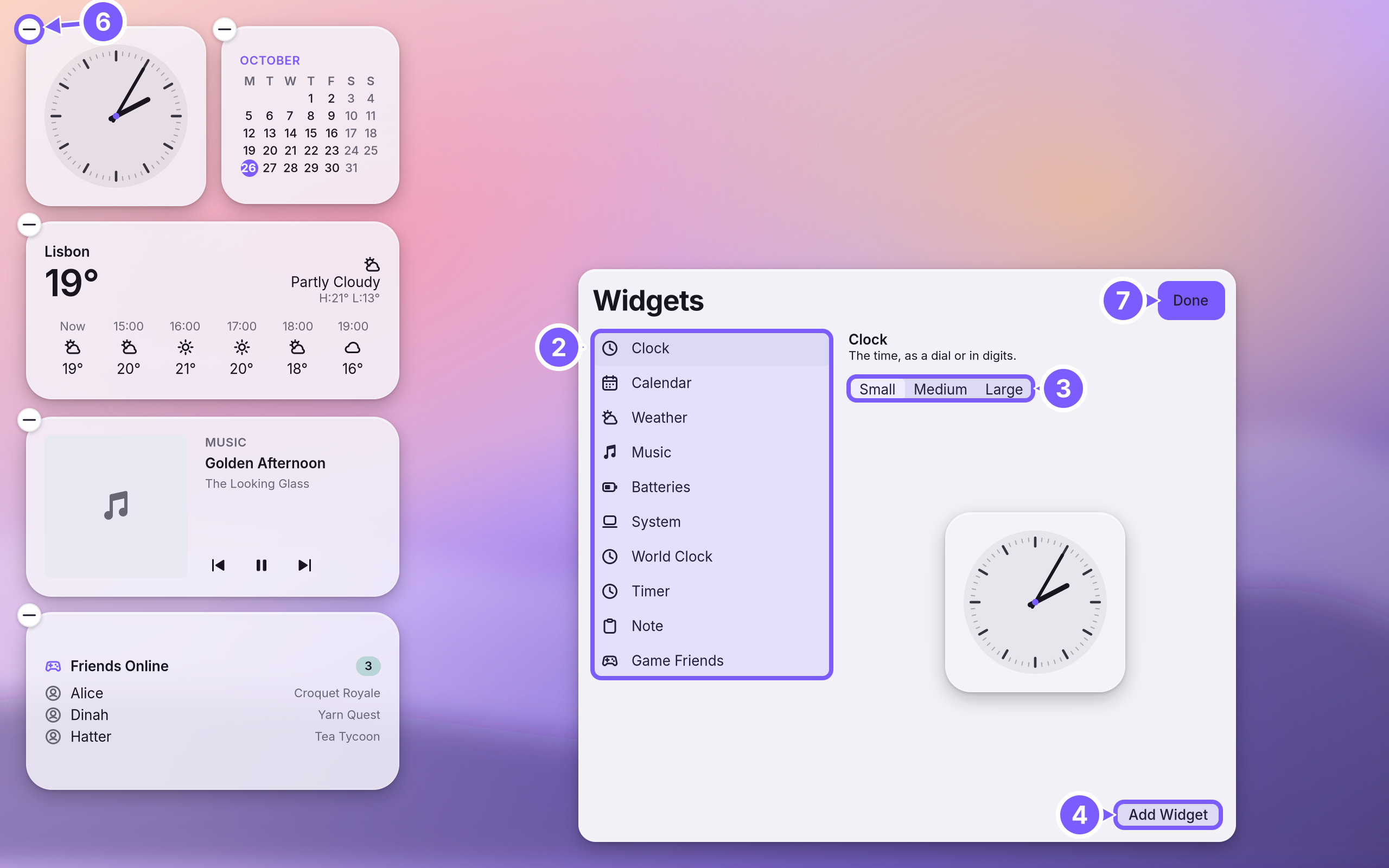
Edit Widgets: add cards from the gallery in three sizes, drag them where you want them, and take them off again.
What it is
Edit Widgets is the mode in which you arrange the cards on your desktop: the clock, the calendar, the weather, music, batteries, system load, a world clock, a timer, a note, and A small card on the desktop that shows something at a glance: the time, the weather, music, battery. from A small add-on for the desktop: a menu bar item, a widget, a search result or a theme. It runs in a sandbox.. In this mode a gallery opens next to the cards, every card gets a minus button, and you can drag cards around. Outside it, the cards stay where you put them and cannot be moved by accident.
Why
A desktop you look at all day should hold what you glance at, where you glance. A separate editing mode keeps that simple: you see exactly what you will get, sources never run in the gallery (it previews with sample data), and nothing moves when you only meant to click a card. How each widget works, and how to build your own, is on Desktop widgets.
How
- Start editing. Right-click an empty spot of the desktop and choose Edit Widgets…. Or open Settings > Widgets and press Edit Widgets… on Arrange widgets.
- Pick a widget in the gallery's list. Its preview shows on the right.
- Choose a size: Small, Medium or Large.
- Press Add Widget (or click the preview). The card goes to the first free spot that fits.
- Drag cards to move them; they snap to a grid.
- Take one off with the minus button at its corner (Remove Widget).
- Leave with Done, Esc, or the desktop menu's Done Editing.
For the weather, the gallery asks for a city first: type it in Search for a city and pick one. Only what you type is sent to look it up.
Without the editing mode
- Right-click a card for its own settings: its size, the clock's face (Analog or Digital), the weather's city (Choose City…) and units (Celsius or Fahrenheit), and Remove Widget.
- Settings > Widgets adds a built-in widget at the first free spot, removes one, and has Arrange widgets for the rest.
- From a terminal:
wol widgets add <kind> [size],wol widgets remove <id>(the idwol widgets listshows).
A worked example
Alice wants a clock and the weather on her desktop. She right-clicks the desktop and chooses Edit Widgets, clicks Clock and then Add Widget, picks Medium for the weather and clicks Add Widget again. She drags the two cards to the right side of the screen and clicks Done. They stay exactly there until she opens Edit Widgets again.
If something goes wrong
| What you see | What to do |
|---|---|
| "No room. Remove a widget or pick a smaller size." | The desktop has no free spot of that size. Remove a card, or choose Small. |
| "The desktop is full. Remove a widget first." | Settings found no free spot. Remove a card first. |
| "Pick a city before adding, or choose one on the widget." | Search for a city in the gallery, or add the weather card and use Choose City… on it. |
| "No city by that name." | Try the city's name in another spelling, or a larger city nearby. |
| "This widget has problems. Fix its widget.json and reload." | A widget package of yours has an error; the gallery shows it. Fix the file and run wol widgets reload (Desktop widgets). |
| Cards will not move | Cards move only in Edit Widgets. Right-click the desktop and choose Edit Widgets…. |
Related
- The StoreFind an app, get it with one click, keep it up to date or go back to the version before, add a Kit, and remove what you no longer use.
- Scripts and shellsRun sh, bash and Ruby scripts with wol script: checked before they run, as you, every change asked on screen and every run recorded. And choose the shell new terminal windows open in, PowerShell included.
- Web appsTurn a website you use every day into an app of its own: its own window and icon, in Apps, in Search and in the Dock.
- System SettingsThe one window for everything you can change: how to open it, find any setting by typing, what every pane holds, and how to take a change back.
- Your first app in CrystalWrite, build and run a small WolOS app in Crystal with Cryswol: it reads the system, tries to post a notification, and handles a refusal the way every app must.