
Everyday
Notifications
Banners at the top right, Notification Center for what you missed, Do Not Disturb and Focus for quiet, and what stays visible even then.
On this page
What it is
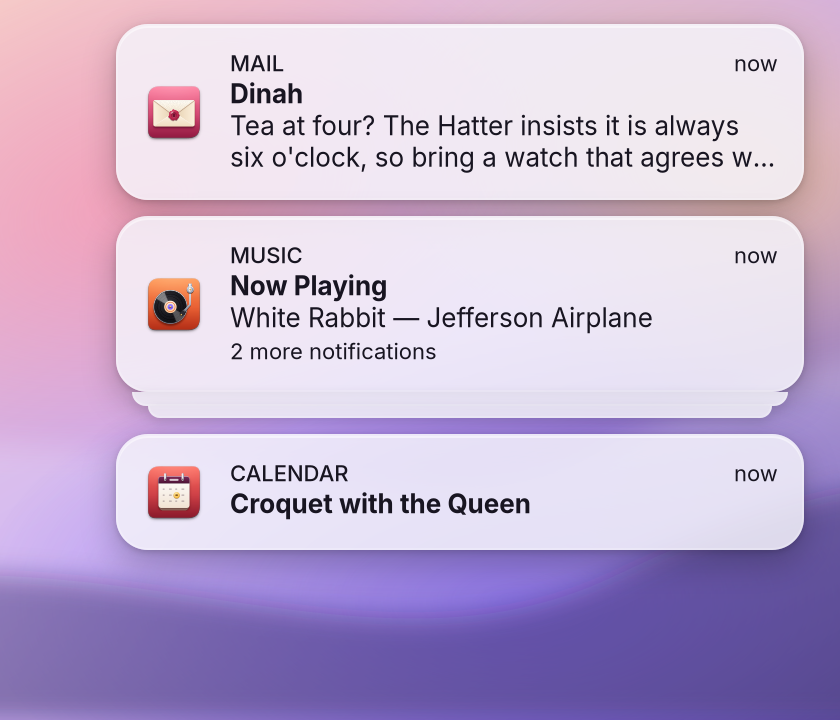
A A short message from an app or from WolOS. It shows for a moment as a banner at the top right, then waits in Notification Center. is a short message from an app or from WolOS: a new mail, a finished download, a low battery, an update that is ready. It appears for a few seconds as a A notification while it is on screen, at the top right. It slides away by itself; banners wait while a game or video fills the screen. at the top right of the screen, then waits in The list of notifications you have not cleared yet. Click the clock in the menu bar to open it. until you clear it.
Why WolOS does it this way
A message should reach you without stealing your attention. So banners are small, slide away on their own, and never cover the middle of the screen. Nothing is lost when you miss one: Notification Center keeps it. When you need quiet, one switch holds every banner back, and WolOS holds them by itself while a game or a film fills the screen. Only messages you must not miss, like a nearly empty battery, still show.
How
Banners
- Click a banner to open what it is about (the mail, the download, the app).
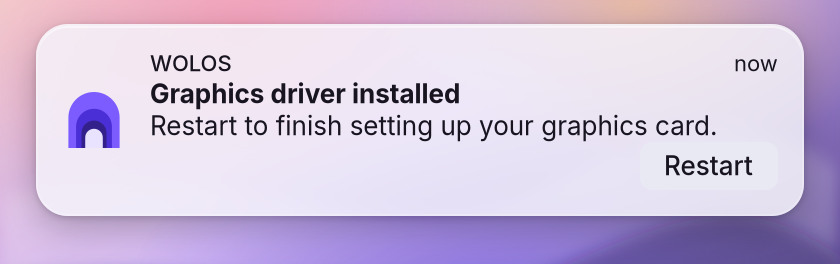
- A button on a banner does something straight away; its label says what.
- Escape, or simply waiting, dismisses a banner. It stays in Notification Center.
Notification Center
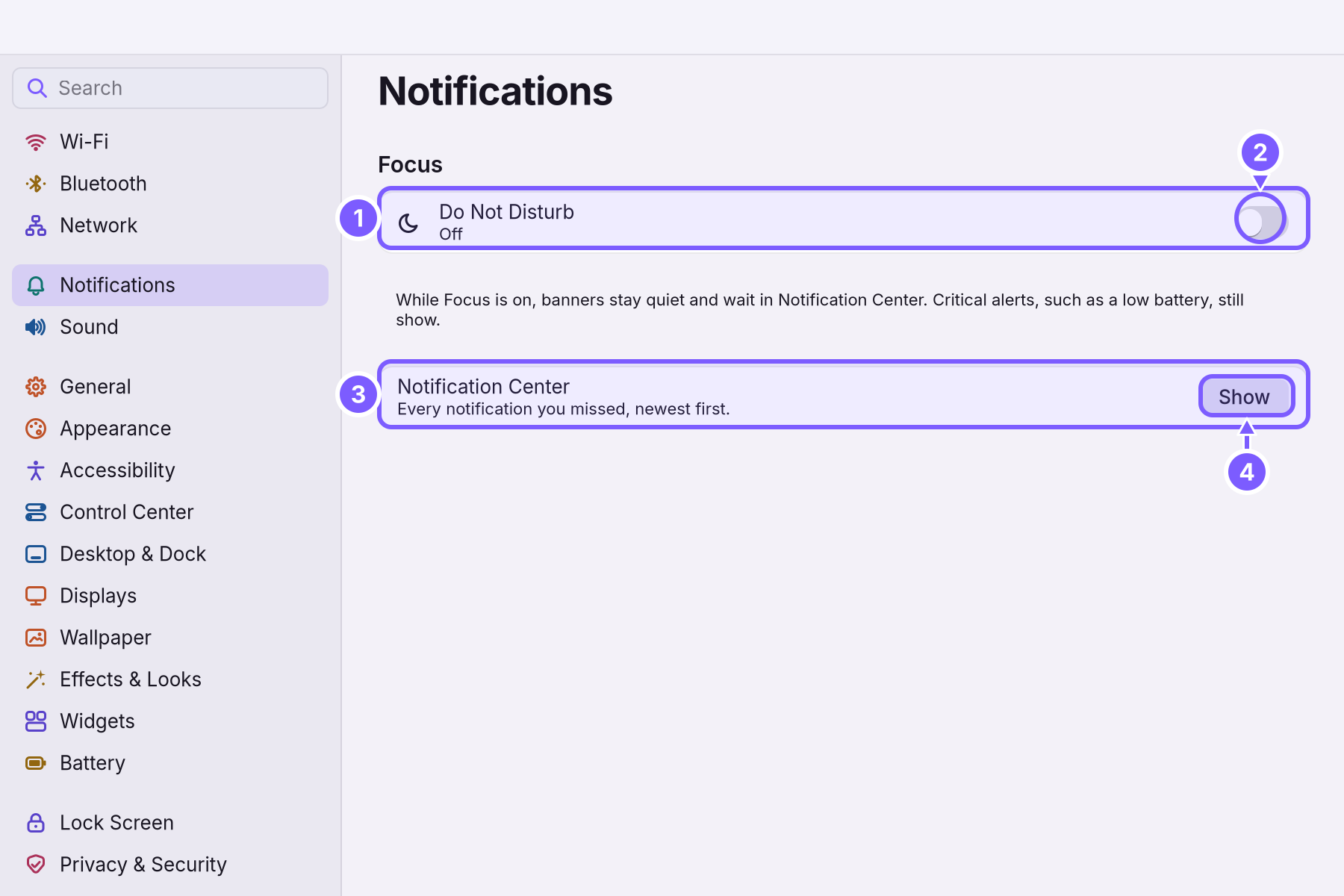
Click the date and time at the right end of the menu bar. Notification Center lists every notification you have not cleared, newest first. Click one to open it; Clear removes them. System Settings > Notifications > Notification Center > Show opens it too.
Quiet: Do Not Disturb and Focus
A switch that keeps banners off the screen. Notifications still arrive and wait in Notification Center. keeps every banner off the screen. Notifications still arrive and wait in Notification Center. "Critical alerts, such as a low battery, still show."
- From Control Center: click Focus, then Do Not Disturb and how long: For 1 hour or Until tomorrow morning.
- From the keyboard: Ctrl+Super+D turns it on and off.
- From System Settings > Notifications: the Do Not Disturb row (1) has a switch (2) and a choice of how long: When I turn it off, In one hour or Tomorrow morning.
While it is on, a moon shows in the menu bar and the row says how long: "On until you turn it off", or the time it ends.
| Setting | Default | What it does |
|---|---|---|
| Do Not Disturb | Off | Holds banners back; they wait in Notification Center. |
| How long | When I turn it off | When Do Not Disturb ends by itself. |
| Notification Center > Show | Opens the list of notifications you missed. |
While a game or a film is full screen
When an app fills the whole screen, WolOS holds banners back by itself and shows them when you leave An app filling the whole screen with no menu bar or Dock. Ctrl+Super+F turns it on and off.. You do not have to turn anything on. See Playing full screen.
Which apps may notify you
An app needs your permission to show notifications. You give it when the app asks, and you can take it back in System Settings > Privacy & Security, group Notifications: one switch per app. See Privacy and permissions.
A worked example
Alice is giving a presentation from her laptop. Before she starts she presses Ctrl+Super+D: the moon appears in the menu bar and no chat message pops up on the projector. After the talk she clicks the clock: Notification Center shows the three messages she missed. She presses Ctrl+Super+D again, and new banners show as usual.
If something goes wrong
| What you see | What to do |
|---|---|
| No banners at all | Do Not Disturb is on (a moon in the menu bar). Press Ctrl+Super+D or click Focus in Control Center. |
| One app never shows banners | It has no permission. Turn its switch on in System Settings > Privacy & Security > Notifications. |
| Banners come back while you play | The game is in a window, not full screen. Switch it to full screen, or turn on Do Not Disturb. |
| A low-battery message shows despite Do Not Disturb | That is on purpose: critical alerts always show. Plug the computer in. |
| Notification Center is empty though you missed something | The notification was cleared, or the app removed it when you opened it. |
Related
- Playing full screenWhat WolOS does while a game fills the screen: banners wait, frames go out at once, the refresh rate follows the game, and Force Quit still opens.
- Control CenterThe panel at the top right for the things you change every day: Wi-Fi, Bluetooth, Focus, Dark Mode, brightness, sound, music and quick switches.
- Privacy and permissionsWhat apps may use and how you allow it, the questions WolOS asks on screen, the firewall and the malware check, and where to take any permission back.
- System SettingsThe one window for everything you can change: how to open it, find any setting by typing, what every pane holds, and how to take a change back.
- The desktopThe menu bar, the Dock, windows, Search, switching apps and the four desktops: what each part of the screen is for and how to use it.