
Everyday
Sound
Volume, speakers and headphones, the microphone, voice effects for calls, and what to do when there is no sound or it crackles.
On this page
What it is
Everything about sound in one place: the volume, where sound comes out (speakers, headphones, a TV), which microphone listens, and a few helpers for calls. The quick controls are in The panel behind the icon at the top right of the menu bar: Wi-Fi, Bluetooth, Focus, brightness, sound and quick switches.; everything else is in System Settings > Sound.
Why WolOS does it this way
On many computers 100% does not mean the same thing on two devices, and a new microphone may arrive set so loud that it distorts. In WolOS, 100% is each device's own normal full level (A device's normal full level, shown as 100%. Only Allow Louder goes above it.), for speakers and microphones alike, so a new device starts sounding right. Going above it is possible, but only when you ask for it, because louder than normal can distort.
How
Set the volume
Drag the Sound slider in Control Center, or press the volume keys. A sign in the middle of the screen shows the new level. The mute key silences everything until you press it again.
Choose speakers, headphones and the microphone
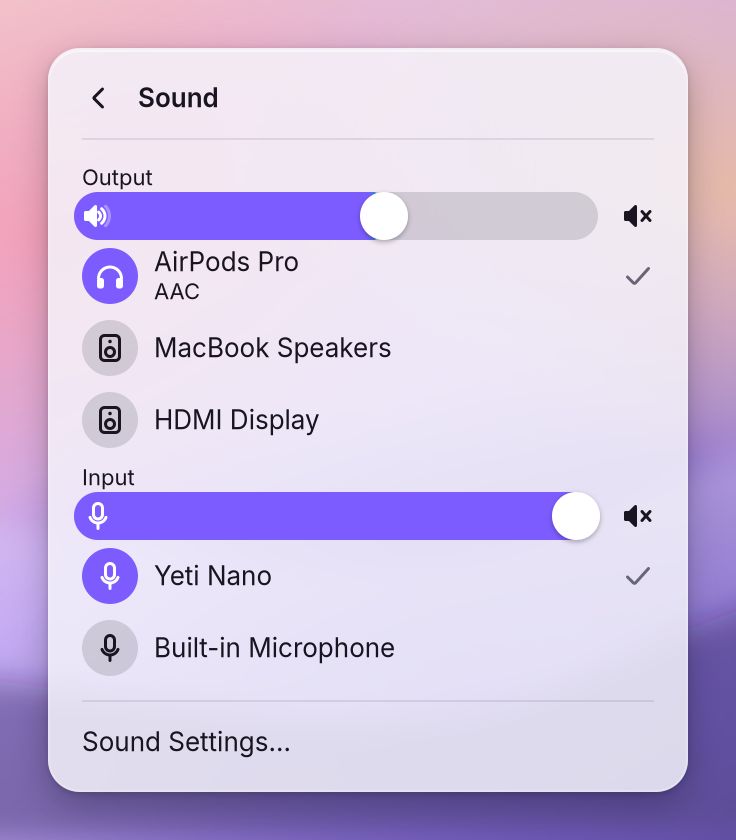
Click the arrow at the end of the Sound slider in Control Center. Output lists where sound can go, Input lists the microphones, each with its own slider and mute button. Click a device to use it; the tick moves. Wireless headphones show their The way sound or video is packed into a file or sent to a device. A player needs the right codec to play a file. under their name.
System Settings > Sound
Press Super+, and choose Sound, or click Sound Settings… at the bottom of Control Center's Sound page.
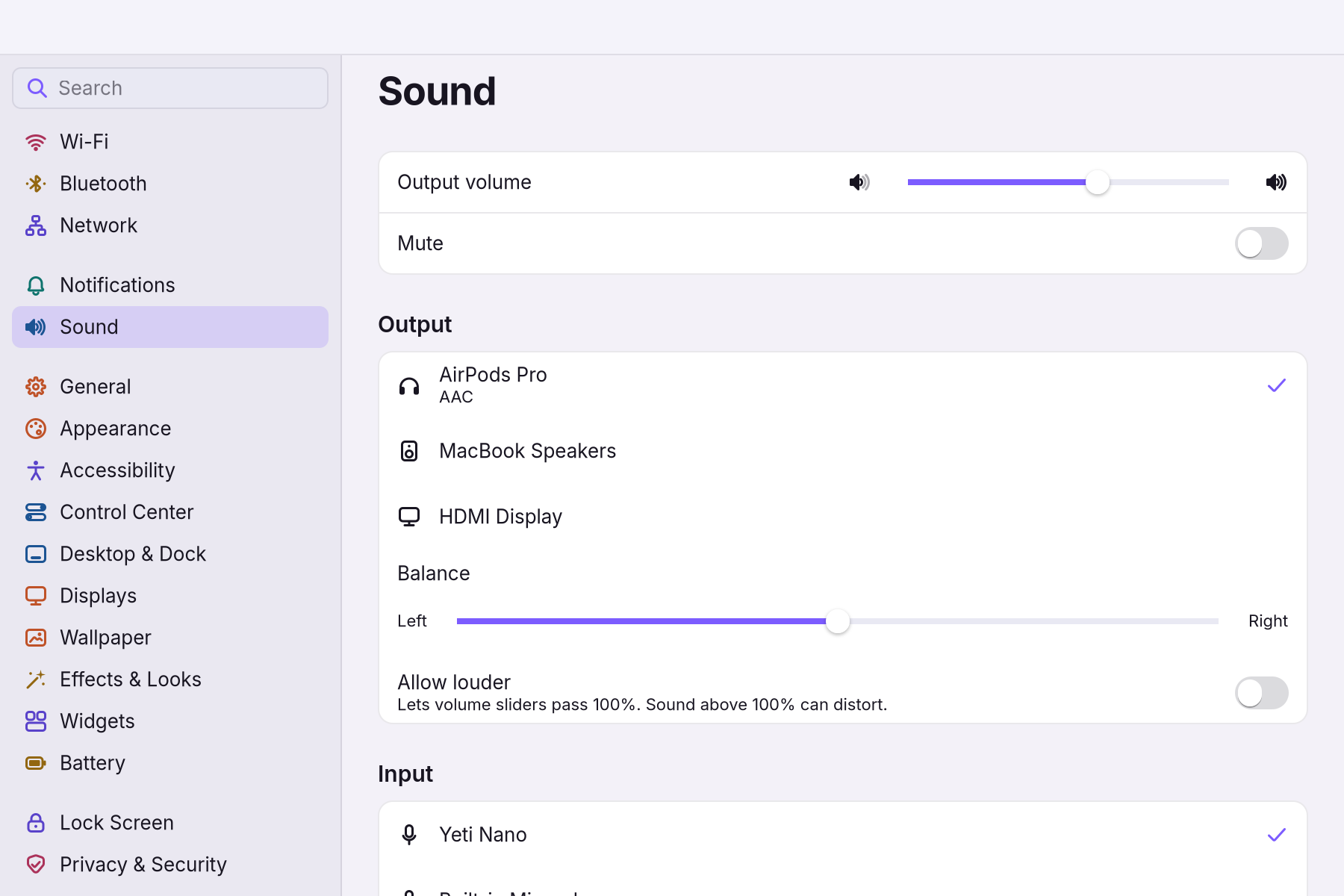
| Setting | Default | What it does |
|---|---|---|
| Output volume, Mute | The same as the slider in Control Center. | |
| Output | The device you used last | Where sound comes out. |
| Balance | Middle | Shifts sound to the left or right speaker. |
| Allow louder | Off | "Lets volume sliders pass 100%." Use it for a quiet laptop speaker or a quiet microphone; above 100% sound can distort. |
| Input and its level meter | The built-in or last microphone | Which microphone listens. The meter moves as you speak; red means too loud. |
| Automatic input level | Off | Keeps your voice at an even level in calls. It adds an input called WolOS Microphone and makes it the default. |
| Reduce background noise | Off | Filters out fans, keyboards and street noise from the microphone. |
| Bluetooth: Autoswitch | A headset switches to its call mode while an app records, so the microphone in the headset works. | |
| Pro Audio | Automatic | The sample rate and how much sound is prepared ahead (the Sound prepared ahead of time. A smaller buffer means less delay but can crackle.), for recording and music; see Low-latency sound. |
| Troubleshooting | Soft volume for a device whose volume jumps or does nothing; Reset; Copy diagnostics for a report. |
A worked example
Alice has a video call. Her colleagues say she sounds far away. She opens System Settings > Sound, watches the input meter while she speaks (it barely moves), turns on Automatic input level and Reduce background noise, and the call app now uses WolOS Microphone. Her voice comes through clearly, and the fan of her laptop no longer does.
If something goes wrong
| What you see | What to do |
|---|---|
| No sound at all | Check the mute key, then Control Center > Sound page: tick the device you want under Output. |
| Sound comes from the speakers, not the headphones | Tick the headphones under Output on the Sound page. |
| "No microphone is connected" | Nothing is plugged in or paired. Check the cable, or pair the headset in System Settings > Bluetooth. |
| "Sound devices are coming back" | The sound system restarted. Wait a few seconds. |
| The microphone is too quiet | Turn on Allow louder and raise the input slider while you watch the meter; red means it distorts. Or turn on Automatic input level. |
| A Bluetooth headset sounds bad in calls | That is its call mode, which every headset has. Turn Autoswitch off if you only listen. |
| Crackling or dropouts | In Pro Audio, choose a larger buffer or Automatic. |
| The volume jumps or does nothing on one device | Turn on Soft volume in Troubleshooting. |
| A switch flips back | The change did not take; the line under the section says why. Try again. |
| Nothing helps | Reset in Troubleshooting forgets stored volumes and devices and restarts sound. Copy diagnostics puts a report on the clipboard to paste into a bug report. |
Related
- Low-latency soundSet the sound delay for recording, live monitoring and music apps in Settings > Sound > Pro Audio, down to 64 samples (1.3 ms), and see dropouts.
- Control CenterThe panel at the top right for the things you change every day: Wi-Fi, Bluetooth, Focus, Dark Mode, brightness, sound, music and quick switches.
- Creative apps in one stepThe Creative module adds nine apps for drawing, photos, video, 3D, streaming and music in one step, with colour management and low-latency sound.
- Sharing and devicesYour computer's name on the network, Bluetooth headphones and mice, playing sound from an iPhone, sending files, and showing your screen on a second display.
- System SettingsThe one window for everything you can change: how to open it, find any setting by typing, what every pane holds, and how to take a change back.