
Make it yours
Dark Mode
Light text on dark backgrounds everywhere, all the time or only in the evening, switched in one click from Control Center.
On this page
What it is
Light text on dark backgrounds everywhere, for the evening or because you like it. turns the whole desktop and your apps dark: dark windows, dark menus, a dark terminal, light text. WolOS has three settings: Light, Dark, and Auto, which is light from 7:00 in the morning and dark from 19:00 in the evening.
Why WolOS does it this way
A bright white screen in a dark room is tiring, and many people simply like dark better. One setting for everything means no app stays bright while the rest turns dark; Auto means you never have to think about it. Your The one colour WolOS uses for what is selected or switched on: buttons, switches, highlights. You pick it in Settings > Appearance. follows along and is adjusted for each so it stays easy to read.
How
Switch it in one click
Open The panel behind the icon at the top right of the menu bar: Wi-Fi, Bluetooth, Focus, brightness, sound and quick switches. and click Dark Mode. It reads On or Off under its name. Click again to go back.
Choose Light, Dark or Auto
- Open System Settings > Appearance.
- Click Light, Dark or Auto in the row of three pictures at the top (1).
- The desktop and the apps that are open change at once.
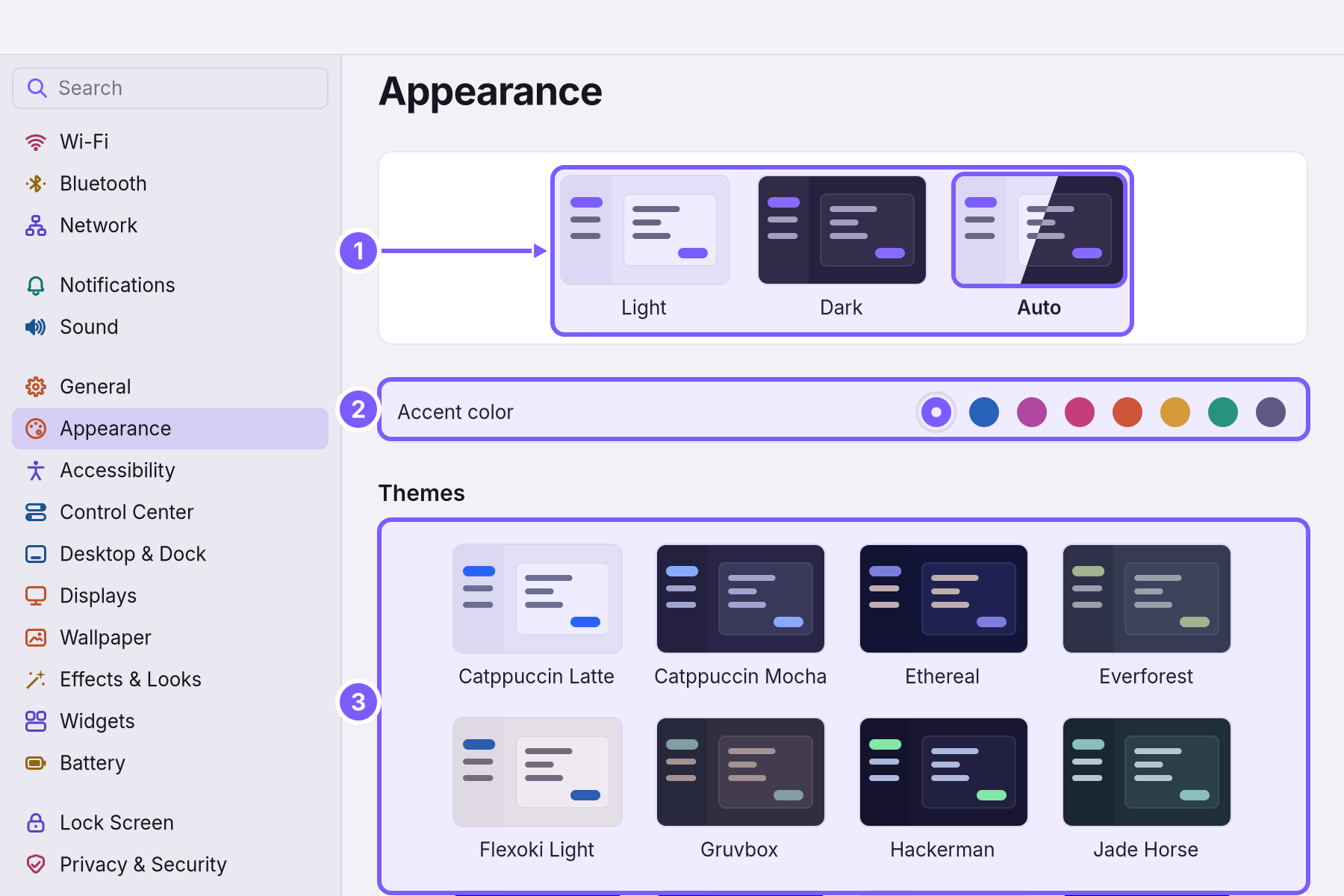
| Setting | What it does |
|---|---|
| Light | Light all day. |
| Dark | Dark all day. |
| Auto | Light from 7:00, dark from 19:00. The switch happens on its own at those times. |
The Dark Mode switch in Control Center changes between light and dark right away, whatever you chose here.
With a theme
A A set of colours that restyles the whole desktop and your apps at once. from the gallery brings its own colours: some are light (Catppuccin Latte, Flexoki Light), most are dark. See Looks and themes.
A worked example
Alice works late. She opens System Settings > Appearance and chooses Auto. At seven in the evening the desktop, her browser and her mail turn dark on their own; the next morning at seven they are light again. On a bright train one evening she wants it light, so she clicks Dark Mode in Control Center to turn it off; to have Auto back, she chooses it again in Appearance.
If something goes wrong
| What you see | What to do |
|---|---|
| One app stays light | Some apps follow the setting only when they start. Quit it (Super+Q) and open it again. A few apps have their own light/dark choice in their settings. |
| The accent colour does not change | A theme from the gallery is chosen; themes bring their own accent. Choose Light, Dark or Auto to use the accent colours. |
| Auto switches at the wrong time | Check the time zone in System Settings > General > Date & Time. |
| You want it back as before | System Settings > Restore > Recent Changes > Undo next to Appearance. |
Related
- Looks and themesLight, Dark or Auto, an accent colour, a gallery of themes that restyle the whole desktop and your apps, and a theme made from your wallpaper.
- System SettingsThe one window for everything you can change: how to open it, find any setting by typing, what every pane holds, and how to take a change back.
- Backups and undoTake back a setting you changed, go back to the system from before an update, and keep copies of your own files on a USB disk.
- Control CenterThe panel at the top right for the things you change every day: Wi-Fi, Bluetooth, Focus, Dark Mode, brightness, sound, music and quick switches.
- The terminal and the wol commandOpen Terminal, ask wol for help, read before you change, undo a change, and see why some commands ask for your password. Ten commands worth knowing.